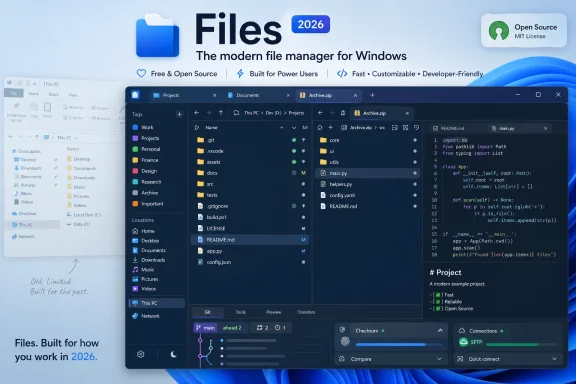
Files, a free open-source Windows file manager from the Files Community, is one of the strongest File Explorer alternatives in 2026 because it brings a modern WinUI 3 interface, dual-pane browsing, tabs, tags, archive handling, Git integration, FTP/SFTP support, and deeper customization to Windows 10 and Windows 11. The argument for Files is not merely that Microsoft’s built-in file manager is missing a few conveniences. It is that File Explorer has become a museum piece wearing a Windows 11 coat, while Files behaves more like the file manager Microsoft keeps promising but never quite ships. For power users, developers, and anyone who lives inside folders all day, that distinction matters.
File Explorer has improved. Windows 11 brought a cleaner command bar, tabs, a more contemporary home screen, and enough Fluent gloss to make the old workhorse look less out of place beside Settings, Terminal, and the rest of Microsoft’s newer shell furniture. For casual users, those changes are not trivial; they reduce clutter and make Explorer feel less hostile than the ribbon-heavy Windows 10 era.
But the deeper you go, the more the illusion breaks. Open Properties, Folder Options, or certain advanced dialogs and the user is abruptly transported backward through Windows history. The system’s default file manager still carries layers of legacy UI, compatibility compromises, and old interaction models that Microsoft appears unwilling—or unable—to fully replace.
That is not inherently irrational. File Explorer is load-bearing infrastructure. It touches shell extensions, network paths, OneDrive, enterprise policies, legacy applications, and workflows that have survived multiple Windows generations. Microsoft cannot treat it like a weekend redesign project.
Still, that conservatism has a cost. The file manager is one of the most-used surfaces in Windows, and for users who manage large media libraries, code repositories, archives, server files, or nested project folders, Explorer’s limitations are encountered not once a month but dozens of times a day. The built-in tool is reliable enough to remain unavoidable, but not ambitious enough to feel modern.
Files exists in that gap.
Files is built on WinUI 3, which gives it a visual consistency that Microsoft’s own File Explorer still struggles to maintain. It looks native to Windows 11 in the way many first-party apps only partially do: rounded corners, modern spacing, coherent theming, and a settings surface that does not feel like it was excavated from 2009. On Windows 10, it can feel almost like a preview of a more coherent Windows that never arrived.
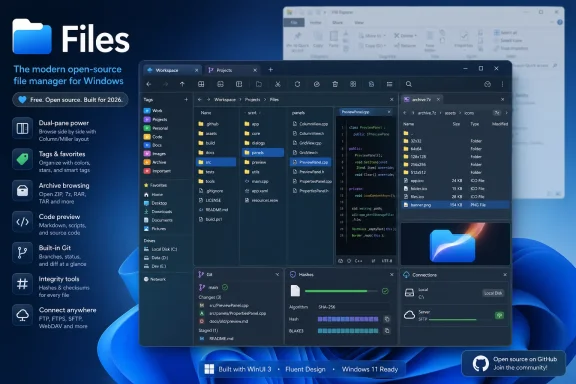
The interface is not the whole story, but it sets the tone. Files is opinionated about reducing window sprawl. Tabs are present, as they now are in Windows 11 File Explorer, but Files goes further with dual-pane mode, column layouts, richer previews, archive browsing, tags, and a command palette. The point is not novelty. The point is fewer interruptions.
That is where Microsoft’s built-in app feels strangely passive. Explorer mostly waits for you to open more windows, dig through context menus, or summon separate utilities. Files tries to absorb those detours into the file manager itself.
Dual pane fixes that by letting one Files window show two locations at once. It is a small structural change with outsized consequences. Copying between folders becomes clearer, comparing project directories becomes less tedious, and the user does not need to play window-management Tetris just to perform a basic operation.
This is not a new idea. Dual-pane file managers have existed for decades, from Norton Commander descendants to Total Commander, FreeCommander, Directory Opus, and many others. What Files does well is bring that old productivity pattern into a modern Windows interface without making the app feel like a cockpit from the shareware era.
Miller columns—the cascading column view associated most closely with macOS Finder—extend the same philosophy. Deep folder structures are easier to traverse when each level remains visible. Explorer’s breadcrumb bar helps, but it does not provide the same spatial understanding of where you are inside a nested hierarchy.
These are the kinds of features that expose File Explorer’s deeper problem. Microsoft has spent years making the shell look more modern, but it has been cautious about changing how file management fundamentally works. Files is willing to be a little more aggressive.
Files’ color-coded tags are a modest but meaningful alternative. A user can tag files and folders that live in different places and then gather them through the sidebar. It is not a replacement for search, metadata, or disciplined folder organization, but it acknowledges a simple truth: real projects rarely map cleanly to one directory tree.
Apple’s Finder has long made tags a visible part of everyday file organization. Windows has supported metadata in various forms, but File Explorer has never turned tagging into a simple, central workflow for normal files and folders. Files does, and the difference is less about decoration than retrieval.
The implementation also points to a broader design philosophy. Files assumes the user wants to shape the file manager around their work. Explorer assumes the user will adapt to Windows’ inherited structures. That distinction is why Files feels refreshing even where individual features are not revolutionary.
Files improves that equation with richer preview support, including Markdown rendering and syntax highlighting for code-oriented formats. That sounds like a niche feature until you watch a developer, sysadmin, or technical writer bounce through a directory of logs, scripts, documentation, and assets. Opening each item in a separate application is overhead. Previewing it inline keeps the user in context.
Archive handling follows the same logic. Files can browse common archive formats such as ZIP, 7z, and RAR-like packages without forcing extraction first. Explorer’s archive support has improved over the years, but Files makes compressed files feel more like folders in the day-to-day workflow.
There is also a security-adjacent benefit here. Being able to inspect the contents of an archive before extracting everything reduces the temptation to blindly unpack unknown files. It is not a substitute for antivirus scanning or sandboxing, but it is a better default habit.
A modern file manager should assume users need to look before they open. Files understands that.
In Files, the command palette can toggle hidden items, show file extensions, copy paths, create folders from selected items, open folders in Command Prompt, sort by tags, create ZIP archives, and perform other actions without forcing the user through layered UI. That matters because file management is repetitive. Even tiny reductions in friction compound quickly.
Explorer still relies heavily on visible controls, right-click menus, keyboard shortcuts, and legacy dialogs. That is fine for discoverability, but less efficient for users who know what they want. Files’ command palette makes the file manager feel less like a static shell component and more like a productivity application.
This is also where Files’ open-source DNA shows. Community-driven software often succeeds by adding workflow affordances that a platform owner considers too specialized. Microsoft must design for billions of users and enterprise compatibility. Files can design for the people who are frustrated enough to install a replacement.
For developers, Git status inside a file manager can make repositories more legible at a glance. The ability to sync, push, pull, or switch branches without leaving the app will not replace a full Git client or terminal workflow, but it can reduce context switching for routine tasks. The same is true of hash tools, which are invaluable when verifying downloads, checking file integrity, or confirming that two files are what they claim to be.
Built-in FTP and SFTP support pushes Files into territory traditionally occupied by tools such as WinSCP or commander-style managers. Serious server work may still demand dedicated clients, saved sessions, scripting, key management, and auditing. But for basic remote file operations, having SFTP inside the same app used for local file management is plainly useful.
This is where the “best alternative” claim becomes more credible. Files is not best for everyone, and it is not the most powerful file manager on Windows. Directory Opus remains a heavyweight for users willing to pay for deep customization and automation. Total Commander and its descendants still have loyal followings for keyboard-driven workflows. But Files occupies a compelling middle ground: modern enough for Windows 11, accessible enough for mainstream users, and capable enough for enthusiasts.
The open-source model matters here because file managers are trust-sensitive software. A file manager sees almost everything. It touches personal documents, source code, network locations, removable drives, archives, and cloud-synced folders. Transparency is not a magic shield, but public code and active issue tracking are meaningful signals for a tool that operates so close to the user’s data.
The flip side is that community-driven development can be uneven. A polished interface does not automatically mean enterprise-grade support, guaranteed roadmaps, or the same compatibility assurances users expect from Windows itself. File Explorer may be frustrating, but it is part of the operating system, tested across an enormous compatibility matrix, and supported by Microsoft’s servicing machinery.
That distinction should temper the hype. Files is impressive, but it is still an alternative app layered on top of Windows, not a replacement for the shell’s deepest plumbing. The best way to understand it is as a superior daily driver for many workflows, not as a magical excision of Explorer from the operating system.
For some users, that trade-off will be unacceptable. If the primary job is blazing through enormous directories on local storage with minimal overhead, Explorer or a lighter classic file manager may still win. If the user is managing millions of small files, network shares with fragile latency, or enterprise environments with complex shell extensions, caution is warranted.
But performance is not a single number. A tool that opens a folder a fraction of a second slower may still save minutes by reducing window juggling, archive extraction, or app switching. Files’ value proposition depends on that broader accounting.
This is why the app is most convincing for users whose bottleneck is workflow friction rather than raw folder enumeration. If Explorer feels slow because it lacks the right layout, not because it cannot list files quickly enough, Files may feel faster even when its rendering path is heavier.
That friction is telling. Microsoft encourages choice in some application categories but keeps the file manager closer to the operating system’s bones. There are good technical reasons for that. Explorer is not merely an app; it is entangled with the desktop, taskbar, shell namespace, control panels, legacy extensions, and countless assumptions made by third-party software.
Still, from a user’s perspective, the result is unsatisfying. If a third-party file manager provides a better experience, Windows should make adopting it safer and more reversible. Instead, the process remains obscure enough that many users will simply run Files alongside Explorer rather than truly replace it.
That may be the right compromise for now. Use Files as the main workspace. Let Explorer remain the system fallback. It is less ideologically pure, but it avoids turning file management into a Registry adventure.
OneCommander is perhaps the closest philosophical neighbor to Files: modern, visually ambitious, and designed around panes, columns, tabs, and tags. FreeCommander is more traditional but fast, capable, and free. Directory Opus is the premium powerhouse, the kind of tool that can become an operating environment unto itself. XYplorer appeals to users who want portability, scripting, and a highly configurable interface without a full installation footprint.
That range helps clarify Files’ position. It is not trying to be the most scriptable, the most retro, the fastest, or the most enterprise-hardened. It is trying to be the file manager Windows 11 users expected Microsoft to build: coherent, attractive, extensible, and much more capable than the default without requiring a week of configuration.
That makes Files unusually approachable. Many alternative file managers feel like joining a subculture. Files feels like installing the version of Explorer that should have shipped.
For users who simply want the app, the free download is enough. For users who want to fund continued work, the Store purchase is effectively a voluntary contribution with distribution benefits. The important point is that Files is not locking core functionality behind a consumer-hostile subscription or feature maze.
That matters because file managers are long-term tools. Users do not want to rebuild workflows around software that later becomes nagware, adware, or a subscription trap. Files’ open-source licensing and community posture reduce that anxiety, though they do not eliminate the normal uncertainties of any independent project.
In a Windows ecosystem increasingly shaped by accounts, cloud prompts, upsells, and bundled services, a straightforward open-source file manager has appeal beyond its feature list. It feels like software made for users who still believe the PC should be personal.
Microsoft could build many of these features into Explorer. It may even do so gradually. But the pace of improvement has been slow because Explorer’s role inside Windows rewards caution. Every modernization risks breaking habits, extensions, enterprise assumptions, or performance expectations.
Files is freer because it is optional. That optionality lets it move faster and take sharper positions. If users dislike it, they uninstall it. If a feature is too niche for Microsoft’s billion-user platform, it may still be perfect for a community-maintained tool serving enthusiasts, developers, and pros.
This is the recurring pattern in Windows software history. Third-party utilities often reveal what the platform owner has normalized as acceptable inconvenience. Eventually Microsoft absorbs some ideas, ignores others, and leaves the rest to the ecosystem. Files is currently doing that job for File Explorer.
Source: TechPP Files is the Best File Explorer Alternative for Your Windows PC - TechPP
 Microsoft Modernized the Frame, Not the Filing Cabinet
File Explorer has improved. Windows 11 brought a cleaner command bar, tabs, a more contemporary home screen, and enough Fluent gloss to make the old workhorse look less out of place beside Settings, Terminal, and the rest of Microsoft’s newer shell furniture. For casual users, those changes are not trivial; they reduce clutter and make Explorer feel less hostile than the ribbon-heavy Windows 10 era.But the deeper you go, the more the illusion breaks. Open Properties, Folder Options, or certain advanced dialogs and the user is abruptly transported backward through Windows history. The system’s default file manager still carries layers of legacy UI, compatibility compromises, and old interaction models that Microsoft appears unwilling—or unable—to fully replace.
That is not inherently irrational. File Explorer is load-bearing infrastructure. It touches shell extensions, network paths, OneDrive, enterprise policies, legacy applications, and workflows that have survived multiple Windows generations. Microsoft cannot treat it like a weekend redesign project.
Still, that conservatism has a cost. The file manager is one of the most-used surfaces in Windows, and for users who manage large media libraries, code repositories, archives, server files, or nested project folders, Explorer’s limitations are encountered not once a month but dozens of times a day. The built-in tool is reliable enough to remain unavoidable, but not ambitious enough to feel modern.
Files exists in that gap.
Files Wins by Treating File Management as a Workflow
The appeal of Files is not that it mimics File Explorer with a nicer coat of paint. Its appeal is that it rethinks common file-management friction as workflow friction. Moving files between two project folders, comparing directories, previewing code, jumping through nested paths, tagging related assets, and checking hashes are not exotic “power user” rituals anymore. They are ordinary computing tasks for a large slice of Windows users.Files is built on WinUI 3, which gives it a visual consistency that Microsoft’s own File Explorer still struggles to maintain. It looks native to Windows 11 in the way many first-party apps only partially do: rounded corners, modern spacing, coherent theming, and a settings surface that does not feel like it was excavated from 2009. On Windows 10, it can feel almost like a preview of a more coherent Windows that never arrived.
The interface is not the whole story, but it sets the tone. Files is opinionated about reducing window sprawl. Tabs are present, as they now are in Windows 11 File Explorer, but Files goes further with dual-pane mode, column layouts, richer previews, archive browsing, tags, and a command palette. The point is not novelty. The point is fewer interruptions.
That is where Microsoft’s built-in app feels strangely passive. Explorer mostly waits for you to open more windows, dig through context menus, or summon separate utilities. Files tries to absorb those detours into the file manager itself.
Dual Pane Is the Feature Explorer Should Have Had Years Ago
The single most convincing Files feature is dual-pane view. Anyone who has ever opened two Explorer windows side by side to move files from one folder to another already understands the case. The desktop becomes the file manager because the file manager cannot contain the task.Dual pane fixes that by letting one Files window show two locations at once. It is a small structural change with outsized consequences. Copying between folders becomes clearer, comparing project directories becomes less tedious, and the user does not need to play window-management Tetris just to perform a basic operation.
This is not a new idea. Dual-pane file managers have existed for decades, from Norton Commander descendants to Total Commander, FreeCommander, Directory Opus, and many others. What Files does well is bring that old productivity pattern into a modern Windows interface without making the app feel like a cockpit from the shareware era.
Miller columns—the cascading column view associated most closely with macOS Finder—extend the same philosophy. Deep folder structures are easier to traverse when each level remains visible. Explorer’s breadcrumb bar helps, but it does not provide the same spatial understanding of where you are inside a nested hierarchy.
These are the kinds of features that expose File Explorer’s deeper problem. Microsoft has spent years making the shell look more modern, but it has been cautious about changing how file management fundamentally works. Files is willing to be a little more aggressive.
Tags Are a Quiet Rebellion Against Folder Orthodoxy
Windows has always been folder-first. Users are expected to remember where something lives, maintain a hierarchy, and hope search behaves when memory fails. That model works until it does not, especially when files belong to more than one mental category.Files’ color-coded tags are a modest but meaningful alternative. A user can tag files and folders that live in different places and then gather them through the sidebar. It is not a replacement for search, metadata, or disciplined folder organization, but it acknowledges a simple truth: real projects rarely map cleanly to one directory tree.
Apple’s Finder has long made tags a visible part of everyday file organization. Windows has supported metadata in various forms, but File Explorer has never turned tagging into a simple, central workflow for normal files and folders. Files does, and the difference is less about decoration than retrieval.
The implementation also points to a broader design philosophy. Files assumes the user wants to shape the file manager around their work. Explorer assumes the user will adapt to Windows’ inherited structures. That distinction is why Files feels refreshing even where individual features are not revolutionary.
The Preview Pane Finally Learns New Tricks
File previewing is one of those areas where Windows has always seemed close to greatness but rarely arrived. File Explorer’s preview pane can be useful for common document and image types, and PowerToys can extend the experience. But the built-in story remains inconsistent, especially for developers and technical users who want to inspect Markdown, SVG, scripts, configuration files, or code without opening a full editor.Files improves that equation with richer preview support, including Markdown rendering and syntax highlighting for code-oriented formats. That sounds like a niche feature until you watch a developer, sysadmin, or technical writer bounce through a directory of logs, scripts, documentation, and assets. Opening each item in a separate application is overhead. Previewing it inline keeps the user in context.
Archive handling follows the same logic. Files can browse common archive formats such as ZIP, 7z, and RAR-like packages without forcing extraction first. Explorer’s archive support has improved over the years, but Files makes compressed files feel more like folders in the day-to-day workflow.
There is also a security-adjacent benefit here. Being able to inspect the contents of an archive before extracting everything reduces the temptation to blindly unpack unknown files. It is not a substitute for antivirus scanning or sandboxing, but it is a better default habit.
A modern file manager should assume users need to look before they open. Files understands that.
The Command Palette Turns File Management Into an App Platform
The command palette is one of Files’ more telling features because it borrows from developer tools rather than traditional file managers. Press a shortcut, type what you want, and execute an action without spelunking through menus. Visual Studio Code helped normalize this pattern, but it has spread because it solves a universal interface problem: powerful apps accumulate commands faster than users can memorize where they live.In Files, the command palette can toggle hidden items, show file extensions, copy paths, create folders from selected items, open folders in Command Prompt, sort by tags, create ZIP archives, and perform other actions without forcing the user through layered UI. That matters because file management is repetitive. Even tiny reductions in friction compound quickly.
Explorer still relies heavily on visible controls, right-click menus, keyboard shortcuts, and legacy dialogs. That is fine for discoverability, but less efficient for users who know what they want. Files’ command palette makes the file manager feel less like a static shell component and more like a productivity application.
This is also where Files’ open-source DNA shows. Community-driven software often succeeds by adding workflow affordances that a platform owner considers too specialized. Microsoft must design for billions of users and enterprise compatibility. Files can design for the people who are frustrated enough to install a replacement.
Developer Features Make Files More Than a Pretty Explorer Clone
The most interesting thing about Files is how quickly it stops being a mere Explorer alternative and starts becoming a lightweight operations console. Git integration, FTP/SFTP support, and hash comparison are not cosmetic features. They are attempts to collapse adjacent tools into the file manager.For developers, Git status inside a file manager can make repositories more legible at a glance. The ability to sync, push, pull, or switch branches without leaving the app will not replace a full Git client or terminal workflow, but it can reduce context switching for routine tasks. The same is true of hash tools, which are invaluable when verifying downloads, checking file integrity, or confirming that two files are what they claim to be.
Built-in FTP and SFTP support pushes Files into territory traditionally occupied by tools such as WinSCP or commander-style managers. Serious server work may still demand dedicated clients, saved sessions, scripting, key management, and auditing. But for basic remote file operations, having SFTP inside the same app used for local file management is plainly useful.
This is where the “best alternative” claim becomes more credible. Files is not best for everyone, and it is not the most powerful file manager on Windows. Directory Opus remains a heavyweight for users willing to pay for deep customization and automation. Total Commander and its descendants still have loyal followings for keyboard-driven workflows. But Files occupies a compelling middle ground: modern enough for Windows 11, accessible enough for mainstream users, and capable enough for enthusiasts.
Open Source Gives Files Its Momentum and Its Constraint
Files has become one of the most visible open-source Windows desktop applications for a reason. Its GitHub project shows tens of thousands of stars, thousands of forks, more than a hundred releases, and a broad contributor base. Those numbers do not prove quality by themselves, but they do demonstrate sustained interest in a category many people wrongly assume is solved.The open-source model matters here because file managers are trust-sensitive software. A file manager sees almost everything. It touches personal documents, source code, network locations, removable drives, archives, and cloud-synced folders. Transparency is not a magic shield, but public code and active issue tracking are meaningful signals for a tool that operates so close to the user’s data.
The flip side is that community-driven development can be uneven. A polished interface does not automatically mean enterprise-grade support, guaranteed roadmaps, or the same compatibility assurances users expect from Windows itself. File Explorer may be frustrating, but it is part of the operating system, tested across an enormous compatibility matrix, and supported by Microsoft’s servicing machinery.
That distinction should temper the hype. Files is impressive, but it is still an alternative app layered on top of Windows, not a replacement for the shell’s deepest plumbing. The best way to understand it is as a superior daily driver for many workflows, not as a magical excision of Explorer from the operating system.
The Performance Trade-Off Is Real
No honest assessment of Files can ignore performance. File Explorer may be aesthetically inconsistent and feature-conservative, but it is native, deeply integrated, and often faster in large directories or operations where shell integration matters. Files, built with modern frameworks and richer UI layers, can feel slightly slower in large folders, thumbnail-heavy views, or context-menu population.For some users, that trade-off will be unacceptable. If the primary job is blazing through enormous directories on local storage with minimal overhead, Explorer or a lighter classic file manager may still win. If the user is managing millions of small files, network shares with fragile latency, or enterprise environments with complex shell extensions, caution is warranted.
But performance is not a single number. A tool that opens a folder a fraction of a second slower may still save minutes by reducing window juggling, archive extraction, or app switching. Files’ value proposition depends on that broader accounting.
This is why the app is most convincing for users whose bottleneck is workflow friction rather than raw folder enumeration. If Explorer feels slow because it lacks the right layout, not because it cannot list files quickly enough, Files may feel faster even when its rendering path is heavier.
Making Files the Default Is Still a Windows Problem
One of the awkward realities around Files is that replacing File Explorer system-wide is not as clean as installing a new browser or terminal. Windows is not built to let users casually swap the shell file manager with a blessed default-app toggle. Setting Files as the default for directory and drive actions can involve Registry changes, and those changes should be approached carefully.That friction is telling. Microsoft encourages choice in some application categories but keeps the file manager closer to the operating system’s bones. There are good technical reasons for that. Explorer is not merely an app; it is entangled with the desktop, taskbar, shell namespace, control panels, legacy extensions, and countless assumptions made by third-party software.
Still, from a user’s perspective, the result is unsatisfying. If a third-party file manager provides a better experience, Windows should make adopting it safer and more reversible. Instead, the process remains obscure enough that many users will simply run Files alongside Explorer rather than truly replace it.
That may be the right compromise for now. Use Files as the main workspace. Let Explorer remain the system fallback. It is less ideologically pure, but it avoids turning file management into a Registry adventure.
The Competition Shows There Is No Single Perfect Explorer Replacement
Files is not alone, and that is important. Windows has a long history of alternative file managers because Explorer has always left room for disagreement. Some users want classic dual panes and keyboard shortcuts. Others want scripting, portable settings, high-speed search, FTP, archive handling, or a fully customizable command center.OneCommander is perhaps the closest philosophical neighbor to Files: modern, visually ambitious, and designed around panes, columns, tabs, and tags. FreeCommander is more traditional but fast, capable, and free. Directory Opus is the premium powerhouse, the kind of tool that can become an operating environment unto itself. XYplorer appeals to users who want portability, scripting, and a highly configurable interface without a full installation footprint.
That range helps clarify Files’ position. It is not trying to be the most scriptable, the most retro, the fastest, or the most enterprise-hardened. It is trying to be the file manager Windows 11 users expected Microsoft to build: coherent, attractive, extensible, and much more capable than the default without requiring a week of configuration.
That makes Files unusually approachable. Many alternative file managers feel like joining a subculture. Files feels like installing the version of Explorer that should have shipped.
The Store Price Is a Support Model, Not a Paywall
Files’ pricing can confuse people at first glance because the app is free from the project’s website but paid in the Microsoft Store. That is not unusual in open-source Windows software. The Store version functions as a convenient way to support development while offering a familiar install and update channel.For users who simply want the app, the free download is enough. For users who want to fund continued work, the Store purchase is effectively a voluntary contribution with distribution benefits. The important point is that Files is not locking core functionality behind a consumer-hostile subscription or feature maze.
That matters because file managers are long-term tools. Users do not want to rebuild workflows around software that later becomes nagware, adware, or a subscription trap. Files’ open-source licensing and community posture reduce that anxiety, though they do not eliminate the normal uncertainties of any independent project.
In a Windows ecosystem increasingly shaped by accounts, cloud prompts, upsells, and bundled services, a straightforward open-source file manager has appeal beyond its feature list. It feels like software made for users who still believe the PC should be personal.
The Explorer Alternative That Best Exposes Explorer’s Stagnation
The strongest argument for Files is also the most uncomfortable one for Microsoft: it demonstrates that many File Explorer shortcomings are not unsolvable technical problems. Dual pane is not science fiction. Rich previews are not impossible. Tags are not alien to desktop file management. A command palette is not beyond the comprehension of Windows users.Microsoft could build many of these features into Explorer. It may even do so gradually. But the pace of improvement has been slow because Explorer’s role inside Windows rewards caution. Every modernization risks breaking habits, extensions, enterprise assumptions, or performance expectations.
Files is freer because it is optional. That optionality lets it move faster and take sharper positions. If users dislike it, they uninstall it. If a feature is too niche for Microsoft’s billion-user platform, it may still be perfect for a community-maintained tool serving enthusiasts, developers, and pros.
This is the recurring pattern in Windows software history. Third-party utilities often reveal what the platform owner has normalized as acceptable inconvenience. Eventually Microsoft absorbs some ideas, ignores others, and leaves the rest to the ecosystem. Files is currently doing that job for File Explorer.
The Real Upgrade Is Fewer Detours Between Folders
The case for Files is not that everyone should replace File Explorer tomorrow. It is that Windows users who regularly manage files as part of real work should stop accepting Explorer’s limitations as the natural state of the PC.- Files is the best modern first stop for users who want a free, open-source File Explorer alternative that feels native to Windows 11.
- Its dual-pane mode, column view, tabs, and tags solve workflow problems that File Explorer still handles clumsily.
- Its preview, archive, Git, FTP/SFTP, hash, and command-palette features make it especially useful for developers, sysadmins, and power users.
- File Explorer remains faster and safer as the default system fallback, especially in large folders, legacy environments, and tightly managed enterprise setups.
- Setting Files as the true default file manager still requires care, so most users should begin by running it alongside Explorer before changing system behavior.
- Alternatives such as OneCommander, FreeCommander, Directory Opus, and XYplorer remain worth considering if your priorities are speed, classic dual-pane workflows, scripting, or commercial-grade customization.
Source: TechPP Files is the Best File Explorer Alternative for Your Windows PC - TechPP