

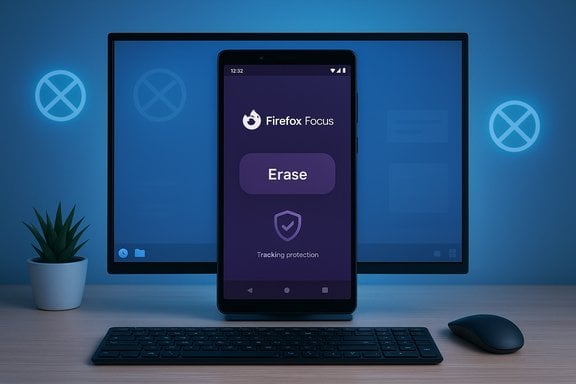
Firefox Focus remains a mobile-first privacy browser — there is no official native Windows or macOS desktop build — but yes, you can run it on a PC by way of an Android emulator; that approach works, it’s widely used, and it carries a set of practical trade‑offs you should understand before you install anything.
Firefox Focus was created by Mozilla as a deliberately minimal, privacy‑first browser for mobile devices. It strips away most of the long tail of browser features (extensions, persistent sync, saved passwords) so the app can provide a single-minded experience: block trackers and ads automatically, and erase session data with one tap. That design makes Focus an ideal tool for short, private sessions on phones and tablets. Mozilla’s website and support pages make the product positioning explicit: Focus is available for iOS and Android only, not as a native desktop app. Mozilla recommends using Private Browsing in the desktop Firefox if you want comparable functionality on a Mac or PC, and its official documentation confirms mobile‑only availability. That reality is what drives most PC users to the emulator route. This article verifies the common claims about Firefox Focus, explains the emulator options and step‑by‑step installation patterns, evaluates privacy and security tradeoffs, and compares Focus‑style workflows with native desktop alternatives that provide similar privacy protections.
Important preface: always download emulators from their official websites and keep Windows/macOS security tooling (antivirus, system updates) up to date. Emulators require virtualization support (VT‑x/AMD‑V) for best performance; enable it in BIOS/UEFI where applicable.
Source: PrioriData Download FireFox Focus for PC Windows 10/8/7 & Mac | Priori Data
 Background / Overview
Firefox Focus was created by Mozilla as a deliberately minimal, privacy‑first browser for mobile devices. It strips away most of the long tail of browser features (extensions, persistent sync, saved passwords) so the app can provide a single-minded experience: block trackers and ads automatically, and erase session data with one tap. That design makes Focus an ideal tool for short, private sessions on phones and tablets. Mozilla’s website and support pages make the product positioning explicit: Focus is available for iOS and Android only, not as a native desktop app. Mozilla recommends using Private Browsing in the desktop Firefox if you want comparable functionality on a Mac or PC, and its official documentation confirms mobile‑only availability. That reality is what drives most PC users to the emulator route. This article verifies the common claims about Firefox Focus, explains the emulator options and step‑by‑step installation patterns, evaluates privacy and security tradeoffs, and compares Focus‑style workflows with native desktop alternatives that provide similar privacy protections.What Firefox Focus actually does — verified features
Firefox Focus is intentionally small on features and big on automated privacy. These are the verified points you’ll see repeated across Mozilla’s documentation and official app stores:- Automatic tracker blocking and ad blocking: Focus blocks a wide array of third‑party trackers and many ads by default, which reduces tracking and often speeds page loads. Mozilla’s product messaging (for Firefox family products) uses the “blocks 2,000+ data trackers” line to describe the tracking protection that powers Focus and desktop Firefox; that figure is a high‑level marketing summary tied to the tracking blocklists used by Mozilla. Blocklists and counts change over time because they’re curated lists maintained by third‑party providers (Disconnect and similar projects).
- One‑tap erase / ephemeral sessions: Focus exposes a single, prominent erase button that clears history, cookies, and site data for the current session. That is the app’s explicit UX goal — make private, throwaway browsing trivial. Verified in Mozilla’s product page and app store descriptions.
- No extensions, no sync: Focus intentionally omits add‑ons and data sync. That’s by design — saving credentials and installing extensions would contradict the ephemeral model. Mozilla’s support channels and documentation confirm Focus does not support extensions or Firefox Sync.
- Privacy engineering choices: Focus’s privacy architecture includes on‑device data handling and optionally routed DNS/resolver choices; Mozilla’s privacy notice for Focus/Klar explains what data may be processed, how Safe Browsing is used, and that browsing session data is cleared when the app closes. Those implementation details matter for threat modeling.
Why people want Firefox Focus on PC
There are three common motives for running Focus on a desktop:- Quick, private sessions on shared machines — Focus’s one‑tap erase and ephemeral model is convenient for a public PC, kiosk, or loaner laptop.
- Consistent privacy behavior — users who rely on Focus on mobile want the same “private by default” experience when they switch to a desktop.
- Lightweight, distraction‑free browsing — Focus removes extra UI and clutter for fast in‑and‑out lookups.
Can you run Focus as a native desktop app? — Short answer and verification
- Short answer: No — there is no official Firefox Focus desktop client from Mozilla for Windows or macOS. Mozilla’s product pages and support threads explicitly list Focus for iOS and Android only; on desktop, Mozilla recommends regular Firefox with Private Browsing or Focus’s mobile behaviour (no native Focus).
- Workarounds: Emulation (Android app player) is the practical workaround used by many — BlueStacks, NoxPlayer, LDPlayer and other emulators allow you to run Android apps, including Focus, on Windows and Mac. Bluestacks even publishes a how‑to page showing exactly that pattern. Emulation is a proven technique but not a native port; it introduces resource and security trade‑offs to consider.
How to install Firefox Focus on PC — three common emulator methods
Below are step‑by‑step, practical installation paths used widely; each method follows the same high‑level flow (install emulator → sign into Play Store → install Focus). These steps are verified against emulator publishers’ guidance.Important preface: always download emulators from their official websites and keep Windows/macOS security tooling (antivirus, system updates) up to date. Emulators require virtualization support (VT‑x/AMD‑V) for best performance; enable it in BIOS/UEFI where applicable.
1. Install via BlueStacks (recommended for most users)
- Download BlueStacks from the official BlueStacks site and run the installer. BlueStacks is available for Windows and macOS and publishes system requirements on its site.
- Launch BlueStacks and complete the initial Android setup. Sign in with a Google account to access the Play Store.
- Open the Play Store inside BlueStacks and search for “Firefox Focus” (the app by Mozilla Corporation). Install it.
- Run Focus from the BlueStacks home screen. Configure the privacy settings to your preference and use the erase button to clear sessions.
2. Install via NoxPlayer (lighter, but be mindful of installation options)
- Download NoxPlayer from the official BigNox site and run the installer. Use the official support pages to avoid fake download mirrors.
- Launch Nox, open the Play Store inside the emulator, sign in with Google, search for Firefox Focus, and install.
- If offered any third‑party “bundles” or partner installers during the Nox installation, reject them (Nox’s own forums and community threads show bundled installers are sometimes offered on shady mirrors — always use the official site).
3. Install via LDPlayer (good for low‑resource machines)
- Download LDPlayer from the official LDPlayer website and install it; choose the recommended Android version if prompted.
- Open the Play Store, sign in, and install Firefox Focus from the Play Store. Alternatively, if Play Services inside the emulator is unreliable you can sideload an APK — but be cautious and only use a trusted APK source if you go that route.
- Adjust LDPlayer’s CPU and RAM allocation to gain performance if needed. Enable virtualization in BIOS for best results.
Practical checklist and safe‑use recommendations for running Focus under emulation
- Download emulators only from the official vendor pages (BlueStacks, BigNox, LDPlayer). Avoid third‑party aggregators and “mirrors” that may bundle extras.
- Use a dedicated Google account inside the emulator if you want to compartmentalize Play Store sign‑ins. This reduces cross‑device leakage to your main phone/account.
- Keep the emulator and the Play Services instance up to date. Outdated Play Services inside an emulator is a common cause of install and runtime errors. Community forums (Reddit and vendor FAQs) discuss these problems frequently.
- Treat the emulator as a separate device: do not share sensitive credentials between host and emulator unless necessary. Focus’s one‑tap wipe is useful, but app‑level clearing does not remove any host‑level emulator artifacts unless you also clear the emulator instance.
- If you require the highest assurance for sensitive tasks (banking, MFA‑protected corporate logins), prefer a native desktop browser or a dedicated secure environment rather than an emulator. Emulators are useful, but they are not equivalent to a hardened native client. Community and vendor guidance recommend caution.
Privacy & security trade‑offs explained
Running a mobile privacy app inside an emulator is a pragmatic hack, but it creates a different threat model than native mobile or desktop clients.What stays the same
- The Focus app’s internal privacy behaviors — tracker blocking based on its blocklist and the erase‑session UX — operate the same inside the emulator as they do on a phone. Mozilla’s code and the app’s behavior are unchanged; Focus will still invoke the same Safe Browsing and blocklist checks. The app’s privacy notice documents these behaviors.
What changes (risks to be explicit about)
- Host visibility and artifacts: the emulator runs on your host OS. Files, temporary data, screenshots, or emulator‑level cache can persist on disk in places the Focus app cannot clear. A one‑tap erase clears Focus’s app data inside the emulated Android environment, but not necessarily the host OS’s storage allocated to the emulator. That means a competent forensic examination of the PC could recover traces. Treat emulator sessions as less ephemeral than true ephemeral native sessions unless you also wipe the emulator instance.
- Purchase/sideload risks: sideloading APKs or using non‑Play sources increases the chance of installing tampered packages. Use the Play Store inside the emulator when possible; if you must sideload, verify APK signatures against known good sources. Community reports frequently include warnings about fake app packages and repackaged installers.
- Emulator vendor supply chain: emulator installers themselves sometimes include optional partner software. While major vendors provide clean official installers, community posts have historically reported bundled offers and aggressive promotion in some builds. Follow the vendor’s official instructions to avoid bundled installers and verify checksums where available.
- Performance and compatibility quirks: some websites, video streams, or login flows may detect the emulated environment or fail because Play Services inside the emulator is out of sync. Expect occasional breakage and be prepared to fallback to a native browser when a site “doesn’t work.” Community threads describe Google Play compatibility issues and emulator‑specific glitches.
- False comfort: using Focus doesn’t substitute for a full desktop privacy posture. On desktop, native choices like Brave, Tor Browser, or the DuckDuckGo desktop browser provide privacy protections without emulator overhead; sometimes they are a better fit depending on your needs. (More below.
Native desktop alternatives: when to choose them instead
If your goal is privacy on a PC, these native desktop browsers are worth evaluating; each provides a different balance of convenience, anonymity, and feature set.- Tor Browser (desktop) — highest anonymity and anti‑tracking via onion routing, but slow and not suitable for day‑to‑day browsing where speed matters. Use Tor for threat models requiring strong network‑level anonymity. Tor Project provides official desktop builds with signature verification.
- Brave (desktop) — blocks ads and trackers by default, supports Chromium extensions, includes a private window with Tor integration for on‑demand anonymity, and is fast for everyday browsing. It’s a good middle ground for speed + privacy.
- DuckDuckGo (desktop) — DuckDuckGo moved beyond search and now offers a desktop browser that mirrors their mobile fire‑button simplicity: privacy by default and easy session clearing. It’s built to be simple and privacy‑forward. If you like Focus’s minimalism but want a native desktop app, this is the most comparable option.
- Epic Privacy Browser — a Chromium fork that removes Google services, includes built‑in blocking of trackers and cryptomining scripts, and offers a built‑in VPN in some versions. Epic auto‑clears data on exit. Consider it if you want a “private by default” desktop experience with minimal configuration. (Evaluate the vendor’s current support and features before committing.
Decision guide — when to use Focus in an emulator and when not to
- If you need an identical mobile Focus session on a PC (for testing or convenience), the emulator path is reasonable. Use BlueStacks for best compatibility.
- If your primary goal is desktop privacy (daily browsing, multiple tabs, sync with other PCs), prefer a native privacy browser such as Brave or the DuckDuckGo desktop browser.
- If you require network‑level anonymity (hide your IP, bypass censorship), use Tor Browser rather than Focus under emulation. Tor provides a significantly stronger anonymity model.
- For extremely sensitive sessions (banking, corporate SSO), use a dedicated, hardened environment (native browser on an up‑to‑date OS) instead of an emulator to avoid host‑level artifact risks.
Quick troubleshooting notes (common emulator problems and fixes)
- Play Store sign‑in failures: try clearing the Play Store cache inside the emulator or reinstalling the emulator image; some emulator variants require a Play Services update. Community forums are full of device‑specific fixes.
- Slow emulator performance: allocate more CPU/RAM to the emulator, enable virtualization in BIOS/UEFI, and prefer SSD storage for the emulator image. Official emulator docs list recommended system specs.
- Fake installers and bundled adware: always download the emulator from the vendor’s official domain and decline any optional partner offers during setup. Vendor support pages warn about fake "mirror" sites — verify the URL before downloading.
Strengths, weaknesses and final verdict
- Strengths of the emulator approach
- Lets you run the genuine Firefox Focus app on Windows/macOS.
- Preserves the exact mobile Focus UX (one‑tap erase, minimal UI).
- Useful for testing and occasional private sessions on a desktop.
- Weaknesses and risks
- Emulation introduces host‑level artifacts and potential supply‑chain concerns (installer bundles).
- Performance and compatibility are variable across emulator vendors and OS versions.
- Not a substitute for native privacy tooling or Tor for serious anonymity needs.
- Practical verdict
- For casual, short private sessions on a shared desktop, running Firefox Focus under an emulator is an effective, usable approach provided you follow safe‑download hygiene and understand the limitations.
- For daily desktop privacy or high‑risk use cases, native desktop privacy browsers (Brave, DuckDuckGo desktop, Tor) are generally safer and simpler. Use Focus in an emulator when the specific Focus UX matters; otherwise pick a native alternative.
Actionable next steps (if you want to try it right now)
- Pick an emulator: BlueStacks for compatibility, LDPlayer for lower‑end machines, or Nox if you prefer its UI. Download from the official vendor site.
- Enable virtualization in BIOS/UEFI for best performance. Many emulator guides show how.
- Use a dedicated Google account inside the emulator to compartmentalize activity.
- Install Firefox Focus from the Play Store inside the emulator and test the erase button and tracker blocking on a few non‑sensitive sites. Verify behavior and ensure the Play Store/App updates work correctly.
- If you need persistent desktop privacy instead of the Focus mobile UX, install Brave or the DuckDuckGo desktop browser as an easier, native alternative.
Conclusion
Firefox Focus delivers a clean, effective mobile privacy experience: automatic tracker blocking, one‑tap session clearing, and a deliberately minimal interface. There is no official desktop Focus app, so the widely circulated advice to run Focus on Windows or macOS via an Android emulator is accurate and practical — it works and reproduces the mobile experience on a PC. However, the emulator route alters the threat model: host artifacts, installer supply‑chain risk, and occasional compatibility quirks mean it is best used for occasional private sessions or testing rather than as a daily primary browser. If desktop privacy is your everyday goal, native privacy browsers (Brave, DuckDuckGo desktop) or Tor Browser for anonymity are better long‑term choices. The user guide and emulator vendor pages give clear install steps and system requirements; follow the official pages and treat tracker‑count marketing figures as summaries rather than immutable technical guarantees.Source: PrioriData Download FireFox Focus for PC Windows 10/8/7 & Mac | Priori Data
