The short version: you do not need an Android emulator to run Lorex on Windows 10 — Lorex publishes desktop clients (Lorex Client 13, Lorex Cloud Client and VMS Client) for Windows — so the “install BlueStacks/Nox” routine that circulates online is a workaround, not the only option. This article verifies what Lorex actually offers for PC users, corrects outdated guidance, walks through the safest installation and setup options on Windows 10, and explains when emulators still make sense — plus practical troubleshooting, security advice, and professional alternatives for heavier surveillance setups.
Lorex is a mainstream consumer and prosumer surveillance brand whose mobile apps (Lorex Home, Lorex Cloud, Lorex Connect and related offerings) are widely used to view live video, review recordings, receive alerts, and manage devices. Lorex also maintains several desktop clients for Windows and macOS — Lorex Client 13, Lorex Cloud Client, and a VMS Client — intended for PC users who prefer a native desktop application rather than a mobile UI shoved into an emulator. The company’s downloads page and product documentation list these PC clients explicitly and provide user manuals and system requirements for each. Why this matters: many how‑tos and scraped pages still advise Windows users to install an Android emulator such as BlueStacks or Nox to run the Lorex mobile app on a PC. That is possible, and sometimes convenient, but it’s no longer the only — or usually the best — route. Using the official PC client avoids the extra compatibility layer, is designed to integrate with Windows, and is supported (and updated) by Lorex.
Source: Priori Data Download Lorex App for PC Windows 10 | Priori Data
 Background / Overview
Lorex is a mainstream consumer and prosumer surveillance brand whose mobile apps (Lorex Home, Lorex Cloud, Lorex Connect and related offerings) are widely used to view live video, review recordings, receive alerts, and manage devices. Lorex also maintains several desktop clients for Windows and macOS — Lorex Client 13, Lorex Cloud Client, and a VMS Client — intended for PC users who prefer a native desktop application rather than a mobile UI shoved into an emulator. The company’s downloads page and product documentation list these PC clients explicitly and provide user manuals and system requirements for each. Why this matters: many how‑tos and scraped pages still advise Windows users to install an Android emulator such as BlueStacks or Nox to run the Lorex mobile app on a PC. That is possible, and sometimes convenient, but it’s no longer the only — or usually the best — route. Using the official PC client avoids the extra compatibility layer, is designed to integrate with Windows, and is supported (and updated) by Lorex. What Lorex offers natively for Windows users
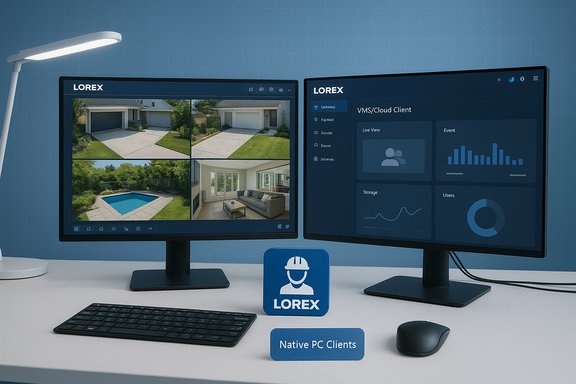
Lorex maintains multiple software products for desktop access. The three you need to know about are:- Lorex Client 13 — a general desktop viewer and management client for Lorex recorders and cameras; downloadable for Windows and macOS. It provides live view, playback, device configuration and recording export features.
- Lorex Cloud Client — a desktop app aimed at cloud‑connected devices, with simplified cloud login and management; the Cloud Client user manual explains recorder connections and usage limits (for example, up to six recorders can be connected).
- Lorex VMS Client — a VMS (video management system) style client for larger or pro setups that require enterprise features.
Why some guides still recommend emulators — and when that makes sense
Many older blog posts and aggregator pages (and some user posts) recommend using an Android emulator to run Lorex Home or Lorex Cloud mobile apps on PC. There are three reasons people still do this:- If you own a very old Lorex recorder that predates the modern PC clients, the mobile app may be the only modern UI compatible with some devices.
- If a particular feature or cloud integration exists only in the mobile app build (rare but possible for brand‑new features), users may opt to run that exact APK via an emulator.
- Some users prefer the mobile app interface and want to keep the exact same UI across devices.
Verifying the key claims (what was wrong with the emulator‑only advice)
A widely circulated piece claiming “Lorex doesn’t offer a native Windows 10 app” is either outdated or simply incorrect. Official Lorex documentation and the downloads page list Windows clients by name and provide installers and manuals for them, including explicit minimum system requirements for Lorex Client 13. The manual lists:- Minimum CPU: Intel Core i3
- Minimum memory: 4 GB RAM
- Windows: Windows 7 or above (i.e., Windows 10 supported)
- Video RAM: 512 MB or above
- Recommended network: 10/100/1000M LAN and a minimum WAN upload of 400 Kbps for remote view.
Step‑by‑step: How to install Lorex Client 13 on Windows 10 (official client)
- Visit Lorex’s official Mobile Apps & Software Downloads or Support Downloads page and locate Lorex Client 13 (or Lorex Cloud Client if you use cloud features). Download the Windows installer matching your architecture.
- Confirm your PC meets the minimum requirements (at least Intel i3, 4 GB RAM, and 512 MB VRAM). If you run multiple camera streams simultaneously, consider 8 GB+ RAM and a faster CPU for smoother playback.
- Run the downloaded installer as an Administrator and follow the prompts. Allow the installer through Windows SmartScreen / UAC if prompted. If prompted by an antivirus false positive, confirm the download came from Lorex’s official site before proceeding.
- Launch the client, create or sign in to your Lorex account (if required), and add your recorder/cameras by Device ID, QR code or local IP address — follow the client’s Add Device wizard. The Cloud Client manual details these exact steps and the fields you’ll need (device ID, username, password).
- Verify live view, playback and downloads. Test a short export to ensure download paths and file formats are correct. If you use cloud storage, confirm your subscription level and permissions in the client.
If you prefer the mobile UI: emulator guidance (BlueStacks / Nox)
Use an emulator only when necessary — for example, to test a mobile‑only feature or run an app build not available as a PC client. The mainstream emulators most users try are BlueStacks and NoxPlayer. Practical notes:- BlueStacks is stable, actively maintained, and lists minimum requirements (Windows 7+, 4 GB RAM recommended). BlueStacks support pages include troubleshooting tips for GPU driver issues and installation failures.
- Typical emulator install steps: download installer from the emulator vendor, run as Administrator, sign in with a Google account inside the emulator, open Play Store, search for “Lorex” (or “Lorex Home” / “Lorex Cloud”) and install like on a phone. Drag‑and‑drop APK installation is an alternative if you have a vetted APK.
- Performance tips: enable virtualization in BIOS/UEFI, allocate sufficient RAM/CPU in the emulator settings, update GPU drivers, and avoid running many simultaneous camera streams in the emulator (performance will usually be worse than native PC clients).
Troubleshooting: common roadblocks and fixes
- “Client won’t install” or installer shows corruption: re‑download the installer from Lorex’s official support page and check file size/hashes if available; try downloading on another machine and transfer via USB if web download consistently fails. Some community posts show users solving installer errors by moving the installer onto the PC from another device.
- “Devices won’t appear in the desktop client”: confirm recorder and PC are on the same LAN for local discovery; check firewall allows the client and that UPnP or relevant ports are not blocked; use manual add (Device ID or IP) when discovery fails. Official help pages recommend checking compatibility and client version.
- Mobile data access problems (app works on Wi‑Fi but not cellular): this can be caused by NAT, carrier restrictions, or recent mobile OS changes — community threads show this recurring for some users; Lorex support sometimes recommends port forwarding as a temporary workaround while they patch the app. Treat port forwarding and opening router ports as an advanced step (and secure the device accordingly).
Security and privacy checklist for PC clients and emulators
- Download installers only from Lorex’s official support pages or verified app stores. Avoid third‑party mirrors. The Help Center explicitly lists the client downloads — use those links.
- Keep firmware and client software up to date. Many “video playback not working” reports trace to version mismatch between recorder firmware and app client. Check both recorder and client for updates before troubleshooting deeper.
- Use strong, unique passwords and enable two‑factor authentication for your Lorex account if supported. If remote access requires opening router ports, prefer VPN or secure port forwarding and document exactly which ports are open.
- If you must use an Android emulator: do not sideload APKs from unknown sources. Keep your emulator updated and isolate it (e.g., run it under a non‑admin Windows account) to reduce risk. BlueStacks support pages explicitly recommend updating GPU drivers and using official installers to avoid quirks.
Alternatives for PC-based surveillance (if you outgrow Lorex clients)
For users who want more advanced, Windows‑centric VMS capabilities or multi‑brand support, consider these proven alternatives:- Blue Iris — a popular Windows‑only NVR/VMS with powerful motion detection rules, alerts, and extensive camera compatibility. It’s a paid product but widely used by prosumers.
- iSpy/Agent DVR — open‑source / freemium options for local recording, alerts and remote access. Powerful but requires more setup.
- Milestone XProtect — a professional VMS with free tiers for small deployments, used by small businesses and prosumers requiring enterprise features.
Critical analysis: strengths, weaknesses and risks of the emulator vs native client approaches
Strengths of Lorex native PC clients- Supported and documented: Lorex publishes manuals and downloads for desktop apps; system requirements and user manuals exist. This reduces risk for mainstream users.
- Better integration with Windows: desktop clients typically offer direct file export paths, native notifications, and better multi‑monitor support than an emulator.
- Client bugs and fragmentation: community threads show that some users still encounter playback, connection, or cloud access issues on both mobile and desktop clients. Expect some troubleshooting, especially with older recorders or after major mobile OS updates.
- Model and regional differences: not all Lorex firmware or product generations behave identically. Always use Lorex’s compatibility chart and look up your model before assuming full feature parity across apps.
- Increased attack surface: emulators require extra software layers and may require enabling virtualization, changed firewall rules, or sideloading APKs — all of which increase security exposure.
- Performance and stability: video decoding, multiple simultaneous streams, and high‑resolution footage are more resource intensive under an emulator, often resulting in degraded performance compared with native apps.
Verdict and recommendations
- If your priority is stability, official support, and easier troubleshooting, download and run Lorex Client 13 or Lorex Cloud Client for Windows 10 — they are official, supported, and documented.
- If you read a guide that says “Lorex has no native Windows client” treat that guidance as outdated and verify with Lorex’s Help Center and downloads pages before following emulator instructions. The manufacturer’s resources show explicit Windows desktop clients.
- Use an emulator like BlueStacks or Nox only when absolutely necessary (mobile‑only feature, specific APK requirement), and follow emulator vendor guidance to minimize performance and security problems.
- Keep firmware, app, and client versions aligned; gather version details before contacting support to speed problem resolution.
Quick checklist — files, settings and preflight before installation
- Confirm your recorder/camera model and check Lorex’s compatibility chart for the recommended client.
- Confirm your PC meets the minimum system requirements: Intel Core i3 or better, 4 GB RAM minimum (8 GB recommended for multi‑camera), and adequate free disk space.
- Download installers only from Lorex’s official support or product pages.
- If you must open router ports for remote access, use secure credentials and consider a VPN; document exactly what you change.
Conclusion
The landscape of Lorex software for Windows has evolved: the company offers official desktop clients that are the correct primary option for Windows 10 users who want a native experience. Emulators are useful tools in a pinch, but they are not required for most modern Lorex systems and should be treated as secondary solutions. Follow the official downloads and manuals for stable installs, keep firmware and clients current, and use best practices for network security to keep your camera feeds private and reliable.Source: Priori Data Download Lorex App for PC Windows 10 | Priori Data