

Phonto is one of the simplest — and surprisingly powerful — ways to add stylish typography to photos, and while it’s a mobile-first app, Windows and macOS users can run it on a desktop today using mainstream Android emulators; this article verifies the claims in the typical “Phonto for PC” how‑to, checks the technical details you need to know, and gives practical, security‑first guidance for installing and running Phonto on Windows 7/8/10 and macOS systems.
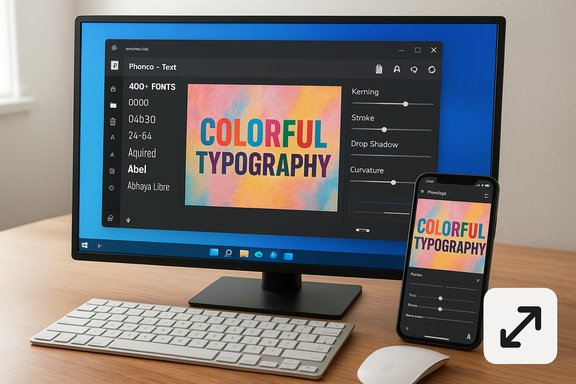
Phonto began as a compact mobile utility whose core value is one thing done well: adding and styling text on photos. The app’s store pages advertise more than 400 fonts bundled, plus the ability to install custom fonts, and a long list of typography controls — kerning, line spacing, stroke, shadow, gradients, curvature/perspective and more — that make it useful for everything from Instagram captions to simple marketing assets. Those feature claims appear in the official app listings and are corroborated by multiple app indexers and review aggregators. Phonto remains mobile‑native: there is a published iOS App Store page for iPhone/iPad and a Google Play listing for Android; there is no vendor‑published native Windows .exe or macOS desktop app intended as a direct download for desktops. The practical implication is that desktop usage currently relies on running the mobile build inside an Android runtime (an emulator) or using other desktop-native design tools instead.
Remember:
Source: PrioriData Download Phonto App for PC – Windows 7/8/10 & MAC | Priori Data
 Overview
Phonto began as a compact mobile utility whose core value is one thing done well: adding and styling text on photos. The app’s store pages advertise more than 400 fonts bundled, plus the ability to install custom fonts, and a long list of typography controls — kerning, line spacing, stroke, shadow, gradients, curvature/perspective and more — that make it useful for everything from Instagram captions to simple marketing assets. Those feature claims appear in the official app listings and are corroborated by multiple app indexers and review aggregators. Phonto remains mobile‑native: there is a published iOS App Store page for iPhone/iPad and a Google Play listing for Android; there is no vendor‑published native Windows .exe or macOS desktop app intended as a direct download for desktops. The practical implication is that desktop usage currently relies on running the mobile build inside an Android runtime (an emulator) or using other desktop-native design tools instead. Background: why people ask for “Phonto for PC”
The appeal is obvious: a larger screen, more precise mouse control for positioning and kerning, and a desktop workflow for batch export and content creation. Many social media creators and small teams prefer to compose on a laptop or desktop and then publish — running Phonto in an emulator reproduces the mobile UI and feature set, so it’s a pragmatic solution for parity with the mobile experience. Community guides and vendor‑style how‑tos that recommend BlueStacks or NoxPlayer are effectively describing the same technique: run Phonto’s Android APK inside a trusted emulator and treat the emulator like a contained Android device.What Phonto actually offers (verified)
Below are the most important, verifiable product claims and how they map to real usage:- Font library: The app advertises 400+ fonts bundled and supports installing additional TTF/OTF fonts. This is confirmed on official store pages.
- Typography controls: Phonto offers kerning, line spacing, stroke, shadow, gradients, background color, rotation and curved/perspective text tools as part of its UI. These are consistently documented in the app description.
- Custom fonts: The app supports importing fonts so you can use brand typefaces or third‑party fonts. The App Store copy and developer help pages outline how to install fonts.
- Monetisation / availability: Phonto is free to install with in‑app purchases and an option to remove ads; the store entries list purchasable image/kit packs and an ad‑free upgrade.
- Platform coverage: Officially distributed on iOS (iPhone/iPad) and Android (Google Play). No native Windows or macOS binary is published by the developer; desktop usage uses an emulator.
How to run Phonto on a PC or Mac (step‑by‑step, verified)
Running Phonto on a desktop is not magical; it’s an Android app inside a desktop Android runtime. Two mainstream emulators dominate this use case: BlueStacks and NoxPlayer. Both are actively maintained and widely used; each has trade‑offs in performance and compatibility. Official emulator documentation and community guides provide the recommended steps and the warnings you need to follow.Method 1 — BlueStacks (broad compatibility)
- Download the BlueStacks installer from BlueStacks’ official site and run it as Administrator. BlueStacks’ own documentation lists minimum and recommended system requirements (minimum 4 GB RAM and ~5 GB free disk, recommended 8 GB+ and SSD).
- Launch BlueStacks and sign into Google Play with a Google account inside the emulator.
- Open the Play Store inside BlueStacks, search for “Phonto – Text on Photos” (com.youthhr.phonto) and install the app.
- Run Phonto from BlueStacks’ app drawer and use it as on a phone. For exporting or saving, use the emulator’s file mapping to transfer images to the host disk if needed.
- If performance is sluggish, increase the emulator’s allocated RAM/CPU in BlueStacks settings and ensure virtualization support (VT‑x/AMD‑V) is enabled in BIOS/UEFI.
Method 2 — NoxPlayer (lighter footprint on some machines)
- Download NoxPlayer from the official Nox site and install it. Nox lists 2 GB as a very basic minimum, but recommends 4 GB+ RAM for real‑world use; it supports Windows 7 and later.
- Launch Nox, sign into Google Play, search for Phonto, and install.
- Configure Nox’s Advanced → Performance settings to allocate CPU cores and RAM to the emulator; enabling virtualization boosts performance markedly.
System requirements and performance tuning (what to expect)
Running an emulator is a modest VM‑like workload. From official emulator documentation and community testing, use the following practical baseline:- Minimum: 4 GB system RAM, Intel/AMD processor (recent generation), ~5 GB free disk for the emulator image. Windows 7/8/10 are supported by the emulator vendors, but modern Windows 10/11 builds provide a better experience.
- Recommended: 8 GB+ RAM, SSD, virtualization enabled (VT‑x / AMD‑V), current graphics drivers. This yields a smoother UI, faster app installs, and better export performance.
- macOS: BlueStacks offers macOS builds; on Apple Silicon machines confirm emulator support for ARM builds or use alternative virtualization paths. Emulators vary in Apple Silicon compatibility, so consult vendor pages before attempting installation.
- Allocate extra RAM and CPU cores to the emulator, but leave enough memory for the host OS.
- Use an SSD for the emulator image to reduce load times and avoid dropped frames when previewing or exporting multiple large images.
- Enable virtualization in BIOS/UEFI for best responsiveness.
Step‑by‑step checklist (quick reference)
- Make a small test: pick a non‑sensitive image to test Phonto inside an emulator before moving any private or critical images.
- Download emulator (BlueStacks / Nox) from the official site. Verify installer integrity if possible.
- Install emulator, enable virtualization, and allocate 4–8 GB RAM depending on host.
- Sign into Google Play inside the emulator and install Phonto (com.youthhr.phonto).
- Configure file mapping / shared folders so exported images are accessible on the host desktop.
- Close the emulator when not in use; treat it as an extra runtime you must update like any application.
Troubleshooting common issues
- App won’t show in Play Store inside the emulator: sign into a Google account inside the emulator and make sure Play Services are active. Some emulators require a one‑time update of Play Services.
- Sluggish UI or export failures: increase RAM/CPU in emulator settings, enable VT in BIOS, and move the emulator image to an SSD.
- Saving/export errors in Phonto: some users report occasional save glitches after OS or app updates; keep app and emulator updated, export a copy and try different formats if one fails. Community reports suggest periodic instability that usually resolves with updates.
- Audio or camera passthrough (if you use Phonto’s camera inside an emulator): emulators may handle hardware passthrough differently; use host capture or import images from the host file system instead.
Alternatives — when a native desktop tool is a better choice
If your workflows demand native desktop performance, batch automation, or precise color management, consider these native alternatives that avoid emulation entirely:- Canva — runs in a browser, huge template library, built‑in fonts and stock assets; great for quick social assets and team collaboration. Use browser export and native desktop downloads for fast turnaround.
- GIMP — open‑source, fully native, supports layers and advanced typography with a steeper learning curve; good for pixel‑level control and free.
- Paint.NET — lightweight native Windows editor with plugins for extended effects; simpler than GIMP for basic tasks. (Community plugin ecosystem can approximate mobile effects.
- Adobe Photoshop — industry standard for typography and compositing; best for high‑end design and print output but requires subscription and a learning investment.
Security, privacy and legal considerations
- Emulator risk surface: installing an emulator adds another permissions boundary and runtime to your PC. Only install emulators from vendor sites and keep them updated. Community guidance repeatedly flags repackaged installers as a common source of bundled unwanted software.
- APK provenance: install Phonto from the Play Store inside the emulator rather than sideloading APKs from unknown sites. If you must sideload, use reputable mirrors (and verify signatures) and scan APKs before opening.
- Data sensitivity: avoid processing images that contain highly sensitive personal or regulated data inside unverified cloud workflows. Emulation itself is local, but some apps or emulators may sync or upload data — review app permissions and emulator privacy settings.
- Licensing and fonts: when importing fonts, verify licensing for commercial use. Installing a free TTF on your desktop and using it for client work is not a substitute for confirming the font’s commercial license. Phonto does allow custom fonts, but license compliance remains the user’s responsibility.
What the PrioriData-style how‑to gets right — and where to be cautious
The common PrioriData write‑ups about “Phonto for PC” accurately capture the practical route: run the mobile app inside an emulator and expect a near‑identical mobile UI on desktop. Emulators like BlueStacks and Nox are the documented, practical solutions. Those guides also correctly highlight that you can import custom fonts, use advanced text effects, and export high‑quality images — these are core app features. However, several claims often repeated in such copy‑and‑paste how‑tos deserve caution:- Installer sizes and exact emulator file sizes are variable and not a stable technical guarantee; one guide’s “BlueStacks installer ~400MB” is plausible but not authoritative — check BlueStacks downloads for current packaging. Treat installer size as a non‑binding fact unless verified just prior to download. Flagged as uncertain.
- Performance on older Windows 7 machines will vary considerably; minimum specs in vendor docs are a baseline, but practical results usually require the recommended specs (8 GB+ RAM, SSD) for smooth multi‑tasking and exports.
- Claims that a mobile app “behaves exactly like on a phone” are mostly true for UI, but background services, camera passthrough and hardware acceleration can differ inside an emulator; test any critical export or automation step before committing to a production workflow.
Final verdict and practical recommendation
Phonto is a proven, compact typography tool that lives on Android and iOS. If your goal is exact parity with the mobile app — and you are comfortable running an Android runtime on your machine — then installing BlueStacks or NoxPlayer and downloading Phonto from the Play Store inside the emulator is the simplest and clearest route. Follow vendor guidance, allocate sufficient host resources (4–8+ GB RAM recommended), and prefer official downloads. If you want a native desktop workflow that scales (automated batches, color‑management, advanced compositing), evaluate desktop apps like Canva, GIMP, Paint.NET or Photoshop instead; they avoid emulation overhead and integrate more tightly with desktop automation and printing pipelines.Remember:
- Use official emulator downloads and the Play Store inside the emulator for app installs.
- Enable virtualization for best performance, and allocate extra RAM/CPU to the emulator only after ensuring the host retains enough resources to remain responsive.
- Verify font licensing before using third‑party fonts in commercial projects.
Source: PrioriData Download Phonto App for PC – Windows 7/8/10 & MAC | Priori Data
