

PhotoGrid runs on desktop — but not as a native Windows or macOS installer; the fastest, safest routes are either PhotoGrid’s own web editor or running the Android app inside a well‑configured emulator such as BlueStacks or NoxPlayer, with clear trade‑offs around performance, privacy, and feature parity to weigh before installing.
PhotoGrid began life as a popular mobile-first collage and photo‑editing app and has since expanded into a multi‑modal editing suite with templates, stickers, filters, AI tools (background removal, object erase, upscaling) and a web editor. The vendor now promotes an online editor and multiple AI utilities while the Android app remains the primary mobile distribution path. The PhotoGrid website advertises large template libraries, AI background removal, object removal and headshot generation among other features, positioning the product as a one‑stop photo editor for social media creators and small businesses. At the same time, many users still prefer running the mobile app on a PC for the familiar mobile UI or to reuse purchases. That is possible today through Android emulators; BlueStacks explicitly lists PhotoGrid in its app library and documents how to run Android apps on Windows or macOS, while NoxPlayer remains an alternative for desktop Android emulation. This article walks through the verified download and installation options for Windows and macOS, clarifies system requirements and performance tips, evaluates feature parity and limitations, compares native desktop alternatives, and finishes with a security and governance checklist for safe use.
Source: PrioriData Download PhotoGrid for PC – Windows & MAC | Priori Data
 Background
PhotoGrid began life as a popular mobile-first collage and photo‑editing app and has since expanded into a multi‑modal editing suite with templates, stickers, filters, AI tools (background removal, object erase, upscaling) and a web editor. The vendor now promotes an online editor and multiple AI utilities while the Android app remains the primary mobile distribution path. The PhotoGrid website advertises large template libraries, AI background removal, object removal and headshot generation among other features, positioning the product as a one‑stop photo editor for social media creators and small businesses. At the same time, many users still prefer running the mobile app on a PC for the familiar mobile UI or to reuse purchases. That is possible today through Android emulators; BlueStacks explicitly lists PhotoGrid in its app library and documents how to run Android apps on Windows or macOS, while NoxPlayer remains an alternative for desktop Android emulation. This article walks through the verified download and installation options for Windows and macOS, clarifies system requirements and performance tips, evaluates feature parity and limitations, compares native desktop alternatives, and finishes with a security and governance checklist for safe use.Overview: How PhotoGrid runs on PC
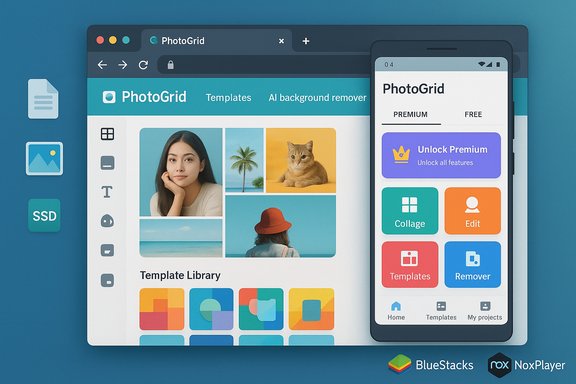
Two practical desktop paths
- Use the PhotoGrid web editor (no emulator required) for most collage and AI edit tasks, including background removal and template editing. This is the most straightforward and secure option for desktop users who want instant access without installation.
- Install an Android emulator (BlueStacks or NoxPlayer) and run the PhotoGrid Android app inside it. This provides the full mobile UI, in‑app purchases and feature set, but adds an emulation layer that affects performance and increases the attack surface. BlueStacks documents PhotoGrid usage in its app gallery; BlueStacks and Nox both publish system requirements and install guidance.
Why there’s no native Windows .exe installer (verified)
PhotoGrid’s primary distribution is mobile (Android / iOS) and a browser‑based web editor. There is no official, widely available native Windows installer distributed by PhotoGrid as of the latest vendor pages; instead, the vendor focuses on a web editor and maintains the Android package on app stores and its site. For users who want a desktop install, emulation remains the common solution.Verified system requirements and performance expectations
Minimum and recommended specifications (emulator guidance)
BlueStacks lists a practical minimum of 4 GB RAM and recommends 8 GB+ RAM, SSD and a multi‑core modern CPU for comfortable performance. BlueStacks also requires up‑to‑date graphics drivers and administrator access for installation. NoxPlayer publishes a similar minimum/ recommended profile; in practice, emulators run much better with 8 GB+ RAM and an SSD, and allocating multiple cores to the emulator dramatically improves responsiveness for photo editing. Practical tips:- Allocate at least 2–4 CPU cores and 4–6 GB RAM to the emulator for PhotoGrid, and use an SSD for the emulator image.
- Keep host GPU drivers updated and enable virtualization (Intel VT‑x / AMD‑V) in BIOS/UEFI for best performance.
- On macOS, choose an emulator build compatible with Apple Silicon vs Intel hardware — some emulators offer optimized Apple Silicon builds.
Disk space and export considerations
Set aside 2–10 GB for the emulator and PhotoGrid’s resources (templates, stickers, cached AI models). Exports and large collages require more temporary space; an SSD reduces export time and improves responsiveness during upscaling/AI operations.Step‑by‑step: Install PhotoGrid on Windows and macOS (verified, two methods)
Method 1 — Recommended: Use the PhotoGrid web editor (no install)
- Open a modern browser and navigate to PhotoGrid’s official web editor.
- Upload images or start from templates; the online editor exposes collage tools, AI background remover, filters and many templates.
- Export finished images at desktop resolutions; some tools may require a free account or in‑browser purchase for premium templates.
Method 2 — Emulation route (BlueStacks example)
BlueStacks is the most common emulator and provides a documented route to run PhotoGrid on Windows or macOS. Follow these verified steps:- Download BlueStacks 5 from the official BlueStacks site and run the installer. BlueStacks documents the install flow and system requirements.
- Launch BlueStacks, sign in with a Google account to access Google Play (or use the BlueStacks store).
- Search for “PhotoGrid” in the Play Store inside BlueStacks and install the app. BlueStacks lists PhotoGrid in its apps gallery and provides “how to run” guides.
- Launch PhotoGrid from the BlueStacks home screen and grant storage/camera permissions as needed.
- Optionally tune BlueStacks settings: assign more RAM or CPU cores, enable GPU acceleration, and set emulator resolution for the best balance between UI scale and performance.
Method 3 — Emulation route (NoxPlayer)
NoxPlayer follows a similar flow and sometimes performs better for certain graphics‑intensive mobile apps:- Download NoxPlayer from the official Nox site and install following the vendor instructions.
- Configure a Google account inside Nox to access Google Play, or sideload an APK only from trusted sources.
- Install PhotoGrid through Play Store or APK and launch.
- Adjust virtualization and resource allocation in Nox settings for better performance.
Feature parity and limitations: what to expect on PC vs mobile
- PhotoGrid’s web editor and Android app share core features: collage templates, stickers, text effects, filters, cropping and AI background removal. The web editor can handle many tasks without emulation.
- Running the Android app in an emulator preserves in‑app purchases, mobile‑only filters, AR beauty filters and some mobile UI conveniences, but emulation can limit maximum export resolutions and may add occasional UI glitches or lag during heavy AI operations. These limitations are inherent to running a mobile runtime inside a virtualized environment.
- The PhotoGrid web editor advertises several AI features (background removal, object removal, upscale, AI headshots, AI video tools). These features are usable without installing an emulator and often provide better desktop performance for larger images because they run natively in the browser environment.
Pricing, ads and account behavior — verified cautions
- PhotoGrid offers a free tier with essential functionality, but the vendor monetizes via premium subscriptions and in‑app purchases that remove watermarks and unlock additional templates and AI features. The web editor and mobile app sometimes gate higher‑resolution exports or premium templates behind subscriptions.
- Community reports and app indexers show user complaints about frequent ads, confusing subscription flows and billing problems for similar mobile collage apps; this is a recurring theme among mobile editing apps and should be considered when authorizing in‑app purchases or auto‑renewals. These complaints have appeared in user reviews and aggregated app analysis pages. Users should verify entitlements by signing into the same Google account inside an emulator to regain purchased content.
Alternatives: native desktop and web solutions worth considering
If a desktop‑first workflow is the priority, these native or web alternatives offer stronger desktop integration and avoid emulator trade‑offs:- Canva (web + desktop) — massive template library, collaboration and web‑native editor with strong typography and social graphics workflows. Canva’s Visual Suite increasingly includes AI tools comparable to basic PhotoGrid tasks. Canva is browser‑first and integrates with desktop exports and team collaboration.
- Adobe Photoshop Elements — accessible, one‑time‑purchase desktop editor with guided edits, collages and AI‑assisted remove/restore tools. Better for users who want offline, one‑time licensing and deeper pixel control than a mobile app provides.
- Fotor — web and desktop collage maker with templates, batch processing and exports; offers a good bridge for users who want template convenience without emulation.
- GIMP — free, open‑source advanced image editor. No emulation required; supports powerful compositing and resizing workflows on Windows and macOS. Best for those who are willing to climb a steeper learning curve in return for full control.
Security, privacy, and supply‑chain risks — verified checklist
Running PhotoGrid on PC via an emulator can be handled safely, but the following precautions are essential and verified by emulator and community documentation:- Download emulators only from official vendor pages. Official BlueStacks and Nox sites provide maintained installers and verified system requirements. Avoid third‑party mirrors that may bundle unwanted software.
- Use a dedicated Google account for emulator installs if possible, and enable two‑factor authentication for that account. Treat emulator Google accounts like any other cloud account.
- Avoid sideloading APKs from untrusted repositories. If sideloading is required, verify cryptographic hashes and signatures. Community write‑ups repeatedly flag repackaged installers and tampered APKs as supply‑chain risks.
- Limit emulator access to host folders and avoid granting broad filesystem permissions unless necessary. Emulators can map host folders into the virtual device; that raises the attack surface for file leakage.
- Keep emulator and host OS up to date with security patches and run reputable endpoint protection on the host.
Troubleshooting common problems (verified fixes)
- If the emulator is sluggish: increase assigned RAM and CPU cores, switch to an SSD image, enable virtualization in BIOS/UEFI, and update GPU drivers. BlueStacks and Nox documentation include these standard performance tips.
- If purchases or subscriptions are missing inside the emulator: confirm the emulator is signed into the same Google account used for purchases and use the Play Store restore or “My apps & games” restore flows.
- If an export fails or quality is lower than expected: check emulator resolution and PhotoGrid export settings; some emulators limit maximum virtual device resolution or the virtual GPU’s capabilities. Try the PhotoGrid web editor for high‑resolution exports where possible.
Critical analysis: strengths, risks and long‑term considerations
Strengths
- Ease of use and template depth: PhotoGrid’s collage templates and sticker library are rich and designed for social creators who value speed and style. The web editor brings many of these features to the desktop without emulation overhead.
- AI tooling: Background removal, object removal, and upscaling in PhotoGrid’s toolset are practical for quick edits and social posts; the vendor emphasizes one‑click AI actions. These tools reduce time to publish for casual creators.
- Multiple desktop pathways: PhotoGrid’s web editor plus emulator compatibility gives users options: straight web usage for safety, or full mobile app experience via an emulator when mobile‑only features are required.
Risks and caveats
- Emulator security and supply‑chain concerns: Running mobile apps on desktop increases the attack surface. Community reporting warns about repackaged APKs and confusing billing flows in the mobile ecosystem; users must keep to official sources.
- Feature parity and performance limits: Emulators can impede heavy AI tasks or high‑resolution exports. For production or print work, native desktop apps (Photoshop Elements, GIMP, Fotor) are more reliable.
- Billing, ads and entitlements: Mobile apps frequently change subscription names or vendor entries in app stores. App metadata mirrors and APK archives sometimes show inconsistent developer names or removal history — a sign to verify the current Play Store listing and terms before buying. Some aggregators show removal or re‑publishing events in the past; these signals require caution and verify‑before‑purchase behavior.
Unverified or conflicting claims to watch for
- Developer attribution and Play Store status vary across mirrors and archives; third‑party APK sites sometimes show different publisher names or older builds. This inconsistency should be treated as potentially misleading until reconciled by the official Play Store or PhotoGrid vendor. Treat claims about permanent Play Store removal or rebranding as unverified unless confirmed directly from the Play Store developer page or PhotoGrid’s corporate statements.
Recommendations and a short checklist (actionable)
- Prefer the PhotoGrid web editor for most desktop editing tasks — it is quick, browser‑native and avoids emulator risk.
- If the Android app is needed (for purchases, mobile-only filters or AR effects), use BlueStacks or NoxPlayer from their official sites and allocate at least 8 GB RAM and an SSD to the emulator.
- Use a separate Google account or a Google account with two‑factor authentication for emulator installs and avoid sideloading APKs from third‑party sites. Verify any APK’s cryptographic hash when sideloading is required.
- Confirm purchases inside the emulator by signing into the same store account used on mobile and test exports at your required resolution before committing to long projects.
- Consider desktop alternatives (Canva, Fotor, Photoshop Elements, GIMP) for repeatable, high‑resolution or team workflows where native desktop performance and clearer billing are essential.
Conclusion
PhotoGrid is approachable on PC: the vendor’s web editor provides a secure, immediate desktop experience for most collage and AI edit tasks, while BlueStacks and NoxPlayer make the mobile PhotoGrid app usable on Windows and macOS when specific mobile‑only features or purchases are required. Verified system requirements and vendor pages recommend 4–8 GB minimum, with 8 GB+ and an SSD as a practical baseline for smooth emulation. Security and billing remain the critical decision factors: use official emulator installers, verify store accounts and entitlements, and prefer the web editor or native desktop alternatives when long‑term stability, higher resolutions, or enterprise policies are priorities.Source: PrioriData Download PhotoGrid for PC – Windows & MAC | Priori Data
