

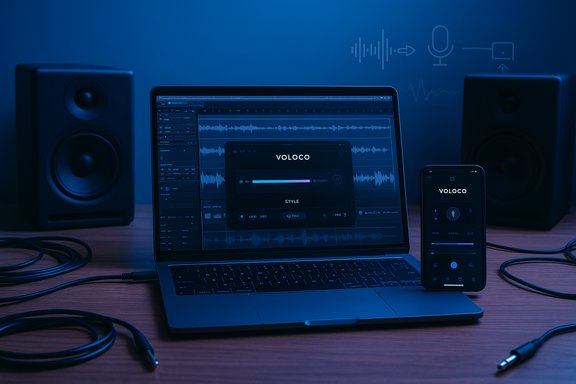
Voloco brings studio-style vocal processing to consumer devices, and its move into the desktop space — whether via an official plugin or by running the mobile app inside an Android emulator — promises to make real-time autotune, harmonies, vocoder effects and instant vocal polish accessible to PC and Mac users alike; this article verifies the claims, outlines practical installation paths (Windows and macOS), weighs alternatives, and evaluates the technical and privacy trade‑offs creators must consider before adding Voloco to their toolkit.
Background / Overview
Voloco began as a mobile-first vocal effects app from Resonant Cavity, LLC that combines automatic pitch correction, harmony generation, vocoder-style processing and a library of presets geared at singers, rappers and content creators. The company’s product pages and app-store listings emphasize simple, instant vocal processing and a long history of mobile downloads; Voloco’s developer pages advertise tens of millions of installs and a mature, mobile-focused feature set. The core consumer appeal has always been immediacy: real-time processing that you can hear while you sing, presets that map easily to musical keys, and a UI designed so non‑engineers can achieve polished results quickly. Voloco’s documentation lists dozens of built‑in effects including several pitch‑correction modes, harmony presets and vocoder options — the exact same building blocks used in many modern pop and electronic productions. What has changed recently is the number of ways users expect to run mobile apps on larger screens. Voloco’s website now references a desktop offering (a plugin) and also the longstanding route of using Android emulators to run the mobile app on Windows and macOS. That means most PC and Mac users have two practical paths to Voloco: a native desktop plugin (if you need DAW integration) or the emulator route that runs the Android app on a desktop environment. These options create different trade‑offs for latency, audio routing and integration with recording workflows.What Voloco Does — Features & How They Work
Voloco packages a handful of important voice-processing tools into a single, approachable app. The major features creators use most often are:Auto‑Tune and Pitch Correction
- Automatic pitch detection and correction: Voloco can lock audio to a selected key and scale and apply correction in real time. The app exposes controls for correction strength, letting you select anything from subtle tuning to the hard‑tuned effect popular in modern pop and hip‑hop.
Harmony Generation
- Automatic harmony voices: Voloco can generate multiple harmony lines from a lead vocal, following musical intervals appropriate to the chosen key and scale. These are designed to be musically correct without manual MIDI programming. Volume and panning for individual harmony voices are commonly adjustable in the app.
Vocoder & Creative Effects
- Vocoder/robotic textures: Built‑in vocoder modes let users morph their voice into synth‑like textures. Users can choose presets for classic robotic tones or tweak carrier-signal-like parameters when allowed by the app. Voloco documents a long list of creative presets, from subtle chorus textures to extreme vocoder transforms.
Real‑Time Processing
- Instant monitoring: A central selling point is the low-latency, real‑time monitoring pipeline so performers hear processed audio as they record or perform. On mobile hardware this generally works well; on desktops the latency profile will depend on how Voloco is run (native plugin vs emulator) and the audio routing used.
Recording, Exporting & File Conversion
- Integrated recorder: Voloco includes basic record/export functionality so users can capture processed takes and export stems or mixes. When used on desktop through emulation, exporting still works but file paths and audio quality depend on emulator settings and desktop audio routing.
Verifying the Big Claims (What’s provable today)
Several headline claims commonly seen in product pages deserve verification. Below are those claims, followed by what independent sources and vendor pages actually confirm.- Claim: “Millions of downloads / large user base.”
Verification: Voloco’s developer site and app store pages list tens of millions of downloads and high aggregate ratings; these numbers appear in multiple official channels and company pages (the exact figure varies by page). Conclusion: the app is widely installed and used, but marketing numbers vary by page and should be quoted conservatively. - Claim: “Real‑time processing with immediate, zero latency.”
Verification: Voloco’s product messaging and help pages emphasize real‑time effects, but measured latency depends on hardware and the runtime. Vendor claims of “zero latency” are marketing shorthand — real-world latency is always measurable and is influenced by the platform (mobile vs emulator), audio drivers and buffer sizes. Independent community guidance for similar voice‑processing tools recommends benchmarking latency on your target hardware. Treat “no latency” as aspirational, not absolute. - Claim: “Free to use on PC / Mac.”
Verification: Voloco offers free and premium tiers on mobile platforms; the free tier includes core effects while premium subscriptions unlock additional features. Running the mobile app on PC via emulator usually preserves the same in‑app purchase model (Google Play / App Store billing). Voloco’s billing and subscription handling is routed through platform stores, per official support pages. If a separate desktop plugin exists, its licensing model should be confirmed on the developer site.
Installing Voloco on Windows and macOS — Practical Options
There are three pragmatic ways to run Voloco on a desktop system. Below are step‑by‑step instructions and the trade‑offs for each.Option A — Use an official Voloco desktop plugin (recommended if available)
Voloco’s own site references a desktop plugin offering. If you need DAW integration (VST/AU) and low host-latency, a native plugin is the cleanest solution. A desktop plugin runs inside your DAW and uses host audio I/O for the lowest possible latency and the best routing into multitrack projects. Confirm licensing, installer SHA256 or code signatures and supported DAW formats on the vendor site before installing. Steps (general):- Download the desktop plugin installer from Voloco’s official site.
- Verify the digital signature or published checksum if available.
- Install and restart your DAW.
- Add the Voloco plugin on a vocal track and configure buffer settings (ASIO/WASAPI/CoreAudio) for low latency.
Option B — Run the Android Voloco app in an Android emulator (BlueStacks, Nox, LDPlayer)
This is the most common method when a native desktop plugin is not available, or when a user wants the exact mobile UI.Steps for Windows (BlueStacks example):
- Download BlueStacks from the official BlueStacks site and install it. BlueStacks documents minimum system requirements and the Google-account sign-in workflow for Play Store access.
- Launch BlueStacks, sign into Google Play, and open the Play Store.
- Search for “Voloco” and install the Android app.
- Configure your emulator to allow microphone access and map your USB/desktop microphone. BlueStacks exposes a microphone option and requires OS-level microphone permissions.
- For routing processed audio into streaming or DAW software, use a virtual audio cable (for example VB‑Cable or VoiceMeeter) and route BlueStacks output into your target application. Adjust buffer sizes for best balance between CPU load and latency.
- Use an emulator that supports macOS (BlueStacks, NoxPlayer, LDPlayer depending on availability and macOS compatibility). BlueStacks supports macOS Big Sur and later for its installer.
- Follow the same steps as Windows for Play Store sign-in and Voloco installation.
- Emulators add extra latency compared with native plugins because mobile runtime, virtualized drivers and audio bridging increase processing and buffer paths. Expect some degree of additional latency.
- Microphone mapping and virtual audio routing add steps and potential failure points. Use an isolated test environment for first installs.
Option C — Use Voloco on mobile and route audio into desktop apps
If you already use a mobile setup, you can run Voloco on a phone or tablet, then route the processed audio to your PC via USB audio interfaces, Bluetooth (higher latency), or by recording processed stems and importing them into your DAW. This avoids emulation pitfalls at the cost of losing some desktop convenience.Step‑by‑Step: Safe Install & Test Checklist (recommended)
- Create a restore point or use a test machine/VM.
- Download only from the official vendor site or official Play / App Store. Verify signatures where published.
- Scan installers with reputable antivirus and consider submitting them to multi‑engine scanners if you have concerns.
- When using virtual audio drivers or emulators, test in an unranked or private voice channel to verify latency and compatibility before using in live streams or games. Community guidance warns that virtual drivers can conflict with anti‑cheat systems.
- Run a short packet capture (optional — Wireshark) while using cloud‑dependent features to confirm whether audio is uploaded to remote endpoints. If the vendor offers local-only mode, test both to compare traffic.
- Keep raw unprocessed takes (backup tracks) when recording, so you can replace or reprocess later if the processed audio has artifacts.
Alternatives: When Voloco Is Not the Right Fit
Voloco is excellent for instant effects and mobile-inspired workflows, but for many desktop producers other tools are a better fit.- Audacity (free, open source): A capable audio editor with plugin support for pitch correction through third‑party VST/AU plugins (GSnap, AutoTalent) and extensive export options. For deep editing and non‑real‑time processing, Audacity is a zero-cost choice. Plugin availability gives access to autotune-style effects, but real‑time monitoring and low-latency performance are limited compared to DAWs.
- GarageBand (macOS): Apple’s free DAW for macOS and iOS includes pitch-correction tools (“Extreme Tuning” and Pitch Correction) and easy harmony/vocal-processing options for Mac users. If you use Apple hardware and want a native, integrated environment, GarageBand is a strong, zero-cost alternative for basic to intermediate vocal production.
- REAPER (commercial but inexpensive evaluation): A professional DAW that supports VST/AU plugins and offers excellent low‑latency performance, routing flexibility and plugin support (third‑party autotune plugins such as Antares or Melodyne can be integrated for high fidelity). REAPER is a good choice for producers who want full control and lower system latency than emulators typically provide.
- Dedicated pitch plugins (e.g., Antares Auto‑Tune, Celemony Melodyne): For studio-grade pitch correction and time‑aligned, transparent tuning, using professional plugins inside a DAW is the industry standard. These are not free but offer unmatched control and quality for professional projects.
Risks, Privacy & Security Considerations
Any voice-processing tool raises technical, privacy and ethical questions. Community‑facing tests and forum guidance for the broader class of voice changers emphasize the following risks, which also apply to Voloco when used on desktop:- Virtual audio driver interactions and anti‑cheat/endpoint conflicts: Virtual devices and injected drivers can be flagged by game anti‑cheat or enterprise endpoint protection systems. Users should test in safe environments before using voice-processing tools in competitive matches or on managed corporate machines.
- Latency & quality trade‑offs: When running through emulation, expect additional latency compared with native plugins. Neural-style processing and higher-quality models often require more CPU/GPU and can increase latency; balancing buffer sizes and model complexity is essential for acceptable real‑time feel.
- Privacy & cloud processing: Some advanced voice features in modern apps rely on cloud inference or model training, which may upload audio to vendor servers. Vendor pages sometimes assert encryption and privacy, but independent audits or network disclosures are the only reliable verification. Where sensitive audio is involved (client calls, patient interviews) prefer local‑only processing or enterprise‑grade on‑prem solutions. Perform a network capture if you must verify where audio goes.
- Supply‑chain and installer hygiene: Free consumer tools occasionally ship optional bundling or trigger AV heuristics. Always download from the official site and verify installers before executing; when unsure, test in an isolated VM.
- Ethical/legal misuse: Voice cloning and synthetic voice technologies can be misused (fraud, impersonation, misinformation). Always obtain consent from voice donors, disclose synthetic audio when relevant and confirm any commercial licensing implications before publishing. Legal restrictions vary by jurisdiction.
Critical Analysis — Strengths, Limits & Who Should Use Voloco on PC
Strengths
- Accessibility and speed: Voloco’s UI and one‑click presets make it exceptionally quick for idea capture and social content production. The real‑time monitoring and automatic key detection remove friction for creators who want immediate results.
- Mobile‑proven effects: Many of Voloco’s effects are battle‑tested on mobile — users report professional‑sounding pitch correction and a wide palette of presets that cover common modern vocal styles. This makes Voloco particularly strong for demos, social audio and quick vocal treatments.
- Flexible desktop access: The availability of a desktop plugin (when present) or emulation routes allows users to apply Voloco in more conventional DAW workflows. For quick sketches or streaming setups, the emulator option remains useful.
Limits / Risks
- Emulation latency & complexity: Running Voloco via BlueStacks or other emulators introduces extra complexity: microphone mapping, virtual audio routing and potentially higher latency. These factors make emulator usage less ideal for serious low‑latency recording or competitive live use.
- Unknowns around privacy & cloud processing: While vendor copy claims encryption and privacy safeguards, independent audits and network transparency are the gold standard. Until those are published and verified, assume advanced features might involve remote processing and plan accordingly.
- Sustainability of “free” models: Free tiers are excellent for experimentation, but many feature-rich apps shift advanced features behind subscription paywalls over time. Confirm long‑term costs for features you rely on.
Who should use Voloco on PC?
- Creators and streamers seeking fast, playful vocal effects and simple setup will find Voloco compelling.
- Musicians and producers who need studio‑grade, low‑latency correction should prefer a native plugin workflow or professional pitch plugins inside a DAW.
- Security- or privacy‑sensitive workflows (client interviews, healthcare, legal recordings) should verify local processing or choose auditable enterprise solutions.
Practical Recommendations & Best Practices
- If you need low latency and DAW integration, use the official desktop plugin (verify availability and licensing).
- If you run Voloco inside an emulator, pair it with a well‑tested virtual audio cable and perform latency benchmarking on your hardware before streaming or performing live.
- Always test whether features involve cloud uploads. Use a packet capture for confirmation if the privacy of the audio is essential.
- Keep raw, unprocessed recordings as backups to preserve editability and to provide auditable source material.
- Follow safe installation hygiene: official downloads, checksum verification, AV scanning, and first runs in a non‑production environment.
Conclusion
Voloco is a powerful, well‑designed vocal effects ecosystem that has earned wide adoption on mobile and is now broadly accessible to desktop users either through native plugins or via Android emulation. Its core strengths — instant, musical pitch correction, easy harmony generation and creative vocoder presets — make it a top choice for creators who want quick results without a steep learning curve. At the same time, the desktop path you pick matters: a native plugin offers the best latency and workflow integration; running the mobile app through an emulator is a convenient fallback but brings routing and latency trade‑offs that must be tested.Before adopting Voloco for professional or sensitive work, verify whether the features you need operate entirely locally, confirm licensing for desktop use, and perform practical latency and compatibility testing in a controlled environment. When used with care — and with an awareness of the technical and privacy caveats outlined here — Voloco can be an outstanding tool for capturing vocal ideas, producing social-ready tracks and adding polished vocal textures to streams and recordings.
Source: PrioriData Voloco for PC | Windows & MAC | Free Download | Priori Data
