

Joox arrived on the music-streaming scene as a mobile-first, Asia-focused alternative to Spotify and Apple Music — but because it doesn’t ship a native Windows or macOS desktop client for most markets, PC users must decide between the web player or running the Android app inside an emulator to get full feature parity.
Joox is a freemium music streaming service launched in January 2015 and owned by Tencent. It was developed as Tencent’s international music product (separate from China-facing QQ Music and Tencent Music subsidiaries) and quickly gained traction across Southeast Asia and a handful of other markets. The platform emphasizes local and Asian-language catalogs, social features (karaoke and in-app live streams), and advertiser-friendly monetization models tailored to mobile-first audiences. Joox’s commercial footprint has included licensing partnerships and regional joint ventures; it has signed deals with global indie rights agency Merlin and engaged in programmatic advertising partnerships to scale monetization across its strongest markets. These deals underline Joox’s strategy of growing regional depth rather than chasing global parity on desktop. The big practical question for Windows and Mac users is this: does Joox have a real desktop app? The short answer for most users is no — the vendor provides a web-based player and maintains mobile-first apps, and the accepted practical route to run the mobile app on a PC is to use an Android emulator such as BlueStacks. Joox’s own help pages confirm that offline downloads and some high-quality audio options are VIP features and are governed by the app’s mobile settings, which is why Windows users who want full parity often use an emulator.
Recommended emulator workflow (BlueStacks example):
Joox remains an important regional player with features that global services often don’t prioritize. For desktop users, the experience is pragmatic rather than seamless: you can get the same Joox app experience on a PC, but it requires trade-offs — either use the web player for convenience or accept the emulator route for full parity and offline capability.
Conclusion
For Windows 10/8/7 and Mac users who want Joox on a desktop, the options are straightforward and well understood: use the official web player for quick access, or run the official Android app inside a vetted emulator for full features (offline downloads, VIP audio modes, karaoke and live streams). Emulation works and is widely practiced but requires attention to security and system resources; the web player is the safest and quickest route for most listeners. When evaluating Joox against alternatives, prioritize the features you value most — regional catalog depth and live/social experiences (Joox) versus desktop-native apps and broad global catalogs (Spotify, Apple Music, YouTube Music) — and choose the workflow that matches your priorities and risk tolerance.
Source: PrioriData Download Joox for PC – Windows 10/8/7 & MAC | Priori Data
 Background / Overview
Joox is a freemium music streaming service launched in January 2015 and owned by Tencent. It was developed as Tencent’s international music product (separate from China-facing QQ Music and Tencent Music subsidiaries) and quickly gained traction across Southeast Asia and a handful of other markets. The platform emphasizes local and Asian-language catalogs, social features (karaoke and in-app live streams), and advertiser-friendly monetization models tailored to mobile-first audiences. Joox’s commercial footprint has included licensing partnerships and regional joint ventures; it has signed deals with global indie rights agency Merlin and engaged in programmatic advertising partnerships to scale monetization across its strongest markets. These deals underline Joox’s strategy of growing regional depth rather than chasing global parity on desktop. The big practical question for Windows and Mac users is this: does Joox have a real desktop app? The short answer for most users is no — the vendor provides a web-based player and maintains mobile-first apps, and the accepted practical route to run the mobile app on a PC is to use an Android emulator such as BlueStacks. Joox’s own help pages confirm that offline downloads and some high-quality audio options are VIP features and are governed by the app’s mobile settings, which is why Windows users who want full parity often use an emulator. What Joox actually offers (features summary)
Joox markets itself around a handful of differentiators that are attractive to certain audiences — especially listeners who prioritize Asian pop, local-language catalogs, and social/live music formats.- Large, region-focused music catalog. Various vendor and press pages have cited catalog sizes ranging from 30–70+ million tracks depending on the claim and publication; those numbers are inconsistent across time and platform pages, so treat any single headline figure as approximate. Joox historically emphasized deep catalogs for Cantonese, Thai, Indonesian and other regional repertoires.
- Freemium model with VIP subscription. Free, ad-supported listening is available in supported markets; premium (VIP) subscribers get ad-free playback, offline downloads, and higher audio settings. Joox’s FAQ explicitly lists offline listening and a “High” (CD-like) sound quality option as VIP perks.
- Karaoke and live streaming. Joox includes live and karaoke-style features (sing-along, in-app recording, and artist livestreams) that are more central to its product than they are for many Western streaming services. Press coverage of Joox’s regional strategy highlights these social elements as a growth lever.
- Localized discovery and playlists. Regional editorial playlists, charts (for example, Joox Thailand Top 100), and algorithmic recommendations optimized for local tastes.
The platform claims vs. verifiable facts (what’s solid, what’s fuzzy)
Solid, verifiable facts
- Ownership and launch: Joox is a Tencent product that launched in 2015. This is well documented in company and third‑party profiles.
- VIP/offline/high-quality audio exist: Joox’s official FAQ confirms VIP subscribers can download songs for offline listening and select higher quality streaming/download settings.
- Web player exists: Joox offers a browser-based playback surface (web player) suitable for quick desktop listening in supported regions. The web player provides most core streaming features but is often limited compared with the mobile client.
Claims that require caution (vary by page / are inconsistent)
- Exact catalog size (e.g., “60 million songs”): public claims vary widely by vendor page and third‑party press. Different pages and promotions have quoted numbers from ~30M to 70M+; these discrepancies can come from marketing updates, regional catalog rollouts, or inconsistent counting methods (e.g., counting duplicates, remixes, or license windows). Treat any single catalogue number as provisional unless confirmed by a recent official statement.
- Offline download limits (e.g., “up to 1,000 songs”): some how‑tos and promotional roundups mention playlist or library thresholds on other streaming services, and community threads occasionally reference playlist/user-library limits around 1,000 items, but a consistent official Joox published maximum for offline downloads is not publicly documented in Joox’s FAQ pages that are accessible. That means the specific “1,000 song download” cap is not reliably verifiable from Joox’s published support pages and should be regarded as an unconfirmed, region- and client-dependent restriction unless you see the limit in your account settings.
How to run Joox on a PC or Mac — practical options
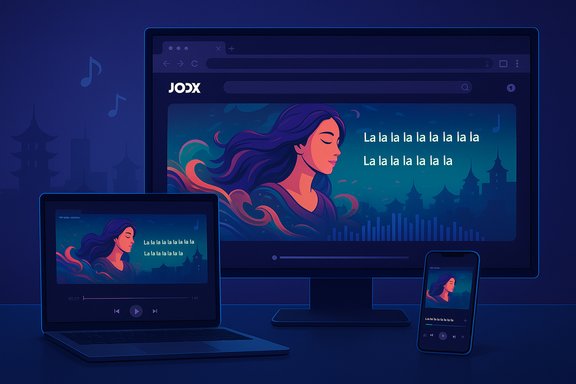
There are two realistic ways to run Joox on a desktop:1. Use the Joox web player (fastest and safest)
- Open your desktop browser (Chrome, Edge, or Firefox recommended).
- Navigate to Joox’s official site and sign in to your account.
- Use the web player for streaming, playlist management, and discovery.
2. Run the Joox Android app inside an emulator (full feature parity)
If you need offline downloads, VIP-only audio modes, or the exact mobile UI, running Joox’s Android app inside a mainstream Android emulator is the pragmatic solution.Recommended emulator workflow (BlueStacks example):
- Download BlueStacks from the official BlueStacks website and install it on Windows (7/8/10/11) or macOS (Big Sur/Monterey/ventura and later as supported).
- Launch BlueStacks, sign into a Google account to access the Play Store.
- Open Play Store inside BlueStacks, search for “JOOX” (verify the publisher is Tencent or Tencent Mobility Limited), and install the app.
- Launch JOOX inside BlueStacks and sign in with your Joox credentials. Offline downloads, VIP settings, and local cache behave the same as on a mobile device (subject to available storage inside the emulator image).
- Give the emulator enough RAM and CPU cores (4GB RAM minimum, 8GB recommended for smooth multitasking).
- For better audio performance, update your PC audio drivers and, where possible, enable hardware virtualization in BIOS/UEFI to reduce overhead.
- Keep in mind that the emulator runs an Android runtime inside a VM-like container — device mounting and file paths are different from native Windows applications.
Step-by-step: install Joox on Windows 10/8/7 using BlueStacks (concise)
- Download BlueStacks 5 from the official BlueStacks site and run the installer as Administrator.
- Complete initial BlueStacks setup and sign in with a Google account to access the Play Store.
- Inside BlueStacks’ Play Store app, search for “JOOX” and check the publisher name (should be Tencent or a verified entry).
- Install JOOX and launch it from BlueStacks’ home screen.
- Sign into your JOOX account and, if you’re a VIP user, configure “Download Quality” and “Streaming Quality” from MY MUSIC → Settings as described in Joox’s support pages.
- If you plan to use offline downloads, allocate adequate virtual disk space for the emulator and prefer an SSD for the emulator image to speed load times.
- On macOS, ensure the emulator version supports Apple Silicon if you’re on M1/M2 hardware; some emulators offer Apple Silicon builds while others do not.
System requirements and performance expectations
Minimum practical requirements for emulator-based usage:- Windows: Windows 7 or later (Windows 10/11 recommended), 4GB RAM minimum; 8GB+ recommended for stable multitasking.
- macOS: macOS 11 (Big Sur) or later for newer emulator builds; Apple Silicon support depends on the emulator.
- Disk: 5–10GB free space plus room for downloads if you will cache offline music.
- Network: stable broadband for streaming; higher quality streams and downloads will consume more data.
Security, privacy, and legal considerations
- Emulator safety: Using BlueStacks, NoxPlayer or LDPlayer is legal and widely practiced, but it expands your attack surface. Download emulators only from their official sites and keep them updated. Avoid sideloading modified APKs or repackaged installers. Community guides underline the importance of checksums and antivirus scanning for any downloaded binary.
- Licensing & offline content: Offline downloads are gated by licensing. Joox’s offline feature is a convenience for VIP members, but downloaded files are typically stored in an app-managed cache and cannot be exported as ordinary MP3 files for redistribution. Respect the platform’s terms of service and local copyright law.
- Account sync: Joox supports cloud sync for playlists and preferences when you log in with supported accounts (WeChat and other login methods in some regions). If you switch devices, playlists should sync, but verify your account type and login method to avoid accidental data loss.
Alternatives to Joox for PC users (native desktop options)
If the emulator route is not appealing, consider services with native Windows/macOS clients:- Spotify: Mature desktop app for Windows/macOS with broad catalog, playlists, and offline downloads for Premium subscribers.
- Apple Music: Native macOS integration and a Windows app; strong catalog and spatial/Hi-Res options for subscribers.
- YouTube Music / Amazon Music: Both offer browser-first or native clients with broad catalogs and download options for paid plans.
Critical analysis — strengths and potential risks
Strengths
- Regional depth and local catalogs. Joox targets Southeast Asian markets and spots gaps in mainstream Western services for local-language music and regional curation. That focus produces playlists, charts and exclusive regional content that’s valuable to local listeners.
- Social and live features. Karaoke, live streams, and in-app social mechanics differentiate Joox from global competitors that emphasize algorithmic playlists. These features encourage community engagement and keep the product sticky in markets that enjoy sing-along culture.
- Flexible monetization. Joox’s reliance on banner/splash ads and regional ad formats gives it options to monetize in markets where audio ad spend is not yet dominant.
Risks and practical downsides
- No mainstream native desktop app. For PC/Mac users who want a native client, the lack of a dedicated, fully supported desktop app means either using the web player (feature-limited) or running an emulator (performance and security trade-offs). This architecture limits Joox’s appeal for power desktop users.
- Inconsistent public metrics. Catalog-size claims and other marketing numbers vary widely between vendor and partner pages; that inconsistency complicates reliable comparisons with competitors. Until Joox publishes a recent, audited catalog figure, treat headline counts conservatively.
- Emulator overhead & supply-chain risk. Running the Android app inside an emulator requires prudence: pick vetted emulators, avoid unofficial APKs, and expect slightly higher resource usage and heavier disk I/O than a native app. Community guidance warns about repackaged installers and recommends checksum verification.
Troubleshooting and tips for best experience
- If the emulator is sluggish: increase allocated RAM/CPU in the emulator settings, enable virtualization support (VT-x/AMD‑V) in BIOS/UEFI, and use an SSD for the emulator image.
- If offline downloads fail inside the emulator: confirm that Joox shows the files as “Downloaded” in MY MUSIC → Manage downloads, and that the emulator has enough internal storage configured (emulator disk partition differs from host file system).
- Prefer BlueStacks or other mainstream emulators’ official downloads and stay up to date with emulator release notes to avoid incompatibilities with Play Services or app updates.
FAQs (brief)
- Is Joox free to use on PC?
Yes — Joox offers a free, ad-supported tier accessible via the web player. Premium/VIP features require subscription and are implemented primarily in mobile clients. - Can I download Joox songs for offline listening on PC?
Offline downloads are a VIP feature in Joox’s mobile app. On a PC, they are typically accessible only if you run the Android app inside an emulator; the web player usually does not support genuine offline cache due to browser limitations. - Is it legal to run Joox in an emulator?
Yes — using an emulator to run official apps is legal. Avoid sideloaded or repackaged APKs; install the app from the Play Store inside the emulator and respect Joox’s terms and local copyright law.
Final verdict and recommendations for Windows/Mac users
Joox’s strengths make it a compelling choice if your priorities are Asian pop, regional playlists, live streaming and karaoke-style social features. For users who want those exact capabilities on a PC, the best practical approach today is:- Try the Joox web player first for casual desktop streaming (fast, secure, zero install).
- If you require offline downloads or VIP-only audio features, run the Joox Android app inside a reputable emulator (BlueStacks is the most documented example) and follow emulator safety guidance: official downloads only, updated AV, and appropriate resource allocation.
Joox remains an important regional player with features that global services often don’t prioritize. For desktop users, the experience is pragmatic rather than seamless: you can get the same Joox app experience on a PC, but it requires trade-offs — either use the web player for convenience or accept the emulator route for full parity and offline capability.
Conclusion
For Windows 10/8/7 and Mac users who want Joox on a desktop, the options are straightforward and well understood: use the official web player for quick access, or run the official Android app inside a vetted emulator for full features (offline downloads, VIP audio modes, karaoke and live streams). Emulation works and is widely practiced but requires attention to security and system resources; the web player is the safest and quickest route for most listeners. When evaluating Joox against alternatives, prioritize the features you value most — regional catalog depth and live/social experiences (Joox) versus desktop-native apps and broad global catalogs (Spotify, Apple Music, YouTube Music) — and choose the workflow that matches your priorities and risk tolerance.
Source: PrioriData Download Joox for PC – Windows 10/8/7 & MAC | Priori Data
