

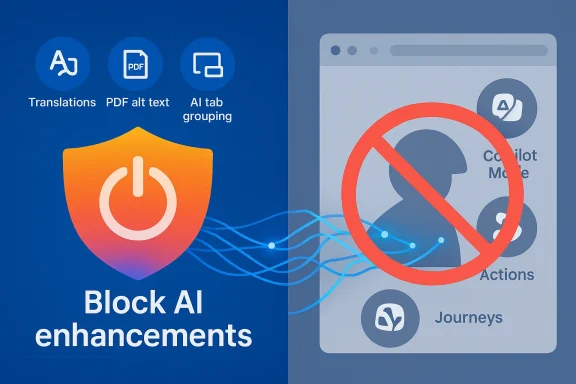
Firefox's new one‑click AI kill switch — arriving in Firefox 148 on February 24 — is more than a UX convenience; it's a deliberate, public answer to a rising user demand: give me modern AI tools, but let me opt out of them cleanly. Mozilla's new AI Controls centralize per‑feature toggles and a master "Block AI enhancements" slider that hides UI prompts, suppresses downloads of on‑device models, and promises forward compatibility with future generative features. That single control is a meaningful product-level statement about user agency, and for many Edge users it highlights a glaring gap: Microsoft has poured Copilot into Edge, but it hasn't offered the same discoverable, single‑toggle guarantee that makes opting out simple and trustworthy.
The browser market has entered a second act where engines are not just rendering web pages — they're packaging conversational assistants, agentic automations, and session memory into the browsing surface. Microsoft has been explicit about this direction: Edge is being evolved toward an "agentic browser" through Copilot Mode, Journeys, and Actions that can access open tabs, run multi‑step flows, and interact with sites on your behalf. Those features are powerful, but the packaging matters: when AI is woven into the browser's fabric, clarity and control become essential trust signals.
Mozilla's response is to keep AI optional by design while shipping modern assistant capabilities for those who want them. The company built a single settings pane so users can either turn individual AI features on and off or flip a master switch to block all generative AI surfaced by Firefox itself. That distinction—Firefox‑provided AI—matters technically and legally, and it will shape how effective any "kill switch" can be in practice.
A robust, discoverable kill switch in Edge is technically feasible and strategically valuable: it would satisfy privacy‑minded users, simplify enterprise governance, and reduce perception risk. Microsoft can reach that outcome by combining UI clarity, documented semantics, enterprise policy keys, extension contracts, and verifiable diagnostics. Until then, power users and administrators must rely on a mix of settings, extension policies, and network controls to reproduce the effect.
The broader lesson for browser vendors is simple: as AI migrates from novelty into platform plumbing, control becomes as important as capability. Users want assistants, but they also want guarantees. Shipping AI features without a trustworthy, auditable way to say "no thanks" risks alienating the very people who sustain long‑term adoption. Firefox chose to put that control front and center; the question now is whether Microsoft will meet it.
Source: Windows Central Firefox's new AI kill switch makes me yearn for something similar in Edge
 Background / Overview
The browser market has entered a second act where engines are not just rendering web pages — they're packaging conversational assistants, agentic automations, and session memory into the browsing surface. Microsoft has been explicit about this direction: Edge is being evolved toward an "agentic browser" through Copilot Mode, Journeys, and Actions that can access open tabs, run multi‑step flows, and interact with sites on your behalf. Those features are powerful, but the packaging matters: when AI is woven into the browser's fabric, clarity and control become essential trust signals. Mozilla's response is to keep AI optional by design while shipping modern assistant capabilities for those who want them. The company built a single settings pane so users can either turn individual AI features on and off or flip a master switch to block all generative AI surfaced by Firefox itself. That distinction—Firefox‑provided AI—matters technically and legally, and it will shape how effective any "kill switch" can be in practice.
What Firefox shipped (and why it matters)
A single, discoverable control
Starting in Firefox 148, users will find an AI Controls section in desktop Settings with:- A master Block AI enhancements toggle that hides UI entry points, suppresses prompts, and deletes on‑device models for covered features.
- Per‑feature toggles for translations, PDF alt‑text generation, AI tab grouping, link previews, and the optional sidebar chatbot.
- Sticky preferences that persist across updates so users don't have to repeat the opt‑out after every release.
Technical scope and limits
It's crucial to be precise about what this master toggle can and cannot do. Mozilla's controls are designed to cover Firefox‑provided generative AI features and UI surfaces. For on‑device features, the browser will remove downloaded models when blocked. For cloud‑backed features, the browser suppresses UI and stops initiating calls from its own surfaces. However, the toggle cannot technically prevent:- Third‑party extensions that independently contact external AI APIs.
- Websites that call LLM endpoints directly from their own JavaScript.
- External apps or OS‑level tools that perform AI work outside the browser's control.
Why Edge users are asking for the same thing
Edge's rapid AI evolution
Microsoft has pushed Copilot across Windows and Office and then deep into Edge. Copilot Mode — first previewed mid‑2025 and expanded since — transforms the new‑tab area into a command center where the assistant can:- Read and summarize content across multiple open tabs.
- Build "Journeys" that group past browsing sessions into resumable projects.
- Execute "Actions" (agentic automations) that interact with pages, fill forms, or try to complete multi‑step tasks with your permission.
Scattered controls and discoverability problems
Unlike Firefox's single AI Controls page, Edge's AI and Copilot settings live in multiple places (Appearance, Sidebar, AI Innovations, Privacy and Services, and even per‑app sidebar settings). That means disabling Copilot features often requires users to hunt through settings pages or apply different toggles across menus. Hiding the Copilot button is possible, and Microsoft has added toggles to remove toolbar buttons or the sidebar, but the controls don't yet match Firefox's one‑click simplicity for staying AI‑free by default. Guides and help articles walk users through hiding Copilot buttons, but they are workarounds — not a clear, branded master opt‑out.Could Microsoft implement a real AI kill switch in Edge? — What it would look like
Yes — and here's a practical, product‑level blueprint for how Microsoft could do it well. Any viable implementation needs both technical depth and clear communication.Design principles
- Single, discoverable control: An "AI Controls" page with a master Off toggle prominently located in Settings (visible in the first‑level search box and accessible via edge:// URLs).
- Forward compatibility: The master toggle must apply not only to present features but to future generative AI additions so preferences are durable.
- Scoped semantics: UI should explicitly state what the toggle blocks (Edge‑provided AI features, on‑device models, outbound calls initiated by Edge) and what it doesn't (extensions, websites).
- Enterprise policy parity: Expose Group Policy / MDM keys and a machine‑level enforcement schema so admins can centrally enforce the same posture across fleets.
- Per‑feature granularity: Keep individual toggles for accessibility features (e.g., alt‑text, PDF assistance) so users can preserve assistive benefits when desired.
- Transparency and verification: Provide easy diagnostics (e.g., an "AI activity log") showing whether Edge has initiated model calls or downloaded models while the toggle was off.
Technical pieces Microsoft must solve
- On‑device model lifecycle — If Edge downloads models (for offline detection or local Assistants), a kill switch should remove those artifacts and prevent further downloads. Mozilla shows this is practical in principle.
- Edge‑provoked outbound calls — For cloud‑backed features, Edge must suppress UI and prevent the browser from making outbound inference requests when AI Controls are set to Block. That requires strict server‑call gating in the browser code paths.
- Extension API contract — Microsoft should publish an API contract or extension manifest flag that allows extensions to declare whether they use external AI services. Optionally, Edge could enforce a policy that flags or blocks extensions which perform remote inference without admin consent in managed environments.
- Network‑level enforcement hooks — Expose integration points for Trusted Platform and enterprise proxies so that organizations can verify and log remote AI calls for compliance.
- Accessibility safety valves — Allow exceptions for assistive features that rely on AI, with explicit warnings and per‑feature consent.
Practical ways to approximate a kill switch in Edge today
Until Microsoft ships a centralized AI Controls page, users and admins can combine settings and policies to approximate the effect. Below is a pragmatic, stepwise approach for non‑enterprise users and IT teams.For everyday users — quick checklist
- Open Edge and disable the Copilot toolbar button:
- Visit edge://settings/sidebar (or Settings > Sidebar) and select Copilot under App specific settings, then toggle Show Copilot button on the toolbar to Off. This removes the prominent Copilot button and reduces prompts.
- Hide or unpin the Sidebar button:
- If the Sidebar button remains, right‑click it and choose Unpin or go to Settings > Sidebar and turn off Show sidebar button (Edge 122+ added a toggle for this).
- Turn off AI/smart features in Settings:
- Search Settings for "AI" or "Copilot" and review items under Appearance, Privacy, and AI Innovations. Disable features such as Journeys, Page Context, and any auto‑summarization tools.
- Audit extensions:
- Remove or disable extensions that declare AI or LLM integration, or review their permissions to understand outbound network calls.
- Add a network safety net (optional):
- Use a local firewall or hosts file to block known model endpoints if you want an additional safeguard, keeping in mind this is brittle and may break desired services.
For enterprise admins — hardened, auditable steps
- Test and document:
- Pilot a configuration on a test fleet and document which settings were changed and what behavior you expect.
- Use Group Policy and MDM:
- Apply available Edge ADMX/MDM policies to disable Copilot and Sidebar features where supported. Monitor Microsoft’s published schema for AI‑specific keys as they are released.
- Block extensions and control the store:
- Use enterprise extension policies to whitelist only approved extensions and block those invoking external AI APIs.
- Enforce network controls:
- Route browsers through enterprise proxies that can log and block suspicious outbound calls to LLM providers; maintain allow/deny lists for provider IPs and hostnames.
- Communicate and train:
- Explain to users what disabling Edge AI features does and does not guarantee—especially the limitation around websites and unmanaged extensions.
Trade‑offs, accessibility, and trust
A binary "off" is appealing, but it creates real trade‑offs that product teams must weigh.- Accessibility impact: Some AI features — auto‑generated alt text in PDFs, improved language translation — are accessibility enablers for users with disabilities. A blanket kill switch risks removing helpful capabilities unless the product exposes targeted exceptions. Mozilla's UI tries to respect that by allowing per‑feature control, and Microsoft should do the same.
- Perception vs. reality: A cosmetic toggle that only hides UI while leaving data flows in place will erode trust. Companies must document exact semantics and, where possible, provide verifiable signals (logs, model‑download manifests) that users and admins can audit. Mozilla's commitment to delete on‑device models when blocked is a promising model — but it needs independent verification and clear documentation.
- Developer and extension ecosystem friction: A strict kill switch that blocks extensions from using remote AI services by default would disrupt extension developers. A balanced approach includes clear developer guidance, manifest flags, and an enterprise override that respects organizational policy.
- Regulatory signals: As regulators scrutinize AI, discoverable opt‑outs and clear data‑flow documentation will become competitive differentiators and compliance levers. Vendors that make it hard to opt out will face both consumer backlash and regulatory attention.
Strategic analysis — why Microsoft might (or might not) ship a unified kill switch
From a business and technical perspective, there are competing incentives.- For Microsoft, making Edge an AI platform increases lock‑in for its cloud, Copilot, and Microsoft 365 ecosystems. A master kill switch reduces friction for opponents of default AI, but it also reduces the friction that drives feature adoption.
- From a trust and competition viewpoint, shipping a robust master toggle would score user‑trust points against Chrome and could blunt migration to privacy‑oriented alternatives. Mozilla's move signals that there's a market for AI‑optional branding; Microsoft could absorb that goodwill by matching the UX while preserving revenue streams for those who opt in.
- Operationally, Microsoft already exposes fine‑grained controls and enterprise policies for many Windows and Office features. Building a unified AI Controls page wouldn't be novel engineering, but it does require product decisions about what to disable by default and how to represent the semantics for on‑device vs cloud services.
A practical checklist for Microsoft (ranked)
- Publish a dedicated "AI Controls" settings page in Edge with a master Block toggle and per‑feature overrides.
- Guarantee that the master toggle removes on‑device models and suppresses Edge‑initiated outbound inference calls.
- Publish and support Group Policy / MDM keys for centralized enforcement.
- Add diagnostic tools so users and admins can verify when Edge initiates AI calls or downloads models.
- Create an extension manifest flag for declaring AI usage and expose store policies for extensions that call LLMs.
- Maintain per‑feature accessibility exceptions with clear user prompts and warnings.
Conclusion
Firefox's AI Controls — and, specifically, a single "Block AI enhancements" toggle — is an important product and brand move. It signals that browsers can be modern and AI‑capable while still respecting user agency. Microsoft has already reimagined Edge as an AI assistant through Copilot Mode, Journeys, and Actions, but Edge's controls remain distributed and harder to audit, creating a gap that frustrates users who want a clear off‑switch.A robust, discoverable kill switch in Edge is technically feasible and strategically valuable: it would satisfy privacy‑minded users, simplify enterprise governance, and reduce perception risk. Microsoft can reach that outcome by combining UI clarity, documented semantics, enterprise policy keys, extension contracts, and verifiable diagnostics. Until then, power users and administrators must rely on a mix of settings, extension policies, and network controls to reproduce the effect.
The broader lesson for browser vendors is simple: as AI migrates from novelty into platform plumbing, control becomes as important as capability. Users want assistants, but they also want guarantees. Shipping AI features without a trustworthy, auditable way to say "no thanks" risks alienating the very people who sustain long‑term adoption. Firefox chose to put that control front and center; the question now is whether Microsoft will meet it.
Source: Windows Central Firefox's new AI kill switch makes me yearn for something similar in Edge
