Windows can feel deceptively simple until the day you need to do something a little less ordinary — and that’s when a handful of built‑in and first‑party tools turn the OS from a consumer toy into a professional workstation. The five utilities highlighted in the recent How‑To Geek piece — PowerToys, Windows Terminal, Task Scheduler, Event Viewer, and Disk Management — are not flashy, but together they unlock automation, observability, and low‑level control that every serious Windows user should know. ows ships with a layered toolset: easy front‑end settings for everyday users, and a quieter set of administrative utilities for power users and IT pros. Over the last decade Microsoft has shifted many focused utilities out of the core image and into separate apps or storeable packages. That makes the OS leaner by default, but it also increases the value of knowing which utilities to add or enable after setup. The five tools at the center of this feature are emblematic of that approach: some are optional installs, others are legacy MMC snap‑ins, but all dramatically expand what an experienced user can do with Windows.
Windows Terminal modernizes the command experience in a way that finally matches what developers expect on other platforms. The only friction is distribution and keybinding collisions: it’s excellent software, but discoverability and default key choices can create confusion for non‑power users.
Task Scheduler and Event Viewer are mature and indispensable, but they retain a steep initial learning curve. The UI can be opaque compared with modern cloud orchestration tools; however, their local power and integration with Windows internals make them irreplaceable for many local admin tasks.
Disk Management is conservative and safe for routine tasks, but users must be aware of its limitations — and always back up before doing anything non‑trivial.
Source: How-To Geek 5 "pro" tools that turn Windows from a toy into a powerhouse
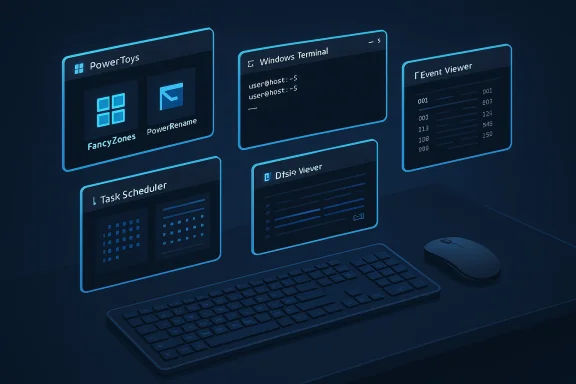 Why these five summary
- PowerToys restores convenient, productivity‑first shortcuts and utilities that Microsoft no longer bundles in the OS, and it’s actively maintained as an open‑source project.
- Windows Terminal replaces the old console experience with a modern, GPU‑accelerated, multi‑tab terminal host that supports Command Prompt, PowerShell, WSL distros, and cloud shells. It also includes a dropdown “quake” mode for instant access.
- Task Scheduler is a mature automation engine inside Windows that supports time‑, event‑, and state‑based triggers, making it the best‑available built‑in automation tool for one‑off and scheduled workflows.
- Event Viewer is the system’s forensic store: detailed logs and event IDs that let you trace crashes, driver failures, and configuration problems back to root causes.
- Disk Management is the quick, GUI way to initialize drives, create and resize volumes, and resolve drive‑letter conflicts without immediately resorting to diskpart. It’s the safe gateway to storage management for most users. (lifewire.com)
PowerToys — the Swiss Army knife Microsoft didn’t bundle
What it is and why it’s so useful
PowerToys is an official, open‑source suite of small utilities that plug directly into the Windows shell and add dozens of quality‑of‑life features: FancyZones window management, PowerRename bulk renaming, Keyboard Manager remaps, a File Locksmith that exposes what’s locking a file, image resizers, and more. The project lives on Microsoft’s GitHub and is updated frequently; it’s distributed through the Microsoft Store, GitHub releases, and package managers like winget.Strengths
- Modular: you enable only what you need, minimizing attack surface and resource use.
- Community‑driven: active development and prompt fixes mean new quality‑of‑life features appear fast.
- Practical ROI: features like FancyZones and PowerRename save minutes every day and scale extremely well for power users who juggle many windows and files.
Risks and caveats
- Privileged hooks: some modules require elevated access or deeper OS hooks (for example, global hotkeys or low‑level keyboard remaps). On managed or security‑sensitive systems, these may conflict with IT policies or endpoint protection. Test before deploying broadly.
- Feature overlap: some PowerToys functionality may duplicate corporate policy‑controlled capabilities (hotkey remaps, shell changes), which can lead to support confusion in enterprise environments.
- Rapid cadence: the fast release cycle is a strength, but new modules sometimes ship with rough edges; enable new modules selectively on production machines.
Getting started (practical steps)
- Install via winget or the Microsoft Store to keep updates manageable.
- Run PowerToys as an administrator if you need modules that interact with system hooks.
- Enable and configure only the modules you will use (FancyZones, PowerRename, and File Locksmith are low‑risk high‑return starters).
Windows Terminal — your modern command center
What changed (and why it matters)
Windows Terminal replaces the legacy console host with a modern, GPU‑accelerated renderer that supports tabs, split panes, Unicode/UTF‑8, and profiles for Command Prompt, PowerShell, WSL, and cloud shells. It’s plaintext‑centric but configured for the modern developer and operator: theming, background images, a robust settings schema, and keyboard customizations. The “quake” mode (a dropdown terminal summoned with a hotkey) can make shell access feel instant — like tilting the console down from the ceiling.Strengths
- Unified host: run PowerShell, cmd, WSL, and remote shells side‑by‑side in a single UI.
- Performance: GPU accelerated text rendering makes scrollback and complex glyph rendering snappier than legacy consoles.
- Customizability: actions, keybindings, and profiles map to complex workflows — and you can automate terminal launch with command line arguments.
Risks and gotchas
- Not always preinstalled: depending on OEM builds and Windows editions, Windows Terminal may not be present out of the box; install it through the Store or package manager when needed.
- Hotkey collisions: the quake‑mode default (Win + `) can conflict with other shortcuts. PowerToys and other utilities may change or collide with these bindings, so plan your global shortcuts centrally.
- Quake behavior quirks: quake windows have special sizing/visibility rules and — depending on how you start them — can be sticky in the taskbar or require task manager to close if misconfigured. Read the quake‑mode notes before automating startup with it.
Quick configuration checklist
- Install Terminal, then create profiles for each shell you use (PowerShell, cmd, WSL distro).
- Add a custom action for your preferred global summon, or change the default keybinding if you use overlapping global shortcuts.
- Use command line arguments to create a startup link that opens a specific layout/panes for daily tasks.
Task Scheduler — built‑in automation that’s easy to underuse
Why Task Scheduler still matters
Task Scheduler is Windows’ long‑running automation engine. It does time‑based schedules, complex calendar rules, and event‑based triggers (including log‑based triggers from the Event Log). A single task can have multiple triggers and rich conditions (idle, AC power only, network availability), and it can run with different principals and security contexts. For anyone who automates routine maintenance, backups, or environment provisioning on a local machine, Task Scheduler is often the simplest, most robust option already built into Windows.Strengths
- Powerful triggers: time, startup, logon, event‑log conditions, and even XPath‑filtered event triggers.
- Security contexts: tasks can run in system or user contexts, with ACL control on task files — important for scripting tasks that need elevated privileges.
- Mature API & scripting: there are programmatic interfaces and examples for scripting task creation, enabling reproducible automation setup.
Risks and limitations
- Opaque UI behavior: the Task Scheduler MMC is powerful but not always intuitive for newcomers; misconfigured principals and toggled 'Run whether user is logged on or not' settings are common sources of frustration. Start with simple tasks and verify they run under the expected account.
- Credential handling: storing credentials or running tasks as SYSTEM has security implications; prefer least privilege and use managed service accounts when possible.
- Not a general orchestration tool: while Task Scheduler is terrific on a single machine, cross‑machine orchestration or modern pipeline builds generally call for more centralized tools (Intune, Scheduled CI/CD pipelines, or configuration management systems) in enterprise environments.
Recommended patterns
- Use Task Scheduler for local automation and maintenance (backups, logs, local scripts).
- Keep tasks idempotent and log their outputs to make failures auditable.
- When rolling out tasks across many endpoints, script task creation (PowerShell/Win32 Task Scheduler APIs) or use centralized management tools.
Event Viewer — keep the receipts
The forensic backbone
Windows’ infamous “vague error box” problem is mitigated if you know where to look: Event Viewer centralizes application, system, security, and provider‑specific logs. It gives event IDs, timestamps, and enough contextual metadata to correlate a crash or restart with driver errors, service failures, or application faults. Microsoft’s documentation and diagnostic guidance treat Event Viewer as the canonical first stop for root‑cause exploration.Strengths
- Comprehensive logs: Application, Security, System, and Applications and Services logs capture diverse failure modes — and ETW providers feed detailed telemetry into the system.
- Filter and custom views: you can build custom filters for repeated diagnostics, subscribe to remote event logs, and even forward events for centralized monitoring.
Common pitfalls
- Noise vs signal: Event logs can be verbose. The challenge is turning abundant structured data into actionable signals — filter by level (Error/Critical) and correlate by time window.
- Interpretation required: Event IDs are pointers, not complete answers. Use event descriptions as leads — they often require vendor knowledge or KB lookup to interpret fully. Microsoft hosts additional explanatory pages and searchable KBs for common event messages.
Practical troubleshooting workflow
- Reproduce the issue (if possible) and note the time window.
- Open Event Viewer and inspect System and Application logs for Errors/Criticals in that window.
- Note the Event ID and Source, then consult vendor documentation or Microsoft’s event message help for recommended actions.
What Disk Management gives you
Disk Management in Windows is the GUI snap‑in for initializing disks (MBR vs GPT), creating/formatting volumes, changing drive letters, and resizing certain volumes (shrink/extend when free space allows). It’s not a full replacement for diskpart or third‑party partition managers in every scenario, but for many day‑to‑day tasks it’s the correct, lower‑risk first approach.Strengths
- GUI safety net: visual layout of disks and volumes reduces the chance of the wrong device being re‑partitioned compared with command‑line mistakes.
- Common fixes: reassigning drive letters, bringing disks online, initializing new drives, and quick formatting are all safer in Disk Management versus manual diskpart commands.
Limitations and cautions
- Resize limits: shrink/extend operations work only when contiguous free space is available, and the GUI won’t move certain immovable files (pagefile, system reserved) — third‑party toolss may be required for more complex resizing.
- Always back up: partition operations carry inherent data risk. Back up before changing partition tables or format types (MBR ↔ GPT conversions can be destructive without appropriate tooling).
Best practices
- Back up critical data before any partitioning or initialization.
- Prefer GPT on modern UEFI systems; use MBR only for legacy compatibility.
- Use Disk Management for quick administrative tasks; escalate to diskpart or vetted third‑party tools for advanced manipulations.
Putting it together: a practical Windows power‑user toolkit
If you want an efficient, low‑friction power‑user setup for a daily driver or a small fleet of workstations, here’s a practical checklist:- Install PowerToys and enable a minimal set of modules (FancyZones, PowerRename, File Locksmith). Configure only the hotkeys you will use and document them.
- Replace the legacy console with Windows Terminal, create profiles for PowerShell and your preferred WSL distro, and assign a considerate global summon key if you use quake mode.
- Use Task Scheduler to automate daily maintenance: disk cleanup scripts, log rotation, and periodic health checks. Keep task logs and verify principals.
- When troubleshooting, always look at Event Viewer first for correlated error events; then use Task Manager/Resource Monitor for live resource issues, and Disk Management for storage anomalies.
Final critique — what’s great, and what still needs work
These five utilities represent a pragmatic trade‑off: they’re powerful, lightweight, and built into the Windows ecosystem — but they also reflect the fragmentation of modern Windows distribution. PowerToys remains separate from the OS intentionally, which keeps the base image clean but means users must actively add functionality that arguably should belong in the default experience (File Locksmith and FancyZones are examples).Windows Terminal modernizes the command experience in a way that finally matches what developers expect on other platforms. The only friction is distribution and keybinding collisions: it’s excellent software, but discoverability and default key choices can create confusion for non‑power users.
Task Scheduler and Event Viewer are mature and indispensable, but they retain a steep initial learning curve. The UI can be opaque compared with modern cloud orchestration tools; however, their local power and integration with Windows internals make them irreplaceable for many local admin tasks.
Disk Management is conservative and safe for routine tasks, but users must be aware of its limitations — and always back up before doing anything non‑trivial.
Conclusion — not optional for the serious user
If you want to move from casual Windows use to productive mastery, add these five tools to your toolkit and invest a little time learning how they interact. PowerToys gives you repeatable productivity primitives; Windows Terminal makes shells usable again; Task Scheduler automates the chores; Event Viewer tells you what went wrong; and Disk Management keeps storage sane. Together they turn Windows from a consumer desktop into a professional workstation — fast, flexible, and powerful — and once you know them, you won’t want to go back.Source: How-To Geek 5 "pro" tools that turn Windows from a toy into a powerhouse