

On October 14, 2025 Microsoft formally ended mainstream security updates for Windows 10, leaving millions of otherwise serviceable PCs exposed to future vulnerabilities — but you do not have to treat that as an inevitable decline into insecurity. With a carefully chosen set of free tools and a sensible patch-and-defense regimen, an unsupported Windows 10 system can remain reasonably safe for everyday use while you plan an eventual upgrade. This feature examines five practical, no-cost (or low-cost) utilities — 0patch, TinyWall, Patch My PC Home Updater, Sandboxie Plus, and Panda Dome Free — explains what each does, why it matters for post‑support Windows 10 security, and how to deploy them together into a defendable, maintainable setup.
Windows 10 reached its official End of Support on October 14, 2025. After that date Microsoft stopped delivering regular feature and security updates for Home and Pro editions, and technical assistance for Windows 10 was discontinued. Microsoft offered a consumer Extended Security Updates (ESU) path that can extend security updates for a limited period (with enrollment requirements), but ESU coverage is time-limited and conditional. That gap has created a broad market and strong user interest in third-party mitigations — tools that either supply critical patches, reduce attack surface, or block exploitation routes. These five solutions target the most common vectors attackers use against unsupported systems: unpatched third‑party apps, unauthorized network access, malicious downloads and browser-borne threats, driver/kernel-level weaknesses, and traditional malware.
This article is a practical, security-first guide: it clarifies strengths, technical trade-offs, and realistic limits for each tool, and it gives step‑by‑step recommendations on combining them without creating conflicts or fragile dependencies.
Source: SlashGear 5 Free Tools To Keep Your Windows 10 PC Secure Without Further Microsoft Support - SlashGear
 Background / Overview
Windows 10 reached its official End of Support on October 14, 2025. After that date Microsoft stopped delivering regular feature and security updates for Home and Pro editions, and technical assistance for Windows 10 was discontinued. Microsoft offered a consumer Extended Security Updates (ESU) path that can extend security updates for a limited period (with enrollment requirements), but ESU coverage is time-limited and conditional. That gap has created a broad market and strong user interest in third-party mitigations — tools that either supply critical patches, reduce attack surface, or block exploitation routes. These five solutions target the most common vectors attackers use against unsupported systems: unpatched third‑party apps, unauthorized network access, malicious downloads and browser-borne threats, driver/kernel-level weaknesses, and traditional malware.This article is a practical, security-first guide: it clarifies strengths, technical trade-offs, and realistic limits for each tool, and it gives step‑by‑step recommendations on combining them without creating conflicts or fragile dependencies.
Why these five tools matter now
- Windows updates stop protecting you from newly discovered Windows kernel and system component vulnerabilities after end of support, but most real-world compromises still exploit outdated third-party apps and user interactions.
- Third-party patchers, sandboxing, a stricter local firewall, and an independent antivirus can plug many of those gaps — not perfectly, but enough to reduce risk substantially.
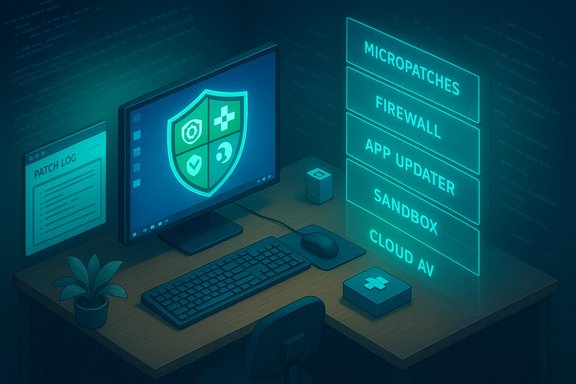
- Each tool described here focuses on one layer: micropatching (0patch), network control (TinyWall), bulk app updating (Patch My PC), execution isolation (Sandboxie Plus), and malware detection/cleanup (Panda Dome Free).
- Combined, they follow the security-in-depth principle: reduce exposure, restrict communications, isolate risky actions, and detect/respond to threats.
0patch — micropatching for Windows and apps
What it does and why it matters
0patch provides micropatches — tiny fixes that are applied in-memory to running processes — to cover critical vulnerabilities after a vendor stops shipping official updates. For Windows 10 users who cannot or choose not to upgrade immediately, 0patch is one of the few services that explicitly pledged to security‑adopt Windows 10 post‑end‑of‑support for a multi‑year window. Its design means many fixes can be applied without modifying system files and, crucially, without forcing a system restart.Strengths
- Targeted protection: Focuses on vulnerabilities that attackers are actively exploiting (including zero‑day fixes in many cases).
- No reboot required: Micropatches often take effect immediately in memory, avoiding operational disruption.
- Small footprint and automated updates: Patches are delivered automatically to the agent when available.
- Tiered model: A free tier covers urgent zero‑day protections while pro/enterprise tiers provide broader, continuous post‑EOL coverage at a modest per‑device price.
Risks and limitations
- Not a full replacement for vendor updates: Micropatching is a mitigation layer; it does not add missing features or provide full compatibility insurance the way official vendor updates do.
- Dependency on a third party: You must trust the patch vendor. Their long‑term commitment is a commercial promise and could change; any “supported until year X” statement is a vendor pledge, not a warranty.
- Coverage gaps: 0patch focuses on critical items first. Expect a prioritization model rather than blanket coverage for every bug class.
- Policy considerations: In enterprise or regulated environments, third‑party binary patching or in‑memory code injections may require formal approval.
Practical tips
- Install the 0patch agent and run the free tier first to see behavior on your machine; upgrade to Pro if you want full, scheduled coverage.
- Apply all offered Microsoft updates up to the last official Windows 10 release before enrolling 0patch — it relies on that baseline.
- Keep an eye on patch logs and the agent’s rollback options; if a micropatch causes trouble, 0patch’s architecture makes reversal possible.
TinyWall — a low-friction application firewall
What it does and why it matters
TinyWall is a lightweight, non-intrusive firewall front end that uses the existing Windows filtering stack (WFP) and can operate without installing drivers or kernel components in its typical configuration. It’s designed to be simple: block everything outbound by default, then allow only what you explicitly whitelist. On a system that isn't getting security updates, limiting application network access is a powerful risk reduction: many malware campaigns exfiltrate data or fetch payloads over the network.Strengths
- No‑popups policy: Instead of prompting constantly, TinyWall requires deliberate whitelisting actions, reducing “allow fatigue” that often leads to overly permissive rules.
- Low system impact: Lightweight UI and minimal resource usage make it suitable for older hardware.
- Multiple whitelist methods: Hotkeys, tray menus, and context actions make it practical to manage.
- Tamper protection: Prevents other software from silently changing firewall rules.
Risks and limitations
- User configuration required: The security model relies on you choosing to keep the default strict policy. Users who blanket-whitelist everything will reduce its benefit.
- Not a full network IDS/IPS: TinyWall is not an intrusion prevention system; it controls app-level access, not deep packet inspection.
- Compatibility: Some complex antivirus suites, VPN clients, or network utilities may conflict; when that happens, careful testing is required.
- Enterprise scalability: TinyWall is designed for single users or small offices; it lacks centralized management.
Practical tips
- Start with the default restrictive mode and whitelist only essential apps (browser, mail client, chosen updater, antivirus).
- Use TinyWall’s “block all except selected” mode for casual browsing sessions on risky sites, and revert to a more lenient whitelist for everyday work after testing.
- Combine TinyWall with a host‑level logging practice: review blocked connections periodically to spot unexpected attempts.
Patch My PC Home Updater — automated third‑party app patching
What it does and why it matters
One of the most common ways attackers compromise systems is by exploiting unpatched third‑party applications. Patch My PC Home Updater automates discovery and silent updating of hundreds of common Windows applications. It finds outdated apps, offers a clear list of what’s missing, and supports scheduled, batch, and silent updates — drastically reducing the administrative overhead of application patching on an unsupported OS.Strengths
- Large app catalog: Supports hundreds of mainstream and niche apps, and the vendor actively expands the catalog.
- Silent and scheduled updates: Updates can be installed in the background with minimal user intervention.
- Portable option: A portable build allows on‑demand scanning from USB without installing software, useful for one-off maintenance.
- Uninstall and install features: Bulk uninstall and clean install flows help remove vulnerable software quickly.
Risks and limitations
- Updater trust: The tool downloads and executes installers; ensure you download the updater from the official distribution to avoid supply‑chain tampering.
- Edge cases in installers: Some installers expose optional offers or custom dialogs; while Patch My PC defaults to silent modes, uncommon installers could still prompt or change behavior.
- Not a substitute for vendor updates of Windows itself: Keeping apps up to date helps, but it does not patch core OS vulnerabilities.
Practical tips
- Run a full scan and let Patch My PC update all critical apps first (browsers, PDF readers, Java runtimes, etc..
- Configure the updater to silent‑install and schedule daily checks at a non‑intrusive time.
- Use the portable build to update multiple machines without repeated installs, but verify that portable catalog items are tracked to be updated going forward.
Sandboxie Plus — isolate risky processes
What it does and why it matters
Sandboxie Plus creates isolated runtime environments (sandboxes) for running browsers, email clients, installers, or any untrusted executable. Anything that happens inside a sandbox — file writes, registry changes, cookies and cache — remains confined and can be discarded when the sandbox is closed. For users on an unsupported OS, sandboxing reduces the blast radius of a successful exploit.Strengths
- Strong isolation model: Combines a kernel‑level driver with user‑mode hooks and service coordination to virtualize file/registry views for sandboxed processes.
- Open-source and actively maintained: The community edition and “Plus” UI are actively updated and can be inspected or audited by advanced users.
- Flexible sandboxes: Multiple independent sandboxes, snapshot/restore features, and configurable policies make it practical for testing risky items safely.
Risks and limitations
- Kernel driver involvement: Sandboxie installs a kernel-mode driver to intercept system calls and virtualize resources. Kernel drivers carry inherent stability and compatibility risks and can be blocked by other security software or Windows updates.
- Not foolproof: Advanced kernel or hypervisor-level exploits may escape or bypass sandbox controls; sandboxing is a mitigation layer, not absolute containment.
- Operational complexity: Some applications (complex DRM, low‑level filesystem hooks, or certain hardware integrations) can misbehave or detect sandboxing and refuse to run.
Practical tips
- Install Sandboxie Plus as a dedicated user with administrative consent and test key workflows (browser, PDF reader) to confirm compatibility before making it a daily driver.
- Use Sandboxie for web browsing and opening untrusted attachments; commit to closing sandbox instances after each risky session.
- Keep Sandboxie up to date and be prepared to temporarily disable it if kernel driver conflicts show up after major system component changes.
Panda Dome Free — an auxiliary cloud‑based antivirus
What it does and why it matters
Panda Dome Free is a cloud‑based antivirus offering real‑time scanning, USB drive protection, a rescue kit for offline recovery, and a lightweight process monitor. Since its detection engine and many heuristics run on vendor servers, it places less load on older hardware — a common scenario for Windows 10 holdouts — and keeps malware signatures and analytics current regardless of Windows Update status.Strengths
- Cloud-assisted detection: Offloads heavy analysis to vendor servers for up-to-date detection with a small local footprint.
- Real-time protection in the free tier: Unlike many free AVs that limit real-time features, Panda provides baseline continuous scanning for free.
- Rescue/bootable kit: Ability to create rescue media is valuable for cleaning deeply infected systems.
- USB vaccinate/scan feature: Automatic scans on USB insertion protect against a common cross‑device infection vector.
Risks and limitations
- Upsell prompts: Free antivirus products may push premium upgrades; these are benign but can be noisy and distracting.
- Overlap with Windows Defender: Windows includes Defender, which also provides malware protection; running multiple real-time AV engines can cause performance issues or conflicts. Choose one active real‑time AV and keep the other in passive/manual-scan mode.
- Privacy and telemetry trade-offs: Cloud‑based services necessarily send metadata for analysis; review the vendor’s privacy policy if data residency or telemetry is a concern.
Practical tips
- Pick one real‑time AV engine — either Panda Dome Free or Windows Defender — and configure the other for periodic on‑demand scans to avoid conflicts.
- Enable USB protection and create a rescue kit immediately; keep the rescue media on a separate, known-good USB device.
- Schedule regular full scans weekly and quick scans daily, aligned with Patch My PC updates.
How to combine these tools safely — recommended order and configuration
Follow a conservative, tested deployment path to avoid conflicts:- Backup first
- Create a full system image (or at least a current file backup and a System Restore point) before making significant changes.
- Baseline updates
- Apply all remaining official Windows updates available up to the final Windows 10 release for your build.
- Install 0patch agent (free tier then evaluate Pro)
- Let it populate and apply emergency micropatches to known-at-risk items.
- Install your chosen antivirus (Panda Dome Free or use Windows Defender)
- If choosing Panda, disable Windows Defender real‑time protection to avoid engine clashing.
- Install TinyWall and set strict default rules
- Whitelist only the apps you know need network access (browser, updater, email client).
- Install Patch My PC Home Updater and run a first full update
- Update browsers, runtimes, plugins, and utilities; schedule daily checks.
- Install Sandboxie Plus and test sandboxed browsing sessions
- Run your browser in a sandbox for unknown sites; open attachments inside a sandbox before allowing them into the host.
- Monitor, iterate, and test
- Review TinyWall blocked-connection logs, Patch My PC change logs, 0patch patch history, and AV quarantine logs.
- Run Patch My PC updates weekly (or let it auto-run nightly).
- Keep Patch My PC, Panda, TinyWall, and Sandboxie updated.
- Use Sandboxie for risky browsing and attachment handling.
- Audit firewall logs and reject unknown outbound connections.
- Back up important files weekly; keep an offline copy.
Practical caveats and hard truths
- Third‑party mitigations reduce risk but do not return an unsupported OS to the same security posture as a supported one. Kernel vulnerabilities and deep platform flaws may still be exploitable.
- Any tool that touches kernel behavior (Sandboxie’s driver, in particular) increases the importance of testing for compatibility with other security products and Windows updates.
- Relying on a single vendor for both detection and remediation concentrates trust — diversify where practical (for example, use one AV and an independent scanner periodically).
- Vendor commitments (e.g., a pledge to support for “five years”) are business promises that can change if conditions or finances shift. Treat them as helpful but non‑guaranteed.
When to stop relying on mitigations and upgrade
These tools buy time and mitigate many common risks, but they are not an indefinite replacement for a supported OS. Plan to transition off Windows 10 in one of these ways:- Upgrade to Windows 11 on compatible hardware (best long-term security).
- Replace the device if it cannot meet Windows 11 requirements.
- Enroll in Microsoft’s ESU if you meet eligibility and require an official, time‑limited bridge.
- For very specific workloads, consider migrating vulnerable functions to a supported virtual machine or cloud host managed with up‑to‑date patches.
Final assessment — what each tool gives you
- 0patch: targeted emergency patches (best for known exploit fixes and zero‑day mitigation); we recommend trying the free tier, then upgrading if you rely on the platform long term.
- TinyWall: application‑level network control with minimal noise; ideal for users who will actively manage a strict whitelist.
- Patch My PC Home Updater: the single most practical step to reduce attack surface quickly by keeping third‑party apps current.
- Sandboxie Plus: strong containment for risky operations; valuable for casual browsing and testing unknown files.
- Panda Dome Free: lightweight cloud‑backed antivirus with useful extras (rescue kit, USB protection); pick it if you want an independent AV engine outside Microsoft’s update chain.
Closing recommendations
- Start with a complete backup, then run the updater (Patch My PC) to remove the low-hanging fruit: outdated browsers, runtimes, and PDF readers.
- Add an independent AV and configure TinyWall to block unexpected outbound traffic by default.
- Use Sandboxie for disposable browsing sessions and to open suspect attachments safely.
- Deploy 0patch to receive micropatches for the most pressing Windows and app vulnerabilities, and treat its longer-term support statements as vendor commitments to monitor, not guarantees.
- Make an explicit migration plan off Windows 10: these tools are a pragmatic stopgap, not a permanent substitute for a supported OS.
Source: SlashGear 5 Free Tools To Keep Your Windows 10 PC Secure Without Further Microsoft Support - SlashGear
