

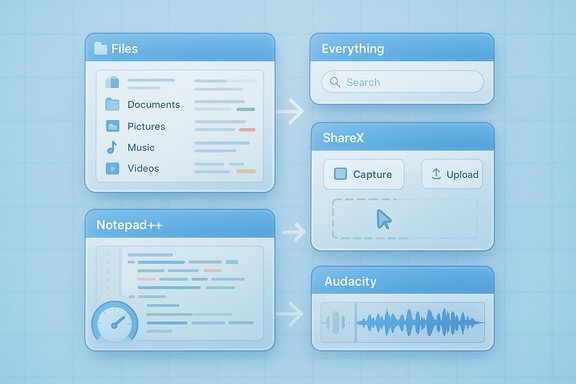
Windows ships with solid basics, but for many everyday tasks the right third‑party tools deliver faster, more flexible, and often safer workflows — and the five free Windows apps below repay the time it takes to install them with measurable productivity gains. These are not gimmicks: each addresses a specific shortcoming in Windows’ defaults — file management, file search, screen capture, text editing, and audio editing — and together they form a compact toolkit that will change how you work on Windows 11 and Windows 10. This feature examines what each app does, why it matters, how to adopt it safely, and the main strengths and risks to weigh before switching.
Microsoft’s built‑in utilities aim for broad compatibility and a conservative feature set, which leaves room for focused, community‑driven projects to innovate quickly. The five replacements examined here — Files, Everything, ShareX, Notepad++, and Audacity — are widely recommended by reviewers and user communities because they deliver targeted improvements where Windows’ defaults lag behind. Independent coverage and community testing show these apps consistently outperform the native tools in their respective niches, though they are not drop‑in, zero‑risk swaps for every environment. The versions and behaviors described here reflect current project feature sets and user reports.
By choosing replacements that focus on speed, automation, and extensibility, you reclaim the bulk of your desktop time from clunky defaults. The payoff is simple: fewer clicks, less waiting, and cleaner outcomes for the work you actually care about.
Source: fastcompany.co.za Discover 5 free Windows apps that will transform your experience
 Background / Overview
Microsoft’s built‑in utilities aim for broad compatibility and a conservative feature set, which leaves room for focused, community‑driven projects to innovate quickly. The five replacements examined here — Files, Everything, ShareX, Notepad++, and Audacity — are widely recommended by reviewers and user communities because they deliver targeted improvements where Windows’ defaults lag behind. Independent coverage and community testing show these apps consistently outperform the native tools in their respective niches, though they are not drop‑in, zero‑risk swaps for every environment. The versions and behaviors described here reflect current project feature sets and user reports.Files — the File Explorer replacement Windows should have
What Files is and why it matters
Files is an open‑source file manager that dresses modern file management in a Fluent‑style UI while packing power‑user features — dual‑pane browsing, tabs, file tagging, QuickLook‑style previews, and cloud‑drive integrations — into a single, responsive package. For users who move lots of files (photographers, designers, power folders in corporate workflows), those capabilities reduce friction and context switching compared with File Explorer.Key features
- Dual‑pane interface for fast drag‑and‑drop transfers.
- Tabbed browsing and breadcrumb Omnibar for quick navigation.
- Custom file tagging (color tags) to organize files across folders.
- Built‑in previews (images, text, markdown) without launching separate apps.
- Integrations / plugins for several cloud providers (behavior varies by provider).
Why it’s better than File Explorer for many tasks
Dual‑pane mode alone eliminates repeated context switches when copying large batches between locations. Tags let you create cross‑cutting organizational models instead of forcing everything into a rigid hierarchical folder structure. Tabs and previews speed triage tasks that previously required opening multiple windows or apps. Independent writeups and changelogs confirm Files’ focus on these features and ongoing active development.How to adopt Files safely (step‑by‑step)
- Install Files from the project’s official store or GitHub release (avoid third‑party repackagers).
- Run it side‑by‑side with File Explorer for one week to replicate common workflows.
- Test dual‑pane transfers and tagging on non‑critical data sets first.
- If you plan to replace Explorer shell associations, back up File Explorer settings and create a restore point.
- Monitor for performance issues with large network shares or NAS devices.
Risks and practical cautions
- Performance can vary: enabling many preview extensions or indexing large network volumes can slow the app. Community reports note occasional sluggishness on complex networked file systems.
- Deep integration (replacing Explorer shell) can create edge cases when Windows updates change Explorer behavior. Keep File Explorer as a fallback and maintain a recovery plan.
- Cloud integrations depend on each provider’s API and local sync client; verify that important files remain synced and accessible before migrating active workflows.
Everything — the fastest way to find files by name
What Everything does
Everything by Voidtools is a lightweight search utility that indexes file and folder names (not file contents) and returns results instantly as you type. Because its index is essentially a map of names rather than content, searches feel instantaneous — often returning hits before you finish typing. For locating known files quickly, Everything beats Windows Search hands down.Key features
- Near‑instant filename searches using a tiny, efficient index.
- Regular expressions and advanced filters for refined queries.
- Networked search across NTFS volumes with remote indexing options.
- Low memory footprint and minimal CPU overhead in typical desktop setups.
Why it’s a must‑have
If your workflow depends on locating files by name — project assets, builds, exported reports — Everything will save minutes every day. Where Windows Search’s indexing and content scanning can stall and consume resources, Everything gives you immediate results for filename lookups. Independent editorials and community tests echo this speed advantage.How to use Everything effectively
- Install Everything and let it build an initial index (fast on local drives).
- Use wildcards and regex filters only when needed — simple prefixes are usually fastest.
- Add network volumes if you regularly search shared storage; test index times and any permission limitations.
- Bookmark frequent queries and add keyboard shortcuts for instant access.
Risks and limitations
- Everything’s name‑only index means it won’t find files by content unless you combine it with tools that index file contents.
- Network index performance and access depend on permissions; some enterprise shares may block indexing or require admin steps.
- Because Everything exposes rapid access to file paths, combine it with safe deletion practices (recycle bin enabled, versioned backups) to avoid accidental data loss.
ShareX — turn screenshots into automated workflows
What ShareX is and why it stands out
ShareX is a free, open‑source capture workstation that moves screenshotting from one‑off image files into a repeatable, automated workflow. It supports region and full‑screen capture, scrolling captures, screen recording, robust annotation tools, and — crucially for modern collaboration — automated post‑capture actions such as uploading to multiple destinations, shortening links, and copying shareable URLs automatically. These automation hooks are what make ShareX a productivity multiplier for support teams, writers, and power users.Core capabilities
- Multiple capture modes, including scrolling window capture and multi‑monitor support.
- Built‑in image editor with arrows, callouts, blurs, and text annotation.
- Powerful, scriptable post‑capture tasks: automatic uploads to dozens of providers, clipboard actions, and file conversions.
- Screen recording (GIF/MP4), automated workflows and hotkeys.
Why ShareX beats Snipping Tool for serious work
Windows’ Snipping Tool is fine for occasional snaps, but it lacks automatic upload, advanced annotation, and workflow automation. ShareX eliminates repetitive steps — capture, save, open browser, upload — by connecting them. For teams that share many captures daily, that automation is measurable time saved. Independent app reviews and community documentation emphasize ShareX’s extensibility and long feature list.Adoption checklist
- Download ShareX from the official project page or a trusted repository.
- Configure preferred hotkeys for capture modes you use most.
- Set up one or two upload destinations you trust (e.g., your private S3 bucket, company file server, or a private Imgur account).
- Create a default post‑capture workflow: crop → annotate → upload → copy link.
- Train collaborators on the new share link workflow so they know where captures land.
Security and privacy notes
- Be careful with automatic uploads to third‑party image hosts for sensitive screenshots; use private or self‑hosted destinations when capturing proprietary data.
- ShareX supports custom uploaders and webhooks; enterprises should validate outbound network policies and compliance implications before enabling automatic cloud uploads.
Notepad++ — a power text editor, not just for coders
What Notepad++ brings to the table
Notepad++ is a free, extensible text editor built for speed and productivity. It offers tabbed documents, syntax highlighting for dozens of languages, powerful multi‑file search & replace, macros, and a plugin ecosystem that extends it into tasks like code linting, formatting, and markdown preview. For anyone who edits configuration files, scripts, or source code, Notepad++ replaces the barebones Notepad with a real tool that scales from quick edits to heavy lifting.Key features
- Syntax highlighting & auto‑completion for many programming and markup languages.
- Tabbed interface and session management.
- Find in Files: fast, across‑project search and replace with regex support.
- Plugin manager and macro recording for repeatable edits.
Why it matters for everyday users
Even if you aren’t a developer, Notepad++ is invaluable: batch replace settings across many config files, quickly inspect large logs, or prepare scripts for automation. It opens large files much more reliably than Notepad and provides the power features that make repetitive text tasks far less painful. Independent lists of essential Windows apps frequently include Notepad++ for its utility and low footprint.How to migrate from Notepad
- Install Notepad++ from the official website or a verified package source.
- Tweak the font and tab settings to match your comfort.
- Install a few plugins you’ll actually use (compare plugin descriptions first).
- Use “Find in Files” on a test folder to learn regex search & replace safely.
- Keep the original Notepad as a fallback during initial weeks.
Caveats and enterprise considerations
- Some plugin ecosystems have varying maintenance quality; install only well‑maintained plugins for production use.
- Enterprises with strict software controls should validate portable vs. installed builds and check for signed installers if policy requires them.
Audacity — free multi‑track audio editing and cleanup
What Audacity offers
Audacity is a free, cross‑platform audio editor that supports multi‑track recording, trimming, normalization, noise reduction, and a wide range of import/export formats. For podcasters, tutorial creators, or anyone who records voiceovers, Audacity provides serious editing power without subscription fees. Its toolset covers the basic to intermediate audio cleanup tasks most creators need.Core features
- Multi‑track recording and non‑destructive editing.
- Effects suite: noise reduction, equalization, compression, and normalization.
- Support for WAV, MP3 (with optional encoders), OGG, and more.
- Batch processing via chains or scripts for repetitive tasks.
Why Audacity still matters
Commercial DAWs are powerful but overkill for simple cleanup and clip editing. Audacity lets you remove background hiss, trim breath sounds, and export clean clips quickly — essential tasks for anyone producing short audio segments or narrations. Community and editorial guides consistently recommend Audacity for fast, offline audio work.Practical setup and workflow
- Install Audacity from the official project page; include optional MP3 encoders only from trusted sources.
- Record a short test clip to set proper input levels (avoid clipping).
- Use the Noise Reduction effect: capture a noise profile, then apply reduction conservatively.
- Normalize and apply light compression for consistent levels.
- Export in a lossless format for archives (WAV) and MP3 for distribution.
Risks and warnings
- The learning curve for multi‑track mixing can be moderate; follow basic tutorials before editing important recordings.
- Use conservative noise reduction — aggressive filtering introduces artifacts and can hurt intelligibility.
- As with any open‑source tool, verify installer integrity and avoid bundled third‑party installers.
Deployment best practices and security checklist
- Always download from official project sources or recognized package managers to minimize bundled software risk.
- Prefer portable builds or signed installers when corporate policies require verified binaries.
- Keep a fallback plan: don’t remove Windows’ built‑ins until you’ve validated replacements across your core workflows.
- Test performance on your hardware: dual‑pane file managers and rich preview plugins can tax older systems.
- For screenshot/upload workflows, prefer private upload destinations for sensitive captures or disable automatic uploads.
- Maintain backups before making sweeping changes to file‑handling workflows or replacing system defaults.
Alternatives and when not to switch
Each of these apps excels at specific use cases, but they’re not the only options. For file exploration, alternatives like Total Commander or ExplorerPatcher (for UI tweaks) exist; for search, PowerToys Run or Flow Launcher provide richer app‑and‑command search; Greenshot and PicPick are simpler screenshot tools than ShareX; VS Code rivals Notepad++ for programming; and for audio, commercial DAWs or simpler recorders may suit other workflows. The decision to switch should be driven by measurable time saved or functionality gained, not novelty alone. Independent roundups of essential Windows tools frequently list several viable alternatives depending on user needs.Why these five are the right first installs
Together these apps target the most friction‑heavy, frequent tasks on a typical knowledge‑worker’s Windows PC: finding files fast (Everything), moving and organizing them (Files), capturing and sharing screen content (ShareX), editing text quickly and powerfully (Notepad++), and cleaning up audio (Audacity). Each is mature in its niche, actively maintained, and free — a low barrier to trial and a high potential return on time invested. Editorial and community roundups repeatedly surface these five when recommending a free Windows productivity toolkit.Final verdict and recommended rollout
If you want a single practical upgrade path that delivers immediate, visible gains:- Install Everything for instant file lookup and confirm it improves your daily find/locate time.
- Try Files in parallel with Explorer to see if dual panes and tagging save you context switches.
- Replace ad‑hoc screenshots with ShareX automation for quicker sharing.
- Swap Notepad for Notepad++ to eliminate repetitive text‑editing drag.
- Add Audacity for any audio editing needs that go beyond simple recording.
By choosing replacements that focus on speed, automation, and extensibility, you reclaim the bulk of your desktop time from clunky defaults. The payoff is simple: fewer clicks, less waiting, and cleaner outcomes for the work you actually care about.
Source: fastcompany.co.za Discover 5 free Windows apps that will transform your experience
