Linux gives you things Windows won’t — not because Microsoft is malicious, but because the two ecosystems make different trade‑offs. What follows is a practical, verified look at five concrete capabilities you can get on Linux today that are either impossible, impractical, or severely limited on Windows. I’ll summarize the core claims, verify the technical details against official documentation and independent reporting, and then offer a critical assessment of strengths, real-world benefits, and the trade‑offs you should know before switching or adopting Linux workflows. This is written for power users who care about control, efficiency, and privacy — the kinds of people who will actually use these features.
Linux has long been the platform of tinkerers, sysadmins, and people who prioritize control and efficiency over tightly managed defaults. A recent consumer‑facing roundup illustrated this gap by listing five everyday examples where Linux outshines Windows — from unlimited desktop customization to portable live USB systems. That piece captures the spirit of the differences; I’ve verified and expanded those claims with vendor docs and independent reporting to separate marketing claims from technical reality. areas I examine are:
That said, Linux isn’t a silver bullet. Compatibility, vendor tooling, and enterprise support keep Windows entrenched in many environments. The most pragmatic approach for most users is selective adoption: try Linux live media, use WSL and tooling on Windows to learn the command line and package managers, and consider full installs on older hardware where Linux’s efficiency and control produce the biggest returns. When you do decide to switch or mix platforms, follow disciplined testing, keep backups, and match the distro or tools to your specific needs. The result is not a crusade to abandon Windows, but a practical set of choices that give you more control over how your computing actually works.
Source: How-To Geek 5 things you can do on Linux but not on Windows
 Background / Overview
Linux has long been the platform of tinkerers, sysadmins, and people who prioritize control and efficiency over tightly managed defaults. A recent consumer‑facing roundup illustrated this gap by listing five everyday examples where Linux outshines Windows — from unlimited desktop customization to portable live USB systems. That piece captures the spirit of the differences; I’ve verified and expanded those claims with vendor docs and independent reporting to separate marketing claims from technical reality. areas I examine are:- Full, low‑level control of the desktop UI and windowing behavior (panels, widgets, effects).
- Lightweight footprints that revive older hardware.
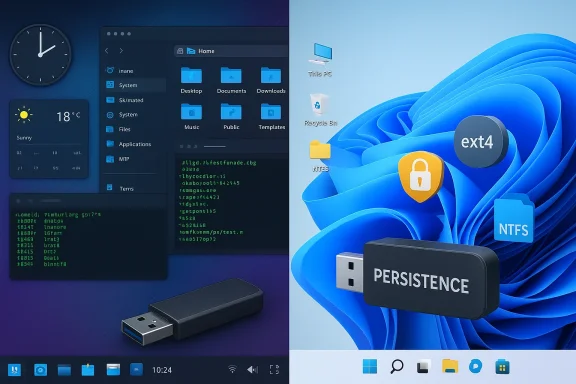
- True live USBs with persistent storage.
- A more transparent telemetry and privacy posture (distribution dependent).
- Native friendliness to multiple filesystems and easier cross‑OS file rescue.
1. Full control over how your system looks and feels
Linux desktop environments prioritize customizability in ways Windows does not. That’s a philosophical and technical difference: desktop shells on Linux are modular projects that expose settings, scripting, and APIs to users; Windows’ shell is a single, OS‑maintained surface with limited surface‑area for deep modification.What Linux gives you
- Move and duplicate panels (taskbars) anywhere on any display, create multiple panels with distinct widgets, and change their behavior and appearance in granular ways. KDE Plasma explicitly supports multiple panels and a drag‑and‑drop widget ecosystem (plasmoids) as a core design element.
- Add desktop widgets that are first‑class parts of the shell: system monitors, calendars, launchers, and embedded applets that can be scripted or written in QML/JavaScript. KDE’s “plasmoids” and Plasma’s widget API are designed for that.
- Tweak the lock screen, login manager, and session behavior: GNOME uses GDM; KDE uses SDDM — both expose theming and configuration options that go far beyond Windows’ wallpaper+brief widget model.
- Enable window effects (wobbly windows, desktop cube, burn and dissolve effects) via compositors (KWin, Mutter) and tweak animation timings, shadows, and focus behavior. Plasma’s desktop effects are explicitly configurable.
How Windows differs
Windows has historically offered a fixed, curated shell with incremental customization (accent color, wallpaper, a limited widget pane, and a taskbar with pinned apps). Windows 11 in particular reintroduced a centered Start/Taskbar layout and — as shipped — removed the supported ability to re‑dock the taskbar to the top/left/right edges in the GUI. Community coverage and reporting show users still can’t reliably reposition the taskbar without hacks, and Microsoft’s own tooling choices have kept the taskbar largely in place.Why this matters in practice
- Productivity: Multiple panels let you partition the UI for small screens (left side for workspaces, bottom for task switcher). Widgets give at‑a‑glance telemetry without opening apps.
- Custom workflows: Developers and operators can build clickable dashboards on the desktop (launch specific virtual machines, toggle VPNs, display alerts).
- Aesthetic and accessibility: You can build very different visual metaphors (macOS‑style dock, traditional Windows layout, tiling taskbars) without third‑party hacks.
Risks and trade‑offs
- Fragmentation: Extreme customization can produce breakage on desktop upgrades; community forums report occasional Plasma widget crashes after updates. Test before you rely on an exotic setup.
- Support and enterprise policy: Deep shell changes complicate managed environments and can make troubleshooting harder for help desks.
2. Breathe new life into ancient hardware
One of the most practical ways Linux outperforms Windows for many users is in resource efficiency. Many modern Linux distributions (and especially lightweight flavors) run well on systems that struggle with Windows 11’s user expectations and background services.What Linux can run on
- There are purpose‑built lightweight distros (Linux Lite, Xubuntu, AntiX, Tiny Core) with minimum requirements commonly well below what Windows 11 reasonably tolerates: single‑GHz CPUs, 512 MB–1 GB RAM for ultra‑light distros, 1–2 GB for mainstream light flavors. Several curated lists and project pages document these minimums and real‑world behavior.
- Even mainstream Ubuntu flavors are flexible; you can choose a lighter desktop (Xfce, MATE) to lower memory demand while keeping modern package management and support.
How Windows compares (and Microsoft’s official requirements)
- Microsoft’s published minimum for Windows 11 is 4 GB RAM and 64 GB storage, along with specific CPU/TPM/UEFI requirements. While those are the official minimums, real‑world usable setups for modern multitasking typically need substantially more RAM and a faster CPU. The official Microsoft requirements are clear: 4 GB RAM, 64 GB disk, UEFI + Secure Boot, TPM 2.0.
- Windows 11’s user experience and services assume modern hardware (fast NVMe/SSD, multicore CPUs), and OEM vendors optimize drivers for supported platforms.
Benefits
- Cost: Repurpose a decade‑old laptop for web browsing, document editing, mail, and light media — often faster and less frustrating than running Windows.
- Sustainability: Extending useful hardware life reduces e‑waste and delays costly upgrades.
- Flexibility: Lightweight distros let you tailor the stack (kernel, compositor, background services) to the hardware.
Risks and trade‑offs
- Application compatibility: Some native Windows apps (proprietary design, certain Adobe suites, specialized CAD) won’t run natively — you’ll need cross‑platform alternatives, Wine, or virtualization.
- User expectations: Modern web browsing (many heavy tabs) is still RAM hungry; even lightweight Linux will be limited by browser memory use.
3. Take your entire OS on a USB stick (real live USBs and persistence)
Linux live USBs are a mature, widely used capability: boot a complete OS from removable media, try it, and optionally persist changes across reboots. This isn’t merely an installer; it’s a portable workspace.How live USBs work on Linux
- Many distributions provide “live images” that boot directly into a full desktop environment without installing anything on internal disks. Ubuntu and other projects document “persistence” features (a casper‑rw partition or overlay) that save settings and files across boots. The official Ubuntu community Wiki documents how to create persistent live USBs using a dedicated partition or casper files.
- Persistence can be implemented as a writable partition (ext4) or an overlay file. When configured, the USB retains installed packages, user files, and settings; you truly carry your OS with you.
Windows: the historical and current story
- Microsoft provided “Windows To Go” for enterprise scenarios (Windows 8/10 Enterprise), but it was deprecated and removed: Microsoft announced Windows To Go as deprecated and the feature was removed beginning with Windows 10, version 2004. Documentation and industry reporting confirm the deprecation and removal, and modern Windows releases no longer provide a supported, built‑in portable workspace feature. Third‑party tools can create portable Windows installs but they are not officially supported.
Real‑world use cases
- Field technicians who need a consistent toolkit across machines.
- Privacy‑minded users who want a clean, ephemeral environment for sensitive tasks.
- Rescue media that boots into a full desktop for data recovery without modifying the host.
Caveats and performance notes
- USB devices’ speed matters: persistent live USBs that frequently write data will wear out low‑quality flash drives. Use high‑end USB 3.x sticks or small NVMe‑to‑USB enclosures for best performance.
- A live USB won’t match the speed of a local SSD install, especially for random I/O and pagefile activity.
- Security considerations: if you lose the stick, anyone with physical access can boot your OS unless you encrypt the persistent partition.
4. Linux actually respects your privacy (distribution dependent)
“Privacy” is a loaded word, and Linux is not a single product. But there are measurable differences in telemetry design and defaults between major Linux distributions and Windows.What Windows collects and how it’s implemented
- Microsoft’s privacy documentation for Windows 11 explains that certain diagnostic/telemetry data is collected “by default” to support reliability, security, and product improvement; Microsoft provides a privacy dashboard and settings to control some data collection. The official Microsoft pages are transparent about required vs. optional telemetry and how to manage the settings.
- In practice, many users and analysts view Windows’ default telemetry posture as more centralized and “on by default” compared with most Linux flavors.
How many Linux distributions handle telemetry
- Fedora (and other large projects) have moved toward opt‑in metrics and community governance of any collection. For example, a Fedora proposal for opt‑in metrics emphasized privacy, an open‑source client and server, and explicit user choice; reporting on the proposal shows it is designed to be opt‑in and auditable.
- Canonical (Ubuntu) runs user research and has published policies describing what kinds of non‑personally identifiable telemetry and user research it may collect, usually with user consent or clear opt‑in flows. Canonical’s legal and privacy pages explain how non‑identifying statistics may be retained and used.
Practical takeaways
- Many mainstream Linux distributions either don’t collect telemetry by default or use an explicit opt‑in model with open code for the metrics client. When telemetry exists, it’s often limited to anonymized hardware and usage metrics rather than broad behavioral data.
- If privacy is paramount, some distros specialize in minimal collection or ephemeral sessions (Tails, Qubes); others give you the tools (open source code, package control) to audit and remove unwanted components.
Risks and realities
- Not all Linux distros are created equal. A vendor‑backed distro (commercial or convenience‑oriented) could adopt more aggressive telemetry in the future; always read the distro’s privacy policy for current details.
- Some community packages or third‑party applications may phone home; the open‑source model makes this auditable, but it requires diligence.
5. Play nicely with other filesystems — and rescue files from other OSes
Linux historically supports a wide range of filesystems and offers robust tools for rescuing and manipulating disks formatted for other systems.Linux strengths
- Linux kernels include native drivers for ext4, btrfs, XFS, F2FS and many other filesystems, and the userland has mature tools to check and repair filesystems.
- Linux can read and write NTFS drives via NTFS‑3G or kernel drivers; that makes it trivial to boot a Linux live system and access Windows partitions for rescue or migration tasks.
- Linux offers command‑line tools (rsync, ddrescue, parted, fsck variants) that are standard for emergency recovery and bulk migration work.
Windows limitations (and recent improvements)
- Windows does not natively recognize Linux filesystems such as ext4, btrfs, or XFS. Microsoft has added limited ability to mount Linux disks within WSL (Windows Subsystem for Linux) using wsl --mount, but that mounts the Linux filesystem inside the WSL environment rather than presenting it as a native Windows volume. Microsoft’s WSL docs explicitly state ext4 disks cannot be mounted natively on the Windows filesystem without using WSL tooling.
- Historically, Windows users must rely on third‑party tools to read ext4; those tools vary in quality, and some offer read‑only access only.
Practical examples
- Dual‑boot rescue: Boot a Linux live USB and copy documents from a broken Windows install’s NTFS partition to an external drive.
- Migrating servers: Move data between filesystems and use Linux’s advanced snapshotting (btrfs, ZFS on Linux) for planned migrations.
- Forensic or recovery tasks: Linux tools like ddrescue, photorec, and testdisk are standard in the toolbox.
Caveats
- Cross‑platform write access requires caution: writing to an NTFS or exFAT partition from Linux is generally safe but depends on driver quality; always ensure predictable unmounts to protect data.
- WSL’s disk mounting features are evolving; they help developers but are not a full replacement for native cross‑OS filesystem support.
How to adopt the best of both worlds (practical guidance)
If you’re a Windows user intrigued by these Linux advantages but not ready to abandon Windows, here are practical, safe options to borrow Linux strengths without a full migration:- Use a Linux live USB with persistence to test workflows and run rescue tools when needed (Ubuntu’s Live USB persistence docs show how).
- Adopt WSL2 on Windows to run native Linux command‑line tools and mount Linux disks selectively from Windows when required. Microsoft documents wsl --mount for disk access.
- Install lightweight Linux on older machines (Xubuntu, Linux Lite) when hardware lifetimes no longer support a usable Windows experience; multiple community resources document minimums and practical expectations.
- Use community tools on Windows for limited customization (Rainmeter, StartAllBack, PowerToys) but maintain restore points — third‑party shell replacements can break with major updates. Community forums and archive analyses repeatedly recommend backups before UI experiments.
Critical analysis: strengths, risks, and where Windows still wins
Linux strengths are real and documented: control, modularity, and low overhead. The technical facts above are sourced from official docs (Microsoft, KDE, Ubuntu) and respected community reporting (LWN, distribution wikis). Examples:- Windows 11’s baseline hardware expectations and TPM/UEFI requirements are Microsoft’s official stance.
- Ubuntu’s live USB persistence mechanisms are documented in Canonical/Ubuntu community pages.
- KDE Plasma’s plasmoids, panels, and desktop effects are part of KDE’s core developer documentation.
- Application compatibility and ecosystem: Many professional, creative, and gaming applications are built primarily for Windows; the ecosystem and vendor support remain Windows’ strongest advantage.
- Driver and peripheral support: Windows’ driver ecosystem is larger for consumerlly gaming hardware, specialized medical or industrial devices.
- Enterprise management and vendor workflows: Corporate IT often standardizes on Windows for centralized management, security tooling, and vendor support.
- Dual‑boot, virtual machines, and WSL offer hybrid paths that let users keep Windows for software that requires it while adopting Linux where it excels.
- Test customizations and bootable systems on spare hardware or virtual machines first; maintain backups and recovery images.
- For privacy‑sensitive deployments, choose distros with clear privacy policies and opt‑out options, or use specialized privacy distros for ephemeral tasks.
Conclusion
Linux’s design choices — modular desktop shells, flexible filesystem support, opt‑in telemetry in many distros, and low system demands — enable capabilities that Windows either blocks by design or only supports via deprecated/unsupported workarounds. The five areas above (deep UI control, reviving old hardware, true live USBs with persistence, more transparent telemetry models, and native multi‑filesystem friendliness) are not theoretical: they’re real, well‑documented differences with practical everyday benefits for power users, technicians, and privacy‑minded people.That said, Linux isn’t a silver bullet. Compatibility, vendor tooling, and enterprise support keep Windows entrenched in many environments. The most pragmatic approach for most users is selective adoption: try Linux live media, use WSL and tooling on Windows to learn the command line and package managers, and consider full installs on older hardware where Linux’s efficiency and control produce the biggest returns. When you do decide to switch or mix platforms, follow disciplined testing, keep backups, and match the distro or tools to your specific needs. The result is not a crusade to abandon Windows, but a practical set of choices that give you more control over how your computing actually works.
Source: How-To Geek 5 things you can do on Linux but not on Windows