

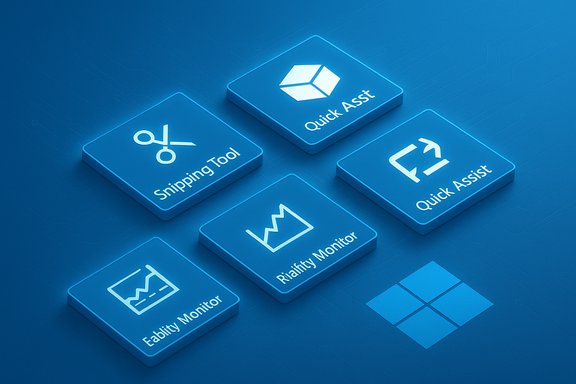
Most Windows users reflexively reach for third‑party apps for routine jobs—screenshots, remote help, scheduled tasks—without realizing that Windows already includes powerful, secure, and often better‑integrated tools that can replace those extra installs. This feature digs into five underrated built‑in Windows utilities—the Snipping Tool, Windows Sandbox, Quick Assist, Reliability Monitor, and Task Scheduler—showing what they do, how to use them practically, and the trade‑offs every Windows enthusiast should know before re‑installing yet another utility.
Windows has quietly matured from a collection of basic utilities into an operating system that bundles surprisingly capable, production‑grade tools. Over the last few releases Microsoft has folded features that once required paid apps or niche utilities—OCR in screenshot tools, disposable virtual environments, native remote support, and deeper diagnostics—directly into Windows. That evolution creates an important choice: keep piling on third‑party apps, or learn to use a few built‑in tools and reduce complexity, update burden, and attack surface.
This article verifies and explains those built‑in tools, gives step‑by‑step usage where it matters, and flags real risks so readers can adopt them safely and confidently. The recommendations reflect current Windows behavior and commonly available features of recent Windows 10/11 builds.
Adopt these built‑ins incrementally: test Snipping Tool’s OCR accuracy against a few real documents, try Windows Sandbox for one unfamiliar installer, use Quick Assist for the next family tech call, consult Reliability Monitor at the first sign of instability, and put routine housekeeping tasks into Task Scheduler. For tasks where a built‑in tool falls short, pair the native utility with a targeted third‑party specialist rather than doubling up on tools across the board.
The net effect is cleaner systems, fewer background processes, and a smaller update surface—plus the satisfaction of mastering tools you already own. Embrace the built‑ins, keep the best third‑party tools for specialized needs, and watch daily Windows maintenance get a lot simpler.
Source: How-To Geek 5 powerful Windows tools you probably never use but should
 Background
Windows has quietly matured from a collection of basic utilities into an operating system that bundles surprisingly capable, production‑grade tools. Over the last few releases Microsoft has folded features that once required paid apps or niche utilities—OCR in screenshot tools, disposable virtual environments, native remote support, and deeper diagnostics—directly into Windows. That evolution creates an important choice: keep piling on third‑party apps, or learn to use a few built‑in tools and reduce complexity, update burden, and attack surface.This article verifies and explains those built‑in tools, gives step‑by‑step usage where it matters, and flags real risks so readers can adopt them safely and confidently. The recommendations reflect current Windows behavior and commonly available features of recent Windows 10/11 builds.
Snipping Tool — far more than a basic screenshot app
What changed: OCR, light editing, and recordings
What used to be a one‑shot screenshot utility now includes a surprising set of productivity features: multiple capture modes (rectangular, freeform, window, full screen), lightweight annotations, simple cropping and redaction tools, short screen recordings, and critically, built‑in OCR (Text Extractor) that converts image text into editable clipboard text. That means you can capture a paragraph from a PDF, a slide, or even handwritten notes and paste the resulting text into an editor—no extra OCR software required.Why this matters
- Replace multiple tools: The Snipping Tool can often stand in for a screenshot utility, a small image editor, and a basic OCR tool—reducing the need for separate apps.
- Speed and security: Native integration means faster startup and fewer privacy concerns than cloud‑based OCR services.
- Everyday automation: Built‑in keyboard shortcuts and automatic clipboard behavior streamline common tasks.
How to use the most valuable features
- Press Win + Shift + S to invoke quick capture modes, or open Snipping Tool from Start for the full app.
- Choose a capture mode (Rectangular, Freeform, Full screen, or Window) and take the snip.
- After capture, click the Text Actions (or “Copy text” / Text Extractor) option to let the tool run OCR and copy recognized text to the clipboard.
- Use built‑in annotation tools to highlight or redact sensitive content before saving or sharing.
Hidden gem: Delay Snip and recording
Delay Snip (3 / 5 / 10 seconds) lets you prepare transient UI elements before capture; light screen recording handles short clips without pulling in a separate recorder.Strengths and limits
- Strengths: Fast, local OCR for moderate accuracy scenarios; quick annotations and redaction; native security posture.
- Limitations: OCR isn't a replacement for advanced OCR suites on complex documents (multi‑column layouts, heavy formatting, or archival scans). For maximum fidelity on those, dedicated OCR tools still win.
Practical tips
- Update Snipping Tool via Microsoft Store to access the latest OCR fixes and enhancements.
- For repeat OCR work, test PowerToys Text Extractor alongside Snipping Tool to compare accuracy and workflow fit.
Windows Sandbox — trial running apps without risk
What it is and when to use it
Windows Sandbox is a lightweight, disposable virtual environment built into compatible Windows editions that lets you install and run software in total isolation from your main system. Anything installed or run in the Sandbox disappears when you close it, making it ideal for testing unknown apps, installers, or potentially risky configurations. It’s not a full VM platform for long‑term use, but it’s perfect for short, safe experiments.Enabling and launching Sandbox
- Enable via “Turn Windows features on or off” → check Windows Sandbox → restart the PC.
- Launch by typing “Windows Sandbox” in Start.
- If you don’t see the option, confirm three prerequisites: virtualization support enabled in your firmware/BIOS, Data Execution Prevention (DEP) enabled, and a Windows edition that includes Sandbox (typically Pro and Enterprise builds). These platform requirements make the feature safe but gated. Always verify edition support before relying on Sandbox for testing.
Practical workflow
- Open Sandbox.
- Drag and drop an installer or use a shared folder (copy/paste) to move files into the sandbox session.
- Install and run the software to observe behavior and network activity.
- Close the sandbox to safely destroy all changes.
Strengths and risks
- Strengths: True isolation, ephemeral state, very low management overhead compared with full VMs. Ideal for quick vetting of downloads.
- Risks and caveats: Sandbox is not persistent; it's unsuitable for long‑term testing or services that require deep hardware access. Some driver installs or low‑level system tools won’t run inside Sandbox. Also, Sandbox availability varies with Windows edition—home users may need a Pro/Enterprise license or alternative virtualization like Hyper‑V / VirtualBox. Verify environment needs before choosing Sandbox for critical testing.
Quick Assist — built‑in remote help that actually works
The tool at a glance
Quick Assist is Microsoft’s simple, secure remote support tool built into Windows. It lets one user view or take control of another user’s PC by exchanging a short access code—all tied to Microsoft accounts for accountability. For family tech support and light IT help, Quick Assist eliminates the need for TeamViewer, AnyDesk, or other remote‑control apps in most scenarios.Key features and the fastest path to help
- Quick code‑based access: One party generates a code; the other enters it to share a session.
- Optional control: Grant view‑only or full remote control.
- Simple launch: Invoke Quick Assist with Ctrl + Win + Q for immediate access.
Step‑by‑step support flow
- Both users sign into their Microsoft accounts.
- Helper opens Quick Assist (Ctrl + Win + Q) and selects “Give assistance” to generate a short code.
- Recipient runs Quick Assist and selects “Get assistance,” entering the code.
- The recipient accepts the incoming connection; the helper now sees the remote desktop and can request control.
Strengths and limitations
- Strengths: Zero‑install (built into Windows), easy for nontechnical users, ties sessions to Microsoft accounts for traceability, works across NAT without manual router changes.
- Limitations: Lacks advanced enterprise features (file transfer queues, persistent unattended access, session recording and audit logs) found in paid remote tools. For professional managed support, dedicated products still make sense.
Best uses
- Family tech support and quick troubleshooting.
- IT teams providing ad hoc, interactive help to remote users who don’t need unattended persistent access.
Reliability Monitor — a user‑friendly stability timeline
What it is
Reliability Monitor is a built‑in diagnostic that presents a clear, visual timeline of system stability—crashes, hangs, updates, driver failures, and more—making it much easier to find when a problem began and which events coincided with it. It’s a far more approachable front end than Event Viewer for the typical desktop user.Why it’s useful
- Chronological clarity: See when a failure started and what changed near that time (installations, updates, etc..
- Clickable events: Drill into specific entries to get error codes and descriptions that speed up troubleshooting.
- Prevention: Spot recurring app failures or driver problems before they become catastrophic.
How to open and use it
- Search Start for “View Reliability History” and open the tool. The graph uses a scale where higher points represent greater stability; drops indicate errors or faults. Click any day to list recorded events and then click an event for details and suggested fixes.
Strengths and caveats
- Strengths: Great first stop for mystery crashes or intermittent problems; readable to non‑experts yet actionable.
- Caveats: It is not a replacement for deep log analysis with Event Viewer when you need kernel or driver‑level diagnostics. For persistent or enterprise incidents, pair Reliability Monitor with deeper telemetry or sysinternals tools.
Task Scheduler — automate the small tasks that add up
The overlooked automation engine
Task Scheduler is the native way to automate nearly any Windows action: run backups, launch scripts at login, schedule maintenance jobs, or trigger repairs when specific conditions occur. It is powerful and precise, but many users never open it despite its ability to eliminate repetitive manual work.Common practical tasks
- Schedule nightly backups or file copies to an external drive.
- Run maintenance scripts at idle time.
- Launch productivity apps when you unlock your PC or connect a monitor.
- Run cleanup tools on a schedule without user interaction.
Creating a basic task (quick steps)
- Open Task Scheduler from Start.
- Action → Create Basic Task.
- Name the task and pick a trigger (daily, at logon, on idle, etc..
- Choose the action (start a program, send an email—deprecated in newer Windows—or show a message).
- Configure conditions (only run on AC power, stop if runs longer than X) and finish.
Strengths and pitfalls
- Strengths: Extremely flexible triggers and conditions; powerful actions; reliable once configured.
- Pitfalls: Misconfigured tasks can run unwanted jobs or fail silently when conditions change (user account differences, network paths). Use descriptive names, enable “Run only when user is logged on” for user‑interactive tasks, and test tasks manually before relying on them.
Advanced uses
- Combine Task Scheduler with PowerShell scripts for robust, repeatable automation across devices.
- Use scheduled tasks to gather periodic diagnostics (event log exports, performance snapshots) to support longer troubleshooting sessions.
Practical adoption roadmap — how to switch safely
- Inventory current third‑party apps: list the apps you use for screenshots, remote support, testing, diagnostics, and scheduling.
- Try the built‑in equivalent for a week, side‑by‑side with your current tools, to compare workflow and edge cases.
- Back up before changing system behavior: create a restore point or full system image before replacing automation or uninstalling third‑party tools.
- Keep one fallback: retain at least one third‑party app while you confirm parity on critical workflows (e.g., unattended remote access or enterprise‑grade OCR).
- Reassess security and update habits: built‑ins reduce attack surface, but you still must keep Windows updated and review privacy settings for features that sync content to the cloud.
Strengths, trade‑offs, and where third‑party apps still win
- Built‑ins are tightly integrated, zero‑cost, and simpler to manage; they reduce dependency on external update cycles and avoid adding background services.
- However, specialized third‑party apps still excel in advanced scenarios: enterprise remote‑management features, batch OCR on complex document sets, long‑running virtual machines, or scheduler UIs designed for mass deployment. For power users and admins, third‑party tools remain essential in those niches.
Quick reference: Which built‑in tool replaces what
- Snipping Tool = screenshot + annotation + quick OCR for one‑off text extraction.
- Windows Sandbox = disposable VM for short‑term app testing (Pro/Enterprise eligibility required).
- Quick Assist = ad‑hoc remote support for family and casual IT help, no installs required.
- Reliability Monitor = first stop for crash timelines and recurring failure patterns.
- Task Scheduler = system automation engine for scheduled jobs and scripts.
Final analysis and recommendation
Windows today ships with a suite of built‑in utilities that cover a surprising amount of everyday work: capture and OCR, safe app testing, remote assistance, stability diagnostics, and automation. These built‑ins are not perfect replacements for every advanced third‑party product, but for the everyday user they are frequently good enough—and for power users they form a reliable baseline that reduces attack surface and maintenance overhead.Adopt these built‑ins incrementally: test Snipping Tool’s OCR accuracy against a few real documents, try Windows Sandbox for one unfamiliar installer, use Quick Assist for the next family tech call, consult Reliability Monitor at the first sign of instability, and put routine housekeeping tasks into Task Scheduler. For tasks where a built‑in tool falls short, pair the native utility with a targeted third‑party specialist rather than doubling up on tools across the board.
The net effect is cleaner systems, fewer background processes, and a smaller update surface—plus the satisfaction of mastering tools you already own. Embrace the built‑ins, keep the best third‑party tools for specialized needs, and watch daily Windows maintenance get a lot simpler.
Source: How-To Geek 5 powerful Windows tools you probably never use but should
