

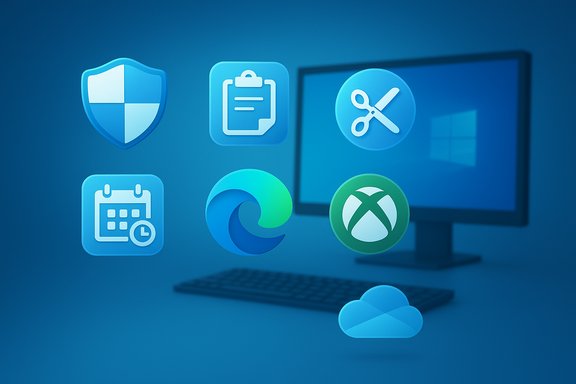
Windows ships with a lot of preinstalled software that’s easy to dismiss as “bloat,” but not all built‑ins are created equal — several provide real value, save money, and can replace paid tools for many everyday workflows.
Background
Windows’ out‑of‑the‑box experience mixes essential system components with OEM helpers, trialware, and promotional apps. That mixture fuels the well‑deserved “bloatware” reputation: extra tiles, background processes, and nags that many users remove after a fresh install. At the same time, some Microsoft‑shipped utilities are tightly integrated into the OS and deliver capabilities that are surprisingly robust, safe, and convenient for most users. Community and editorial roundups over the last several years have repeatedly reached the same conclusion: remove what slows you down, keep what helps you work — but evaluate each built‑in on its merits rather than binning everything.This feature drills into seven Windows built‑ins that critics often call “bloat” but that actually deserve a place on many systems: Windows Security, Clipboard History, Snipping Tool, Task Scheduler, Microsoft Edge, Xbox Game Bar, and OneDrive. For each, the coverage explains what the tool does, why it’s useful, notable strengths, potential risks, and practical tips for getting the most from it.
Windows Security: the default antivirus that’s more useful than its reputation
Windows Security (formerly Windows Defender) used to lag competitors in detection and features decades ago, but its modern incarnation provides a strong baseline of protection for most home users. It includes real‑time scanning, cloud‑assisted threat intelligence, ransomware protection (Controlled Folder Access), firewall management, and family safety controls — all enabled or easy to enable on a standard Windows install. Those capabilities make Windows Security a practical, zero‑cost security stack for users who keep Windows updated and practice safe browsing.Strengths
- Built into Windows and enabled by default — no extra install or subscription required.
- Real‑time and cloud‑backed scanning helps catch common malware families quickly.
- Integrates with other Windows features (firewall, SmartScreen, family controls), reducing management friction.
- While sufficient for everyday threats, it is not a perfect defense against all targeted attacks; enterprise or high‑risk users should layer additional protections and monitoring.
- Relying solely on any single product without good patching, backups, and user training increases exposure. The product is defensive, not an insurance policy.
- Keep real‑time protection and cloud‑delivered protection enabled.
- Turn on Controlled Folder Access for directories with sensitive documents.
- Maintain regular backups — security software reduces risk but does not remove the need for recoverable backups.
Clipboard History (Win+V): small feature, big productivity gains
Windows’ Clipboard History transforms copy/paste from a one‑item swap to a lightweight clipboard vault. Activated with Windows Key + V, the feature stores recent clipboard items (Microsoft documents the default limit as 25 items), supports pinning frequently used snippets so they persist across reboots, and — optionally — can sync clipboard contents across Windows devices signed into the same Microsoft account. For routine tasks like reusing links, code snippets, addresses, or short images, Clipboard History can save surprising time.Strengths
- Instant access to recent clipboard contents — text, images, file links — without installing a third‑party manager.
- Pinning preserves frequently used items across restarts; optional cloud sync enables continuity across devices.
- The built‑in history is deliberately conservative (25‑item default) and clears on restart for unpinned items, which is by design to reduce persistent exposure. Users who require longer archives will find this limiting.
- Clipboard stores can hold sensitive data. If you enable cloud sync or add third‑party clipboard tools, treat the clipboard like any other data store and apply encryption or limit sync.
- Keep Clipboard History if you want zero‑install convenience and moderate history. For power users who need long, searchable histories, open‑source alternatives like Ditto provide persistent, searchable vaults and configurable history sizes — but they add maintenance and privacy considerations.
Snipping Tool: beyond screenshots — OCR, light editing, and quick recordings
The modern Snipping Tool has evolved from a simple screenshot utility into a multi‑purpose capture and extraction tool. Recent updates add OCR (Text Extractor) so you can select an area and copy recognized text directly to the clipboard, a color picker, basic annotation and redaction tools, and lightweight screen recording. The tool now supports multiple shortcuts and saves captures automatically in a user‑friendly workflow, making it a capable first‑party alternative to many paid screenshot utilities.Strengths
- Built‑in OCR removes the extra step of taking a screenshot and running a separate OCR utility; that’s valuable for extracting copy from images, slides, or locked PDF viewers.
- Simple annotation, quick redact options, and automatic saving make it excellent for documentation and support tasks.
- Consolidates common needs (screenshots, OCR, short recordings) into a single native tool — less friction than installing multiple third‑party apps.
- It’s intended as an accessible, general‑purpose tool — power users who need advanced capture workflows (scrolling capture, scripted workflows, automated uploads, or deep post‑processing) will prefer tools like ShareX.
- OCR accuracy depends on font, image quality, and language; for high‑volume, mission‑critical text extraction, dedicated OCR suites still win on accuracy and layout preservation.
- Use Win + Shift + S for fast captures and then use the tool’s Text Actions to extract text.
- Keep the Snipping Tool updated through the Microsoft Store to get the latest OCR and Visual Search capabilities as they roll out.
Task Scheduler: Windows’ built‑in automation engine
Task Scheduler is a classic Windows utility that many users ignore, but it’s a powerful automation engine for scheduled actions and event‑driven tasks. It runs scripts, launches programs at specific times, responds to system events, and supports complex triggers and conditions. For backups, maintenance scripts, or app launchers that must run at set intervals, Task Scheduler removes the need for third‑party cron‑like tools.Strengths
- Full control over timing, triggers (startup, logon, event), and conditions — no extra software needed.
- Runs under various security contexts and can be configured to run whether a user is logged in or not, making it suitable for background server‑style automation on desktops.
- The UI is technical and not as polished as some modern task runners. Misconfigured tasks (e.g., running scripts without proper paths or permissions) can fail silently, so careful testing is essential.
- In managed corporate environments, schedule automation should be implemented via approved MDM/Group Policy workflows to avoid policy conflicts.
- Start by creating a simple task to run a known, small script to validate the run context.
- Use clear logging inside your scripts to surface failures.
- Create restore points or system backups before scheduling tasks that modify system state.
Microsoft Edge: the built‑in browser that’s no longer merely “Internet Explorer’s successor”
Microsoft Edge’s Chromium‑based rebuild changed the browser’s substance and perception. Edge now supports the same Chromium extension ecosystem, has performance and battery optimizations on many Windows devices, and integrates closely with Microsoft 365 services for users invested in that ecosystem. For many users, Edge is a strong default: it’s shipped and updated via Windows, supports modern web standards, and frequently performs competitively in real‑world battery and memory tests on laptops.Strengths
- Extension parity with Chromium browsers and tight Windows integration (profile, SSO, Office web experiences).
- Often better out‑of‑the‑box battery life and memory behavior on Windows laptops compared with some competitors — real results vary by hardware and workload.
- The claim that Edge is objectively “less resource hungry than Chrome” is workload and version dependent — benchmark carefully if resource use matters. Users should test Edge, Chrome, and other browsers under their daily tasks before committing.
- The integration into Windows can feel heavy when Edge is used to push features or suggestions; users who prefer total separation of browser and OS may find that intrusive.
- If you lean on Microsoft 365, Edge offers tighter sign‑on and document flows that can reduce friction across apps. Otherwise, evaluate on extensions, sync, and performance for your workload.
Xbox Game Bar: handy overlay for capture, performance, and quick utilities
The Xbox Game Bar is easier to dismiss as gamer‑focused bloat, but it’s one of the best built‑in overlay tools for screen recording, performance monitoring, and quick capture on Windows. The overlay provides widgets for recording, system resource graphs, quick audio controls, and more. For users who frequently record clips or want an on‑screen quick monitor, Game Bar offers a ready tool with minimal setup.Strengths
- Integrated screen recording and quick clip capture without installing separate software.
- Customizable widgets for audio, recording, and performance telemetry in a single overlay.
- Recording and overlay processing can be memory‑ and CPU‑intensive; lower‑spec machines may experience performance impacts during capture. If recording interferes with your primary workload, consider lighter capture tools or hardware acceleration settings.
- Interactions with full‑screen apps and some drivers can be inconsistent; make sure to test the Game Bar on your device before relying on it for critical recordings.
- Disable the overlay or close Game Bar widgets when you don’t need them to reclaim resources.
- Use Game Bar for quick screen clips and switch to dedicated recording tools for long-form high‑quality captures.
OneDrive: native cloud sync with Files On‑Demand convenience
OneDrive is one of the most visible examples of a preinstalled Microsoft service that many users initially regard as intrusive but which provides meaningful functionality, particularly for people who use Microsoft 365. Its Files On‑Demand means files appear in File Explorer but don’t necessarily take local space until opened; autosave and versioning integrate with Office apps, reducing data loss risk. For users within Microsoft’s ecosystem, the deep integration and automatic backup of Documents and Desktop folders can be an appealing convenience.Strengths
- Seamless Office autosave and version history reduces the chance of losing edits during crashes.
- Files On‑Demand conserves local storage while keeping file access fast and transparent.
- The free tier is limited (Windows ships with a small free allotment), and heavy media hoarders will need third‑party storage or paid plans. Guard against inadvertently syncing large media folders if local storage is constrained.
- Cloud sync can expose data to different threat models; ensure you use strong account security (MFA) and understand sharing settings.
- Use selective sync and Files On‑Demand to keep local storage lean. Audit which folders are set to auto‑sync and move large archives to external drives or dedicated cloud buckets when appropriate.
The fine line between useful built‑ins and true bloat: analysis and recommendations
Built‑ins win on three practical axes: integration, trust, and convenience. Because they’re shipped with the OS, they integrate with core features, avoid extra installer steps, and typically follow Windows update channels — a real benefit for mainstream users who don’t want to manage a toolbox of third‑party apps. Several of the utilities above (Security, Snipping Tool OCR, Clipboard History, OneDrive) illustrate how Microsoft has folded previously add‑on capabilities into the platform to reduce friction.However, built‑ins also have downsides:
- Limited depth: Native tools intentionally trade advanced features for simplicity (e.g., Snipping Tool vs. ShareX, built‑in clipboard vs. Ditto). For power users, third‑party tools still offer decisive advantages in automation and specialty features.
- Resource surface: Running many background utilities — even first‑party ones — increases resource use. Curate which services you allow to run persistently, especially on machines with limited RAM.
- Privacy and synchronization: Cloud sync features (OneDrive, Clipboard cloud sync) improve convenience but shift your data to cloud storage. Verify account security settings and corporate policies before enabling cross‑device sync on shared or managed machines.
- Start clean: After a fresh install, remove clearly useless trialware and one‑off OEM promotional apps, but evaluate each Microsoft built‑in before deleting.
- Keep proven built‑ins that save time: enable Windows Security, try Snipping Tool’s OCR for quick text extraction, and use Clipboard History for everyday work.
- Replace selectively: If you need deeper features (long clipboard histories, advanced captures, scripted automation), choose well‑maintained third‑party tools but understand and mitigate privacy and maintenance tradeoffs. Community favorites like ShareX, Ditto, and Everything are repeatedly recommended.
- Test before committing: Performance and compatibility can be hardware‑ and workflow‑dependent. Run side‑by‑side tests for a week to measure real differences before switching defaults.
Closing assessment
Not all Windows “bloat” is bad — some preinstalled tools are practical, well‑integrated, and reduce the need for extra software. The built‑ins examined here deliver real value for average users and even many power users: Windows Security covers basic to intermediate threat protection; Clipboard History and Snipping Tool materially speed up everyday tasks; Task Scheduler automates routine work without new software; Edge can be a robust default browser on Windows hardware; Xbox Game Bar offers quick capture conveniences; and OneDrive gives frictionless cloud backup with Files On‑Demand. Each of these has tradeoffs — limited depth, resource footprint, or privacy considerations — but evaluated sensibly they often belong on a modern Windows desktop.Decide based on needs, not dogma: remove what hinders, keep what helps, and replace when a third‑party tool provides a clear, demonstrable advantage. That balanced approach gets the best of both worlds — a clean system and a productive toolkit that reflects how you actually work.
Source: MakeUseOf Not all Windows “bloat” is bad — these built-ins are great
