• Thread Author
If you still copy and paste one item at a time, you’re doing it the hard way — and Windows 11 quietly gives you a built‑in vault that fixes that: Clipboard history. Enable it once, and you can recall recent copies, pin frequently used snippets, paste without formatting, and even sync selected entries to other devices. For anyone who juggles research, code, form filling, or repeated replies, this one switch can shave minutes — sometimes hours — off everyday workflows.

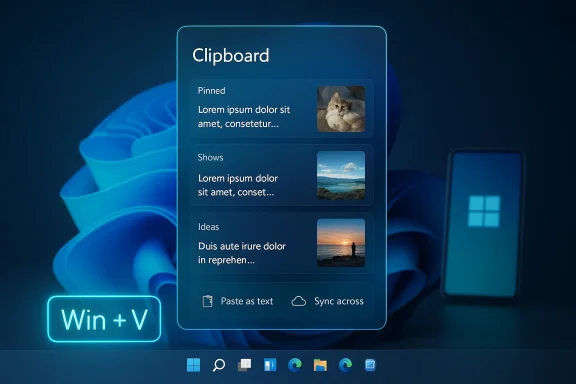
Blue Windows clipboard history panel with pinned items and a Win+V shortcut cue.Background​

Windows has supported a basic clipboard since the earliest versions of the OS: a single item stored in RAM and replaced with every new copy. In recent releases Microsoft expanded that model into a lightweight clipboard manager. The feature is accessed with the familiar shortcut Win + V and — after you enable it — remembers a short history of items (text, images, and simple HTML) so you can paste anything you copied recently without hopping back to the source.
This built‑in capability sits somewhere between a one‑clip clipboard and a full third‑party manager. It’s fast, frictionless, and already part of Windows 11 — but it also has deliberate limits. Understanding what the built‑in system can and can’t do helps you pick the right workflow or decide whether to install a more powerful clipboard manager.

Overview: how clipboard history works in Windows 11​

The basics are straightforward:
  • Press Win + V to open the clipboard flyout. If the feature is off, that same shortcut lets you turn it on.
  • Once enabled, Windows stores recent copies in a chronological list you can click to paste.
  • You can pin important items so they survive the automatic rotation and system restarts.
  • There’s a Clear action to wipe unpinned entries, and individual entries can be deleted from the flyout.
  • You can sync clipboard items across devices signed into the same Microsoft account; sync can be automatic or manual per item.
  • The clipboard enforces practical limits (count and size) that shape reliability and privacy.
These behaviors make the clipboard history useful for everyday tasks: compiling quotes from several web pages, grabbing multiple file paths, or collecting image thumbnails to paste later.

Key features explained​

Win + V: your instant clipboard vault​

Open the clipboard history at any time with Win + V. The flyout lists recent items with small previews for text and thumbnails for images. Clicking an item copies it back to the active clipboard so you can paste normally with Ctrl + V.
Why it matters: Keystroke-level access means you rarely leave your current app to re-copy something — perfect when collecting multiple items during research or composing messages.

Pinning: keep the essentials​

Pinned items are promoted above the rotating list and are not removed automatically. Use pinning for frequently used text such as:
  • Email signatures
  • Shipping or billing addresses
  • Template replies and signature snippets
  • Short code fragments you reuse repeatedly
Pinned entries behave like a small, built‑in snippet bank.

Paste as plain text (paste without formatting)​

Modern Windows builds let you paste clipboard items without preserving source formatting. From the flyout, click the three‑dot menu beside a text item and choose Paste as text (often called Paste as plain text). This strips fonts, colors, and other formatting and inserts only the raw text into the destination.
Practical tip: when aggregating quotes from different websites or pasting into a document where formatting must match the destination, the plain‑text paste option saves time and eliminates the need to paste into Notepad first.

Sync across devices: pick your level of sharing​

If you sign in to Windows with a Microsoft account, you can sync the clipboard between Windows devices. In Settings > System > Clipboard, toggle Sync across devices, then choose:
  • Automatically sync text that I copy — clips are uploaded to the cloud automatically and appear on other Windows devices signed into the same account.
  • Manually sync text that I copy — clips remain local unless you explicitly choose to sync an item via the flyout.
This selective model is useful: you can keep usual workflow clips local but push specific snippets to another device when needed. You can also extend clipboard sharing to Android using Microsoft SwiftKey or, on many Samsung phones, Phone Link / Link to Windows features — though cross‑platform reliability varies between devices and builds.

Hard limits and practical constraints​

The built‑in clipboard is intentionally limited. These constraints are important to know before you rely on the feature for long workflows.
  • 25‑entry history limit: Windows stores up to 25 recent clips in history. Older items drop off as new ones arrive (pinned items are excluded from this rotation).
  • 4 MB per item: Individual entries are subject to a ~4 MB size cap. Very large screenshots or binary blobs may not be saved.
  • Unpinned items clear on restart: Unless pinned (or synced to the cloud and kept server-side), the clipboard history is cleared when you restart the PC.
  • No built‑in search: The flyout lacks a search box in many builds; finding an entry requires scrolling through the list manually.
  • Limited preview space: Long text snippets are truncated in the flyout, making it harder to identify long items without pasting first.
These design choices keep the feature lightweight and responsive, but they also explain why power users often reach for third‑party managers for heavier research or archiving needs.

Privacy and security considerations​

Clipboard history expands what Windows stores in memory — and possibly the cloud. That creates surface areas you should manage proactively.
  • Sync sends items to Microsoft’s cloud when enabled. Microsoft’s documentation indicates the data is transmitted using encryption and is not stored permanently, but syncing any data to cloud services carries more risk than keeping it local. For sensitive content, don’t enable automatic sync; use the manual sync option if you must.
  • Enterprise management may block clipboard history or sync. Administrators can disable the feature via Group Policy or Intune. If you work with corporate data, policies may already prevent clipboard sync between personal and managed apps.
  • Secrets in the clipboard: Anything copied — passwords, authentication tokens, or financial numbers — can end up in history. Even pinned items may persist longer than intended. Be disciplined: avoid copying secrets or clear the clipboard after a sensitive operation.
  • Cross‑device sharing adds exposure: When you sync across devices, the clipboard content becomes available on other endpoints. Ensure those devices are secured and tied to accounts you control.
Recommended safety habits:
  • Turn off Sync across devices by default and enable it only for specific workflows.
  • Use the Clear all option after sensitive sessions.
  • Pin only nonsensitive, frequently used snippets.
  • For corporate environments, consult your IT security policy before enabling cloud clipboard features.

Reliability and real‑world issues​

Microsoft’s solution is solid for many users, but real‑world reports show intermittent problems, especially with cross‑platform sync.
  • SwiftKey clipboard sync: Microsoft’s SwiftKey Android keyboard offers a Cloud Clipboard feature that syncs with Windows. While supported, users have reported flaky behavior: one‑way sync, failing to sync from Android to Windows, or intermittent disconnects. The feature requires signing into the same Microsoft account in SwiftKey and on the PC.
  • Phone Link / Link to Windows: Samsung devices often ship with Link to Windows integration that permits copy/paste across phone and PC using Phone Link. This works well on many Samsung models, but compatibility and experience differ by phone OEM, OS version, and Phone Link app version.
  • Device and region differences: Some users note that cross‑platform clipboard options may vary by region or Microsoft account type. If a sync toggle is missing, the cause may be account restrictions or the feature being unavailable for your device model.
If cross‑device reliability matters to you, test your specific phone + PC pairing thoroughly before relying on it for critical workflows. When sync fails, the clipboard still works locally, so your immediate work won’t be lost — but the cross‑device convenience may be disrupted.

Troubleshooting common problems​

  • Clipboard history doesn’t open with Win + V:
  • Confirm the feature is enabled at Settings > System > Clipboard.
  • Check whether organization policies disable clipboard history.
  • Restart Windows Explorer via Task Manager to refresh UI components.
  • Items disappear unexpectedly:
  • Unpinned items are cleared when you restart. Pin items you need long‑term.
  • Exceeding the 25‑item limit causes older entries to drop off.
  • Large items over ~4 MB will not be saved.
  • Sync not working between devices:
  • Ensure all devices use the same Microsoft account.
  • On phones, enable SwiftKey’s clipboard sync or Link to Windows settings where applicable.
  • Toggle sync off and on, or sign out and back in to force a reauth.
  • For persistent failures, update Phone Link, Link to Windows, SwiftKey, and Windows itself.
  • Need to paste plain text quickly:
  • Use the flyout’s “Paste as text” option for specific items. Some apps respond to Ctrl + Shift + V for plain‑text paste, but this shortcut is app‑dependent.

Advanced workflows and productivity tips​

  • Use clipboard history to gather research quotes: copy multiple snippets from browser tabs, then open your draft and paste entries in order without switching windows.
  • Pin commonly used form fields (address, phone, standard responses) so they’re always at hand.
  • For repetitive multi‑field form filling, copy items in the order you need them, open the destination page, and insert them sequentially from Win + V.
  • Combine clipboard history with screenshot shortcuts: use Win + Shift + S (Snip & Sketch) to capture a region, then paste images from the history into chat windows or documents.
  • Use PowerToys Advanced Paste for transformations: if you need programmatic pastes (plain text, Markdown, or OCR from images), Microsoft PowerToys provides an Advanced Paste tool that can paste as plain text, convert formats, and even perform local OCR for image→text workflows.

When to upgrade to a third‑party clipboard manager​

If you regularly hit the 25‑item cap, need searchable history, want persistent long histories, or require robust cross‑device sync with fine control, third‑party options are a reasonable next step. Popular choices include:
  • Ditto: Open‑source, lightweight, searchable, supports images and long histories, and offers encrypted LAN sync between machines you trust. Ditto lets you store unlimited clips (within practical limits) and provides powerful keyboard shortcuts and a resizable preview window.
  • PowerToys Advanced Paste: For users who prefer Microsoft‑maintained tooling, PowerToys adds advanced paste transformations like plain text, Markdown, JSON, and local OCR. It’s great for developers and writers who want paste actions rather than a dense history index.
  • ClipAngel and other open‑source managers: Offer searchable databases, format support, and customizable paste behaviors.
Why choose a third‑party manager: you get robust search, unlimited or configurable retention, batch insertion, multi‑paste, and richer UI controls. Why remain with Windows built‑in: zero install friction, strong native keyboard integration, and a minimal attack surface — often enough for occasional multi‑clip tasks.

For IT admins: policy and management notes​

Organizations concerned about data exfiltration or regulatory compliance should treat clipboard features deliberately:
  • Group Policy and Intune can disable clipboard history or restrict clipboard sync. Use Administrative Templates to enforce policy at scale.
  • App protection policies (Intune App Protection) can restrict cut/copy/paste between managed apps and unmanaged apps, blocking clipboard operations from leaking corporate data into personal apps.
  • If you permit clipboard sync, prefer manual sync and educate users on security hygiene: never copy credentials, use ephemeral notes for sensitive items, and clear history after tasks that touch regulated data.
A small misconfiguration can turn clipboard history into an inadvertent data leakage vector. Tighten controls and communicate rules to users who handle regulated info.

Verdict: where Windows 11 clipboard history fits​

Windows 11’s clipboard history is a deliberately simple, low‑friction productivity boost. It removes the single‑item limitation without asking users to install anything new. For casual to moderate multitaskers — writers, students, office workers — it’s often all you need: quick recall, pinning, plain‑text pastes, and optional sync.
But it is not a replacement for a full clipboard manager. Power users, developers, and researchers who archive hundreds of snippets, need robust search, or require cross‑device reliability will find third‑party tools like Ditto or PowerToys’ Advanced Paste more capable. Likewise, organizations with strict security needs should evaluate policies carefully before enabling cloud sync.

Practical quick start (one‑page cheat sheet)​

  • Enable:
  • Press Win + V and click Turn on, or
  • Go to Settings > System > Clipboard and toggle Clipboard history on.
  • Use:
  • Press Win + V to view history.
  • Click an item to paste it.
  • Hover and click the pin icon to pin an item.
  • Click the three‑dot menu to delete or Paste as text.
  • Sync:
  • Settings > System > Clipboard > Sync across devices.
  • Choose Automatically sync or Manually sync.
  • For Android, install Microsoft SwiftKey and enable clipboard sync in the SwiftKey settings, or use Phone Link/Link to Windows on supported Samsung devices.
  • Safety:
  • Don’t copy passwords or OTPs.
  • Use manual sync for sensitive material.
  • Clear history after sensitive work with Win + V > Clear all.

Final thoughts​

The Windows 11 clipboard history is one of those small, high‑impact features that quietly improves daily computing. It reduces friction in common workflows, offers sensible safeguards like pinning and manual sync, and keeps the experience native and low overhead. Its limits — 25 items, per‑item size cap, minimal UI — keep it nimble but mean that power users will want more.
If you haven’t tried it yet, press Win + V right now. Most people will turn it on, use it for a day, and feel the difference immediately. If your work grows more complex, layering PowerToys or a dedicated manager like Ditto gives you predictable, searchable history and richer paste controls while keeping security and sync choices in your hands.

Source: MakeUseOf Windows 11 has a clipboard history most people never turn on
 

Microsoft’s new Resume feature is a welcome step toward the kind of seamless, cross‑device continuity many of us take for granted on Apple's platforms—but in practice it still reads like an early beta: limited app support, gated rollouts, and a development model that’s fundamentally different from Apple’s mature Handoff ecosystem.

Windows laptop with a glowing RESUME button connected to a smartphone.Background: why continuity matters now​

Seamless task handoff between phone and PC is no longer a nicety—it's a productivity multiplier. Modern knowledge work routinely spans devices: you start drafting an email or editing a spreadsheet on your phone, then switch to a laptop for keyboard comfort and a bigger screen. Users expect that switching should be frictionless: no hunting for the file, no re‑searching a link, no copying and pasting between apps.
Apple solved this problem ten years ago with Handoff, a core Continuity feature that moves live app state between iPhone/iPad and Mac. Handoff appears as a familiar icon in the Dock or App Switcher and can resume many first‑party and third‑party apps when devices are nearby and signed into the same Apple Account. Apple’s model emphasizes local discovery (Bluetooth/Wi‑Fi proximity) and tight device control, which keeps the experience simple and reliable.
Microsoft’s answer—branded in consumer settings as Resume or technically as Cross‑Device Resume (XDR)—aims to bring a similar flow to Android ↔ Windows users. But Microsoft faces a harder engineering and business problem: it must bridge diverse Android OEMs, multiple app stores, and countless app architectures. That reality shapes the technical design of Resume and explains much of the feature’s early limitations.

What Resume is (and what it isn’t)​

The promise​

At a glance, Resume does exactly what the name says: when you’re active in a supported app on your Android phone, Windows 11 can show a small badge on the corresponding app’s taskbar icon that invites you to “resume” that activity on your PC. Click the badge and the desktop app (or web fallback) opens to the state you left on your phone. That’s the ideal.

The technical model​

Microsoft uses two complementary technical paths:
  • A legacy Phone Link task continuity route that shares recent items via the Link to Windows/Phone Link experience and a Phone Link “Recently used” UI on the PC. This route is an older, more restricted surface for continuity data.
  • A newer Continuity SDK + Windows Notification System (WNS) route—Cross‑Device Resume (XDR)—which surfaces native taskbar badges and faster resume notifications. The Continuity SDK lets apps publish compact AppContext metadata (document URL, playback position, etc.) that Windows resolves to the “best” desktop handler (native app or web). Microsoft favors native handlers rather than streaming Android UI to the PC, which helps performance and security but can reduce fidelity for complex app states.

Requirements and rollout (as of January–February 2026)​

  • Windows 11 PC (certain Insider builds and staged-release channels initially).
  • Android phone running Android 10 or later, connected through Link to Windows (Link to Windows must be installed/preloaded on supported OEM phones).
  • Microsoft account sign‑in and OneDrive/cloud endpoints for file‑based resume scenarios. Many app handoffs depend on cloud‑accessible state.
  • OEM and app participation. Early public support is limited to Microsoft 365 Copilot/OneDrive-based files, Spotify, vivo Browser and a handful of device vendors (HONOR, OPPO, Samsung, vivo, Xiaomi) that ship Link to Windows packages. Microsoft is gating rollouts by account, device pairing, and region.
These constraints explain why many users—especially those outside the vendor list or using unsupported apps—won’t see Resume immediately. Microsoft's staged rollout and OEM gating are explicit; in practice, that makes the feature feel patchy for many testers.

Hands‑on behavior: how Resume actually feels right now​

The user experience for Resume is straightforward when it works: a phone‑badged taskbar icon appears with a clear prompt, and a single click opens the desktop app to the shared task. When Microsoft’s OneDrive/Office flow is used, the desktop Word/Excel/PowerPoint app opens natively (or a browser editor if the app isn’t installed), which is fast and keeps data on familiar Windows surfaces—this is a practical design choice.
But the real world adds friction:
  • Resume is server‑gated and partner‑dependent, so availability varies by account and device pairing. If your phone maker or app hasn’t onboarded to the Continuity SDK (or the vendor hasn’t gotten LAF approval for Phone Link scenarios), Pause—no Resume.
  • The feature depends on apps publishing usable metadata. For simple objects (a OneDrive file, a Spotify track, a URL) that works well; for complex in‑app states (a partially edited chat thread or an app with local-only state) it can’t restore the full runtime context. Microsoft explicitly warns that locally stored offline files on the phone aren’t currently supported for some flows.
  • Notifications and settings matter. Resume’s taskbar prompt is easy to miss if system notifications or Phone Link permissions aren’t configured correctly—real testers report needing to toggle system notification settings and Link to Windows permissions to see the badge reliably. That makes discovery and first‑use fragile.
In short: when it works, it’s delightful; when it doesn’t, the causes are configuration, limited app support, or rollout gating—not a fundamentally broken concept.

Handoff vs Resume: apples and oranges (but apples still win the user test)​

Apple’s Handoff is the established reference. It’s mature, broadly supported across Apple’s first‑party apps and many third‑party titles, and it’s local‑first: devices on the same Apple Account, with Bluetooth/Wi‑Fi on, can hand off state with minimal cloud dependence. That makes Handoff predictable and fast in the typical Apple home/office setup.
Where Resume differs (and why those differences matter):
  • Ecosystem control vs. ecosystem breadth. Apple controls both ends of the stack—hardware, OS, and cloud—so Handoff can be tightly coupled and consistent. Microsoft must work with multiple Android OEMs and independent app developers. That means more engineering surface area and more coordination. The engineering tradeoffs show up as gating and SDK vs. WNS server choices.
  • Local discovery vs. cloud/notification centric. Handoff uses local discovery (Bluetooth & Wi‑Fi), which helps in close‑range scenarios without heavy cloud orchestration. Resume relies on Link to Windows pairing plus WNS for many flows and may be server‑gated—this helps resume across network conditions but introduces more moving parts and potential latency.
  • App support and fidelity. Handoff supports many first‑party Apple apps natively and a growing set of third‑party titles that adopt the API. Resume’s current app list is small (OneDrive‑centred Office files, Spotify, vivo Browser, Copilot app) and will need significant developer buy‑in to approach parity.
  • Directionality. Handoff is symmetric: you can move work from phone to Mac and from Mac to phone; Resume today is more focused on surfacing phone activity on the PC. Microsoft could and should extend bidirectionality, but hardware fragmentation and app ecosystems make this harder than on Apple.
The result: Apple’s Handoff feels more seamless, while Microsoft’s Resume, even if technically pragmatic and perhaps architecturally superior for some use cases, still needs scale and polish to match that same feeling.

Developer and OEM dynamics: why adoption is slow (and what Microsoft is doing)​

Resume ships with a dual‑path developer story to accelerate adoption:
  • The Continuity SDK for deep, native integration into the taskbar and richer experiences.
  • A WNS-based route and AppContext metadata for lower‑friction server‑driven integrations so apps can support resume without heavy client SDK work.
This two‑pronged approach is sensible: the SDK offers fidelity for partners that want it; the WNS path lowers the engineering bar for cloud‑first services. But both paths require partner cooperation and (in many Phone Link scenarios) Limited Access Feature (LAF) approvals from Microsoft—an explicit gate that slows immediate, broad adoption.
OEMs matter too. Microsoft lists HONOR, OPPO, Samsung, vivo, and Xiaomi as early partners for certain Copilot/OneDrive flows—phones that ship with or support Link to Windows have an easier time integrating resume metadata. That leaves many Android users (and all iPhone users) out for now. Microsoft’s OEM partnerships speed reliable UX for those vendors, but they’re not a universal solution.

Security, privacy, and enterprise concerns​

Cross‑device state syncing increases the surface area for accidental disclosure. Even compact metadata (file titles, URL snippets, track names) can reveal sensitive information in a desktop notification or a taskbar tooltip. Enterprises will want granular MDM controls, logs, and the ability to restrict or disable Resume for managed accounts or devices. Microsoft’s documentation calls out governance, LAF approvals, and enterprise controls, but IT teams should pilot carefully before outbounding Resume to large fleets.
Practical security considerations:
  • App metadata should be minimal; previews shown in the taskbar should be scrubbed of confidential text where possible.
  • Resume needs per‑app toggles (Windows Settings > Apps > Resume), and admins should map those controls to corporate policy.
  • Offline, locally stored phone content is explicitly out of scope for several resume scenarios—this reduces the risk of automatic exfiltration, but also restricts usefulness. Microsoft’s guidance acknowledges this trade‑off.

The practical checklist: how to try Resume today (and why many people won’t see it)​

If you want to test Resume today, follow this checklist:
  • Ensure your PC is running a supported Windows 11 build (Insider Dev/Beta or Release Preview may be required while rollouts continue).
  • Install and pair Link to Windows on your Android phone and verify it appears under Mobile devices on your PC.
  • Sign into the same Microsoft account on both devices and enable Settings > Apps > Resume on the PC. Toggle per‑app settings as needed.
  • Use a supported app/action (OneDrive Office file, Spotify playback, vivo Browser page) and lock or leave the phone. If the server‑gated systems permit your device, you should see a phone‑badged taskbar icon on the PC within a short window. Click it to resume.
If you don’t see Resume:
  • Confirm notifications are enabled for Phone Link and for the system. Resume prompts rely on Windows notification plumbing.
  • Check whether your phone OEM and app are on Microsoft’s supported list; many vendors require the Link to Windows package to be preinstalled for LAF flows.
  • Remember rollouts are staged—availability may be server‑gated even when your software is up to date.

Where Microsoft needs to do better (and what success would look like)​

Resume is promising but not sufficient yet. To close the gap on Apple's Handoff, Microsoft must focus on three pragmatic areas:
  • Scale app support rapidly. OneDrive/Office and Spotify are useful demos—real value requires broad third‑party uptake. Microsoft should simplify the developer onboarding path and reduce gating friction wherever possible (especially for consumer apps that don’t require preloaded Link to Windows packages).
  • Clarify and speed rollout policies. Staged, server‑gated launches are understandable, but they hamper discoverability and early feedback. Microsoft should publish clearer public roadmaps and timelines for broader availability across vendors and regions.
  • Improve fidelity and bidirectionality. Users expect true session continuity (not just “open this file” or “play this track”). Microsoft can make big UX gains by enabling more symmetric flows (desktop→phone) and richer state rehydration for apps that can support it. The Continuity SDK must make high‑fidelity state handoff straightforward for developers.
If Microsoft executes on these points, Resume could become a genuine differentiator for mixed‑ecosystem users who prefer Windows as their productivity hub. The architectural choice to resolve to native desktop handlers is wise for performance and security; the challenge is ensuring the metadata model is expressive enough that it feels like the same task across devices.

Strengths, real risks, and practical recommendations​

Strengths​

  • Native desktop handling avoids streaming Android UI and keeps the PC experience familiar and fast. This is better for performance and enterprise integration.
  • Two developer paths (Continuity SDK and WNS/AppContext) balance fidelity and adoption speed. That helps Microsoft reach apps that are cloud‑first, while still offering deep integrations for partners.
  • OEM partnerships allow Microsoft to ship a more reliable experience on specific phones that have Link to Windows preinstalled. That raises the baseline UX for those ecosystems.

Risks​

  • Fragmented availability: server gating, LAF approvals, and OEM variability make Resume feel inconsistent to end users. Adoption could stall if the experience is spotty.
  • Privacy leakage from metadata: taskbar previews and notification snippets risk exposing sensitive titles or snippets. Enterprises will demand controls.
  • False expectations: marketing a “handoff” experience invites comparisons to Apple’s long‑mature Handoff. If Resume can’t match the feel of Handoff quickly, it risks being dismissed as a novelty.

Practical recommendations for Microsoft​

  • Publish a clear, public roadmap with timelines and supported device/app lists to reduce user confusion.
  • Offer developers a one‑click simulator and reference implementations to reduce integration friction and iterate on edge cases.
  • Strengthen enterprise controls in MDM/Intune for per‑app, per‑account resume policies and privacy sanitization options.

The bottom line​

Resume is not a failure. It’s a pragmatic, technically defensible attempt to solve cross‑device continuity across heterogeneous ecosystems. Microsoft’s choice to resolve app context to native desktop handlers avoids heavy UI streaming and preserves Windows performance and security models. That’s an advantage in corporate and power‑user contexts.
But for ordinary users who compare the two side‑by‑side, Apple’s Handoff still feels smoother: broader app support, symmetric flows, and fewer setup steps. Microsoft’s path to parity requires two things that are harder than code: sustained developer enthusiasm and cooperative OEM partners. Until those pieces are in place, Resume will sit in the “useful for some” column rather than “everyday essential” for most people.
If Microsoft wants Resume to move from promising to indispensable, it must accelerate developer adoption, demystify rollouts, and prioritize fidelity and privacy controls. The potential payoff is real: a world where your phone and PC truly act as one productive workspace is worth the effort—but the company needs to close the gap between concept and everyday, reliable reality.


Source: PCMag Do Better, Microsoft: Windows 11's Resume Feature Can't Touch Apple's Handoff
 

Microsoft’s new Resume feature is a welcome step toward true phone‑to‑PC continuity on Windows 11, but after trying it and comparing it to Apple’s decade‑old Handoff, the verdict is blunt: Resume is useful in narrow cases, promising by design, and — for most users today — still an inferior experience to Apple’s integrated Continuity ecosystem. )

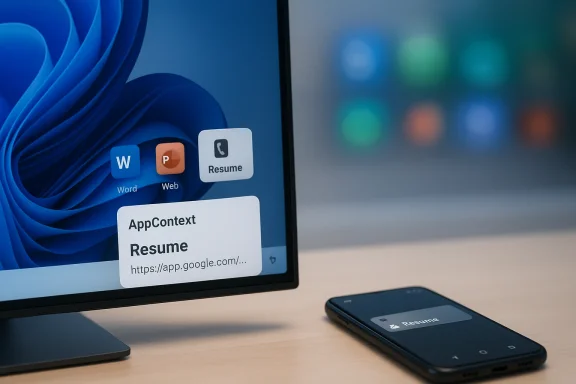
A monitor displays Word, Web, and Resume icons with a large Resume card on screen, while a smartphone rests nearby.Background​

Apple’s Handoff (part of the broader Continuity suite) has for years offered a simple, expectation‑free way to start a task on one Apple device and pick it up on another nearby device. Handoff relies on local discovery, iCloud sign‑in, and tight OS‑level integration across iPhone, iPad, and Mac — features Apple controls end‑to‑end, which dramatically reduces friction for both developers and users. It debuted as part of Apple’s Continuity announcements at WWDC and public releases in 2014 and has been incrementally improved and adopted by first‑party and a growing list of third‑party apps since.
Microsoft’s Resume, technically branded in broader efforts as Cross‑Device Resume (XDR), traces its lineage to earlier “pick up where you left off” experiments such as Project Rome and the OneDrive‑based resume notifications introduced in 2025. Recently, Microsoft moved Resume into the Windows Insider Release Preview channel with an explicit expansion of supported scenarios and a new developer integration model that uses both a Continuity SDK style contract and a server‑driven Windows Notification Service (WNS) path. That expansion — rolled into builds 26100.7701 and 26200.7701 — is the step that turned a narrow OneDrive convenience into an actual cross‑device handoff mechanism for selected phones and apps.

Overview: What Resume claims to do today​

At its core, Resume promises to deliver this user experience:
  • Start an activity on a supported Android phone (music playback, browsing, or a cloud‑backed document).
  • Lock or step away from your phone.
  • Unlock your Windows 11 PC and see a small taskbar notification that invites you to “pick up” that activity on the PC.
  • Click the notification to open the best available desktop handler — a native app when installed, or a web fallback when it is not.
Microsoft’s Release Preview notes and the official support documentation currently list a limited set of supported scenarios and partners: Spotify playback, Vivo Browser sessions for Vivo phones, and Microsoft 365 Copilot / OneDrive‑backed documents (Word, Excel, PowerPoint) opened in Copilot on phones from HONOR, OPPO, Samsung, vivo, and Xiaomi. The feature requires Windows 11, Android 10+, Link to Windows (Phone Link) pairing, and internet connectivity. Microsoft has explicitly noted that purely offline files stored only on the phone aren’t supported for resume.
This design is important: instead of streaming or reproducing the phone UI on the desktop, Microsoft sends a compact metadata payload (an AppContext) that maps to a desktop handler. That avoids heavy UI streaming and keeps the Windows experience native‑first — but it also constrains the fidelity of what “resume” can restore.

How Resume works (technical summary)​

Two integration paths for developers​

Microsoft offers two ways for apps to participate:
  • A Continuity SDK / Phone Link integration that lets the phone proactively send AppContext metadata to the PC when an activity is eligible for resume.
  • A WNS (Windows Notification Service) server‑driven path that allows apps with a server backend to trigger a resume prompt on the paired PC without implementing a heavy SDK.
This dual‑path approach is pragmatic: the SDK path is richer but requires more work from developers; the WNS route lowers engineering friction and can accelerate adoption for apps that already use push infrastructure. Both routes are designed to validate and authenticate resume payloads rather than blindly trusting any notification.

User prerequisites and behavior​

To use Resume the user must:
  • Pair an eligible Android device with a Windows 11 PC using Link to Windows / Phone Link.
  • Ensure Resume is enabled in Settings > Apps > Resume on the PC.
  • Use a supported app/action on the phone within the timing and gating constraints of Microsoft’s rollout.
When conditions are met, Windows surfaces a small taskbar icon annotated with a phone badge. Clicking it opens the appropriate desktop app (or web fallback). Crucially, Microsoft currently prefers the native desktop handling route rather than UI streaming. That choice prioritizes performance and security but imposes limits on how deeply an in‑app state is reconstructed.

Handoff vs. Resume: the app gap, fidelity tradeoffs, and practical differences​

Apple’s Handoff typically presents a near‑seamless transfer of app state between devices. It often restores the in‑app context — an email draft, the same Safari tab, an open document — with minimal user action. Handoff works natively for Apple’s first‑party apps and many third‑party apps because Apple exposes simple continuity APIs and the ecosystem is under single‑vendor control. That gives Handoff three advantages:
  • Deep app‑level fidelity for many common tasks.
  • Very low discovery friction: icons appear in the Dock/App Switcher or on the lock screen without server gating.
  • Easy two‑way transitions (phone→desktop and desktop→phone) when both devices are nearby and signed into the same Apple ID.
Resume’s strengths and tradeoffs:
  • Strength: Native desktop fidelity — when the desktop app is installed, Resume opens the native handler instead of streaming the mobile UI, leading to faster, more familiar desktop workflows.
  • Strength: Developer flexibility — the WNS route reduces implementation friction for app teams, which could broaden third‑party participation faster than a heavy SDK approach.
  • Tradeoff: Fragmented availability — Resume is gated by Microsoft’s controlled rollout, OEM participation, and targeted app integrations. That means many Android phones and apps won’t show resume cards for a long time, if ever.
  • Tradeoff: Lower session fidelity in complex cases — because Resume uses metadata to choose a desktop handler, it can open a document or URL but may not fully restore transient in‑app editing state for apps that hold local, non‑cloud data. Microsoft explicitly warns that offline files aren’t supported in some Copilot flows.
  • Difference: Directionality — Apple’s Handoff allows easy movement in both directions (Mac→iPhone as well as iPhone→Mac). Until Microsoft enables an equally polished desktop→phone resume path, Resume feels more like a phone→PC convenience than a symmetric continuity system. The current UX also sometimes requires locking the PC to trigger the card, whereas Handoff can be used fluidly without locking.
In short, Microsoft’s design is pragmatic — it accepts lower fidelity for broader scalability — whereas Apple’s is polished due to its vertical control over hardware, OS, and cloud services.

Hands‑on: the trial‑and‑error reality​

Real users and reviewers have reported a mixed initial experience: basic OneDrive‑backed resume of Word/Excel/PowerPoint files works when the environment meets the prerequisites, but reaching that moment often requires fiddling with notification permissions, Link to Windows pairing, and account sign‑ins. Early testers noted cases where resume prompts were invisible until system notifications were enabled, or until the PC was locked/restarted in specific ways. That makes discovery and usability inconsistent for people who aren’t comfortable troubleshooting.
When it does work, the Resume toast is clear and useful: the taskbar icon shows the app with a phone badge, and the click opens the document in desktop Word rather than a screen‑mirror or a stripped web editor. That’s a concrete win for productivity when you’re editing cloud documents. But the success rate for other scenarios — Spotify resumption, browser tabs from non‑mainstream OEM browsers — will vary across phones and regions until OEMs and app developers ship integrations more broadly.

Microsoft’s confusing feature overlap: Phone Link, Task Continuity, and Resume​

Windows users now encounter multiple cross‑device concepts with overlapping names:
  • Link to Windows / Phone Link: the pairing app that brings Android phone integration into Windows.
  • Phone Link Task Continuity: an older Phone Link feature that surfaces links, music tracks, and document links in its own notifications area.
  • Cross‑Device Resume (the XDR feature): the new taskbar‑centric resume notifications that Microsoft is pushing as the canonical handoff UI.
Phone Link’s Task Continuity has wider support today because it has existed for longer and some apps already integrated into its contract. Microsoft appears to be steering developers toward the newer Resume approach — which is more integrated with the taskbar and the Windows app resume surface — but that transition raises two immediate concerns:
  • Will existing Task Continuity integrations be migrated cleanly without breaking behavior for current users?
  • Will duplicate prompts or inconsistent UI placement create user confusion while the two systems coexist?
Those are practical UX risks that Microsoft needs to manage through clear migration guidance and tooling for developers. The Phone Link developer docs and the Cross‑Device repo show both paths but also underline the complexity of maintaining backward compatibility across a fragmented Android ecosystem.

Strengths — what Microsoft gets right​

  • Native desktop first: Opening the most appropriate desktop handler avoids streaming and provides fast, integrated workflows. That’s the right choice for productivity‑focused scenarios.
  • Developer pragmatism: The WNS path is a smart lever: many large apps already use push services, so adding resume hooks may be quick and low‑cost for those teams.
  • Scalability model: The AppContext metadata approach is generic and extensible — it can represent documents, audio sessions, browsing contexts, and more without shipping large SDKs for every app.

Risks and limitations — what Microsoft must fix or mitigate​

  • Gated rollout = discoverability problem: If Resume remains gated by account/device pairing and OEM cooperation, the average user will never see it and will assume Windows cannot hand off activities. That kills adoption momentum. Microsoft’s Release Preview notes are explicit about the gradual rollout and partner gating — which is sensible from a stability POV, but a marketing disaster if not communicated clearly.
  • Privacy surface and enterprise governance: Even the compact resume metadata (titles, URIs, preview snippets) can reveal sensitive information. Enterprises will demand MDM controls, auditability, and clear deny lists. Microsoft’s documentation hints at governance needs, but admins will want richer controls before enabling this widely in managed fleets.
  • Inconsistent user experience across Android OEMs: Unlike Apple, Microsoft must coordinate with many phone makers. Early OEMs are named explicitly, but the path to broad support is bumpy and unpredictable. That means Resume risks becoming a set of curated conveniences for a small subset of phones rather than a universal productivity feature.
  • One‑way convenience: Until desktop→phone handoff is as frictionless as phone→desktop, Resume will feel asymmetrical compared with Handoff’s two‑way workflow. Users expect to move activity both directions with equal reliability.

Developer and platform recommendations (what Microsoft should do next)​

  • Prioritize broadening platform coverage with clear timelines and public roadmaps so OEMs and app developers can plan.
  • Make the WNS path even easier with turnkey server‑side templates and sample implementations for top frameworks.
  • Publish enterprise controls that let admins whitelist/blacklist apps, suppress previews, and audit resume events for compliance.
  • Provide migration tooling and a compatibility promise for Task Continuity integrations so existing apps don’t break as Resume becomes the canonical path.
  • Work with the Microsoft Store to streamline app availability checks (so when Resume suggests a desktop app, installing or validating it is frictionless for managed and consumer users).
These steps would turn Resume from an optional sleeve of convenience into a broadly useful productivity capability.

Practical guide: how to test Resume today​

  • Ensure your PC is running a Windows 11 build that includes the Cross‑Device Resume expansion (Release Preview builds 26100.7701 or 26200.7701 are the initial carriers).
  • Pair your Android phone (Android 10+) with your PC via Link to Windows / Phone Link.
  • Enable Resume in Settings > Apps > Resume on your PC. Toggle per‑app preferences as needed.
  • Use a supported app scenario (Spotify, vivo Browser on Vivo phones, or Microsoft Copilot mobile on eligible lock or otherwise leave the phone. Unlock your PC and look for the taskbar badge.
If you don’t see a prompt, remember Microsoft’s rollout is staged and may be gated per account/device. Check notification settings, Link to Windows pairing, and ensure both devices are signed into the relevant Microsoft account where required.

The bottom line: Resume needs work, but it's not pointless​

Microsoft’s Cross‑Device Resume is a pragmatic, defensible approach to continuity for the fractured Android → Windows world. The design choices — metadata handoff, native desktop handlers, and a low‑friction WNS path for developers — are technically sound and position Resume for steady, incremental adoption. The Release Preview expansion (KB5074105) that calls out Spotify, Copilot mobile→Office, and Vivo Browser scenarios is an important milestone: it turns a paper concept into a testable everyday feature for some users.
At the same time, Resume is far from the “magical” parity with Apple’s Handoff that many users expect. Handoff’s long runway, tight OS‑level integration, and symmetrical behavior across devices remain superior for users fully invested in Apple’s ecosystem. Microsoft can close the gap in time, but it needs to move faster on developer tools, OEM coordination, enterprise governance, and discovery polish.
If Microsoft executes well on those fronts, Resume will stop being a handful of useful tricks and become a core part of how mixed‑ecosystem users move between phone and PC. Until then, users who prize seamless two‑way device continuity will still find Apple’s Handoff the least painful option — and that's the blunt market signal Microsoft should take seriously.

Conclusion: Resume is a good start and a technically reasonable strategy for Windows, but it’s only a start. Microsoft’s choices favor durability, performance, and lower developer friction — the right engineering tradeoffs — yet the company must now turn that engineering into broad, polished reality. Otherwise, Resume risks remaining an occasionally handy novelty rather than the reliable continuity platform Windows users need.

Source: PCMag Australia Do Better, Microsoft: Windows 11's Resume Feature Can't Touch Apple's Handoff
 

Back
Top