

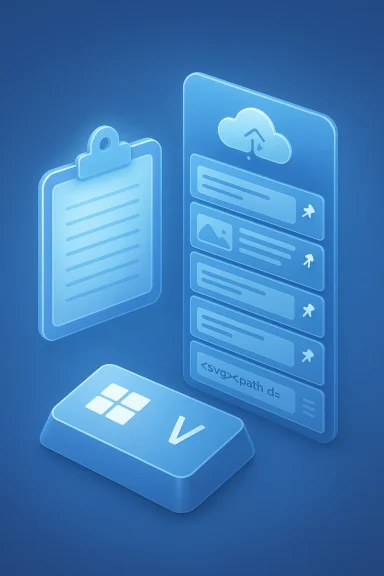
Windows 11’s Clipboard is no longer a single ephemeral slot — it’s a small vault you can open, manage and sync — and the fastest way to get at it is the Windows key + V shortcut, or by turning Clipboard history on from Settings.
The Clipboard in Windows has evolved from a one‑item buffer into a lightweight history manager that stores recent text, images and basic HTML or bitmap formats. When enabled, Clipboard history lets you recall up to 25 recently copied items, pin favourites so they survive restarts, clear data selectively, and even sync entries across devices tied to the same Microsoft account. These behaviours — including its size limits — are documented by Microsoft and reflected across community guides.
Source: HowToiSolve How to Open Clipboard in Windows 11 (Complete Guide)
 Background / Overview
The Clipboard in Windows has evolved from a one‑item buffer into a lightweight history manager that stores recent text, images and basic HTML or bitmap formats. When enabled, Clipboard history lets you recall up to 25 recently copied items, pin favourites so they survive restarts, clear data selectively, and even sync entries across devices tied to the same Microsoft account. These behaviours — including its size limits — are documented by Microsoft and reflected across community guides. That change makes copy/paste a productivity tool rather than a one‑off move. It also raises new questions about privacy, enterprise control and troubleshooting — especially after long running issues reported in some Windows 11 builds (notably 24H2) that left users with an empty clipboard history even when it was enabled. This article explains how to open and manage the Clipboard, verifies the essential technical limits and settings, and offers practical troubleshooting
How to open the Clipboard in Windows 11 (quick reference)
- Fastest: Press Windows key + V to open Clipboard history. If it’s not enabled you’ll be prompted to turn it on.
- Settings: Open Settings → System → Clipboard and toggle Clipboard history to On. From the same page you can also enable sync ear stored data.
Background detail: what the clipboard stores and limits
What types of content are supported
- Text (plain text and some HTML snippets).
- Images/bitmaps (common formats like PNG/JPEG when copied from ing Tool).
- Simple formatted content (basic HTML) is supported, but complex documents or files are not stored as clipboard history entries.
Capacity and limits (verified)
- Maximum entries: Clipboard history holds up to 25 entries (older entries fall away as new ones arrive unless pinned).
- Per‑item size limit: Individual items in the history are subject to a size cap — commonly reported and documented around 4 MB per item for text/HTML/bitmap formats (the practical limits or rich payloads may not be captured).
- Restart behavior: Unpinned items are removed on system restart; pinned items persist.
Step‑by‑step: open and use Clipboard history
1. Fastest method — keyboard shortcut (recommended)
- Press Win + V.
- If Clipboard history is off, a prompt appears with a Turn on button — click it.
- Once enabled, pressing Win + V again shows the flyout with recent items; click any item to paste it into the active app.
2. Via Settings (for configuration)
- Open Settings (Win + I).
- Go to System → Clipboard.
- Toggle Clipboard history to On. From the same screen you can clear data, and enable Sync across devices.
Practical features explained
Pin items
- When you need an entry to stick around, pin it in the clipboard flyout (click the pin icon next to the item). Pinned entries survive clear operations and restarts.
Sync across devices (auto vs manual)
- Windows 11 offers two sync modes in Clipboard settings:
- Automatically sync text that I copy — all text items you copy are sent to Microsoft’s cloud and replicated to your other Windows devices signed to the same account.
- Manually sync text that I copy — items remain local until you open Win+V and explicitly choose to sync a particular entry.
- Sync requires signing in with the same Microsoft account (or work account) manual sync if you want tighter control over what leaves your machine.
Clear clipboard history
- From the flyout: open Win + V and select Clear all at the top to remove the non‑pinned items.
- From Settings: Settings → System → Clipboard → Clear clipboard data will clear stored entries according to the UI.
Paste as plain text — what’s built in and what’s not (important verification)
Several online how‑tos and quick guides mention a "Paste as plain text" button inside the Win+V flyout. That claim appears in community articles, but official documentation does not describe a universal built‑in Paste as plain text control inside the all Windows 11 builds. Because behavior can vary by Windows build, OEM customizations, or installed tools, this specific assertion is not reliably verifiable in Microsoft’s core documentation. Treat any claim that Win+V will always provide a single‑click Paste as plain text button as build‑dependent or tool‑dependent. If you need reliable plain‑text pasting, consider:- Application shortcuts: many apps support Ctrl+Shift+V or an app menu command to paste without formatting (app dependent).
- PowerToys Advanced Paste: Microsoft PowerToys includes an Advanced Paste tool that explicitly adds Paste as Plain Text and other transformations (Win+Shift+V by default for PowerToys’ Advanced Paste). This tool runs locally and provides consistent plain‑text options.
Troubleshooting: common problems and fixes
Problem: Win+V shows “Nothing here” even though you copied items
This became prominent for some users after the Windows 11 24H2 update: clipboard history stayed empty for affected machines even with history enabled. Community reporting and troubleshooting guides converged on a few practical workarounds that often restore functionality. Try these steps in order:- Open Settings → System → Clipboard.
- Temporarily disable Suggested Actions (if present) and any other extra toggles in the Clipboard settings.
- Toggle Clipboard history off and back on.
- Press Win + V and check whether history appears. If it does, you can re‑enable Suggested Actions. Several affected users reported this sequence as a successful fix.
- Try toggling the Sync across devices option off then on, or switch between Automatic and Manual sync modes.
- Restart the Clipboard User Service (Services.msc) or reboot.
- As a last resort, some guides recommend brief registry adjustments or verifying Group Policy settings (see Enterprise section below). Community threads and Microsoft Q&A show these approaches used as troubleshooting steps when standard toggles don’t help.
Enterprise control: Group Policy and registry management
Administrators can control clipboard behaviour centrally. Windows exposes policy settings and CSP entries to enable or disable clipboard history and synchronization:- Policy name: AllowClipboardHistory (Experience Policy CSP) — controls whether history may be stored. If disabled, Win+V will not show history even when the user tries to enable it.
- AllowCrossDeviceClipboard / Allow Clipboard synchronization across devices — controls cross‑device syncing behaviour via Group Policy or registry under Software\Policies\Microsoft\Windows\System.
Privacy and security: what to watch for
- Sync uploads content to Microsoft’s cloud (when enabled). Use Manual sync mode if you must avoid broad uploads and only want to sync selected items.
- Avoid copying sensitive secrets. Do not copy passwords, cryptographic keys, financial account numbers or other highly sensitive information if Clipboard history or cross‑device sync is enabled. Pinned items persist — unpin before sharing or clear history promptly.
- Audit managed devices. In corporate contexts, disable sync if it violates policy and use Group Policy to enforce the setting.
Advanced options and third‑party alternatives
If you need more capacity, richer formats, or consistent paste as plain text behaviour, consider these options:- PowerToys Advanced Paste — Microsoft’s PowerToys includes Advanced Paste which adds a dedicated plain‑text paste tool, format conversion and OCR extraction features. It’s a local tool with configurable shortcuts (default Win+Shift+V) and is suitablneed deterministic paste behaviour.
- Third‑party clipboard managers — tools like ClipboardFusion, Ditto, or others provide extended capacity, searchable histories, encryption options and cloud sync with enterprise controls. Use trusted, well‑maintained tools and verify their security model before storing sensitive content.
- App‑level paste controls — many productivity apps (Word processors, code editors, email clients) provide built‑in paste without formatting commands. When working in a specific app, prefer native paste controls to avoid accidental formatting or hidden markup.
Best practices — a short checklist
- Enable Clipboard history if you copy multiple snippets often; use Win + V as a muscle‑memory shortcut.
- Pin frequently used items to prevent them being pruned or lost on restart.
- Use Manual sync if you want cross‑device convenience without blanket uploads.
- Don’t copy passwords or private keys when history or sync is enabled; clear or avoid copying sensitive contents.
- If Clipboard history stops working after an update, try disabling Suggested Actions and toggling Clipboard history; if necessary check policy or service state.
Conclusion
Windows 11’s Clipboard history is a small but powerful productivity gain: Win + V opens a short, manageable history; Settings gives you control over persistence and syncing; and Group Policy or MDM can enforce behaviour in managed fleets. Official limits — up to 25 items, roughly 4 MB per item, pinned items that survive restarts, and explicit sync options — are documented and should shape how you use the feature. Be aware that minor differences across Windows builds and installed tools can change the available buttons or shortcuts (for example the availability of a one‑click “Paste as plain text” in Win+V is not consistently documented and should be treated as build‑dependent). For deterministic plain‑text pasting or advanced clipboard transformations, PowerToys’ Advanced Paste or a reputable third‑party clipboard manager provide stronger, more reliable options. Finally, approach cross‑device sync with intent: the convenience of having copied text available on all your devices is compelling, but it’s also an explicit data flow to Microsoft’s cloud. Use manual sync or disable cross‑device sync where privacy or compliance concerns apply. This guide consolidates the practical how‑tos, verified technical limits, and the most reliable troubleshooting steps — everything you need to open, manage and secure Clipboard history in Windows 11.Source: HowToiSolve How to Open Clipboard in Windows 11 (Complete Guide)
