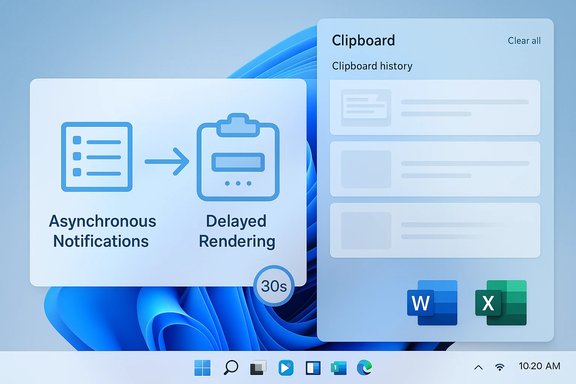
You’re not alone: Windows 11’s Clipboard History can feel intermittently unreliable, and Microsoft’s own developer documentation explains why the feature sometimes misses items you believed you copied — especially when you copy things quickly, copy large or complex data from apps like Excel, or rely on apps that use delayed rendering to supply clipboard content.
Windows 11’s Clipboard History (Win + V) is a convenience layer built on top of the classic Win32 clipboard. It stores recent clipboard entries — text, HTML, and bitmaps — so you can paste earlier copies without redoing the copy action. The feature is intentionally limited: Windows documents that clipboard history keeps up to 25 entries and enforces a per-item size cap (around 4 MB); unpinned items are evicted as new ones arrive and are cleared on restart unless pinned. These limits are part of the design. That design trade-off is why many users consider the native clipboard a lightweight productivity tool rather than a full-blown, persistent clipboard manager. Power users who need longer histories, search, or larger payloads commonly turn to third‑party managers such as Ditto, CopyQ, or ClipClip — precisely because the built‑in system prioritizes simplicity, performance, and privacy controls.
When you copy something, Windows posts a clipboard‑change message to registered listeners (the Clipboard History service is one such listener). Because the notification is queued, the history service processes the event later — not necessarily immediately. If you copy something, then copy again before the history service has processed the first notification, the first change may never be recorded in history. That’s because the history service is reacting to a stream of posted messages: if a newer state supersedes an earlier one before it’s caught, the earlier state becomes effectively invisible to the history service. Microsoft’s own documentation about clipboard notification models and developer write‑ups explain this asynchronous, message‑based behavior. Why does Windows behave this way? Performance and design. Clipboard messages are posted to windows like any other UI message, and processing them synchronously for every quick copy would add latency and complexity to the system. The pragmatic answer from Microsoft is: if a clipboard item was only present for a fraction of a second, a human user would be unlikely to paste it anyway — so the system favors responsiveness over exhaustive capture. WindowsLatest’s hands‑on observations and tests recreated this effect and called out the tradeoff explicitly.
How it works in the real world
Key references for deeper reading (developer docs and engineering commentary are the definitive guidance behind the behavior described in this article): Microsoft’s clipboard operations and delayed rendering guidance, the WM_RENDERFORMAT / WM_RENDERALLFORMATS documentation, Microsoft Support’s Clipboard History limits and sync behavior, and Raymond Chen’s developer blog explaining the 30‑second timeout.
Source: Windows Latest Why Windows 11 clipboard is a hit or miss sometimes, according to Microsoft
 Background: what Windows 11 Clipboard History is — and what it’s not
Windows 11’s Clipboard History (Win + V) is a convenience layer built on top of the classic Win32 clipboard. It stores recent clipboard entries — text, HTML, and bitmaps — so you can paste earlier copies without redoing the copy action. The feature is intentionally limited: Windows documents that clipboard history keeps up to 25 entries and enforces a per-item size cap (around 4 MB); unpinned items are evicted as new ones arrive and are cleared on restart unless pinned. These limits are part of the design. That design trade-off is why many users consider the native clipboard a lightweight productivity tool rather than a full-blown, persistent clipboard manager. Power users who need longer histories, search, or larger payloads commonly turn to third‑party managers such as Ditto, CopyQ, or ClipClip — precisely because the built‑in system prioritizes simplicity, performance, and privacy controls.How the Windows clipboard actually works (short, critical primer)
To understand why clipboard items sometimes “disappear,” you need to know three core behaviors of the Windows clipboard stack:- Windows notifies interested applications about clipboard changes by posting a message (WM_CLIPBOARDUPDATE) to windows that registered with AddClipboardFormatListener. This is an asynchronous, message‑based mechanism — the notification is queued, not executed synchronously.
- Applications can place actual data on the clipboard immediately, or they can use delayed rendering: they register a format but hand Windows a NULL data handle and only generate (render) the real clipboard bytes later — when another app requests them (the system sends WM_RENDERFORMAT or WM_RENDERALLFORMATS). Delayed rendering saves work when multiple formats are supported and not every target will request them.
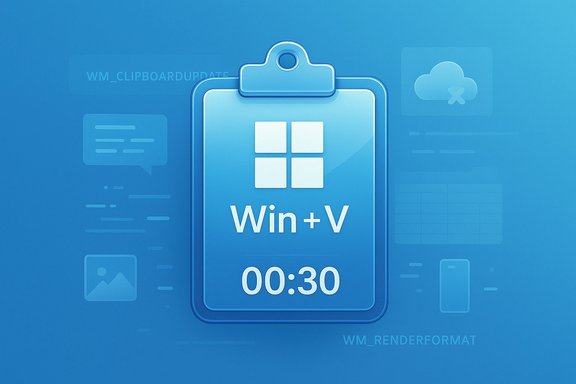
- The clipboard manager and the requesting application wait for the clipboard owner to produce delay‑rendered data, but that wait is bounded. If the owner doesn’t produce the requested data in time, the request fails and the paste returns no data. Microsoft engineering documentation and long‑running Windows engineering commentary show the system will wait up to 30 seconds for a delayed render to complete before abandoning the request.
Why rapid copy operations can “beat” Clipboard History
One of the root causes of lost clipboard history entries is asynchronous clipboard-change notifications.When you copy something, Windows posts a clipboard‑change message to registered listeners (the Clipboard History service is one such listener). Because the notification is queued, the history service processes the event later — not necessarily immediately. If you copy something, then copy again before the history service has processed the first notification, the first change may never be recorded in history. That’s because the history service is reacting to a stream of posted messages: if a newer state supersedes an earlier one before it’s caught, the earlier state becomes effectively invisible to the history service. Microsoft’s own documentation about clipboard notification models and developer write‑ups explain this asynchronous, message‑based behavior. Why does Windows behave this way? Performance and design. Clipboard messages are posted to windows like any other UI message, and processing them synchronously for every quick copy would add latency and complexity to the system. The pragmatic answer from Microsoft is: if a clipboard item was only present for a fraction of a second, a human user would be unlikely to paste it anyway — so the system favors responsiveness over exhaustive capture. WindowsLatest’s hands‑on observations and tests recreated this effect and called out the tradeoff explicitly.
Delayed rendering: the most subtle source of “missing” entries
Delayed rendering is powerful but brittle in practice.How it works in the real world
- An app (for example, Microsoft Excel) can claim clipboard formats without copying all the bytes up front by passing NULL to SetClipboardData for certain formats.
- Later, when another app calls GetClipboardData for that format, Windows sends WM_RENDERFORMAT to the clipboard owner and expects the owner to call SetClipboardData with an actual memory handle.
- If the owner takes too long — because the rendering is expensive, the app is busy, hung, or blocked — the requesting app gets nothing. Windows abandons the request after a timeout.
- The Windows clipboard manager imposes a non‑configurable timeout for WM_RENDERFORMAT: it waits up to 30 seconds for the clipboard owner to produce the data. If the owner does not call SetClipboardData in that span the request is abandoned and GetClipboardData returns NULL. Microsoft engineering commentary from Raymond Chen explains this behavior and even outlines developer workarounds for special cases.
Real‑world scenarios users report (and why they happen)
- Phone Link image copy: When you copy images from an Android phone through Phone Link, the image may be sent as a promise (delayed render) or in small chunks. If the Phone Link pipeline or the receiving app is slow, history or the paste may show nothing. WindowsLatest’s anecdotal test reproduces exactly this intermittent behavior.
- Copying lots of text/images in rapid succession: Professional workflows that copy several snippets quickly — code, terminal output, email fragments — can outrun the history service because of asynchronous notifications. The system will favor the most recent stable state and discard ultra‑short lived intermediate states.
- Pasting large Excel regions: Excel often delay‑renders some formats (RTF, complex HTML tables). If another program requests the RTF or other heavy formats and Excel needs more than the clip manager’s timeout to compose them, paste returns NULL. Multiple developer posts and investigations trace this to delayed rendering and the 30‑second limit.
Practical troubleshooting and mitigations (user-focused)
If you rely on Clipboard History and find items missing, here’s a pragmatic checklist — short, sequential, and actionable:- Confirm basics
- Enable Clipboard History: Settings > System > Clipboard > Clipboard history (Win + I). Open Win + V to check. Microsoft’s support page documents the feature and its limits.
- Avoid ultra‑rapid copy bursts
- If you’re copying many things in quick succession (scripts, automated workflows), insert a small pause or paste as you go. The history service may miss extremely short‑lived entries because notifications are processed asynchronously.
- For large Excel/RTF content: paste immediately or export
- When copying big ranges from Excel, paste into the destination app immediately rather than relying on history. If you must transport complex tables, export to CSV or use Save As instead of the clipboard — this avoids delayed rendering entirely. Community investigations show Excel’s delay‑rendered RTF often times out when the target requests the format.
- Toggle settings if Clipboard History seems blank
- Users have reported fixes by toggling Clipboard History or related features (Suggested Actions, sync) off and on, or restarting the Clipboard-related services and Explorer. That’s an effective, low‑risk first step while waiting for OS patches.
- Pin critical items and use sync carefully
- Pin items you can’t afford to lose. Pinned items survive restarts. Be mindful of clipboard sync: syncing across devices sends items to Microsoft’s cloud and increases exposure; keep sync OFF for sensitive data. Microsoft documents the sync behaviors and privacy tradeoffs.
- Use a dedicated clipboard manager for heavy workflows
- If you need persistent history, search, or lots of entries, use trusted third‑party managers (Ditto, CopyQ). They store entries locally, let you configure retention, and provide search. Note the privacy tradeoffs: longer persistence means more sensitive data stored. Community guidance and testing show many professionals rely on these tools for advanced workflows.
Developer guidance: how to avoid creating “missing” clipboard items
If you build an app that interacts with the clipboard, follow these practical rules to avoid frustrating downstream users:- Don’t use delayed rendering for small or trivial data. The Microsoft guidance recommends placing data directly on the clipboard when rendering is cheap (for example, if rendered form is under a few KB). Delayed rendering is best reserved for expensive conversions or large formats that are frequently not requested.
- If you must delay render, keep WM_RENDERFORMAT handlers fast and avoid blocking the UI thread. Render on a background thread if you need heavy processing, and coordinate with the window message pump so the WM_RENDERFORMAT handler can return quickly after calling SetClipboardData. Microsoft documents the message flow (WM_RENDERFORMAT, WM_RENDERALLFORMATS) and the implications for responsiveness.
- Be aware of the 30‑second limit. If rendering takes longer than that, other apps will receive NULL. If you anticipate long renders, consider alternatives: pre‑render formats, store data in a temporary file the receiving app can open, or present the user with a Save/Export option. Raymond Chen’s engineering blog explains the non‑configurable 30‑second wait and shows potential developer workarounds for edge cases.
- Test against realistic targets. Some clipboard consumers will immediately call GetClipboardData for multiple formats; ensure your app handles WM_RENDERFORMAT and WM_RENDERALLFORMATS correctly before releasing. Microsoft’s delayed rendering guidance explicitly calls out the tradeoffs and implementation pitfalls.
Security, privacy, and enterprise considerations
Clipboard History and sync are convenient, but they introduce exposure:- Syncing clipboard entries to the cloud exposes whatever you copy to other devices attached to your Microsoft account. Do not enable automatic sync if you frequently copy passwords, tokens, or regulated data. Microsoft’s support pages explicitly warn about these privacy implications.
- Enterprises should treat cross‑device clipboard syncing and Phone Link flows as user‑level convenience features, and gate them with policy where necessary. Community and admin guidance cautions that OEM continuity services and device pairing can complicate behavior and reliability in enterprise environments. Policy-based controls and testing in staged environments are recommended.
- Third‑party clipboard managers may persist sensitive clipboard data locally or offer cloud sync; vet these tools carefully and prefer solutions that encrypt storage and offer easy purge controls.
Strengths of the current design — and the tradeoffs Microsoft made
- Strengths
- Low‑overhead design: Clipboard History’s caps and asynchronous notifications avoid turning a fundamental OS primitive into a performance bottleneck.
- Simplicity: For most users, a 25‑item buffer and pinning are enough, and the Win + V UX is fast and integrated.
- Privacy defaults: The system’s small buffer and per‑item size limit reduce the chance of long‑term accidental retention of sensitive data.
- Tradeoffs / Risks
- Intermittent misses for power workflows: Heavy or rapid copy/paste flows, or large delayed renders, will sometimes fail silently.
- Reliance on apps to behave: Delay‑rendering is a contract between clipboard owner and consumers; if an app is buggy or blocked, nothing is saved.
- Inconsistent cross‑device behavior: Phone Link and OEM continuity stacks can have device‑specific quirks that lead to intermittent failures.
What users should do next (short checklist)
- If you want reliability for a small number of important clips: pin them in Clipboard History.
- If you routinely copy large tables or images: paste immediately or use export/save as a file rather than relying on history.
- If you need persistent, searchable history: adopt a vetted third‑party clipboard manager and configure retention and encryption appropriately.
- For enterprise deployments: set group policies for clipboard sync and treat Phone Link/continuity features as optional convenience features, not core workflows.
Conclusion — why this is “by design” and what to expect
When Clipboard History appears to be a hit or miss, it’s usually because of three interlocking facts: Windows posts clipboard-change notifications asynchronously; some applications delay render clipboard formats instead of copying bytes immediately; and the system enforces a reasonable timeout (about 30 seconds) for delayed rendering. Those behaviors are documented in Microsoft’s developer guidance and in Windows engineering commentary, and they explain the symptoms many users see — blank entries, missing images, or failed pastes — particularly with fast copy bursts or large Excel/RTF data. The fix is rarely a single patch: it’s a mix of app authors following best practices (avoid unnecessary delayed rendering), users adopting appropriate workflows (pin critical items, paste heavy data immediately), and organizations choosing the right tools for the job (third‑party managers where persistence is required). For most Windows users the native Clipboard History delivers excellent value; for heavy lift clipboard workflows, treat it as a convenience and adopt a purpose‑built solution instead.Key references for deeper reading (developer docs and engineering commentary are the definitive guidance behind the behavior described in this article): Microsoft’s clipboard operations and delayed rendering guidance, the WM_RENDERFORMAT / WM_RENDERALLFORMATS documentation, Microsoft Support’s Clipboard History limits and sync behavior, and Raymond Chen’s developer blog explaining the 30‑second timeout.
Source: Windows Latest Why Windows 11 clipboard is a hit or miss sometimes, according to Microsoft