

Windows 11 has come a long way since its launch: the Snipping Tool now includes on-device OCR and recording features, Paint has gained practical editing utilities, and File Explorer has finally added tabs and broader archive handling. Still, dozens of small, repeatable friction points remain — the kind of omissions that force power users and IT pros to reach for third‑party utilities immediately after a clean install. The list below covers five deceptively simple tools I still install on every Windows 11 machine because they solve routine problems far better than Windows does today — and why Microsoft should consider folding these functions into the OS itself.
Windows ships with a competent baseline of tools, but the product decisions behind what remains native and what’s left to the store or third‑party developers often prioritize consistency and legal licensing over day‑to‑day practicality. That trade‑off produces gaps that aren’t exotic or niche: they’re basic actions users expect from a modern desktop OS. The pattern is familiar — Microsoft builds a solid foundation, the community fills gaps with high‑quality tools, and many of those tools become de facto standards for power users. Microsoft PowerToys is the canonical example of a formerly third‑party idea that became part of the ecosystem without being forced into the core OS.
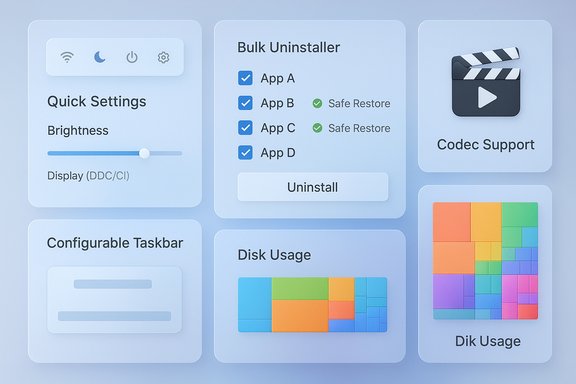
The five tools that follow are not about flash or one‑off edge cases. They’re about recurring tasks — controlling an external monitor’s brightness, removing bloat en masse, playing all media files without codec headaches, regaining flexible taskbar positioning, and visually finding what’s hogging disk space. Each one could be implemented by Microsoft without breaking the product model — though there are technical and legal caveats to consider.
Microsoft doesn’t need to clone every beloved third‑party app, but it could adopt the ideas: native support for external display brightness (with DDC/CI detection), a safe bulk uninstaller, better codec accessibility, taskbar position options as an opt‑in setting, and a visual disk analyzer. Those changes would eliminate dozens of repetitive installs, simplify imaging and provisioning, and make Windows 11 feel more polished for the people who live in its UI every day. The community has already proven the use cases and prototyped safe solutions — the remaining step is for Microsoft to treat these capabilities as first‑class citizen features that can be toggled on, managed by IT, and trusted across builds.
Source: XDA 5 tools I still use on Windows 11 that I wish Microsoft included natively
 Background / Overview
Windows ships with a competent baseline of tools, but the product decisions behind what remains native and what’s left to the store or third‑party developers often prioritize consistency and legal licensing over day‑to‑day practicality. That trade‑off produces gaps that aren’t exotic or niche: they’re basic actions users expect from a modern desktop OS. The pattern is familiar — Microsoft builds a solid foundation, the community fills gaps with high‑quality tools, and many of those tools become de facto standards for power users. Microsoft PowerToys is the canonical example of a formerly third‑party idea that became part of the ecosystem without being forced into the core OS.The five tools that follow are not about flash or one‑off edge cases. They’re about recurring tasks — controlling an external monitor’s brightness, removing bloat en masse, playing all media files without codec headaches, regaining flexible taskbar positioning, and visually finding what’s hogging disk space. Each one could be implemented by Microsoft without breaking the product model — though there are technical and legal caveats to consider.
1) Monitorian — external monitor brightness control
What it does
Monitorian sits in the system tray and exposes a simple slider per connected display. It talks to external monitors using the VESA DDC/CI protocol so you can change brightness (and in some cases contrast) for external displays directly from Windows, without having to fumble for tiny OSD buttons hidden behind or under a monitor. This is exactly the kind of micro‑feature that saves time and ergonomics headaches for anyone who uses a laptop with a docked monitor or a multi‑monitor workstation.Why Windows should include it natively
- Everyday convenience: Quick Settings already exposes a brightness slider — but it typically controls only the internal panel on laptops. Desktop users and those using external monitors still must use the monitor’s physical controls or vendor software.
- Consistency: A native brightness flyout for external displays would eliminate the need to install an extra app after every setup and would make multi‑monitor setups easier to manage for less technical users.
- Enterprise deployment: A Microsoft‑managed implementation could be shipped as an optional component or feature-on-demand that enterprises can include in their standard images.
Technical reality and constraints
Monitorian’s ability to control an external monitor hinges on DDC/CI support, which depends on the monitor model, the cable or dock, and whether the monitor’s OSD remote control protocol is enabled. The Monitorian README and documentation explicitly warn that some monitors or docking setups don’t expose the required DDC/CI capabilities, and that not every connection type or adapter is compatible. Any native implementation must therefore detect controllable displays and gracefully degrade when hardware doesn’t support software brightness control.How Microsoft could implement it (practical sketch)
- Add an external‑display brightness API that queries a monitor’s DDC/CI capabilities (read only, set brightness/contrast, vendor flags).
- Expose per‑display sliders in Quick Settings and Settings > System > Display only when the hardware supports it (avoid confusing users with non‑functional controls).
- Allow OEMs and IT admins to opt into or out of the feature via policies and to preconfigure default brightness profiles.
- Implement fallback software dimming for displays that don’t support DDC/CI (a screen overlay approach that preserves user intent without changing OSD settings).
Risks and caveats
- DDC/CI implementation varies widely by vendor and connection path; Microsoft would need broad testing and a compatibility list to avoid user confusion.
- Some docking stations or adapters block DDC/CI. That limitation should be surfaced clearly in the UI to avoid blaming Windows for an unfixable hardware gap.
2) Bulk Crap Uninstaller (BCUninstaller) — batch app removal and cleanup
What it does
Bulk Crap Uninstaller (BCUninstaller) is an open‑source uninstaller that excels at batch removal, cleanup of leftovers, quiet/silent uninstall flows, and detection of apps that the Settings > Apps UI either misses or struggles to remove (including many Store/UWP apps). It can queue dozens or hundreds of uninstallers, handle stubborn removals, and produce a scripted cleanup — features that Windows’ built‑in Apps & features panel does not offer natively.Why Windows should include it natively
- Time savings: Reimaging or cleaning a user profile often requires removing dozens of unwanted apps; a batch uninstall workflow is an obvious fit for an enterprise admin or a power user.
- Cleaner installs: Built‑in bulk removal could be combined with an enterprise baseline to automatically remove OEM bloatware during image provisioning.
- Consistency and safety: A Microsoft implementation could include safe defaults (restore points, registry backups, and verified digital‑signature checks) to reduce the risk of accidental removals.
Verified features and independent checks
BCUninstaller’s documentation and maintainers list features such as silent uninstalls, Windows Store app removal, and leftover cleanup; independent reviews and software directories highlight the same capabilities. This confirms BCUninstaller is solving a genuine gap that Windows’ built‑in tools still don’t address.How Microsoft could implement it (practical sketch)
- Extend Settings > Apps with a “Bulk management” mode that lists apps with checkboxes, supports grouping rules, and allows dry runs.
- Integrate safeguards: automatic restore point creation, registry snapshotting, and a quarantine folder for removed files.
- Surface a silent/unattended mode for IT imaging flows (Intune/MDM integration) that maps to the same functionality as AppLocker/uninstall policies.
Risks and caveats
- Permission and recovery model: Removing system components or apps that other software expects could break workflows. The built‑in tool should err on the side of safety and require admin confirmation for risky removals.
- Complex uninstallers: Some apps use custom installers that don’t support silent uninstall; Microsoft’s native tool would need to maintain a compatibility layer or fall back to safe heuristics.
3) VLC Media Player — robust codec coverage and subtitle fetching
What it does and why it’s indispensable
VLC is the long‑running, open‑source media player that handles a vast array of audio and video codecs out of the box, including legacy and niche formats. For many users the native Windows Media Player or the modern Media Player app will struggle with certain files — especially older containers, unusual audio codecs, or HEVC‑encoded footage — while VLC plays them reliably. The player also has useful extras such as subtitle fetching plugins and simple conversion tools.The painful codec reality
Microsoft’s decision to keep certain codecs out of the base OS is largely licence‑driven. The HEVC (H.265) codec, for example, has historically required a small paid extension from the Microsoft Store in some regions, while free players like VLC will ship the necessary decoders directly. For users this creates a paradox: you may need to pay for a codec to make the built‑in player fully functional on some files, or simply install VLC and move on. How‑to guides and community threads repeatedly document this exact friction.Why Microsoft could — and arguably should — do more
- User experience: Media playback is a core use case for desktops and laptops. A modern OS should handle common consumer formats gracefully.
- Legal constraints: Microsoft may have licensing or patent‑pool reasons to avoid bundling some codecs; that needs to be acknowledged. But Microsoft could provide clearer guidance, a frictionless Store install experience, or negotiate broader licensing to avoid the small but annoying paywall and support headaches that users encounter today. Documentation and community posts confirm users frequently run into issues when Microsoft’s built‑in player lacks a codec that VLC handles.
Practical options for Microsoft
- Bundle royalty‑free codecs (AV1, AVIF) and improve the discoverability/installation flow for patent‑encumbered codecs.
- Provide an official, free “media support pack” for consumer editions that a user can opt into during setup (reduces friction and reduces third‑party installations).
- Improve Media Player’s subtitle and online lookup features to match the convenience of VLC and its extensions.
4) ExplorerPatcher — restoring flexible taskbar placement and classic behaviors
What it does
ExplorerPatcher restores many taskbar and Start menu behaviors that were present in Windows 10 but removed or locked down in Windows 11 — notably, the ability to relocate the taskbar to the top or sides, restore icon grouping options, and revive classic context menus. That restoration matters not because nostalgia wins prizes, but because a fixed, immovable taskbar reduces user choice and breaks long‑established workflows for many power users.Why Microsoft should include taskbar flexibility
- Choice without cost: Allow users to choose the taskbar position as an optional setting. This supports accessibility and established muscle memory without forcing a change on everyone.
- Enterprise benefits: IT departments and OEMs can standardize a layout across fleets without resorting to third‑party patches that may be fragile across updates.
Verified behavior and community experience
ExplorerPatcher’s documentation shows it can reintroduce the Windows 10 style taskbar and move it to any edge of the screen, though compatibility depends on Windows build and internal Explorer changes. The project’s wiki and issue tracker make clear that updates to Windows can break or alter how these patches operate — which is the exact risk Microsoft can eliminate if it offers official toggles.Implementation options for Microsoft
- Add a “Taskbar position and legacy behaviors” section in Settings, gated behind an “Advanced/customization” toggle.
- Implement a compatibility layer that maps legacy behaviors to the modern shell without relying on brittle hooks.
- Expose enterprise Group Policy controls so organizations can lock a preferred layout.
Risks and caveats
- Microsoft will need to QA legacy modes against third‑party shell extensions and OEM customizations to avoid breaking enterprise flows.
- Over‑fragmentation of UI modes can increase support overhead; implement legacy modes as opt‑in with explicit guidance.
5) WinDirStat — disk usage visualization and targeted cleanup
What it does
WinDirStat scans a drive and produces a treemap view where every file is shown as a rectangle sized to match its disk usage; it also lists folders and file types by size. This turns disk cleanup from guesswork into targeted action. Windows’ Storage Sense and Disk Cleanup automate a few tasks, but neither gives the quick, visual way to find the single folder or file(s) that are consuming dozens of gigabytes. WinDirStat’s treemap and built‑in delete operations make it easy to find and remove space hogs quickly.Why Windows should include it natively
- Faster troubleshooting: Visual tools dramatically reduce the time to diagnose space issues (large cache folders, forgotten VM images, oversized logs).
- Integrated cleanup UX: Storage Settings could pair a visual treemap with suggested cleanup actions and a “safe delete” mode to minimize accidental removals.
- Power and casual user parity: Many users reach for WinDirStat or WizTree after they run into mysterious low‑disk scenarios; a first‑party visualizer would remove that friction.
Implementation ideas
- Add a built‑in “Disk Visualizer” in Storage settings that offers a treemap, drill‑down folder sizes, and quick cleanup suggestions.
- Offer an “Analyze” action in Drives right‑click that opens the visual report.
- For safety, require elevated consent before deleting files and automatically exclude known system files unless the user explicitly requests system cleanup.
Risks and caveats
- Deleting files from a visual tool can be dangerous; Microsoft should include safety nets (undo, quarantine, restore point).
- Performance on huge volumes and network drives requires careful engineering to avoid long hangs; incremental scanning and previews would help.
Final analysis: strengths, adoption risk, and a realistic roadmap
Notable strengths of making these features native
- Reduced friction: Users wouldn’t need to hunt down trusted third‑party apps after every install.
- Security and integration: Microsoft can build these features with safer privilege models, sandboxing, and enterprise controls.
- Lower support burden: Official, documented options mean fewer threads and workarounds in community support channels.
Key risks and constraints
- Hardware and licensing: External‑monitor control requires vendor cooperation (DDC/CI) and codecs like HEVC involve licensing. Microsoft can partially mitigate these by offering fallback modes and clearer messaging.
- Feature bloat vs. discoverability: Adding specialized options natively risks cluttering Settings; the right model is optional, modular features — shipped as Components or Feature Packs that users can enable.
- Backward compatibility: Restoring legacy UI behaviors (taskbar movement, context menus) must be done in a compatibility layer to avoid breaking shell extensions and OEM customizations. ExplorerPatcher’s issues show why careful engineering and Insider‑ring QA matter.
A realistic rollout plan for Microsoft
- Ship these as optional Feature Packs or Components in the Microsoft Store (or as part of Windows Optional Features) so mainstream users aren’t impacted unless they opt in.
- Integrate enterprise controls and MDM/Group Policy management so admins can enable these on managed fleets.
- Publish a compatibility matrix for DDC/CI brightness control and codec availability to set expectations and avoid confusion.
- Where licensing is required (HEVC), improve plumbing: make the paid codec a zero‑friction Store add‑on during setup, or negotiate OEM preinstalls for new systems.
Conclusion
Windows 11 is richer and more polished than its predecessors, but practical, everyday features still live in a mature third‑party ecosystem because they weren’t prioritized for the core OS. Monitorian, Bulk Crap Uninstaller, VLC, ExplorerPatcher, and WinDirStat are each tiny in scope but enormous in daily impact. They reveal a consistent theme: when Microsoft exposes small, secure, and discoverable knobs in Settings or offers optional feature packs, the OS becomes significantly more usable for both casual and power users.Microsoft doesn’t need to clone every beloved third‑party app, but it could adopt the ideas: native support for external display brightness (with DDC/CI detection), a safe bulk uninstaller, better codec accessibility, taskbar position options as an opt‑in setting, and a visual disk analyzer. Those changes would eliminate dozens of repetitive installs, simplify imaging and provisioning, and make Windows 11 feel more polished for the people who live in its UI every day. The community has already proven the use cases and prototyped safe solutions — the remaining step is for Microsoft to treat these capabilities as first‑class citizen features that can be toggled on, managed by IT, and trusted across builds.
Source: XDA 5 tools I still use on Windows 11 that I wish Microsoft included natively
