

Verdict: install Microsoft’s latest Visual C++ v14 Redistributable first for a modern missing-DLL or game-launch error; use an all-in-one pack only when the affected application needs a genuinely older, separate runtime such as Visual C++ 2013, 2012, 2010, 2008, or 2005. Installing every package indiscriminately is usually unnecessary, while repeatedly trying older v14 installers can produce error 0x80070666 because the PC already has a newer compatible runtime.
For a typical Windows PC, start with Microsoft’s current v14 package in both the architecture your software requires and, on 64-bit Windows, usually the x86 package as well. Microsoft’s current v14 Redistributable supports applications built with Visual Studio 2017, 2019, 2022, and 2026, provided the installed runtime is the same version as or newer than the application’s build toolset.
The current v14 Redistributable is Microsoft’s answer for applications built with the MSVC toolsets in Visual Studio 2017 through Visual Studio 2026. In practical terms, that means a current v14 installation is the sensible default for newer games, desktop software, and in-house applications built during that span.
It does not mean that users should install a separate 2017, 2019, 2022, and 2026 runtime in sequence. Microsoft documents these releases as sharing the v14 runtime family. The installed package needs to be at least as new as the build tools used by the application; newer v14 packages replace older v14 packages.
That replacement behavior explains a familiar support dead end. When a user launches an older v14 installer after a newer v14 version is already present, Windows Installer can return 0x80070666. That is not evidence that a missing runtime needs to be force-installed. It normally means the system already has a newer v14 package, so the older installer cannot add a parallel copy.
For enthusiasts troubleshooting a single game, this prevents needless churn. For administrators, it turns VC++ remediation into a simpler baseline decision: standardize the current v14 runtime by architecture, then investigate application-specific legacy dependencies only when the failure points there.
That is the legitimate use case for a Visual C++ Redistributable All-in-One package. A bundled installer can save time when supporting an older game library, a repurposed workstation, or a line-of-business application estate where different programs may rely on different pre-2015 runtimes.
WindowsForum’s earlier coverage of the TechPowerUp Visual C++ Redistributable Runtimes All-in-One package reflects why the format remains popular: it bundles official Microsoft runtime installers across the legacy releases and the unified modern run. It reduces a tedious series of individual installs to a single maintenance step.
But convenience should not become policy. An all-in-one pack is a legacy-coverage tool, not the universal repair for every startup failure. If an application was built with a current Visual Studio toolchain, the latest v14 runtime is the targeted solution. If the program needs Visual C++ 2010 or 2013, v14 alone will not help; that is when the specific legacy package, or an all-in-one bundle that includes it, becomes relevant.
The key is to diagnose the application’s generation rather than treating the installed-programs list as clutter to be cleaned up.
There are two reasons:
This is also why the common advice to “keep only the newest one” is half-right at best. Keep the newest v14 runtime, certainly. But do not infer that the newest entry replaces every 2005-to-2013 package beside it.
A disciplined repair sequence is:
Microsoft distributes current packages separately for x86, x64, and ARM64. That makes architecture an explicit deployment decision, not an afterthought. An ARM64 package cannot substitute for an x86 application’s requirement, and x86 remains relevant across ordinary 64-bit Windows fleets because many Windows applications are still 32-bit.
For unattended deployments, Microsoft documents
The all-in-one approach still has a place: older software, rebuilt machines, lab environments, and troubleshooting benches. But the next time a game reports a missing C++ DLL, the correct first move is not to carpet-bomb Windows with every runtime ever released. Install the current v14 package that matches the application, preserve the older side-by-side entries, and add legacy runtimes only when the application truly belongs to that earlier generation.
For a typical Windows PC, start with Microsoft’s current v14 package in both the architecture your software requires and, on 64-bit Windows, usually the x86 package as well. Microsoft’s current v14 Redistributable supports applications built with Visual Studio 2017, 2019, 2022, and 2026, provided the installed runtime is the same version as or newer than the application’s build toolset.
- Close the game or application that reports the missing-DLL or launch error.
- Open Settings > Apps > Installed apps in Windows 11, or Settings > Apps > Apps & features in Windows 10.
- Search for “Microsoft Visual C++” to see what is already installed. Do not remove older entries simply because there are many of them.
- Download the current Microsoft Visual C++ v14 Redistributable from Microsoft Learn, selecting the correct architecture.
- On a 64-bit Windows PC, install the x64 package for 64-bit applications and the x86 package for 32-bit applications. A 32-bit game can require x86 even when Windows itself is 64-bit.
- Restart the affected application. If it still fails, reinstall or repair the application through its own installer or launcher, then identify whether it specifically requires a pre-2015 Visual C++ package.
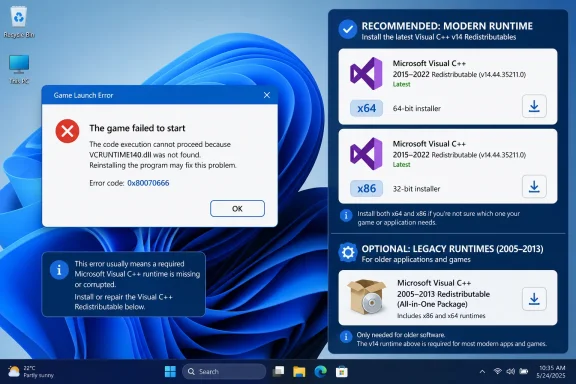 The Modern v14 Runtime Is One Moving Target, Not Four Separate Fixes
The current v14 Redistributable is Microsoft’s answer for applications built with the MSVC toolsets in Visual Studio 2017 through Visual Studio 2026. In practical terms, that means a current v14 installation is the sensible default for newer games, desktop software, and in-house applications built during that span.It does not mean that users should install a separate 2017, 2019, 2022, and 2026 runtime in sequence. Microsoft documents these releases as sharing the v14 runtime family. The installed package needs to be at least as new as the build tools used by the application; newer v14 packages replace older v14 packages.
That replacement behavior explains a familiar support dead end. When a user launches an older v14 installer after a newer v14 version is already present, Windows Installer can return 0x80070666. That is not evidence that a missing runtime needs to be force-installed. It normally means the system already has a newer v14 package, so the older installer cannot add a parallel copy.
For enthusiasts troubleshooting a single game, this prevents needless churn. For administrators, it turns VC++ remediation into a simpler baseline decision: standardize the current v14 runtime by architecture, then investigate application-specific legacy dependencies only when the failure points there.
Legacy Applications Still Need Their Own Runtime Generation
Visual C++ 2013 and earlier are different. Microsoft keeps the 2013, 2012, 2010, 2008, and 2005 Redistributables as side-by-side packages. A current v14 installation does not replace them, and it cannot satisfy an application built to require one of those earlier runtime generations.That is the legitimate use case for a Visual C++ Redistributable All-in-One package. A bundled installer can save time when supporting an older game library, a repurposed workstation, or a line-of-business application estate where different programs may rely on different pre-2015 runtimes.
WindowsForum’s earlier coverage of the TechPowerUp Visual C++ Redistributable Runtimes All-in-One package reflects why the format remains popular: it bundles official Microsoft runtime installers across the legacy releases and the unified modern run. It reduces a tedious series of individual installs to a single maintenance step.
But convenience should not become policy. An all-in-one pack is a legacy-coverage tool, not the universal repair for every startup failure. If an application was built with a current Visual Studio toolchain, the latest v14 runtime is the targeted solution. If the program needs Visual C++ 2010 or 2013, v14 alone will not help; that is when the specific legacy package, or an all-in-one bundle that includes it, becomes relevant.
The key is to diagnose the application’s generation rather than treating the installed-programs list as clutter to be cleaned up.
Why So Many Visual C++ Entries Can Be Correct
Seeing numerous Microsoft Visual C++ Redistributables in Installed apps is normal. Their presence does not necessarily indicate duplicate bloat, failed updates, or software that can safely be removed.There are two reasons:
- Older releases through Visual C++ 2013 can coexist because applications may require their own runtime generation.
- Within the newer v14 family, the runtime is cumulative, so one newer installation supersedes the prior v14 installation rather than building a stack of separately useful 2017, 2019, and 2022 packages.
This is also why the common advice to “keep only the newest one” is half-right at best. Keep the newest v14 runtime, certainly. But do not infer that the newest entry replaces every 2005-to-2013 package beside it.
A Better Repair Order Than “Install Everything”
For a missing-DLL error, the application vendor’s own installer remains the preferred first repair path. Microsoft’s guidance for runtime errors points back to correctly deploying the required redistributable with the application. A game launcher, installer repair option, or application reinstall may restore the precise dependency more reliably than broad runtime experimentation.A disciplined repair sequence is:
- Install or update the latest Microsoft v14 Redistributable for the application’s architecture.
- On 64-bit Windows, add x86 v14 when the affected application is 32-bit or its architecture is uncertain.
- Retry after using the application’s repair or reinstall function.
- If the error persists and the application is older, install the specifically required pre-2015 Visual C++ generation.
- Use an all-in-one package when multiple legacy applications must be covered and individual runtime identification is impractical.
What IT Teams Should Standardize
For managed Windows endpoints, the practical baseline is the current Microsoft v14 Redistributable in the required x64, x86, or ARM64 architecture, with legacy packages introduced only where an inventory or application test shows a dependency.Microsoft distributes current packages separately for x86, x64, and ARM64. That makes architecture an explicit deployment decision, not an afterthought. An ARM64 package cannot substitute for an x86 application’s requirement, and x86 remains relevant across ordinary 64-bit Windows fleets because many Windows applications are still 32-bit.
For unattended deployments, Microsoft documents
/install, /passive, /quiet, /norestart, and logging options for the Redistributable installers. That gives endpoint-management teams a supported way to deploy a modern baseline without requiring an all-in-one package as the default mechanism.The all-in-one approach still has a place: older software, rebuilt machines, lab environments, and troubleshooting benches. But the next time a game reports a missing C++ DLL, the correct first move is not to carpet-bomb Windows with every runtime ever released. Install the current v14 package that matches the application, preserve the older side-by-side entries, and add legacy runtimes only when the application truly belongs to that earlier generation.