

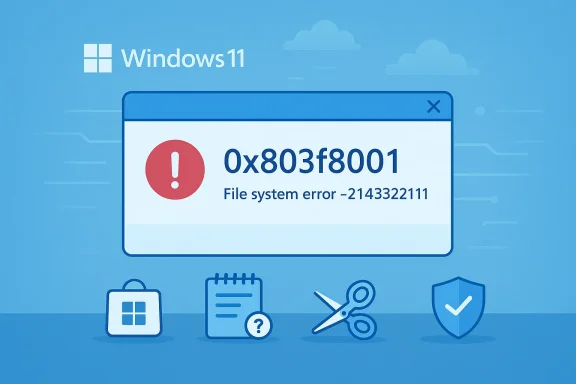
Windows 11 users across forums and social channels woke up to the same infuriating symptom: built‑in and Store‑installed apps that used to open instantly—Notepad, Snipping Tool, some vendor control utilities and even game launchers—refuse to start and return error code 0x803f8001 (often accompanied by File system error (-2143322111)). The immediate takeaway is simple but important: this is not a harmless UI glitch; the operating system is failing to validate app licensing or app registrations, and in many cases the Microsoft Store infrastructure (or the local Store cache and registration state) is the common denominator. This article explains what 0x803f8001 actually means, walks through a prioritized, low‑risk-to‑advanced troubleshooting ladder you can follow now, and evaluates the wider implications and risks — including what to back up before you start, and when to escalate to in‑place repair or Microsoft support. The guidance here is verified against Microsoft community guidance, vendor support pages, and established community troubleshooting patterns.
Source: Windows Central Windows 11 apps won't ppen. What is error code 0x803f8001?
 Background / Overview
What the error code means (short version)
0x803f8001 most commonly indicates that the Store agent cannot acquire or validate a license for the app. In plain language, Windows (via Microsoft Store services or the local licensing cache) is saying: “I can’t confirm you’re entitled to run this app right now.” That can happen for many reasons — account mismatch, a corrupted Store cache, broken app registration entries, or an outage / licensing service problem on Microsoft’s side. Multiple vendors and game support pages treat the code the same way: it’s usually a permissions/licensing validation issue first, then a local cache/registration or system corruption problem if the licensing checks out. Practical experience from community and vendor support shows that sign‑out/sign‑in, clearing the Store cache, and re‑registering Store packages often fix the symptom quickly for most users.Why Notepad and Snipping Tool (inbox apps) are affected
Inbox apps like Notepad and Snipping Tool are packaged differently than legacy Win32 installers. Many of them are now delivered and serviced as AppX/MSIX packages that rely on the Store and app registration services to launch correctly. If the Store’s licensing or registration layer is broken, those inbox apps can show the same 0x803f8001 behavior as a Store game or utility. That’s why seemingly unrelated apps can fail simultaneously. Community diagnostics and Microsoft Q&A reports show this pattern repeatedly.Immediate checks — the quick triage (do these first)
These are fast, conservative steps that solve many cases and don’t risk data loss.- Restart Windows completely (full reboot, not Sleep). This clears transient service states.
- Check Microsoft account sign‑in in the Microsoft Store: open the Store, click your profile, and ensure you’re signed in with the account that owns the app (or the account your work/school uses). If in doubt, sign out, close the Store, then sign back in. Many fixes come down to an account token refresh.
- Confirm your PC clock, time zone, and region are correct. Authentication and licensing calls can fail if the system time is off.
- If this affects many users in your organization, check Microsoft’s service status and the Windows Health Dashboard before spending a lot of time on local fixes — cloud‑side license service problems can produce the exact symptom across many devices.
A prioritized troubleshooting ladder (safe → advanced)
Follow these steps in order. Each item is numbered so you can stop at the first one that works.- Repair the app (non‑destructive)
- Settings → Apps → Installed apps → Find the app → Advanced options → Repair.
- Repair is non‑destructive and preserves local data. Use this for inbox and Store apps that open but crash or show missing UI.
- Reset the Microsoft Store cache (wsreset)
- Press Win + R, type: wsreset.exe, Enter.
- A blank window opens and closes when the Store cache is cleared. Restart Windows and test.
- This is low risk and commonly fixes store licensing/caching mismatches.
- Sign out and back into Microsoft Store / Xbox app
- Sign out of the Microsoft Store, reboot, sign back in with the account that owns the app.
- If you use the Xbox app / Game Pass, sign out there too. Multiple accounts are a common root cause.
- Run the built‑in Windows Store Apps troubleshooter
- Settings → System → Troubleshoot → Other troubleshooters → Windows Store Apps → Run.
- This automated tool can repair common account and licensing issues.
- Re‑register Store and AppX packages (PowerShell — moderate)
- Open Windows Terminal or PowerShell as Administrator and run:
- Get-AppxPackage -AllUsers | ForEach-Object { Add-AppxPackage -DisableDevelopmentMode -Register "$($_.InstallLocation)\AppXManifest.xml" }
- Then (target the Store specifically): Get-AppxPackage -allusers Microsoft.WindowsStore | ForEach-Object { Add-AppxPackage -DisableDevelopmentMode -Register "$($_.InstallLocation)\AppXManifest.xml" }
- Expect red warnings for some in‑use system packages — that’s normal. Reboot afterwards. This re‑builds package registrations and often fixes launch failures.
- Clear LocalCache manually (advanced but safe if careful)
- Navigate to %localappdata%\Packages\Microsoft.WindowsStore_8wekyb3d8bbwe\LocalCache and clear contents.
- Then run wsreset.exe and re‑register the Store if needed. Deleting cache is low risk for installed apps but be cautious if you try manual registry edits.
- Repair system servicing files with DISM and SFC (advanced)
- Open an elevated terminal and run:
- DISM /Online /Cleanup-Image /RestoreHealth
- sfc /scannow
- Run DISM first (it can repair the component store that SFC relies on); SFC then replaces corrupt system files. This sequence is widely recommended and works when Store repairs fail due to corrupted system components. Expect the DISM step to take 10–30+ minutes depending on disk speed. If DISM can’t fetch files, provide an ISO as a source.
- Check services and prerequisites (often overlooked)
- Services to check: Application Identity, Microsoft Store Install Service, Windows Update, Background Intelligent Transfer Service (BITS), Delivery Optimization. Ensure they’re set to Manual or Automatic and running where appropriate.
- If Application Identity is stopped, AppX and UWP packages may be prevented from launching.
- Clean Boot to rule out third‑party interference
- Use msconfig to hide Microsoft services and disable third‑party services, then disable startup items in Task Manager. Reboot and test.
- If an app works in a clean boot, re-enable services in groups to isolate the interfering software (commonly antivirus or vendor helper services).
- Reinstall runtimes and Visual C++ redistributables
- Some packaged apps rely on Visual C++, .NET, or Windows App Runtime. Reinstall the latest redistributables from Microsoft and repair the Windows App Runtime if applicable.
- Remove and reinstall the broken package (destructive)
- If a single app continues to fail, remove it with:
- Get-AppxPackage PackageFullName | Remove-AppxPackage
- Reinstall from the Microsoft Store. This deletes local app data for that user. Back up any local data first (see risks).
- In‑place repair or Reset this PC (last resort)
- In‑place repair (mount Windows 11 ISO and run setup.exe → Keep personal files and apps) or Settings → System → Recovery → Reset this PC (Keep my files) can restore servicing components.
- These options are effective for deeply damaged servicing stores but require time and careful backups. Use only when multiple apps and system features are failing.
Practical commands and copy‑paste checklist
- wsreset (safe)
- Win + R → wsreset.exe → Enter
- Re‑register all packages (elevated PowerShell)
- Windows Terminal (Admin) → paste:
Get-AppxPackage -AllUsers | ForEach-Object { Add-AppxPackage -DisableDevelopmentMode -Register "$($_.InstallLocation)\AppXManifest.xml" } - Re‑register Microsoft Store (targeted)
- Get-AppxPackage -allusers Microsoft.WindowsStore | ForEach-Object { Add-AppxPackage -DisableDevelopmentMode -Register "$($_.InstallLocation)\AppXManifest.xml" }
- DISM + SFC (elevated Command Prompt)
- DISM /Online /Cleanup-Image /RestoreHealth
- sfc /scannow
- Remove broken package (be cautious)
- Get-AppxPackage PartialName | Remove-AppxPackage
What to back up and safety precautions
- Back up local app data before Reset or Remove operations. Resetting an app or removing it with Remove‑AppxPackage deletes the app’s local cache and unsynced user data. If Notepad contains critical unsynced information, copy those files to a safe location first (Notepad usually stores plain .txt files; check %localappdata% and %appdata% for app‑specific folders).
- Create a system restore point before doing invasive steps like DISM with offline sources, manual cache edits, or removing Store packages.
- If you’re on a managed (work/school) device, check with your IT admin before modifying Store or re‑registering packages—enterprise policies (Intune, Group Policy) can intentionally block Store services. Attempting fixes that conflict with policy can create additional support work.
- When running DISM with an offline source, ensure the ISO matches your exact Windows edition and build — a mismatch will cause the repair to fail.
Why some fixes “work” — the diagnostics explained
- Signing out and back in refreshes authentication tokens and can clear stale entitlements that the Store uses to allow app launches. This is often why the simple sign‑out/sign‑in or wsreset step solves the issue.
- wsreset clears the local Store cache and forces the client to re‑fetch metadata and license assertions — useful when the cache is corrupted after a Windows update or a Store update.
- Re‑registering AppX packages rewrites package manifests Windows uses to locate and launch Store apps. Broken registration entries are a frequent cause of inbox/Store app launch failures. Expect red error text during re‑registration — that often reflects packages in use, not a failed process.
- DISM / SFC repair the underlying servicing store and system files that the Store and app frameworks depend upon. If the component store is damaged, higher‑level app fixes can fail — that’s why the community standard is DISM first, then SFC.
Risks, unknowns, and what remains unverifiable
- If a widespread Microsoft Store licensing outage is the root cause, local repairs will be only temporary or ineffective until Microsoft fixes the backend. The only certain way to verify a cloud outage is the Microsoft service status pages or official Microsoft engineering updates; community reports can indicate scale but are not proof. Check Microsoft’s official status and support channels if you see the error across many unrelated machines.
- Reports that a specific Windows update introduced this behavior in January 2026 may be anecdotal until Microsoft publishes an acknowledgment or a KB. Treat claims that a particular KB or Store update is the single root cause as unverified unless corroborated by Microsoft or multiple reputable vendor advisories. If you depend on authoritative confirmation, wait for Microsoft updates or official support notes.
- Any instructions to use third‑party “Store fix” utilities or community scripts should be treated with caution. They can modify core components and registry entries in ways that are hard to reverse. Prefer built‑in tools and Microsoft‑recommended steps first.
When to contact Microsoft support or escalate
- If multiple apps are failing systemically and none of the safe steps (wsreset, sign out/in, repair, re‑register, DISM/SFC) resolve the issue, open a Microsoft support ticket and include:
- Exact error codes (0x803f8001, File system error -2143322111)
- Steps you already tried (wsreset, PowerShell re‑register, DISM/SFC)
- Whether the device is managed by an organization (Intune/Group Policy)
- Whether the issue affects multiple users/devices (indicates cloud issue)
- If the Store error is tied to paid content, also verify purchase history and licenses in your Microsoft account and provide those receipts or entitlement evidence if asked. Vendor/game support teams (for example, game publishers) sometimes require you to confirm licensing as part of triage.
What this incident reveals about Windows packaging and the Store model
The immediate cause of 0x803f8001 is a licensing/registration validation failure, but the broader lesson is architectural: as more core utilities and inbox apps are delivered as AppX/MSIX packages tied into the Store and cloud licensing, the OS surface becomes more dependent on a healthy Store ecosystem. That has upsides — automatic updates, sandboxing, and unified delivery — but it also concentrates failure modes. A single licensing or Store cache regression can ripple across seemingly unrelated apps and utilities. Several community threads and vendor advisories over the past years have repeatedly warned about this coupling and recommended conservative recovery steps for administrators.Bottom line
- Error 0x803f8001 is most commonly a Microsoft Store licensing or app registration failure: sign out and back into Store, run wsreset.exe, and re‑register packages are the fastest, lowest‑risk remedies that fix the majority of cases.
- If simple fixes fail, escalate through re‑registering AppX packages, running DISM + SFC, checking critical services, and performing a clean boot before considering app removal or in‑place repair. Back up local app data before destructive steps.
- If the issue appears across many machines at once, verify Microsoft service status and seek official updates — local troubleshooting may be irrelevant when a backend licensing endpoint is impaired.
Source: Windows Central Windows 11 apps won't ppen. What is error code 0x803f8001?
