

Your Windows 11 PC may not be “old” so much as overfed: too many startup apps, too much accumulated junk, and too many background features competing for the same resources. The good news is that the slowdown is often reversible, especially if the machine still has healthy hardware and you focus on the right maintenance tasks first. The PCWorld checklist gets this broadly right, and Microsoft’s own guidance supports the same basic playbook: trim autostarts, clear temporary files, keep storage from filling up, and be selective about which modern Windows features you actually want enabled.
Windows 11 is a modern desktop operating system, but “modern” comes with tradeoffs. The platform is designed to stay connected, synchronized, searchable, and visually polished, which means it can quietly use CPU, disk I/O, memory, GPU, and network bandwidth even when you are not actively launching apps. That background work is often invisible until a PC begins to feel sticky, slow to boot, or annoyingly hesitant when opening File Explorer or right-click menus.
That is why the best performance fixes usually start with diagnosis, not gimmicks. Autostart entries, temporary files, storage pressure, cloud sync, and update activity are all common culprits, and each one has a different remedy. The PCWorld article leans into the practical reality that Windows upkeep is less about one magic tweak and more about removing friction points one by one.
Historically, Windows optimization advice used to revolve around two big buckets: defragmentation and cleanup. That advice still matters on spinning hard drives, but the SSD era changed the equation. Microsoft now distinguishes between HDD optimization and SSD trim behavior, and the old instinct to “defrag everything” is no longer a universal performance rule. In other words, the maintenance job is more nuanced than it was ten years ago.
The article also reflects a deeper shift in Windows 11 itself: the operating system has become more feature-rich, more cloud-aware, and more AI-inflected. That means users now have to think about whether conveniences like Recall, Copilot-related components, visual effects, OneDrive behavior, and optional apps are worth the overhead they impose. The tension between convenience and responsiveness is now a defining Windows 11 theme.
In enterprise environments, these questions are magnified. IT teams care not just about one slow PC but about fleet-wide consistency, support tickets, update reliability, and whether default settings quietly create management overhead. Microsoft’s own tools and documentation increasingly aim to help admins standardize cleanup, control Recall, and automate storage management rather than relying on ad hoc user discipline.
The practical advantage of Autoruns is that it lets you disable rather than delete. That distinction is important: if a startup item turns out to be useful, you can simply re-enable it later. This makes the cleanup reversible and lowers the risk of accidentally breaking software you still depend on.
This is also where user behavior matters. A gamer may accept launchers and RGB utilities as a tradeoff for convenience, while a business user may prefer a cleaner, more predictable boot path. The right answer is not “disable everything,” but “disable what doesn’t earn its place.” That judgment call is the real art of Windows tuning.
The PCWorld article’s advice to inspect System > Storage is especially sensible because Windows already tells you where the pressure is. The point is not merely to delete things at random but to identify which categories are genuinely bloated, which are safe to purge, and which contain personal data you still need. That is a more disciplined approach than old-school “disk cleanup” rituals.
The caveat is that automated cleanup is only as safe as the thresholds you set. If you tell Windows to empty the Recycle Bin too aggressively, or to clear your Downloads folder too soon, you can create a data-loss problem in the name of optimization. That is why the conservative approach is usually best: automate temporary cleanup, but keep user-content cleanup on a longer leash. Convenience is useful; irreversible cleanup is not.
That warning matters because “freeing space” and “making Windows better” are not always the same thing. The safest cleanup wins are usually temporary files, stale installers, and abandoned apps—not arbitrary deletion from protected system directories. That distinction is one of the most important lessons for readers trying to reclaim speed without creating maintenance debt.
For users with mechanical drives, fragmentation can still show up in heavy-use scenarios such as game libraries, large virtual machine images, and frequently rewritten archives. Those files are large enough that layout matters, and the access penalty can be real. On older or budget systems that still rely on HDDs, defragmentation can remain a legitimate tune-up.
The broader takeaway is that storage optimization must reflect hardware reality. SSDs are now the norm, and Windows itself schedules drive optimization automatically, which reduces the need for third-party intervention on most consumer systems. The old folklore about regular defragging is now mostly a legacy rule with a narrow remaining use case.
This is especially relevant to consumer PCs sold with OEM bundles. Vendors often preload utilities that duplicate Windows features or only matter for a narrow subset of users. Those utilities can make sense on a demo bench, but on a real household PC they are often just part of the background noise. Less software often means less surprise.
For most users, the key question is not whether Recall is “good” or “bad” in abstract terms. It is whether the feature provides enough value to justify the local storage and background overhead. Microsoft’s own documentation makes clear that users and administrators can control whether snapshots are saved and, in managed environments, whether Recall is enabled at all. That configurability is helpful, but it also confirms that the feature is optional for a reason.
That distinction matters because optimization culture can drift into mythology. A clean interface is not automatically a faster system, and a more private system is not always a leaner one. The best results come from understanding which features actually consume resources and which simply make the machine feel busier.
A full backup is even better because it protects personal data, not just configuration. Maintenance should never depend on the assumption that nothing will go wrong. A mature Windows tune-up routine treats reversibility as part of the workflow, not as an afterthought.
Finally, AI-era features introduce a new subtlety. Recall-style capabilities, background indexing, and cloud-connected helpers are not necessarily bad, but they do make the performance baseline more complicated. The danger is not just resource use; it is that users may not realize which feature is responsible for the extra overhead they feel.
We should also expect the line between “performance” and “feature set” to keep blurring. As more AI, cloud sync, search indexing, and personalization are integrated into Windows 11, the need for selective control will only grow. The best future Windows tuning guides will likely look less like old-school defrag manuals and more like resource triage playbooks.
Source: PCWorld Your Windows 11 PC is slower than it should be. Here's what to check
 Overview
Windows 11 is a modern desktop operating system, but “modern” comes with tradeoffs. The platform is designed to stay connected, synchronized, searchable, and visually polished, which means it can quietly use CPU, disk I/O, memory, GPU, and network bandwidth even when you are not actively launching apps. That background work is often invisible until a PC begins to feel sticky, slow to boot, or annoyingly hesitant when opening File Explorer or right-click menus.That is why the best performance fixes usually start with diagnosis, not gimmicks. Autostart entries, temporary files, storage pressure, cloud sync, and update activity are all common culprits, and each one has a different remedy. The PCWorld article leans into the practical reality that Windows upkeep is less about one magic tweak and more about removing friction points one by one.
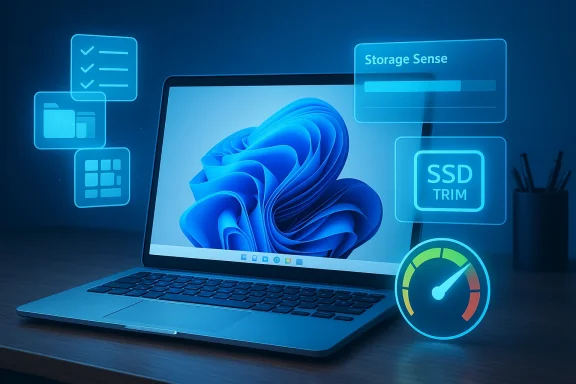
Historically, Windows optimization advice used to revolve around two big buckets: defragmentation and cleanup. That advice still matters on spinning hard drives, but the SSD era changed the equation. Microsoft now distinguishes between HDD optimization and SSD trim behavior, and the old instinct to “defrag everything” is no longer a universal performance rule. In other words, the maintenance job is more nuanced than it was ten years ago.
The article also reflects a deeper shift in Windows 11 itself: the operating system has become more feature-rich, more cloud-aware, and more AI-inflected. That means users now have to think about whether conveniences like Recall, Copilot-related components, visual effects, OneDrive behavior, and optional apps are worth the overhead they impose. The tension between convenience and responsiveness is now a defining Windows 11 theme.
In enterprise environments, these questions are magnified. IT teams care not just about one slow PC but about fleet-wide consistency, support tickets, update reliability, and whether default settings quietly create management overhead. Microsoft’s own tools and documentation increasingly aim to help admins standardize cleanup, control Recall, and automate storage management rather than relying on ad hoc user discipline.
Startup Bloat: The Hidden Boot-Time Tax
One of the most common reasons a Windows 11 PC feels slow is also one of the most overlooked: the boot sequence is crowded with programs that installed themselves into startup. Many of these entries are not malicious and not even particularly broken; they are just persistent. The cumulative effect is a longer login, a busier desktop, and a machine that appears “not ready” even after the lock screen disappears.Why startup control matters
Sysinternals Autoruns remains the canonical tool for this job because it exposes far more auto-start locations than the ordinary Task Manager startup tab. Microsoft describes it as having the most comprehensive knowledge of auto-starting locations, including startup folder entries, registry keys, Explorer add-ons, services, browser helper objects, and more. That breadth matters because some of the worst offenders are not obvious at all.The practical advantage of Autoruns is that it lets you disable rather than delete. That distinction is important: if a startup item turns out to be useful, you can simply re-enable it later. This makes the cleanup reversible and lowers the risk of accidentally breaking software you still depend on.
- Disabling startup entries is safer than deleting them outright.
- Third-party updaters are often unnecessary at boot.
- Hidden services can matter as much as visible tray apps.
- Login-time clutter is often the easiest performance win to reclaim.
What to look for first
The best candidates for removal are the things that add convenience but not core functionality. Auto-updaters, companion apps, browser launchers, cloud helpers, vendor control panels, and software you only use occasionally are prime suspects. On a well-used personal PC, these items accumulate gradually until the system starts every session carrying a full backpack.This is also where user behavior matters. A gamer may accept launchers and RGB utilities as a tradeoff for convenience, while a business user may prefer a cleaner, more predictable boot path. The right answer is not “disable everything,” but “disable what doesn’t earn its place.” That judgment call is the real art of Windows tuning.
Enterprise implications
For organizations, startup creep is more than a nuisance. Every extra process at logon can slow down first access, lengthen help-desk calls, and create inconsistent performance profiles across otherwise identical machines. In managed environments, the goal should be a standardized startup baseline rather than a different startup ecosystem on every desk.Storage Pressure and Temporary Files
A Windows PC that is running low on free space often starts behaving badly in subtle ways. Updates take longer, temp files accumulate, the Recycle Bin grows stale, and some apps become sluggish because the system has less breathing room for caching and housekeeping. Microsoft’s Storage Sense documentation is explicit that the feature exists to automatically remove unnecessary files such as temporary files, Recycle Bin contents, and offline OneDrive content when appropriate.Why low disk space hurts performance
Windows needs free space for more than just storing files. It uses available disk capacity for update staging, temporary work areas, caching, and background maintenance. When that slack disappears, the OS has to work harder to keep up, and the slowdown becomes most visible at moments when it tries to install updates or perform cleanup.The PCWorld article’s advice to inspect System > Storage is especially sensible because Windows already tells you where the pressure is. The point is not merely to delete things at random but to identify which categories are genuinely bloated, which are safe to purge, and which contain personal data you still need. That is a more disciplined approach than old-school “disk cleanup” rituals.
- Temporary files are usually the safest high-volume target.
- Previous Windows installations may reclaim a lot of space after upgrades.
- Downloads should be handled carefully because they are user data.
- OneDrive online-only content can be managed without losing cloud access.
Storage Sense as a maintenance baseline
Microsoft recommends Storage Sense as a background housekeeping tool, and its defaults are sensible for many users. It can run when the system is low on disk space, or on a schedule such as daily, weekly, or monthly, depending on policy or user choice. That flexibility is valuable because a laptop with a tiny SSD needs different treatment from a desktop with plenty of local storage.The caveat is that automated cleanup is only as safe as the thresholds you set. If you tell Windows to empty the Recycle Bin too aggressively, or to clear your Downloads folder too soon, you can create a data-loss problem in the name of optimization. That is why the conservative approach is usually best: automate temporary cleanup, but keep user-content cleanup on a longer leash. Convenience is useful; irreversible cleanup is not.
The WinSxS temptation
Any serious cleanup discussion eventually wanders into the Windows WinSxS folder, because it often looks enormous. The trap is that Explorer’s apparent size can be misleading, and Microsoft warns against manually deleting from that folder. Windows already manages necessary component cleanup, and aggressive manual pruning can compromise system stability.That warning matters because “freeing space” and “making Windows better” are not always the same thing. The safest cleanup wins are usually temporary files, stale installers, and abandoned apps—not arbitrary deletion from protected system directories. That distinction is one of the most important lessons for readers trying to reclaim speed without creating maintenance debt.
Defragmentation, SSDs, and the Old Rules
The PCWorld article still includes defragmentation in the performance checklist, and that is partly right and partly dated. On traditional hard drives, fragmented large files can absolutely hurt access speed because the read/write heads must jump around the platter. On SSDs, by contrast, the performance dynamics are different, and standard defragmentation is not the right tool.HDDs still benefit; SSDs do not
Microsoft’s guidance, echoed in community explanations, is clear: HDDs can benefit from defragmentation, while SSDs should be optimized via trim rather than classic defrag. That means the first question is not “Should I defrag?” but “What kind of drive is this?” It is a subtle but crucial distinction for any Windows 11 performance article in 2026.For users with mechanical drives, fragmentation can still show up in heavy-use scenarios such as game libraries, large virtual machine images, and frequently rewritten archives. Those files are large enough that layout matters, and the access penalty can be real. On older or budget systems that still rely on HDDs, defragmentation can remain a legitimate tune-up.
When third-party tools make sense
The article mentions tools like Defraggler, and there is a fair rationale for that in niche cases. If a drive hosts specific enormous files that are repeatedly updated, a targeted defrag can be more practical than a full-volume operation. That said, this is situational maintenance, not a blanket recommendation for every Windows 11 machine.The broader takeaway is that storage optimization must reflect hardware reality. SSDs are now the norm, and Windows itself schedules drive optimization automatically, which reduces the need for third-party intervention on most consumer systems. The old folklore about regular defragging is now mostly a legacy rule with a narrow remaining use case.
- HDD? Fragmentation can matter.
- SSD? Use optimization, not old-style defrag.
- Large game files? Selective attention may help.
- Virtual disks? They can be fragmentation magnets.
Bloatware, Optional Features, and User Choice
Windows 11 ships with a mixture of useful tools and features that not everyone wants. Some of them are harmless, some are merely annoying, and some do consume resources in ways that become noticeable on modest hardware. That is why the article’s advice to remove unused apps and reduce unnecessary Windows components is more than a cosmetic recommendation.Removing what you do not use
Microsoft’s own ecosystem now offers more than one path for reducing clutter. PC Manager combines cleanup and system utilities into a single dashboard, while third-party tools like O&O App Buster and Revo Uninstaller can help remove preinstalled apps or desktop programs more systematically. The important idea is not which tool wins, but that unneeded software should not be left running just because it was there on day one.This is especially relevant to consumer PCs sold with OEM bundles. Vendors often preload utilities that duplicate Windows features or only matter for a narrow subset of users. Those utilities can make sense on a demo bench, but on a real household PC they are often just part of the background noise. Less software often means less surprise.
AI features and the new performance question
The article’s discussion of Copilot and Recall is timely because Windows 11 is now layering AI features directly into the platform. Microsoft says Recall snapshots are stored locally on Copilot+ PCs and can be managed or removed, but the feature still uses storage and local processing resources, which means it is not performance-neutral. The same is true, in broader terms, for any feature that continuously records, indexes, or analyzes user activity.For most users, the key question is not whether Recall is “good” or “bad” in abstract terms. It is whether the feature provides enough value to justify the local storage and background overhead. Microsoft’s own documentation makes clear that users and administrators can control whether snapshots are saved and, in managed environments, whether Recall is enabled at all. That configurability is helpful, but it also confirms that the feature is optional for a reason.
Privacy tools and performance side effects
The inclusion of tools such as O&O ShutUp10 underscores a broader truth: privacy hardening and performance tuning often overlap. Disabling telemetry-heavy or feature-heavy settings may reduce background churn, even when that is not the explicit goal. Still, users should be careful not to treat every privacy toggle as a speed booster; some changes reduce data sharing without materially affecting performance.That distinction matters because optimization culture can drift into mythology. A clean interface is not automatically a faster system, and a more private system is not always a leaner one. The best results come from understanding which features actually consume resources and which simply make the machine feel busier.
Maintenance Discipline: Backups, Restore Points, and Safety
The strongest part of the PCWorld advice is its insistence on preparation before cleanup. That is not glamorous, but it is the difference between safe maintenance and unnecessary risk. Creating restore points and keeping current backups are the right habits because many optimization tools work by changing low-level system state that can be tedious to reverse manually.Why recovery planning comes first
A restore point is not a backup in the full sense, but it is a useful rollback mechanism for system files, registry state, and drivers. That makes it an ideal safety net before disabling startup items, stripping apps, or changing Windows features. In practice, it gives users the confidence to make good changes without crossing their fingers afterward.A full backup is even better because it protects personal data, not just configuration. Maintenance should never depend on the assumption that nothing will go wrong. A mature Windows tune-up routine treats reversibility as part of the workflow, not as an afterthought.
A sensible order of operations
If you want the safest path, the sequence matters. Start with recovery prep, then remove clutter, then review startup behavior, and only then consider specialized tools for storage or feature management. That order minimizes the chance that a cleanup tool will mask a deeper problem or make it harder to restore the previous state.- Create a restore point.
- Confirm a recent backup exists.
- Remove obvious startup and app bloat.
- Clear temporary files and stale installers.
- Reboot and test responsiveness before making deeper changes.
Enterprise caution
In managed environments, the same logic applies, but the stakes are higher. IT departments should validate changes on a pilot group before pushing cleanup policies broadly, especially when those changes affect privacy settings, optional AI features, or automated file deletion. One user’s speed-up can become another user’s incident report if the policy is too aggressive.Strengths and Opportunities
The biggest strength of the PCWorld approach is that it favors high-probability fixes over gimmicks. It focuses on the places where Windows 11 really does tend to accumulate overhead, and it does so in a way that ordinary users can understand and act on. Microsoft’s official documentation gives additional support to those same categories, which makes the guidance feel practical rather than speculative.- Startup cleanup can produce immediate boot-time gains.
- Temporary file removal often recovers meaningful disk space.
- Storage Sense automates routine housekeeping.
- Microsoft PC Manager simplifies scattered maintenance tools.
- Restore points make optimization safer.
- Selective feature trimming helps users reclaim control.
- Recall and Copilot controls let users balance AI convenience with overhead.
Risks and Concerns
The main risk in any cleanup-focused article is overcorrection. Users can become so eager to “speed things up” that they remove the wrong startup entries, over-automate file deletion, or begin tampering with protected system folders. That is why Microsoft’s warnings around WinSxS and Storage Sense settings are important guardrails rather than footnotes.- Aggressive deletion can create data loss.
- Blind startup disabling can break useful software.
- Manual WinSxS cleanup can harm stability.
- Overly short Recycle Bin thresholds can erase recoverable files.
- Misapplied defrag advice can waste time on SSDs.
- Feature removal can reduce convenience more than it improves speed.
- Privacy hardening tools may confuse settings and expectations.
Finally, AI-era features introduce a new subtlety. Recall-style capabilities, background indexing, and cloud-connected helpers are not necessarily bad, but they do make the performance baseline more complicated. The danger is not just resource use; it is that users may not realize which feature is responsible for the extra overhead they feel.
Looking Ahead
The larger story here is that Windows performance is becoming a governance problem as much as a technical one. Consumers need clearer defaults and simpler cleanup tools, while enterprises need better policy control over startup behavior, storage housekeeping, and AI features that may affect both speed and compliance. Microsoft is already moving in that direction with Storage Sense, Recall policies, and PC management utilities, but the platform still asks a lot from users who just want their PC to feel fast.We should also expect the line between “performance” and “feature set” to keep blurring. As more AI, cloud sync, search indexing, and personalization are integrated into Windows 11, the need for selective control will only grow. The best future Windows tuning guides will likely look less like old-school defrag manuals and more like resource triage playbooks.
- Expect more AI settings with performance and privacy implications.
- Watch for Storage Sense refinements and new cleanup policies.
- Look for broader PC Manager adoption as a first-party maintenance hub.
- Monitor startup tooling as more software vendors bundle companion apps.
- Treat SSD-aware optimization as the default, not the exception.
Source: PCWorld Your Windows 11 PC is slower than it should be. Here's what to check
