

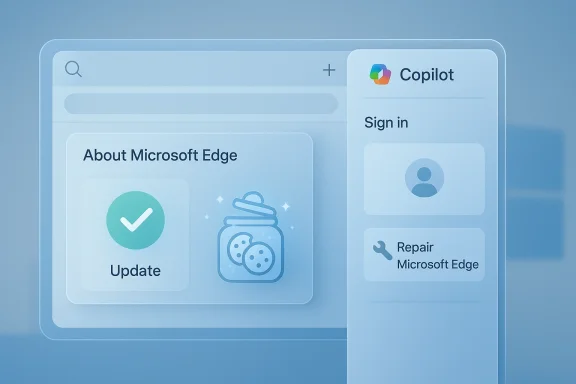
The Copilot sidebar in Microsoft Edge has become one of the browser’s most visible AI features, but it is also one of the easiest to break in ways that confuse everyday users. When Copilot stops loading, refuses to sign in, or simply vanishes from the sidebar, the cause is usually not dramatic: it is often an old browser build, a damaged cookie jar, a corrupted profile, or a browser state that no longer matches Microsoft’s backend expectations. The good news is that the most effective fixes are straightforward, and Microsoft’s own support material points to the same basic troubleshooting path: update Edge, clear cookies if needed, try a fresh profile, and repair the app if the browser itself seems unhealthy.
Microsoft has been steadily turning Edge from a conventional browser into a gateway for Copilot, actions, and other AI-assisted workflows. That evolution matters because it changes the failure modes: a classic browser bug may now look like an AI outage, even when the root cause is identity, session storage, permissions, or an extension conflict. Microsoft’s support guidance for Copilot Actions in Edge specifically notes that cookies and browser profiles can interfere with the feature, which is a strong hint that Copilot inherits the same brittleness as other sign-in-dependent web experiences.
That shift also means users expect Copilot to behave like a built-in operating system feature, even though much of it still depends on the browser being healthy, authenticated, and updated. In practice, Copilot is less like a local app and more like a web service embedded in a browser shell. If the shell is out of date, its storage is corrupted, or the profile state is stale, Copilot may fail in ways that are frustratingly opaque. Microsoft Q&A threads repeatedly describe cases where Copilot works in guest mode but not in the signed-in profile, which strongly suggests profile-bound state as a recurring failure point.
The broader context is important for enterprise and consumer users alike. For consumers, the issue is usually inconvenience: the sidebar won’t open, chat does not respond, or sign-in loops forever. For businesses, the consequences can be more practical, especially if Copilot is part of a workflow involving research, drafting, or task automation inside Edge. In that setting, even a minor authentication glitch can feel like a productivity outage. Microsoft’s own recommendations therefore focus on the basics first, not because the basics are glamorous, but because they are where these issues most often live.
Another reason this troubleshooting pattern matters is that Edge updates are not merely cosmetic. Microsoft Q&A discussions note that specific browser builds resolved Copilot-related bugs for some users, which is exactly why version drift should be your first suspicion when the sidebar misbehaves. A browser that is technically “working” can still be incompatible with a current Copilot experience. In other words, updating Edge is not a generic best practice here; it is often the difference between a broken Copilot button and a functioning one.
The underlying problem is usually mundane:
A particularly telling pattern is when Copilot works in a guest profile but not in the user’s main profile. That pattern strongly implies that the issue is not the network, not the device, and not Copilot itself in the abstract. Instead, it points to a corrupted or inconsistent account state inside the browser profile, which is why creating a new profile is such a powerful diagnostic step.
Another useful distinction is between client-side and service-side failures. If Copilot fails only in one browser profile or one machine, client-side issues are much more likely. If multiple devices show the same behavior at the same time, the problem may be upstream with Microsoft’s service or account backend. Community reports hint at backend-account oddities in some cases, but those are harder to prove from the outside, so they should be treated as plausible rather than certain.
If Copilot still does not cooperate after Edge relaunches, reboot the system. That may sound like generic advice, but it is especially relevant after browser updates, since Edge may have downloaded components that do not fully take effect until all browser processes are gone. Microsoft’s own update path for Edge is to visit the browser’s About page and let it finish installing updates before relaunching.
A restart is especially worth trying if:
Go to Edge’s About Microsoft Edge page and let it check for updates. If an update is available, allow it to install, then close and reopen the browser. This is not busywork; it is how you make sure the Copilot sidebar is running against the browser code Microsoft actually expects.
Update checks are worth doing because:
The exact cookie-clearing path can vary by symptom, but the practical point is the same: if Copilot’s stored session data is corrupted, it may never initialize cleanly until that state is removed. Community troubleshooting posts also point to cache and cookie clearing as a frequent fix for button and sign-in problems.
Use this approach when:
Cookies and site data can cause:
Users in Microsoft Q&A threads routinely report cache cleanup as part of the successful sequence, particularly when combined with cookies and a browser update. That combination works because it resets both identity state and the visual assets behind the feature. Once those are fresh, Edge is forced to request clean copies of the relevant Copilot components.
You should prioritize it if:
Remember the logic:
This is not just a workaround; it is evidence. A fresh profile strips away accumulated settings, stale cookies, and customizations that might be suppressing Copilot. Community reports also describe cases where guest mode works but a signed-in profile does not, which makes profile corruption or account-linked state a highly plausible explanation.
A different profile can indicate:
Repair is the right move when the browser seems structurally unstable, not merely confused. If multiple Edge features are misbehaving, if settings seem not to stick, or if Copilot is only one symptom among several, repairing Edge becomes much more compelling.
Use Repair first when:
Repair can help by:
Extensions are especially worth reviewing because they can inject scripts, block requests, or change how the page loads. Tracking prevention settings can also interfere if they are unusually strict. In some cases, the answer is as simple as switching the Copilot page into a cleaner environment and seeing whether it behaves normally.
There is also a strong chance that Microsoft will keep refining the boundary between browser state and Copilot state. The more Copilot learns about the browser session, the more important it becomes to separate genuine service outages from local session corruption. If Microsoft gets that right, support costs fall and user trust rises. If it gets it wrong, every future Copilot issue will look bigger than it is. That is the strategic tension.
The bigger lesson is that browser-based AI still depends on old-fashioned software hygiene. Update the app, clean the session, isolate the profile, and repair what is broken. Do that, and most Copilot failures in Edge stop being mysterious problems and start being routine maintenance.
Source: Guiding Tech Copilot Not Working in Edge – 6 Easy Fixes
 Background
Microsoft has been steadily turning Edge from a conventional browser into a gateway for Copilot, actions, and other AI-assisted workflows. That evolution matters because it changes the failure modes: a classic browser bug may now look like an AI outage, even when the root cause is identity, session storage, permissions, or an extension conflict. Microsoft’s support guidance for Copilot Actions in Edge specifically notes that cookies and browser profiles can interfere with the feature, which is a strong hint that Copilot inherits the same brittleness as other sign-in-dependent web experiences.That shift also means users expect Copilot to behave like a built-in operating system feature, even though much of it still depends on the browser being healthy, authenticated, and updated. In practice, Copilot is less like a local app and more like a web service embedded in a browser shell. If the shell is out of date, its storage is corrupted, or the profile state is stale, Copilot may fail in ways that are frustratingly opaque. Microsoft Q&A threads repeatedly describe cases where Copilot works in guest mode but not in the signed-in profile, which strongly suggests profile-bound state as a recurring failure point.
The broader context is important for enterprise and consumer users alike. For consumers, the issue is usually inconvenience: the sidebar won’t open, chat does not respond, or sign-in loops forever. For businesses, the consequences can be more practical, especially if Copilot is part of a workflow involving research, drafting, or task automation inside Edge. In that setting, even a minor authentication glitch can feel like a productivity outage. Microsoft’s own recommendations therefore focus on the basics first, not because the basics are glamorous, but because they are where these issues most often live.
Another reason this troubleshooting pattern matters is that Edge updates are not merely cosmetic. Microsoft Q&A discussions note that specific browser builds resolved Copilot-related bugs for some users, which is exactly why version drift should be your first suspicion when the sidebar misbehaves. A browser that is technically “working” can still be incompatible with a current Copilot experience. In other words, updating Edge is not a generic best practice here; it is often the difference between a broken Copilot button and a functioning one.
Why Copilot failures feel worse than normal browser bugs
Copilot sits in a high-visibility place inside the browser, so when it fails the problem feels bigger than it is. A tab crash or a slow page is easy to diagnose, but a dead AI sidebar suggests something deeper and more mysterious. That perception is often misleading.The underlying problem is usually mundane:
- Authentication state has gone stale.
- Cookies are corrupted or outdated.
- Cache files are conflicting with new UI code.
- A browser profile is carrying broken settings forward.
- Edge itself needs a repair or update.
Understanding the Most Common Failure Modes
The first thing to understand is that Copilot-in-Edge failures are rarely all the same thing. Some users cannot open the sidebar at all, some see the button but no content, and others are repeatedly asked to sign in. Each of those symptoms points toward a different layer of the stack, which is why a one-size-fits-all fix rarely exists. Microsoft support material and community reports both suggest that profile state, cookies, and browser version are the most recurring suspects.A particularly telling pattern is when Copilot works in a guest profile but not in the user’s main profile. That pattern strongly implies that the issue is not the network, not the device, and not Copilot itself in the abstract. Instead, it points to a corrupted or inconsistent account state inside the browser profile, which is why creating a new profile is such a powerful diagnostic step.
Symptom categories to keep straight
You should separate the problem into categories before trying fixes. That makes the troubleshooting sequence faster and prevents needless repetition.- Sidebar won’t open: often extension, UI, or policy related.
- Copilot opens but never loads: often cache, cookies, or account state.
- Sign-in loops: usually a profile or authentication issue.
- Feature disappeared after an update: could be a version regression or settings reset.
- Works elsewhere but not in Edge: points toward browser state rather than Microsoft account failure.
Another useful distinction is between client-side and service-side failures. If Copilot fails only in one browser profile or one machine, client-side issues are much more likely. If multiple devices show the same behavior at the same time, the problem may be upstream with Microsoft’s service or account backend. Community reports hint at backend-account oddities in some cases, but those are harder to prove from the outside, so they should be treated as plausible rather than certain.
Fix 1: Restart Edge, Then Restart Windows
A full restart sounds too simple to matter, but it is still the best place to begin. Copilot depends on a live browser session, and Edge can get stuck on stale process state, locked files, or half-finished UI changes. Restarting Edge clears the immediate session, while restarting Windows clears more persistent background conditions.If Copilot still does not cooperate after Edge relaunches, reboot the system. That may sound like generic advice, but it is especially relevant after browser updates, since Edge may have downloaded components that do not fully take effect until all browser processes are gone. Microsoft’s own update path for Edge is to visit the browser’s About page and let it finish installing updates before relaunching.
When a restart is more than a placebo
A restart can resolve problems caused by a temporary lockup in the browser’s rendering layer or sign-in process. It can also flush out stale UI objects that keep the sidebar from initializing correctly. That is why the simplest fix is frequently the right one.A restart is especially worth trying if:
- Copilot failed immediately after a browser update.
- The sidebar was working earlier the same day.
- Edge has been open for a long time without being fully closed.
- You have resumed from sleep or hibernation repeatedly.
Fix 2: Make Sure Microsoft Edge Is Fully Up to Date
An outdated build is one of the most important things to eliminate. Edge updates are automatic in theory, but in practice they can stall, be deferred, or finish only partially until you manually check the About page. Microsoft Q&A reports show users resolving Copilot button issues simply by updating to a newer Edge version, which is a strong reminder that browser compatibility can change quickly.Go to Edge’s About Microsoft Edge page and let it check for updates. If an update is available, allow it to install, then close and reopen the browser. This is not busywork; it is how you make sure the Copilot sidebar is running against the browser code Microsoft actually expects.
Why updates matter so much for Copilot
Copilot is not a static sidebar feature. It relies on Microsoft’s service behavior, authentication flows, and front-end scripts, any of which can change over time. That means a browser build that was fine last week may behave badly after a service-side change or client-side regression.Update checks are worth doing because:
- They can resolve known regressions.
- They may restore UI controls that disappeared.
- They often fix sign-in or rendering inconsistencies.
- They reduce the chance that you are troubleshooting a known-bad build.
Quick update checklist
- Open the three-dot menu in Edge.
- Select Help and feedback.
- Open About Microsoft Edge.
- Let Edge check for and install updates.
- Restart the browser after the update completes.
Fix 3: Clear Copilot Cookies and Site Data
Cookies are often the culprit when Copilot loads incorrectly or gets stuck in a broken sign-in loop. Microsoft’s Copilot Actions support page explicitly notes that deleting cookies or starting with a brand-new browser profile can help avoid issues, which is an unusually direct acknowledgment that the feature is sensitive to browser state.The exact cookie-clearing path can vary by symptom, but the practical point is the same: if Copilot’s stored session data is corrupted, it may never initialize cleanly until that state is removed. Community troubleshooting posts also point to cache and cookie clearing as a frequent fix for button and sign-in problems.
When to clear cookies versus when not to
Clearing cookies is more disruptive than a restart, because it can sign you out of sites and reset sessions. That is why it is usually best after the update check, but before more drastic options like profile creation or app repair. If the issue is specifically tied to Copilot, the tradeoff is often worth it.Use this approach when:
- Copilot is stuck on a blank or loading screen.
- You keep getting signed out.
- The sidebar worked once and then stopped.
- A recent browser change coincided with the failure.
Why cookies break AI sidebars
Copilot is not just drawing a panel on the screen. It is carrying identity, session, and feature-flag information through the browser session. If any of those signals are stale, the UI can fail in ways that look random.Cookies and site data can cause:
- Authentication mismatches.
- Broken redirects.
- Looping sign-in prompts.
- Feature flags not applying correctly.
- Inconsistent loading between profiles and devices.
Fix 4: Clear the Browser Cache
If cookies are the memory of who you are, cache is the memory of what the browser thinks the page should look like. When that stored data is damaged or outdated, it can make Copilot render incorrectly or refuse to initialize. A cache clear is often the simplest way to eliminate stale assets that are colliding with the current UI.Users in Microsoft Q&A threads routinely report cache cleanup as part of the successful sequence, particularly when combined with cookies and a browser update. That combination works because it resets both identity state and the visual assets behind the feature. Once those are fresh, Edge is forced to request clean copies of the relevant Copilot components.
Cache cleanup is not the same as “start over”
A cache clear does not erase your whole browser personality. It simply removes temporary files so Edge can rebuild them from current sources. That makes it a useful midpoint between a restart and a full profile reset.You should prioritize it if:
- Copilot’s UI is visibly broken.
- Pages load, but the sidebar does not.
- The interface looks outdated or half-rendered.
- Cookies alone did not solve the issue.
Best practice for clearing data
A proper troubleshooting pass usually includes both cookies and cached images and files. Clearing only one of those may help, but it also may leave the faulty piece in place. That is why the most effective cleanup is usually broader than a partial wipe.Remember the logic:
- Cookies handle session identity.
- Cache handles stored page resources.
- Copilot depends on both.
Fix 5: Try a Different Edge Profile
Creating or switching to a different profile is one of the strongest diagnostic steps because it isolates the problem. If Copilot works in a fresh profile but not in your main one, that tells you the browser installation is probably fine and the issue is tied to your profile state. Microsoft support material for Copilot Actions specifically recommends starting with cookies or a new profile when testing problems.This is not just a workaround; it is evidence. A fresh profile strips away accumulated settings, stale cookies, and customizations that might be suppressing Copilot. Community reports also describe cases where guest mode works but a signed-in profile does not, which makes profile corruption or account-linked state a highly plausible explanation.
What a fresh profile tells you
A new profile is useful because it changes multiple variables at once. That can sound messy, but in debugging it is often exactly what you want. If the problem disappears, you have a clear before-and-after comparison.A different profile can indicate:
- The original profile is corrupted.
- A stored sign-in token is bad.
- A privacy setting is too strict.
- An extension or policy is profile-specific.
- The issue may be tied to the Microsoft account state in that profile.
Fast profile test sequence
- Sign out of Edge and sign back in.
- If that fails, create a new profile.
- Open Copilot in the new profile.
- Compare behavior with the original profile.
- If the new profile works, treat the old profile as the likely culprit.
Fix 6: Repair Microsoft Edge
If Copilot still refuses to work after browser restarts, updates, data cleanup, and profile testing, the browser installation itself may be damaged. Windows includes a repair path for installed apps, and Microsoft community guidance repeatedly points users toward the Repair option in Settings when Edge behaves badly. That is a reasonable escalation because it preserves the app while replacing broken components.Repair is the right move when the browser seems structurally unstable, not merely confused. If multiple Edge features are misbehaving, if settings seem not to stick, or if Copilot is only one symptom among several, repairing Edge becomes much more compelling.
Repair versus reset
Repair is generally preferable to a full reset because it is less destructive. It attempts to fix the installation while leaving more of your data in place. A reset is more drastic and should be reserved for stubborn cases where repair does not restore normal behavior.Use Repair first when:
- Edge launches but features are broken.
- Copilot failed after an update or crash.
- Multiple browser controls seem unstable.
- You want the least disruptive fix after simpler steps fail.
Why app repair can help AI features
AI features are often the most sensitive to broken browser components because they depend on modern rendering, secure sign-in flows, and dynamic scripts. A browser can look functional while silently failing one of those layers.Repair can help by:
- Restoring damaged binaries.
- Re-registering broken app components.
- Fixing update residue.
- Clearing inconsistencies between app state and installed code.
Additional Checks Worth Considering
The six fixes above are the core playbook, but a few adjacent checks can save time if the problem turns out to be environmental rather than browser-local. Microsoft Q&A guidance and broader Copilot troubleshooting discussions point to extensions, privacy settings, and network restrictions as additional blockers. These are not always the first culprit, but they can be the hidden one.Extensions are especially worth reviewing because they can inject scripts, block requests, or change how the page loads. Tracking prevention settings can also interfere if they are unusually strict. In some cases, the answer is as simple as switching the Copilot page into a cleaner environment and seeing whether it behaves normally.
Useful “before you give up” checks
- Disable extensions temporarily.
- Lower tracking prevention to a balanced setting.
- Sign out and sign back in to your Microsoft account.
- Try Copilot in a guest or fresh profile.
- Verify that your network or VPN is not blocking Microsoft services.
Strengths and Opportunities
The main strength of this troubleshooting model is that it starts with low-risk actions and moves toward higher-confidence interventions only as needed. That makes it practical for consumers and IT teams alike, because it avoids unnecessary disruption while still addressing the most likely causes. It also reflects the way Microsoft’s own support guidance and community reports are converging around cookies, profiles, and updates as recurring themes.- Quick wins are available without advanced skills.
- Update checks catch real compatibility problems.
- Cookie and cache cleanup address the most common session issues.
- Fresh profiles provide strong diagnostic separation.
- Repair gives you a non-destructive escalation path.
- Enterprise support teams can standardize the steps easily.
- Consumers can often fix the issue without reinstalling anything.
Risks and Concerns
The biggest risk is that users may misdiagnose Copilot failures as a universal AI outage when the problem is actually local to Edge, their profile, or their device. That can lead to wasted time, unnecessary reconfiguration, and more confusion than the original bug caused. There is also a privacy tradeoff whenever you clear cookies, sign out, or create new profiles, because those actions alter stored identity and session data.- Over-clearing data can sign users out of important sites.
- Repairing Edge too late can prolong downtime.
- Skipping updates can leave known bugs unresolved.
- Profile corruption may linger if the old profile is never retired.
- Extensions can create false positives during troubleshooting.
- Strict tracking prevention can break AI flows unexpectedly.
- Backend account issues may be mistaken for local browser problems.
Looking Ahead
The likely future of Copilot-in-Edge troubleshooting is more automation, not less complexity. As Microsoft continues folding AI more deeply into the browser, the most useful fixes will probably move from manual housekeeping to guided repair prompts, profile health checks, and better in-product diagnostics. That would be a welcome shift, because users should not have to become browser archaeologists just to restore a sidebar.There is also a strong chance that Microsoft will keep refining the boundary between browser state and Copilot state. The more Copilot learns about the browser session, the more important it becomes to separate genuine service outages from local session corruption. If Microsoft gets that right, support costs fall and user trust rises. If it gets it wrong, every future Copilot issue will look bigger than it is. That is the strategic tension.
What to watch next
- Edge updates that specifically mention Copilot stability.
- Microsoft support guidance that expands diagnostic steps.
- Profile-related fixes that reduce sign-in loops.
- New browser settings for Copilot and sidebar behavior.
- Policy controls for enterprise admins managing Copilot access.
The bigger lesson is that browser-based AI still depends on old-fashioned software hygiene. Update the app, clean the session, isolate the profile, and repair what is broken. Do that, and most Copilot failures in Edge stop being mysterious problems and start being routine maintenance.
Source: Guiding Tech Copilot Not Working in Edge – 6 Easy Fixes
