

Discord invite links that show “Unknown/Expired Invite,” “Invalid,” or “Unable to Accept Invite” are usually expired, mistyped, revoked, blocked by a server ban, or prevented by an account/server-limit issue. This guide covers Discord on Windows 10 and Windows 11, including the Discord desktop app and Discord in a web browser. It also includes steps a server owner or moderator can use to replace a broken invite safely.
The wording on Discord’s invite screen points to different causes:
Ask the server owner or moderator to create a new invite rather than forwarding the old one again.
If you previously joined more than 100 servers while Discord Nitro was active and Nitro has since ended, reduce your server count below 100 before joining more.
Do not repeatedly try the same invite or use an alternate account to bypass a ban. That can violate the server’s rules and may make resolution harder.
Instead:
A reinstall is a fix for damaged local program files; it will not repair an expired invite, a ban, or a server-limit error.
If disconnecting the VPN fixes the issue, you have identified a workaround, not necessarily a Discord defect. Keep the VPN disconnected only when that is appropriate for your privacy and workplace requirements.
For Microsoft Edge on Windows 10 or Windows 11:
Check Discord’s official status page before repeatedly changing settings. If an incident affects the desktop client, web service, API, or connectivity, wait until the affected component returns to operational status and then retry the invite.
If Discord’s status is normal and a fresh invite still fails on multiple devices and networks, the issue is likely tied to the server or your account.
Include:
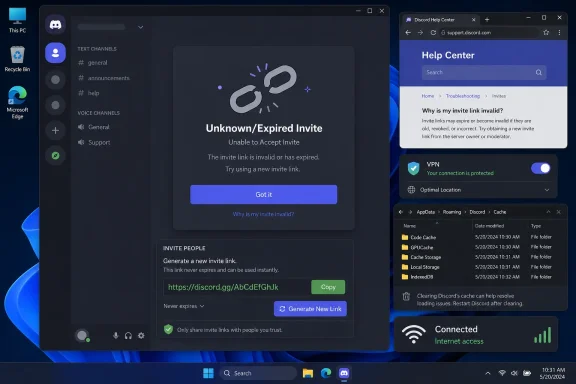 Identify the error before changing anything
The wording on Discord’s invite screen points to different causes:- Unknown/Expired Invite — The invite has expired, was deleted, or is no longer available.
- Invalid — The invite code is incomplete, altered, or not legitimate. Discord invite codes are case-sensitive.
- 100 Server Limit — Your account has reached Discord’s server membership limit. Standard accounts can join up to 100 servers; Discord Nitro accounts can join up to 200.
- Banned — A server administrator has banned your account or network from that server.
- Unable to Accept Invite — This is less specific. It can occur because of an expired invite, an account restriction, a server limit, a ban, or a temporary Discord connection problem.
- Open the invite in Discord.
- Note the exact error.
- Try a second invite to a different server that you trust.
- If only one server fails, focus on the invite or that server’s membership rules.
- If every valid invite fails, check your Discord account, network, Discord status, and local app/browser installation.
Get a new, complete invite link
A replacement invite is the correct fix when the old link has expired, reached its use limit, or was deleted. Clearing your PC’s cache cannot restore a revoked or expired invite.Ask the server owner or moderator to create a new invite rather than forwarding the old one again.
Create a replacement invite as a server owner or moderator
You need permission to create invites in the server.- Open the Discord server.
- Locate the channel where you want new members to arrive.
- Select Create Invite next to the channel name, or open the channel menu and select Invite People.
- In the invite window, select Edit Invite Link.
- Choose an appropriate expiration period and maximum number of uses.
- Select Generate a New Link.
- Copy the newly generated link and send it directly to the person joining.
Check that the link was copied intact
If you received the invite in a message, email, document, game chat, or social-media post:- Ask the sender to send the link again directly from Discord.
- Do not type the code manually if you can avoid it.
- Make sure the complete link was copied, with no missing characters at the end.
- Do not add spaces, punctuation, or extra text to the address.
- If you copied only the code, preserve uppercase and lowercase characters exactly.
Confirm that you are using the intended Discord account
Invite links open in whichever Discord account is currently signed in. This matters if you have a work, school, gaming, or alternate account.- In Discord, select your profile picture at the lower-left corner.
- Confirm the username and account you intend to use.
- If it is the wrong account, sign out from Discord.
- Sign in to the correct account.
- Open the fresh invite link again.
Check whether you have reached Discord’s server limit
Discord will not let an account join additional servers after it reaches its membership limit.- Look through the server icons on the left side of Discord.
- Leave a server you no longer use:
- Right-click the server icon.
- Select Leave Server.
- Confirm Leave Server.
- Retry the invite.
If you previously joined more than 100 servers while Discord Nitro was active and Nitro has since ended, reduce your server count below 100 before joining more.
Check for a server ban or join restriction
A valid invite does not override a server ban. Discord states that server bans can be based on IP address, meaning another person on the same home, school, workplace, or shared network may affect your ability to join.Do not repeatedly try the same invite or use an alternate account to bypass a ban. That can violate the server’s rules and may make resolution harder.
Instead:
- Contact a server owner or moderator through an existing approved contact method.
- Give them your Discord username and the exact error text.
- Ask whether:
- The invite was revoked or paused.
- The server is temporarily restricting new members.
- Your account has been banned.
- A network-level ban may be involved.
- If they confirm a ban was applied in error, ask them to review and revoke it.
Restart and update Discord on Windows
If a new invite works in a browser but not in the desktop app, restart Discord fully first. This closes background processes and allows pending app updates to finish.- Close the Discord window.
- Press Ctrl + Shift + Esc to open Task Manager.
- Under Processes, select Discord if it is still listed.
- Select End task.
- Wait about 30 seconds.
- Start Discord again from the Start menu.
- Open the invite link again.
A reinstall is a fix for damaged local program files; it will not repair an expired invite, a ban, or a server-limit error.
Clear Discord’s cache on Windows
Discord’s cache can interfere with loading pages or links in the desktop client. Clearing the cache is safe for your Discord account and server memberships, but it may require Discord to reload local files after restart.- Close Discord completely.
- Open Task Manager with Ctrl + Shift + Esc.
- End any remaining Discord processes.
- Press Windows + R.
- Type the following, then press Enter:
%appdata%\discord - Delete the Cache folder.
- Return to the
%appdata%\discordfolder. - Delete these folders if present:
- Code Cache
- GPUCache
- Restart Discord.
- Sign in again if prompted, then test the invite.
Test the invite in a browser and another network
Testing outside the desktop app separates an app problem from an invite, account, or network problem.- Copy the invite link.
- Open an InPrivate or Incognito browser window.
- Paste the link and open it.
- Sign in to the intended Discord account only if prompted.
- Try accepting the invitation.
- Works in the browser but not in the app: Restart, update, or clear the Discord desktop cache.
- Fails in both the browser and app: The invite, account, server membership, or network is more likely responsible.
- Works on another device or network: Investigate the original PC’s browser, VPN/proxy, or network connection.
Temporarily disconnect VPN or proxy software
Discord identifies VPN or firewall interference as a possible connection issue. A VPN or proxy can also make a server’s ban or anti-abuse rules appear to apply to you unexpectedly.- Disconnect the VPN in its own app.
- If you use a Windows proxy, open Settings > Network & internet > Proxy.
- Turn off a manually configured proxy only if you know it is not required by your organization.
- Close and reopen Discord.
- Test the invite once.
If disconnecting the VPN fixes the issue, you have identified a workaround, not necessarily a Discord defect. Keep the VPN disconnected only when that is appropriate for your privacy and workplace requirements.
Clear browser data only when the browser is the problem
If the invite fails only in one browser but works in Discord desktop or another browser, clear that browser’s Discord site data.For Microsoft Edge on Windows 10 or Windows 11:
- Open Edge.
- Select Settings and more (…) > Settings.
- Select Privacy, search, and services.
- Under Clear browsing data, select Choose what to clear.
- Choose a suitable time range.
- Select Cookies and other site data and Cached images and files.
- Select Clear now.
- Restart Edge and try the invite again.
Check Discord’s service status
When several people cannot join servers, send messages, sign in, or open Discord, the cause may be a Discord-side incident rather than your PC.Check Discord’s official status page before repeatedly changing settings. If an incident affects the desktop client, web service, API, or connectivity, wait until the affected component returns to operational status and then retry the invite.
If Discord’s status is normal and a fresh invite still fails on multiple devices and networks, the issue is likely tied to the server or your account.
Escalate with the right information
Contact the server’s moderators first when the problem happens with one server. Contact Discord Support when valid invites to multiple unrelated servers fail after you have verified your account, server count, network, and app/browser behavior.Include:
- The exact error message.
- Whether the invite is fresh and newly generated.
- Whether another Discord account can use the invite.
- Whether your account can join a different server.
- Whether the problem occurs in both Discord desktop and a private browser window.
- Whether it changes on another network.
- A screenshot with the invite code and personal account details obscured.