

File Explorer crashing — whether it freezes, vanishes, or restarts itself — is a daily-disruptor that can grind productivity to a halt. This feature distills the most effective, low-risk fixes into a single, practical workflow: quick triage you can run in minutes, deeper repairs if the problem persists, and escalation steps when Windows’ built-in recovery tools are needed. The guidance below synthesizes community troubleshooting, vendor guidance, and hands‑on commands so you can restore Explorer (explorer.exe), protect your data, and avoid unnecessary reinstallation.
File Explorer (explorer.exe) is more than a simple file browser — it hosts the taskbar, Start menu and many in‑process UI extensions (context menu handlers, preview and thumbnail providers). Because those extensions run inside Explorer’s process, a single misbehaving component can make the whole shell unstable. Typical failure patterns include:
1) taskkill /f /im e explorer.exe
This mirrors Task Manager behavior and can be scripted as a one‑click batch file for recurring problems.
Caution: Some AV products flag NirSoft tools; download only from the official vendor page and run them briefly for diagnostic use. The shell‑extension method is reversible and avoids destructive changes.
Those steps reflect consolidated community experience and vendor guidance: restart and clear state first, isolate third‑party components next, and use Microsoft’s built‑in repair tools (DISM, SFC) when core system files are suspect. For shell‑extension diagnosis, NirSoft’s ShellExView is the accepted, practical tool — used carefully, it resolves the single largest class of persistent Explorer crashes. If Explorer remains unstable after these steps, collect Event Viewer logs and consider an in‑place repair; this preserves user data while repairing the OS and is the safest escalation when all other diagnostics point to pervasive system corruption.
Appendix: quick command cheat‑sheet (copy/paste in an elevated prompt)
Source: Guiding Tech https://www.guidingtech.com/what-to-do-when-file-explorer-keeps-crashing/]
 Background / Overview
File Explorer (explorer.exe) is more than a simple file browser — it hosts the taskbar, Start menu and many in‑process UI extensions (context menu handlers, preview and thumbnail providers). Because those extensions run inside Explorer’s process, a single misbehaving component can make the whole shell unstable. Typical failure patterns include:- Explorer freezes or restarts when opening particular folders (often large media folders, Downloads, or network shares). or hangs immediately after a right‑click, indicating a buggy context‑menu extension.
- Explorer becomes ws update or a graphics-driver change.
Quick triage (5–10 minutes)
These first steps are fastgh to get you back to work.1. Restart Explorer correctly
A proper restart reloads the shell and often clears transient hangs. Use Task Manager:- Press Ctrl + Shift + Esc to open Task Manager.
- Under Processes, locate Windows Explorer. Right‑click and choose Restart.
- If Explorer is missing in the list, open Task Manager → File → Run new task, type explorer.exe, and press Enter.
1) taskkill /f /im e explorer.exe
This mirrors Task Manager behavior and can be scripted as a one‑click batch file for recurring problems.
2. Clear File Explorer history and Quick Access
Corrupted Quick Access history and cached state freque Open File Explorer → three‑dot menu → Options → General → Clear under Privacy.- Optionally uncheck “Show recently used files in Quick access” and “Show frequently used folders in Quick access” while testing.
3. nd thumbnails
Preview handlers and thumbnail generation commonly crash Explorer when they encounter malformed files or bule Explorer: View → uncheck Preview pane and Details pane.- In File Explorer Options → View tab → enable Always show icons, never thumbnails.
Controlled diagnosing (10–30 minutes)
If tht stick, run these diagnostic steps to narrow the root cause.4. Test in Safe Mode or a clean user profile
If Explorer works in Safe Mode or under a new local user account, the issue is almost certainly a third‑party shell extension or profile corruption.- Boot to Safe Mode (Settings → Recovery → Advanced startup → Restart now → Troubleshoot → Advanced options → Startup Settings → Restart → choose Safe Mode).
- Alternatively create a new local account: Settings → Accounts → Family & other users → Add account, then sign in.
5. Disconnect external and network drives
Mapped network drives, NAS shares, and external USrer hang while trying to enumerate unreachable paths. Temporarily:- Pause OneDrive or other cloud‑sync apps.
- Disconnect mapped drives and eject USB storage.
- Test Explorer for several minutes.
6. Reset folder optimizations and clear folder views
Some folders (Downloads, Desktop) can be optimized for a specificemplate or corrupted view can hang Explorer.- Right‑click the problematic folder → Properties → Customize → Optimize this folder for: General items and apply to subfolders.
- File Explorer Options → View → Reset Folders, then Restore Defaults.
Identify and disable problematic shell extensions (the most common persistent cause)
Third‑party shell extensions (context‑menu handlers, preview handlers, run inside Explorer and can crash the shell if they misbehave. Isolate them methodically.7. Use ShellExView to find bad extensions
NirSoft’s ShellExView is the standard utility for examining and disabling shell extensions. Best practice:- Download ShellExView and run it as administrator.
- Choose Options → Hide all Microsoft extensions to focus on third‑party items.
- Disable non‑Microsoft Context Menu and Preview handlers in small batches, restart Explorer, and test.
Caution: Some AV products flag NirSoft tools; download only from the official vendor page and run them briefly for diagnostic use. The shell‑extension method is reversible and avoids destructive changes.
SM, chkdsk (when core files or the component store are damaged)
If Explorer crashes persist across accounts and after disabling third‑party add‑ons, corrupted system files or a broken Windows component store may be the cause. Microsoft recommends running DISM followed by SFC.8. Run DISM then SFC (safe, built‑in repair)
Open an elevated Command Prompt or Windows Terminal (Admin) and run the sequence Microsoft documents:- DISM /Online /Cleanup-Image /RestoreHealth
- sfc /scannow
- DISM may take several minutes to complete; let it finish.
- If SFC reports it couldn’t fix some files, rerun after DISM and check the CBS log for details.
9. Run chkdsk if you see I/O errors
If Event Viewer or reliability logs show disk errors, schedule a elevated prompt: chkdsk C: /f /r- Accept reboot if prompted; allow chkdsk to complete on restart.
Graphics drivers, Windowsbuilding
Explorer UI problems (flicker, freezes) can be related to the display driver or Windows Update regressions.10. Update, roll back, or reinstall display drivers
Bad GPU drivers can make windows and Explorer unstable, especially after feature updates or Insider builds.- Device Manager → Display adapters → Right‑click GPU → Update driver (or roll back if the issue began after a driver update).
- For the most reliable drivers, download directly from the GPU vendor (Intel, NVIDIA, AMD) for your model.
11. ex (when Explorer search or search UI hangs)
If Explorer specifically hangs on search or indexed operations, rebuild the Windows Search index:- Settings → Privacy & security → Searching Windows → Advanced Indexing Options → Advanced → Rebuild.
When the problem is narrow: file types, context menus, or previews
If crashes happen only when opening a specific file type or right‑clicking, target the likely For context‑menu crashes: use ShellExView as described to focus on context menu handlers.- For preview or thumbnail crashes: move suspected files out of the folder, open them with dedicated apps, and update or remove third‑party preview handlers (PDF readers, RAW photo plugins).
Escalation: in‑place repair and syste don’t fix repeated explorer crashes and Event Viewer shows persistent explorer.exe errors, escalate carefully.
12. System Restore or in‑place repair
- Try System Restore to a point before the issue began if restore points exist. This is non‑destructive to personal files.
- If restore isn’t available or fails, perform an in‑place repair (run Windows setup.exe from a matching ISO and select “Upgrade this PC” to repair the OSnd apps). This reinstalls core OS files and usually fixes deep shell corruption.
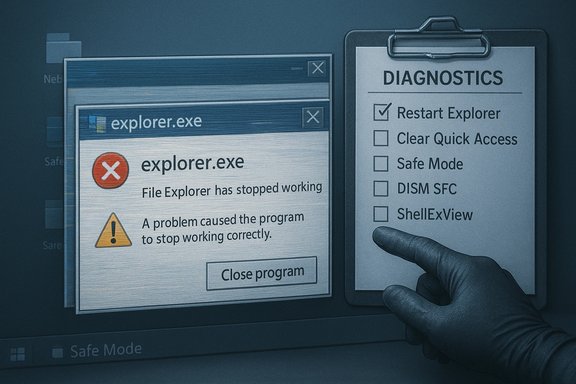
Practical checklist and escalation decision tree
- Quick restart: Task Manager → Restart Explorer.
- Clear Explorer history and disable Quick Access.
- Turn off Preview pane and thumbnails.
- Test in Safe Mode; try a new local user.
- Temporarily disconnect netws.
- Disable third‑party shell extensions with Shel](https://www.nirsoft.net/utils/shexview.htm
- Run DISM then SFC.
- Run chkdsk if disk errors appear.
- Rebuild search index if search/UI hangs.
- If unresolved: System Restore → In‑place repair.
hat to back up
- Disabling non‑Microsoft shellble but should be done carefully — note what you change later. ShellExView prevents disabling many Microsoft extensions to avoid stability issues.
- Running chkdsk with /f /r can take a long time and will require a reboot; ensure you have saved work and allowed the check to finish.
- In‑place repair and System Restore are generally safe for user data but keep a verified backup before major OS operations.
- (NirSoft utilities) may trigger antivirus false positives; download only from the vendor and use them briefly for diagnosis.
Reading Event Viewer and Reliability Monitor (brief primer)
After a crash, Event Viewer and Reliability Monitor provide the clearest clues:- Event Viewer → Windows Logs → Application and System: look for errors named Explorer.exe, Application Hang, or sources like ShellExperienceHost at the time of the failure.
- Reliability Monitor (Control Panel → Security and Maintenance → Reliabilimeline of failures and can link to crash details.
Summary and final recommendations
File Explorer crashes fall into two broad categories: transient, where a restart and cache clear fixes the problem, and persistent, where third‑party shell extensions or corrupted system components are responsible. The fastest recovery is always non‑destructive: restart the shell, disable previews, clear Quick Access, and test in Safe Mode. If the issue survives those steps, use ShellExView to isolate third‑party shell extensions, then run DISM + SFC and chkdsk to repair system components. Rebuild the search index only for search-related hang-ups. As a last resort, use System Restore or an in‑place repair to restore system integrity while preserving data and apps.Those steps reflect consolidated community experience and vendor guidance: restart and clear state first, isolate third‑party components next, and use Microsoft’s built‑in repair tools (DISM, SFC) when core system files are suspect. For shell‑extension diagnosis, NirSoft’s ShellExView is the accepted, practical tool — used carefully, it resolves the single largest class of persistent Explorer crashes. If Explorer remains unstable after these steps, collect Event Viewer logs and consider an in‑place repair; this preserves user data while repairing the OS and is the safest escalation when all other diagnostics point to pervasive system corruption.
Appendix: quick command cheat‑sheet (copy/paste in an elevated prompt)
- Resill /f /im explorer.exe
- start explorer.exe
- DISM + SFC:
- DISM /Online /Cleanup-Image /RestoreHealth
- sfc /scannow
- CHKDSK:
- chkdsk C: /f /r (schedule on reboot if prompted)
- Create a quick restart batch (save as RestartExplorer.bat):
- taskkill /f /im explorer.exe
- start explorer.exe
Source: Guiding Tech https://www.guidingtech.com/what-to-do-when-file-explorer-keeps-crashing/]
