

When your PC refuses to install Windows 11 25H2 the moment it appears in Windows Update, it’s seldom a single mystery — it’s usually a mix of prerequisites, corrupted update caches, driver or firmware mismatches, and occasionally a genuine bug in Microsoft’s servicing stack. This feature update is distributed as a small “enablement package” on devices already on 24H2, but that convenience makes troubleshooting look deceptively simple when something goes wrong. Below is a practical, source-verified guide that explains why 25H2 can fail, the safe fixes to try (from quick to advanced), and what to do if you need to escalate or delay the upgrade.
Windows 11 25H2 ships primarily as an enablement package for devices already on Windows 11 24H2 — a small “master switch” that activates features which are already present in the latest monthly quality updates for 24H2. Microsoft’s KB5054156 documents the enablement-package model and its prerequisite requirements (for example, a recent cumulative update such as KB5064081 or later must be installed before applying the 25H2 enablement package). That enablement approach reduces download size and reboot time for most modern PCs, but it also introduces a few practical implications: the update fails quickly on machines with inconsistent servicing state, and the repair path typically requires servicing‑stack and component‑store recovery rather than a full OS image refresh. Community runbooks and official Microsoft guidance converge on the same core triage steps: run built-in troubleshooters, repair the component store (DISM + SFC), clear update caches, and — if needed — perform an in‑place repair reinstallation via Settings → System → Recovery.
Conclusion
Windows 11 25H2’s enablement-package model is designed for speed and low disruption, but that design places a premium on an uncompromised servicing stack and compatible drivers. When installs fail the best approach is orderly: verify prerequisites, repair the component store with DISM/SFC, clear cached payloads, attempt a controlled offline/manual install, and finally use the repair reinstall option before considering a full clean install. For managed estates, stage and pilot — for home users, back up first and use Microsoft’s built‑in repair flows before escalating. When Microsoft issues an out‑of‑band patch (like the WinRE fix), apply it, but also be aware that rare regressions underscore the value of tested recovery media and cautious rollout planning.
Source: Guiding Tech Windows 11 25H2 Won’t Install – Common Fixes
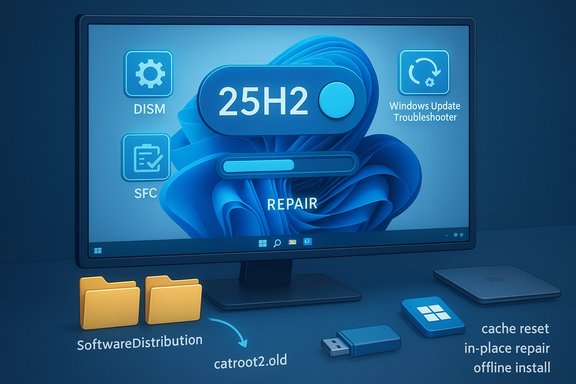 Background / Overview
Windows 11 25H2 ships primarily as an enablement package for devices already on Windows 11 24H2 — a small “master switch” that activates features which are already present in the latest monthly quality updates for 24H2. Microsoft’s KB5054156 documents the enablement-package model and its prerequisite requirements (for example, a recent cumulative update such as KB5064081 or later must be installed before applying the 25H2 enablement package). That enablement approach reduces download size and reboot time for most modern PCs, but it also introduces a few practical implications: the update fails quickly on machines with inconsistent servicing state, and the repair path typically requires servicing‑stack and component‑store recovery rather than a full OS image refresh. Community runbooks and official Microsoft guidance converge on the same core triage steps: run built-in troubleshooters, repair the component store (DISM + SFC), clear update caches, and — if needed — perform an in‑place repair reinstallation via Settings → System → Recovery. Why 25H2 sometimes won’t install (the usual suspects)
- Missing prerequisites or enablement prerequisites. Devices must meet the enablement KB prerequisites (24H2 + certain cumulative updates). If the prerequisite cumulative update isn’t present, the feature update won’t apply.
- Insufficient free space. Feature updates need temporary download and staging space; a crowded system drive can block the install. Community troubleshooting emphasizes freeing ~20–30 GB on C: as a practical safety buffer before attempting a major feature update.
- Corrupt local update cache. Partial or corrupted downloads in the Windows Update cache will repeatedly fail the installer. Resetting or renaming the SoftwareDistribution and catroot2 folders forces Windows Update to fetch fresh payloads and often fixes repeated download/rollback loops.
- Servicing stack / component-store corruption. When CBS (Component-Based Servicing) or the component store is damaged, the servicing pipeline fails during the final steps. DISM and SFC are the normal repair tools for this class of problem.
- Driver, firmware, or security-agent interference. Kernel-mode drivers (disk filters, third‑party AV/EDR agents, GPU drivers) and out-of-date firmware are a leading cause of 25H2 being held back by safeguard checks. Vendors sometimes publish compatibility holds that prevent the offer until a fix lands.
- Known update regressions. Occasionally Microsoft ships a cumulative that introduces a regression (for example, a WinRE USB input bug in October 2025) that then needs an out‑of‑band repair rollup. Microsoft has published targeted emergency updates when those regressions threaten repairability.
Quick checklist — what to verify before you troubleshoot
- Confirm you’re running Windows 11 24H2 and that required cumulative updates are present (the enablement package requires a specific prerequisite cumulative).
- Ensure you have at least 20–30 GB free on the system (C
 drive to allow downloads and temporary staging.
 - Temporarily disable or pause third‑party antivirus / protection, if safe to do so; vendor drivers and agents commonly lock files used by the installer.
- If the machine is corporate‑managed, check with IT first; local resets may be overridden by group policy or update-management tooling.
Step-by-step fixes (from safe/quick to advanced)
The following is an ordered playbook. Try them in sequence — each step escalates in invasiveness.1) Restart, retry, run Windows Update troubleshooter (safe, non-invasive)
- Restart once (clear transient locks).
- Run Settings → System → Troubleshoot → Other troubleshooters → Windows Update. The built-in troubleshooter can fix several simple errors and will report if it finds/repairs anything. Community and Microsoft Q&A threads repeatedly recommend starting here.
2) Free up disk space (safe)
- Use Settings → System → Storage and Storage Sense or manually remove large downloads, temporary files, or old Windows installations. If the installer complains about space or stalls while downloading, freeing space is often the immediate resolve.
3) Run SFC and DISM to repair system files and the component store (low risk)
- Open an elevated Command Prompt (Run as Administrator).
- Run: sfc /scannow — allow it to finish and note the result.
- If SFC reports problems or to be safe run: DISM /Online /Cleanup-Image /RestoreHealth — this can download replacement files and repair the component store. Re-run SFC afterward. Microsoft documents this exact sequence as the standard repair flow.
4) Clear the Windows Update cache (SoftwareDistribution + catroot2) (moderate risk)
If downloads repeatedly reach 100% then the install rolls back, clear the cache:- Open an elevated Command Prompt.
- Stop services:
net stop wuauserv
net stop bits
net stop cryptsvc - Rename folders (safer than deleting):
ren %windir%\SoftwareDistribution SoftwareDistribution.old
ren %windir%\System32\catroot2 catroot2.old - Restart services:
net start wuauserv
net start bits
net start cryptsvc - Reboot and try Windows Update again.
5) Reset all Windows Update components (robust reset)
If the cache rename didn’t help, run a full reset script that re-registers components and resets Winsock and MSI components. Community administrators use this as a standard escalation for stubborn states. Use it only with admin rights and after backing up critical data.6) Attempt manual installation (controlled, offline)
If Windows Update refuses to offer the enablement package or install:- Option A — Windows 11 Installation Assistant or Media Creation Tool: use “Upgrade this PC now” to force an in‑place upgrade that keeps files and apps.
- Option B — Download the 25H2 ISO from Microsoft, mount it, and run setup.exe → choose “Keep personal files and apps.”
- Option C — Microsoft Update Catalog: if a specific KB is failing, download the standalone .msu and install with wusa.exe or DISM /Add‑Package. This is the preferred way to apply stand‑alone cumulative fixes if Windows Update fails to do so.
7) Repair install (in‑place reinstall) via Settings → Recovery (last-resort before clean install)
If servicing remains broken after DISM/SFC and cache resets, use Settings → System → Recovery → Fix problems using Windows Update → Reinstall now. Microsoft documents this repair flow: it reinstalls the current Windows version while keeping apps, files, and settings. Many users report that in-place reinstall “replays” servicing components and clears stubborn corruption. Expect a multi-hour operation in some cases.Error codes and known regressions to watch for
- 0x800f0983 / 0x80070306 and similar servicing errors. These codes were frequently reported by users during 25H2 preview and early rollout phases; Microsoft and community threads show that targeted preview fixes or cumulative updates have reduced their occurrence, but they still indicate servicing or component-store problems. DISM/SFC, update cache resets, manual .msu installs, and repair installs are the standard escalation path.
- WinRE USB input failure (October 2025 example). In October 2025 a security update (KB5066835) caused USB keyboards and mice to stop working inside Windows Recovery Environment for some devices; Microsoft issued out‑of‑band KB5070773 to fix WinRE input. If you can’t use WinRE after updates, check for KB5070773 or subsequent cumulative packages that include the fix. Coverage and Microsoft’s out‑of‑band KB confirm the sequence and the fix. Note: some users report mixed results and community workarounds remain in circulation.
Enterprise and advanced considerations
- Pilot-ring staging. Enterprises should pilot 25H2 in representative hardware groups before broad deployment. Use Windows Update for Business, WSUS, or Configuration Manager to control rollout windows, and monitor Microsoft’s Release Health dashboard for safeguard IDs.
- Drivers and OEM firmware. Validate chipset, storage, and GPU drivers with OEM guidance before forcing the update. Driver mismatches are a leading reason for compatibility holds and installation rollback. If a GPU or storage driver shows instability, roll back to vendor‑verified versions or use DDU to cleanly re‑install graphics drivers.
- Log collection for escalation. If you must escalate to vendor support or Microsoft, collect: WindowsUpdate.log (use Get-WindowsUpdateLog), CBS.log excerpts (filter for SR / error codes), and the tail of dism.log. Community moderators often ask for these artifacts when diagnosing persistent failures.
Practical recovery checklist (copyable)
- Check Windows version: winver → confirm 24H2 baseline.
- Ensure prerequisite cumulative KBs are installed (KB5064081 or later for 25H2 enablement).
- Backup important data and record BitLocker keys.
- Free 20–30 GB on C:.
- Run Windows Update Troubleshooter.
- Run DISM /Online /Cleanup-Image /RestoreHealth, then sfc /scannow.
- Stop update services; rename SoftwareDistribution and catroot2; restart services. Try update again.
- If still failing: try the Media Creation Tool/ISO or manual .msu from the Microsoft Update Catalog.
- If all else fails: Settings → System → Recovery → Fix problems using Windows Update → Reinstall now.
When to pause, wait, or escalate
- Pause if the PC is mission‑critical and the update is not required immediately. Microsoft uses safeguard holds to block problematic hardware until a fix is broadly available. Waiting for a cumulative that includes the fix may be safer than forcing the enablement package.
- Escalate to OEM or Microsoft support if you observe hardware errors (SMART failures, chkdsk reporting bad sectors) or component-store problems that persist after DISM and repair install; these can indicate failing storage or deep OS corruption requiring imaging and restore.
Critical analysis — strengths, caveats, and risks
Strengths of the 25H2 rollout model- The enablement package reduces downtime for fully patched 24H2 systems and simplifies the upgrade path for consumers. This is an operational win for bandwidth and restart minimization.
- The same enablement model means servicing state matters more than it did for older full-image upgrades. If a machine’s component store or update metadata is inconsistent, the tiny enablement package can’t reconstruct what a full image reinstall would have repaired — making the repair path more technical for end users.
- Microsoft occasionally issues emergency out‑of‑band fixes (WinRE USB example) — when they do, affected users must install the fix before recovery tools work again. This underlines why having current recovery media and multiple input options (USB 2.0 ports, PS/2, or a recovery drive) is prudent.
- Community runbooks are effective but carry risks if performed without admin knowledge. Renaming system folders and stopping services is safe when done correctly, but incorrect commands or ignoring failing hardware signs can cause data loss. Always back up first.
- Market‑scale estimates you’ll read in press (e.g., a “500 million eligible PCs” headline) are useful for context but are not a precise device census; treat such numbers as strategic estimates rather than a device-by-device fact. When planning upgrades at scale, rely on your organization’s inventory rather than press estimates.
Final takeaways
- Start simple: check free space, run the Windows Update troubleshooter, and try DISM + SFC. These quick steps resolve a large share of 25H2 installation failures.
- Use the cache‑reset (rename SoftwareDistribution and catroot2) if downloads install then rollback; this forces a clean re-download and often resolves parity issues.
- If repeated servicing failures occur, the supported escalation is a manual offline install or an in‑place Reinstall now via Settings → Recovery; both are effective at repairing the servicing pipeline without wiping user data.
- For enterprises: pilot, validate drivers and agents, and stage rollouts to avoid wide-scale disruptions. If a known regression appears in Release Health, delay and apply the remediation once Microsoft and OEMs publish compatible fixes.
Conclusion
Windows 11 25H2’s enablement-package model is designed for speed and low disruption, but that design places a premium on an uncompromised servicing stack and compatible drivers. When installs fail the best approach is orderly: verify prerequisites, repair the component store with DISM/SFC, clear cached payloads, attempt a controlled offline/manual install, and finally use the repair reinstall option before considering a full clean install. For managed estates, stage and pilot — for home users, back up first and use Microsoft’s built‑in repair flows before escalating. When Microsoft issues an out‑of‑band patch (like the WinRE fix), apply it, but also be aware that rare regressions underscore the value of tested recovery media and cautious rollout planning.
Source: Guiding Tech Windows 11 25H2 Won’t Install – Common Fixes
