

Google Messages search can return empty, incomplete, or stale results when the app is not the default SMS handler, its local cache is stuck, permissions or storage are restricted, or the app needs an update. These steps cover Google Messages on Android phones and tablets, including Pixel devices and manufacturer versions of Android where Settings labels may differ.
Start in Google Messages before changing settings.
Also test search inside the affected conversation:
Expected result: Existing SMS and MMS threads remain visible in Google Messages, and new text messages are handled there. Google notes that messages are stored in the device SMS database, but only the selected default app handles new SMS and MMS messages.
Google distinguishes this from clearing storage: clearing cache removes temporary data, while clearing storage permanently deletes the app’s local data.
Then check Android updates:
Restart requirement: A device restart may be required after an Android or security update. On Pixel devices, downloaded system updates become active after the next restart.
Warning: Android describes Clear storage as permanently deleting app data. Although Google states that messages are stored in the device SMS database and Android backup can store messages when backup is enabled, do not rely on that as a substitute for checking your own important conversations and backup status.
Before proceeding:
You need:
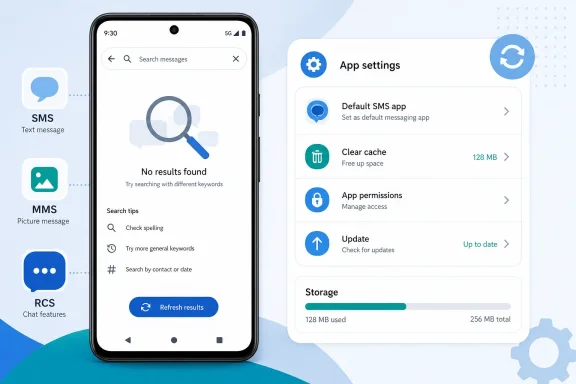 Confirm that the message is searchable
Start in Google Messages before changing settings.- Open Google Messages.
- Tap the Search field at the top of the conversation list.
- Search for a distinctive word, contact name, or phone number from a message you can currently see.
- When filters appear, try the appropriate one:
- Starred
- Unread
- Known or Unknown
- Images or Videos
- SIM 1 or SIM 2 on dual-SIM phones
Also test search inside the affected conversation:
- Open the conversation.
- Tap the contact name or the conversation menu.
- Select Search in conversation or Search conversation, if available.
- Search for the same word.
Make Google Messages the default SMS app
Google Messages must be the default messaging application to manage your device’s SMS and MMS history. If another texting app became the default after an update, restore Google Messages and test again.- Open Settings.
- Go to Apps.
- Choose one of these paths, depending on the phone:
- Default apps > SMS app
- Google Messages > SMS
- Select Google Messages.
Expected result: Existing SMS and MMS threads remain visible in Google Messages, and new text messages are handled there. Google notes that messages are stored in the device SMS database, but only the selected default app handles new SMS and MMS messages.
Restart Messages and the phone
A restart releases a stalled process and is the safest repair for searches that remain blank, show old results, or never finish loading.- Restart the Android phone or tablet using its normal Restart option.
- After it starts, open Google Messages.
- Search for the same known word again.
- Open Settings > Apps.
- Select Google Messages. On some devices, it may be listed as Messages.
- Tap Force stop.
- Confirm the warning.
- Reopen Google Messages and repeat the search.
Clear the Google Messages cache
Clearing the cache removes temporary files only. It is the preferred next step when search results are stale or the Search screen hangs.- Open Settings > Apps > Google Messages.
- Tap Storage & cache or Storage.
- Tap Clear cache.
- Open Google Messages.
- Leave the app open briefly, then search again.
Google distinguishes this from clearing storage: clearing cache removes temporary data, while clearing storage permanently deletes the app’s local data.
Update Google Messages and Android
Google recommends using the current Google Messages version when troubleshooting app behavior. Update it from the Play Store rather than relying on a preinstalled version.- Open the Google Play Store.
- Tap your profile picture.
- Choose Manage apps & device.
- Under Updates available, tap See details.
- Find Google Messages and tap Update.
Then check Android updates:
- Open Settings.
- Tap System > Software updates.
- Follow the on-screen update instructions.
Restart requirement: A device restart may be required after an Android or security update. On Pixel devices, downloaded system updates become active after the next restart.
Check SMS access, unused-app controls, and free storage
A permission issue or an Android unused-app restriction can interfere with how Messages accesses device data. Google also advises freeing storage when Messages reports low-space problems.Verify SMS permission
- Open Settings > Apps > Google Messages > Permissions.
- Confirm that SMS is allowed.
- Open Settings > Apps & notifications > Advanced > Permission manager > SMS.
- Select Google Messages.
- Choose Allow if it is denied.
Prevent Android from pausing Messages as unused
- Open Settings > Apps > Google Messages.
- Open Unused apps or Unused app settings.
- Turn off Pause app activity if unused or Manage app if unused.
Free device storage
If the phone is nearly full:- Open Settings > Storage.
- Remove unneeded downloads, duplicate media, or unused apps.
- Restart the phone.
- Test Google Messages search again.
Reset Google Messages app storage only after a backup check
Use this as a repair step after updating, restarting, and clearing the cache. It resets Google Messages’ app data and settings, so you may need to reconfigure preferences or sign in again.Warning: Android describes Clear storage as permanently deleting app data. Although Google states that messages are stored in the device SMS database and Android backup can store messages when backup is enabled, do not rely on that as a substitute for checking your own important conversations and backup status.
Before proceeding:
- Open Settings > System > Backup.
- Confirm that Android backup is enabled if you use it.
- Preserve any critical conversation attachments or information separately.
- Open Settings > Apps > Google Messages.
- Tap Storage & cache or Storage.
- Tap Clear storage, Clear data, or Manage storage > Clear all data.
- Confirm the warning.
- Open Google Messages.
- Complete any startup prompts.
- Search for the same known word and conversation again.
Use Google Messages for web as a temporary check
Google Messages for web is useful to confirm whether recent conversations load on a computer. It is not a documented replacement for full-message search; browser Find works only against text currently loaded in the page or conversation.You need:
- The latest Google Messages app.
- Android 5.0 or later.
- A phone data or Wi-Fi connection.
- Chrome, Firefox, Safari, or Microsoft Edge on the computer.
- On the phone, open Google Messages.
- Tap the account menu > Device Pairing.
- If prompted, choose the Google Account used with Messages.
- On the computer, open Google Messages for web and sign in with the same Google Account.
- On the phone, tap the emoji that matches the one displayed on the computer.
- Wait for the phone to vibrate and the conversations to load.
- Ctrl+F or F3 on Windows, Linux, and ChromeOS.
- Command+F on macOS.
- On the computer, open the Messages for web menu and select Unpair.
- Or on the phone, go to Google Messages > account menu > Device Pairing.
- Tap Delete next to a computer, then Unpair, or choose Unpair all computers.
Report a repeatable Google Messages search defect
If the same messages remain visible in a conversation but never appear in search after the steps above, report the problem from the app.- Open Google Messages.
- Tap your profile photo or icon.
- Tap Help & feedback.
- Select Send feedback.
- Include:
- The exact search term.
- The affected conversation.
- Whether the message is SMS, MMS, or RCS.
- Whether conversation-level search succeeds.
- The date and time the search failed.
- Tap Send.
References
- Primary source: Technobezz
Published: 2026-07-18T18:07:51.992000+00:00
Google Messages Search Not Working? How to Fix It | Technobezz
Google Messages search not working? Fix empty results, missing texts, and stale searches with current Android steps.www.technobezz.com - Official source: support.google.com

Control message storage & access - Google Messages
With your permission, some Google and third-party apps can access your messages to provide companion experiences like when you restore messages to a new phone or app, or when you send message notifica
support.google.com