

An Entra-joined Windows device that is absent from Intune is not automatically an Intune failure. Diagnose it as one of three states: MDM enrollment never triggered, enrollment triggered but failed, or the device is already enrolled in another MDM. That framework prevents unnecessary resets, record deletions, and tenant changes before Windows provides evidence of which path applies.
WindowsForum user reports about Autopilot and Intune enrollment repeatedly point to the same practical distinction: identity join, MDM enrollment, and later management activity are related stages, but they are not the same result. Start by identifying the stage where the process stopped.
Use this sequence before changing scopes, deleting device records, or attempting another enrollment method.
An Entra join establishes an identity relationship. It does not, by itself, prove that the device is Intune-managed. The enrollment path must run under conditions that allow the user and device to enroll.
For a cloud-joined device that is not managed by Intune:
If multiple cloud-joined devices show the same unmanaged pattern, investigate the user-scope assignment and the organization’s enrollment workflow rather than treating every endpoint as an isolated device defect.
WindowsForum’s Autopilot troubleshooting discussions are useful context here: deployment work should distinguish the device identity stage from the MDM enrollment stage. A problem seen during provisioning does not, by itself, identify which stage failed.
WindowsForum coverage of enrollment and management changes also reinforces why ownership matters. New Intune capabilities, app-management changes, and security-related services are useful only after the device has a valid management relationship. The enrollment investigation comes first.
The durable fix is to answer one question first: did Windows skip enrollment, fail enrollment, or encounter another MDM? Once that evidence is established, the next action becomes a focused remediation path instead of a cycle of guesswork.
WindowsForum user reports about Autopilot and Intune enrollment repeatedly point to the same practical distinction: identity join, MDM enrollment, and later management activity are related stages, but they are not the same result. Start by identifying the stage where the process stopped.
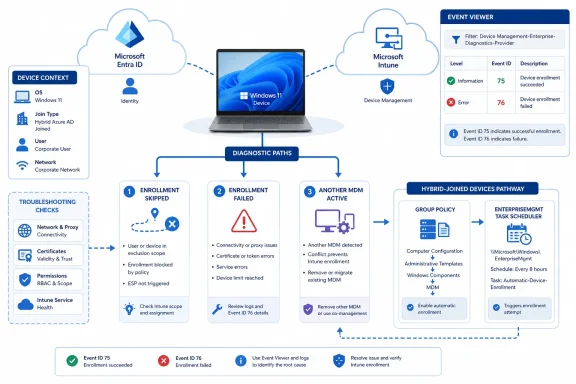 Start with the skip-vs-fail decision tree
Use this sequence before changing scopes, deleting device records, or attempting another enrollment method.- Confirm the device join state.
Open an elevated Command Prompt and run:
dsregcmd /status
Use the output to establish the device’s reported join state and to determine whether the device is following a cloud-joined or hybrid-joined enrollment path. Do not treat the command output alone as proof that Intune enrollment succeeded. - Identify the enrollment path that should apply.
- Cloud Entra-joined device: Enrollment depends on the organization’s configured enrollment workflow and on the user meeting the documented Intune enrollment prerequisites.
- Hybrid Entra-joined device: Group Policy can trigger automatic MDM enrollment after the hybrid join process.
- Already managed device: The device can be joined or registered with Entra ID while another MDM remains its management authority.
- For hybrid-joined devices, inspect the MDM event log first.
Open Event Viewer and browse to:
Look for these events:Code:Applications and Services Logs > Microsoft > Windows > DeviceManagement-Enterprise-Diagnostic-Provider > Admin- Event ID 75: Auto MDM enrollment succeeded.
- Event ID 76: Auto MDM enrollment failed.
- Neither event on a hybrid-joined device: Enrollment was not triggered.
- Branch on the evidence.
- No Event ID 75 or 76 on a hybrid device: Treat this as a skip. Investigate the hybrid enrollment trigger, Group Policy application, and whether another MDM already owns the device.
- Event ID 76: Treat this as a failure. Windows attempted automatic enrollment, so investigate the failure information in that event and the applicable tenant conditions.
- Event ID 75: Treat this as evidence that the hybrid automatic-enrollment process succeeded. Continue with the organization’s normal management validation process.
Verify the documented Intune enrollment prerequisites
Before directing a user through an approved enrollment workflow, verify the tenant and user conditions that permit Intune enrollment.- In the Microsoft Entra admin center, open Mobility (MDM and MAM).
- Select Microsoft Intune.
- Confirm that the affected user is included in the MDM user scope.
- If the MDM user scope is set to Some, confirm that the user belongs to the assigned group.
- Confirm that the user has a valid Intune license.
- Confirm that the applicable enrollment restrictions permit the device to enroll.
- Confirm that the user is permitted to join devices and has available device-join capacity.
- Confirm that the device is not already enrolled in another MDM service.
An Entra join establishes an identity relationship. It does not, by itself, prove that the device is Intune-managed. The enrollment path must run under conditions that allow the user and device to enroll.
Hybrid Entra join: prove that the Group Policy path ran
For hybrid-joined devices, Group Policy is the important dividing line between a skipped enrollment and an attempted enrollment. The supplied diagnostic evidence is the Event ID 75/76 result, while the EnterpriseMgmt folder provides additional evidence that the automatic-enrollment mechanism was scheduled.- Confirm that the organization has applied its Group Policy-based automatic MDM enrollment configuration to the affected hybrid device.
The relevant question is whether the automatic enrollment policy successfully reached the device, not whether an administrator can see a policy configured elsewhere in the environment. - Open Task Scheduler and browse to:
Task Scheduler Library > Microsoft > Windows > EnterpriseMgmt - Confirm that the EnterpriseMgmt folder contains the enrollment scheduling activity associated with the applied policy.
- Account for the documented timing behavior: after the auto-enrollment Group Policy applies successfully, the EnterpriseMgmt enrollment-client task runs every five minutes for one day.
- Return to the MDM event log:
Code:Applications and Services Logs > Microsoft > Windows > DeviceManagement-Enterprise-Diagnostic-Provider > Admin - Check for Event ID 75 or Event ID 76 during the period in which the enrollment-client task is scheduled to run.
- Event ID 75 indicates success.
- Event ID 76 indicates failure.
- Neither event on a hybrid-joined device means enrollment was not triggered.
Cloud Entra join: validate prerequisites, then use the approved workflow
A cloud Entra-joined device does not use the hybrid Group Policy trigger in the same way. Do not interpret the absence of a hybrid EnterpriseMgmt schedule as evidence that cloud enrollment is broken.For a cloud-joined device that is not managed by Intune:
- Confirm the user is included in the Intune MDM user scope under Mobility (MDM and MAM).
- Confirm the user has a valid Intune license.
- Confirm enrollment restrictions permit enrollment.
- Confirm the user is allowed to join devices and has not reached the organization’s device-join capacity.
- Confirm that no other MDM service already manages the device.
- Direct the administrator or user to the organization’s approved enrollment workflow for that device.
If multiple cloud-joined devices show the same unmanaged pattern, investigate the user-scope assignment and the organization’s enrollment workflow rather than treating every endpoint as an isolated device defect.
WindowsForum’s Autopilot troubleshooting discussions are useful context here: deployment work should distinguish the device identity stage from the MDM enrollment stage. A problem seen during provisioning does not, by itself, identify which stage failed.
If enrollment triggered and failed, use Event ID 76 as the starting point
Event ID 76 means Windows attempted automatic MDM enrollment and recorded a failure. It proves that the issue is not simply a missing hybrid enrollment trigger.- Open the Event ID 76 entry in:
DeviceManagement-Enterprise-Diagnostic-Provider > Admin - Review the event information available in Event Viewer.
- Use the failure information in that event to guide the next remediation decision.
- Recheck the conditions that can prevent successful enrollment:
- The user is included in the Intune MDM user scope.
- The user has a valid Intune license.
- Enrollment restrictions allow the device to enroll.
- The user has available device-join capacity.
- Microsoft Intune is the intended MDM service under Mobility (MDM and MAM).
- Another MDM service or prior management relationship is not still active.
- After correcting the identified condition, follow the organization’s approved enrollment workflow rather than assuming that repeating unrelated device actions will resolve the failure.
Existing MDM is a separate remediation path
A device can appear in Entra ID while another MDM platform remains responsible for management. That is an ownership conflict, not necessarily an incomplete Intune enrollment.- Identify the current MDM platform managing the device.
- Use the organization’s approved procedure for unenrolling the device from that service.
- Confirm that the prior management relationship has been removed according to the organization’s process.
- Reassess the Intune enrollment prerequisites:
- MDM user scope
- Valid license
- Permitted enrollment
- Device-join capacity
- No existing MDM enrollment
- Enroll the device through the approved organizational workflow.
- For hybrid-joined devices, return to the Event ID 75/76 diagnostic sequence if automatic enrollment is expected.
WindowsForum coverage of enrollment and management changes also reinforces why ownership matters. New Intune capabilities, app-management changes, and security-related services are useful only after the device has a valid management relationship. The enrollment investigation comes first.
Verify the final management state
After remediation, verify the outcome in the order appropriate to the device’s enrollment path.- Confirm that the device follows the organization’s approved Intune enrollment workflow.
- Confirm that the expected management relationship is shown in the organization’s administration tools.
- Confirm that the device is no longer managed by a conflicting MDM service.
- For hybrid-joined devices, confirm whether the MDM diagnostic log contains:
- Event ID 75 for successful automatic enrollment, or
- Event ID 76 for a failed automatic enrollment attempt.
- If Event ID 76 remains present, continue troubleshooting from the failure information rather than treating the issue as an untriggered enrollment.
Frequently Asked Questions
Does Entra joined always mean Intune managed?
No. Entra join establishes a device identity relationship. Intune management requires a separate MDM enrollment process, and that process can be skipped, fail, or be blocked by an existing MDM enrollment.What does it mean if neither Event ID 75 nor 76 exists?
On a hybrid-joined device, neither event means enrollment was not triggered. Check whether the Group Policy-based automatic enrollment configuration applied and whether the EnterpriseMgmt enrollment scheduling activity is present.How often does the hybrid enrollment-client task run?
After the auto-enrollment Group Policy applies successfully, the EnterpriseMgmt enrollment-client task runs every five minutes for one day.What should I do when Event ID 76 occurs?
Treat it as an enrollment failure, not a missing trigger. Review the event information, then verify MDM user scope, licensing, enrollment restrictions, device-join capacity, the intended Intune MDM configuration, and whether another MDM already manages the device.Can a device managed by another MDM still appear in Entra ID?
Yes. A device can have an Entra identity relationship while another MDM remains its management authority. Follow the approved unenrollment process for the existing MDM before attempting Intune enrollment.The durable fix is to answer one question first: did Windows skip enrollment, fail enrollment, or encounter another MDM? Once that evidence is established, the next action becomes a focused remediation path instead of a cycle of guesswork.
References
- Primary source: learn.microsoft.com
Troubleshoot Windows 10 Group Policy auto-enrollment in Microsoft Intune - Intune | Microsoft Learn
Learn how to troubleshoot auto-enrollment.learn.microsoft.com - Primary source: WindowsForum
Troubleshooting Windows Autopilot Enrollment Issues with Intune | Windows Forum
In today’s fast-paced IT environments, corporate device deployments need to be as smooth as possible. Windows Autopilot aims to simplify new device setups...windowsforum.com
