

If your Logitech HD Webcam C270 suddenly stopped working on Windows 10, you’re facing a problem that’s common, fixable in most home setups, and — crucially — one where the right sequence of low‑risk checks will usually restore service in minutes rather than hours.
The Logitech HD Webcam C270 is an entry‑level USB webcam that historically offered 720p at 30 fps, a fixed‑focus lens and a built‑in mono microphone — a no‑frills device designed for straightforward video calls rather than advanced capture workflows. Its ubiquity and USB Video Class (UVC) compatibility mean it normally functions as a plug‑and‑play device on Windows 10 with the built‑in USB Video Device driver.
Despite that simplicity, real‑world support threads make one truth clear: failures range from simple permission toggles to subtle OS/driver interactions created by Windows updates, third‑party capture utilities, or security software. Symptoms reported most often include a black preview, grayscale output, camera‑in‑use errors, or a device that simply isn’t detected by apps.
If you need sustained, professional reliability or vendor feature‑sets, plan an upgrade to a currently supported Logitech model with active driver and firmware support; this lowers the friction of driver regressions and provides modern capture capabilities.
Conclusion: run the non‑destructive checks first, use the UVC driver as your primary diagnostic fallback, document changes, and escalate with logs when needed — most C270 problems on Windows 10 are solvable without hardware repair, and the methods above reflect the consensus of practical community and vendor guidance.
Source: Born2Invest https://born2invest.com/?b=style-248189412/
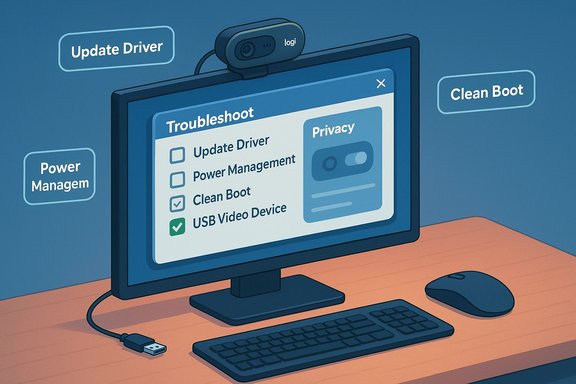 Background / Overview
The Logitech HD Webcam C270 is an entry‑level USB webcam that historically offered 720p at 30 fps, a fixed‑focus lens and a built‑in mono microphone — a no‑frills device designed for straightforward video calls rather than advanced capture workflows. Its ubiquity and USB Video Class (UVC) compatibility mean it normally functions as a plug‑and‑play device on Windows 10 with the built‑in USB Video Device driver.Despite that simplicity, real‑world support threads make one truth clear: failures range from simple permission toggles to subtle OS/driver interactions created by Windows updates, third‑party capture utilities, or security software. Symptoms reported most often include a black preview, grayscale output, camera‑in‑use errors, or a device that simply isn’t detected by apps.
Why the C270 (and many USB webcams) stop working on Windows 10
Common root causes
- Driver mismatch or corruption — the device may be using either the in‑box UVC driver or an OEM/vendor driver; either can break after a Windows update. Switching between them is a high‑value diagnostic step.
- Windows Media Foundation / Frame Server interactions — the Camera Frame Server sometimes blocks apps from receiving frames after driver or OS changes. Community workflows point to a registry toggle as a diagnostic (not a universal fix). Treat registry changes cautiously.
- App conflicts / exclusivity — conferencing apps, browser tabs, capture programs (OBS, Streamlabs), and vendor utilities (Logi Tune, older QuickCam services) may hold exclusive access or apply filters that result in a black preview. Clean‑boot testing often reveals this class of problem.
- USB bus and power management — selective suspend or root‑hub power saving can intermittently suspend USB cameras, producing flicker or a black frame. Disabling USB selective suspend and the “allow the computer to turn off this device” option for USB root hubs is a proven mitigation.
- Privacy/permissions and OEM privacy guards — Windows privacy settings, BIOS privacy toggles, or physical shutters can block camera access entirely. Permissions changed by updates are a surprisingly common cause.
- Hardware failure — less common, but real: the camera or USB port may be defective. Testing the device on another PC quickly isolates this possibility.
Quick, safe checklist — what to try first (low risk, high yield)
- Close any app that might use the camera (Teams, Zoom, Skype, browsers with meeting tabs, OBS, Logi Tune). Wait 10 seconds.
- Open the Windows Camera app to test if the camera shows video. Use this as your “clean” test harness.
- Check Windows privacy: Settings → Privacy & security → Camera. Ensure Camera access for this device is On and desktop apps are permitted.
- Try another physical USB port — preferably a direct USB‑A port on the PC (avoid hubs and front‑panel hubs during diagnostics). If possible, test on a second machine to rule out hardware failure.
- Reboot after each change to ensure the system picks up driver switches or permission changes. A simple reboot resolves many transient issues.
Step‑by‑step troubleshooting (prioritized)
1) UVC driver fallback (fast & often effective)
- Open Device Manager → Cameras or Imaging Devices.
- Right‑click your webcam → Update driver → Browse my computer → Let me pick from a list → choose USB Video Device (Microsoft’s generic UVC driver) → Next → Reboot.
- Why: the in‑box UVC driver strips vendor extensions that sometimes conflict with Windows updates and restores basic video functionality. Microsoft and community guides recommend this as a first advanced step.
2) Camera permissions and app‑specific checks
- Settings → Privacy & security → Camera: confirm the toggles for camera access and desktop apps.
- If the Camera app works but Teams/Zoom do not, clear the problematic app’s cache or reinstall it; meeting apps frequently cache device handles.
3) Power management and USB selective suspend
- Device Manager → Universal Serial Bus controllers → USB Root Hub → Properties → Power Management → uncheck Allow the computer to turn off this device to save power for the root hubs and camera device.
- Control Panel → Power Options → Change plan settings → Change advanced power settings → USB settings → USB selective suspend setting → Disabled.
- Many community cases report this resolves intermittent black frames and disconnects.
4) Clean boot to isolate software conflicts
- Run msconfig → Services → check “Hide all Microsoft services” → disable the rest; Startup → open Task Manager → disable non‑Microsoft startup items → reboot.
- Test the Camera app. If the camera returns, re‑enable services/startup items in groups to identify the conflict. This is an enterprise‑grade diagnostic approach that also works for home systems.
5) Frame Server registry toggle — diagnostic only
- If you have exhausted other options and suspect Media Foundation interactions, create a system restore point, then:
- Open regedit and navigate to HKEY_LOCAL_MACHINE\SOFTWARE\Microsoft\Windows Media Foundation\Platform
- Create a new DWORD (32‑bit) named EnableFrameServerMode and set it to 0.
- Reboot and test.
- Caution: this is a commonly used community workaround and has helped many users, but it is not an official Logitech fix and could affect other apps that rely on the Frame Server. Revert the change if it produces regressions. Back up the registry first.
6) Use Process Explorer / Handle to find processes holding the camera
- Use Sysinternals Process Explorer or Handle.exe to search for handles referencing camera devices or Media Foundation objects. Kill or update the offending process if found. This technique is effective in recurring cases where background utilities or security software pin a camera handle.
7) Reinstall or reset the Camera app
- Settings → Apps → Installed apps → Camera → Advanced options → Repair; if that fails, Reset or uninstall and reinstall from the Microsoft Store. The Camera app can be corrupted independently from drivers.
8) Roll back recent Windows updates (last resort for update‑timed failures)
- If the failure began directly after a Windows update, capture Get‑HotFix and installed update lists, then consider uninstalling the suspect KB on a pilot machine. This is an enterprise step and should be used carefully — document everything before rolling back.
Advanced diagnostics and evidence to collect before escalation
If basic troubleshooting fails, collect the following to speed vendor or Microsoft support:- Output of PowerShell: Get‑PnpDevice -Class Camera > Camera_PnP.txt
- Event Viewer filters around the time the camera failed (capture logs)
- Get‑HotFix (Installed_Updates.txt) and the Windows build (winver)
- pnputil /enum‑devices /connected outputs for driver instance details
When the hardware is actually at fault
A working device on one PC and not on another usually points to software. Conversely, if the C270 fails on multiple hosts, suspect hardware:- Inspect the USB connector and cable. For fixed‑cable webcams, movement or bent pins is a possibility.
- Try a powered USB hub or different cable/adapter if using a USB‑C adapter; some passive adapters or hubs don’t provide stable power or bandwidth.
- If the camera is old and has seen heavy use, replacement is often more cost‑effective than deep hardware repair. Retail part numbers and SKU checks (for region or model variants) can help if you’re verifying warranty or returns.
Buying guidance and compatibility notes
- The C270 remains a budget‑friendly webcam for basic calls; product pages and retailer listings confirm its 720p/30 fps spec and entry‑level feature set. For most users who only need reliable video conferencing, it still works well when paired with the in‑box UVC driver.
- If you need advanced features (1080p/60, better low‑light, autofocus, firmware updates), consider moving to newer Logitech models such as the C920/C922 family or the Brio line, which provide richer vendor software and active driver maintenance. Upgrading reduces the odds of encountering drivers abandoned for legacy hardware.
Security, privacy and enterprise considerations
- Endpoint security (EDR) interference: corporate anti‑malware or EDR agents sometimes restrict camera access or inject code into media stacks. Coordinate with IT before disabling agents; these tools may be the real reason a webcam stops delivering frames, especially after policy pushes.
- Registry and system changes: the Frame Server toggle (EnableFrameServerMode) is a community diagnostic measure, not a vendor‑backed official fix. Always back up the registry and create a restore point before changes. Flag any such edits in IT tickets to avoid surprises later.
- Feature trade‑offs: switching to the Microsoft UVC driver may remove vendor features like advanced image tuning. Use the UVC fallback to restore baseline functionality, then decide whether vendor software is necessary.
Practical, reproducible checklist (copy‑and‑paste)
- Close all apps that may use the camera.
- Test Camera app. If black, continue.
- Settings → Privacy & security → Camera: enable device access and desktop apps.
- Try a different USB port or PC.
- Device Manager → Cameras → Update driver → Pick USB Video Device → Reboot.
- If intermittent, disable USB selective suspend and uncheck “Allow the computer to turn off this device to save power” on USB Root Hubs.
- If still failing, clean boot to isolate conflicts.
- Use Process Explorer to find handles to camera devices.
- As a diagnostic only, set EnableFrameServerMode = 0 after creating a restore point. Reboot and test.
- If the camera works elsewhere, collect PnP and update logs and escalate to vendor/Microsoft with the evidence.
Strengths of this approach, and where it can fail
- Strengths: The recommended flow starts with non‑destructive checks (permissions, app conflicts, port swaps), proceeds to high‑yield software fallbacks (UVC driver), and reserves registry or update rollbacks for later — a sequence that restores service quickly for most users. These steps are validated across community threads and vendor guidance where available.
- Limitations and risks:
- Registry changes and update rollbacks carry risk — they can affect other multimedia apps and system stability if used broadly. Always back up before modifying.
- Endpoint security can obscure diagnostics in managed environments, meaning home steps will not work in a corporate policy context unless IT unblocks or tests changes.
- For truly aged or physically damaged webcams, software fixes will not help; replacement may be required.
When to replace the C270 (or escalate for warranty/repair)
- Replace if: the camera fails on multiple known‑good hosts, shows physical damage, or the cost‑benefit of continued diagnostics exceeds replacement cost.
- Escalate (support case) if: you need the camera for business and basic diagnostics fail — supply the Windows build, driver instance, Get‑PnpDevice output and installed update list to vendor or Microsoft support to shorten the troubleshooting cycle.
Final verdict and practical recommendation
The Logitech C270 remains a valid, inexpensive webcam for basic Windows 10 video calls, but the ubiquity of Windows updates and varied third‑party software on modern PCs means occasional breakage is to be expected. The fastest, safest path to recovery is to verify permissions, test in the Camera app, try the USB Video Device (UVC) driver fallback, and disable USB power management if behavior is intermittent. Use clean‑boot isolation and Sysinternals tools to catch stubborn app conflicts. Only apply the Frame Server registry toggle after backing up and as a diagnostic step, and coordinate with IT when enterprise security tools are present.If you need sustained, professional reliability or vendor feature‑sets, plan an upgrade to a currently supported Logitech model with active driver and firmware support; this lowers the friction of driver regressions and provides modern capture capabilities.
Conclusion: run the non‑destructive checks first, use the UVC driver as your primary diagnostic fallback, document changes, and escalate with logs when needed — most C270 problems on Windows 10 are solvable without hardware repair, and the methods above reflect the consensus of practical community and vendor guidance.
Source: Born2Invest https://born2invest.com/?b=style-248189412/
