

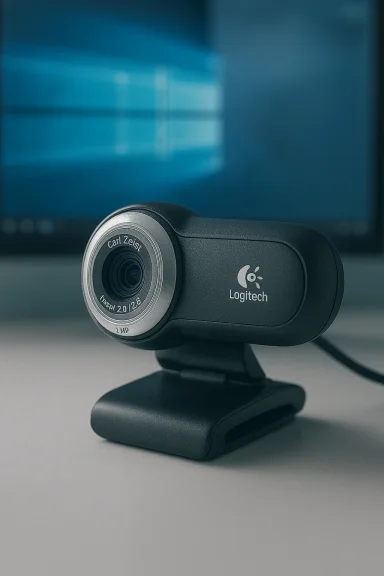
The Logitech QuickCam Pro 9000 still turns up in bargain-bin and “refurbished” listings, but if you’re hunting a discount Logitech Pro 9000 for a Windows 10 PC, understand exactly what you’re getting: a once‑class‑leading webcam with solid optics and now‑limited vendor support that often works as a plug‑and‑play UVC device — but may require workarounds, third‑party drivers, or acceptance of reduced feature control on modern Windows releases.
The QuickCam Pro 9000 debuted as a premium consumer webcam with a Carl Zeiss‑branded glass lens, RightLight 2 exposure tuning, and built‑in noise‑reduction audio features. Logitech’s official technical specification sheet lists the camera as a USB 2.0 UVC device with a 2 MP sensor (true optical 1600×1200 capture), a 75° diagonal field of view, and frame‑rate limits that depend on capture mode (30 fps up to 800×600; hardware‑limited to ~15 fps at 960×720 in some modes). These are the baseline hardware facts you should verify before you buy.
Two practical corollaries follow from those specs:
If you want, I can produce a concise troubleshooting checklist formatted for printing — or create a side‑by‑side spec comparison of the Pro 9000 vs. current budget and midrange Logitech webcams to help you decide which discounted listing is actually a good purchase.
Source: Born2Invest https://born2invest.com/?b=style-248080612/
 Background / Overview
The QuickCam Pro 9000 debuted as a premium consumer webcam with a Carl Zeiss‑branded glass lens, RightLight 2 exposure tuning, and built‑in noise‑reduction audio features. Logitech’s official technical specification sheet lists the camera as a USB 2.0 UVC device with a 2 MP sensor (true optical 1600×1200 capture), a 75° diagonal field of view, and frame‑rate limits that depend on capture mode (30 fps up to 800×600; hardware‑limited to ~15 fps at 960×720 in some modes). These are the baseline hardware facts you should verify before you buy. Two practical corollaries follow from those specs:
- The Pro 9000’s native strengths are optics and still‑image resolution; it is not a modern 1080p/60 or 4K streaming camera by today’s standards.
- As a UVC (USB Video Class) device, the camera can function in basic video mode on modern Windows installations using the generic Microsoft drivers — but vendor software, firmware tools, and the “full experience” are no longer maintained. Logitech explicitly warns that firmware and preference utilities for this model are no longer supported.
Why the Pro 9000 still appears in discount listings
- Legacy stock, refurbished returns, and used marketplaces move older hardware into value channels. e the cameras as “HD 1080p webcam with mic” or similar shorthand; those marketplace listings compress technical nuance into marketing copy. The practical reality is: the Pro 9000’s true optical capture tops at 1600×1200, and video capture behavior depends on drivers and host software. Treat marketplace claims (discounts, free shipping, bundled software) as conditional until you confirm seller details and return rights.
- Many buyers assume “works on Windows 10” because modern Windows will usually enumerate a UVC webcam. That is often true for basic video, but advanced camera controls (autofocus tuning, image controls, special effects) historically came from Logitech’s older software stack — which Logitech has deprecated for this device. Expect patchwork experiences across Windows 10 and 11 systems reported in community forums.
Specifications and verified technical claims
According to Logitech’s official product documentation (the most authoritative source for this device), the QuickCam Pro 9000 provides:- Optical sensor: 2 MP (1600×1200) true optical resolution.
- Capture modes: still images up to software‑enhanced sizes; video modes include 720p‑class options, but frame rates depend on the selected resolution (30 fps at some lower resolutions; hardware limits lower at HD modes).
- USB: High Speed USB 2.0 with UVC support (vendor USB VID/PID documented).
- Lens: glass Carl Zeiss optics; 75° diagonal field of vi])
- Microphone: built‑in mic with vendor‑marketed noise cancellation (adequate for calls; not a replacement for a dedicated mic).
Windows 10 compatibility — what to expect
- Plug-and-play basics: Because the QuickCam Pro 9000 presents as a UVC device, Windows 10’s in‑box “USB Video Device” driver will often provide basic camera and microphone functionality without vendor drivers. This covers the majority of video‑call use cases (Teams, Zoom, Skype, Windows Camera app). However, that generic driver does not expose Logitech’s proprietary camera controls or any legacy QuickCam utilities.
- Vendor downloads and support status: Logitech’s product pages for the QuickCam Pro 9000 show the technical specifications and technical support notes but indicate that many legacy utilities (firmware update tools, preference managers) are no longer supported or maintained. In other words, Logitech does not actively update or guarantee new drivers for modern Windows versions. If you need the Logitech control surface or firmware updates, you’ll likely be disappointed.
- Community experience: User reports are mixed. Some users confirm the camera works fine on Windows 10 and 11 using the generic drivers; others report degraded behavior (loss of autofocus, missing controls, low frame rates) and rely on third‑party wrappers or apps (SplitCam, OBS virtual camera plugins) to restore functionality. These are community workarounds and not Logitech‑endorsed sollity depending on your Windows build, USB controller, and installed capture apps.
Risks, caveats, and security/privacy considerations
- Vendor support gap: Buying a discontinued device me fixes, no official assurances for Windows updates, and a higher risk of encountering incompatibilities with new OS builds. Logitech’s own support guidance disclaims continued maintenance for older QuickCam utilities. If you plan to deploy in business or classroom settings, this is a real operational risk.
- Third‑party driver risk: Some third‑party driver repositories or driver‑hosting sites claim Windows 10 compatibility and offer driver packages. These sites are not official Logitech channels and bring the usual security risks: unsigned installers, bundled adware, or stale binaries. Use caution: prefer manufacturer downloads or rely on Windows’ in‑box driver where possible.
- Marketplace listings: Titles like “1080p webcam with mic” on Amazon and other marketplaces can be misleading. Real 1080p at 30 fps may be supported by the sensor/firmware in some mopps and network bandwidth often downscale or compress the stream — and the Pro 9000’s highest consistent video behavior is closer to 720p for smooth frame rates in many real‑world setups. Confirm the seller’s return policy.
- Privacy footprint: Any webcam increases privacy exposure. The simplest physical mitigation is a shutter or adhesive cover; audit Windows privacy settings and vendor software permissions after installation. Legacy vendor utilities sometimes request deeper system access; avoid installing anything unsigned or unnecessary.
Buying checklist — what to verify when you see a “Discount Logitech Pro 9000” listin model and condition: Is it QuickCam Pro 9000 (not a different QuickCam)? Refurbished, used, or new? Does the seller include the oring clip? Many cosmetic photos don't show internal condition.
- Confirm specifications from Logitech’s product page—not just Logitech’s spec sheet documents the device’s true capture modes and limitations (sensor, USB VID/PID, frame rates). Use those numbers to set realistic expectations. (support.logi.com)
- Check return policy and warranty: Marketplace sellers vary; a 30‑day return window matters if the device fails on your Windows 10 machine. For business deplat scale without testing a single unit first.
- Plan for audio: The built‑in mic is fine for casual calls, but if audio clarity or distance pickup matters, pair the camera with a dedicated USB condenser or dynamic mic. Built‑in noise cancellation is helpful but not a studio replacement.
- Consider alternatives: For a new purchase, modern webcams (Logitech C920 family, recent Anker or NexiGo models) offer better support, higher sustained framerates, and maintained vendor software for Windows 10 and 11. If budget allows, a newer webcam with active vendor support will save time and compatibility headaches.
Setup, diagnostics, and troubleshooting on Windows 10
If you buy a Pro 9000, follow this prioritized checklist to get it working on a Windows 10 PC:- Physical checks: plug into a mainboard USB port (avoid unpowered hubs). Use a back‑panel port on desktops where possible.
- Windows privacy: open Settings → Privacy & security → Camera and ensure camera access is enabled for desktop apps you’ll use.
- Test with Camera app: launch Windows’ Camera app as a baseline — it uses the OS video stack and isolates app conflicts.
- Driver fallback: if you see a black preview or missing controls, open Device Manager → Cameras (or Sound, video and game controllers) → update driver → Let me pick from a list → choose “USB Video Device” (the Microsoft in‑box UVC driver). This often restores basic video.
- Check for exclusivity: close Teams, Zoom, browser tabs with meeting pages, OBS, and any vendor utilities that could hold exclusive access. Reboot and re‑test.
- Advanced: some users report success with virtual camera wrappers (SplitCam, OBS virtual camera) to add features or coax the device into modern workflows —workarounds, not vendor fixes, and may introduce latency or artifacts. Evaluate carefully.
Practical recommendations — when to buy a Pro 9000 and when to avoid it
- Buy it if:
- You found a genuine bargain machine and you accept the risk of limited vendor support.
- You value the camera’s Carl Zeiss glass lens and still‑image behavior more than vendor utilities.
- You’re comfortable working with Windows in‑box drivers and community troubleshooting steps to get basic video running.
- Avoid it if:
- You need a camera for a critical business rollout, classroom deployment, or reliable remote support service where vendor support matters.
- You expect plug‑and‑play advanced features like modern background removal, high framerate streaming, or guaranteed compatibility with future Windows feature updates.
- You’re uncomfortable installing third‑party tools or relying on community fixes for driver problems.
Alternatives that save time and reduce risk
If you need a camera that “just works” on Windows 10 with ongoing vendor support, consider these modern options (representative categories validated by Windows‑focused roundups):- Logitech C920 family (C920/C920e/C920S) — proven 1080p performance, maintained drivers, and broad app compatibility. Good balance of price and stability.
- Anker PowerConf C200/C300 — midrange with better mic arrays and software management for firmware and settings.
- Budget 1080p models (NexiGo family) — low cost and often include privacy shutters; confirm specs on vendor pages rather than marketplace titles.
Final appraisal: is the discounted Pro 9000 worth it for Windows 10 users?
The short answer: maybe, for hobbyists and tinkerers; less so for anyone who needs guaranteed, trouble‑free operation. The QuickCam Pro 9000’s optics and historical reputation make it attractive at a low price, but the vendor’s deprecation of support and mixed community experiences on modern Windows builds mean you may trade money saved for time spent on setup and troubleshooting. If your goal is reliable, supported performance in a Windows 10 environment — especially for business or education — spend a little more on a current camera with vendor support. If you already own a Pro 9000 and want to keep using it, plan for the realistic path: rely on Windows’ generic UVC driver for basic video, avoid unsigned third‑party driver packages, back up a working driver image if you find one that restores the features you need, and keep the return option open if hardware issues surface.If you want, I can produce a concise troubleshooting checklist formatted for printing — or create a side‑by‑side spec comparison of the Pro 9000 vs. current budget and midrange Logitech webcams to help you decide which discounted listing is actually a good purchase.
Source: Born2Invest https://born2invest.com/?b=style-248080612/
