

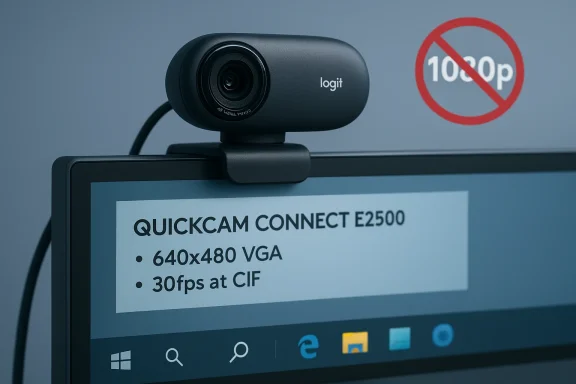
If you clicked “Buy” on an Amazon listing promising a “Logitech E2500 1080p webcam” with free shipping, stop and read this: the QuickCam Connect E2500 is a legacy VGA‑class webcam whose true optical resolution, frame‑rate limits, and vendor support differ materially from the modern “1080p webcam” category many marketplace titles try to place it in. Logitech’s official technical sheet shows the E2500’s optical resolution is 640×480 (VGA), hardware frame‑rate limits are 15 fps at VGA (with 30 fps only at much lower CIF resolutions), and key companion utilities and firmware tools for the model are deprecated — facts that matter if you expect reliable Full HD video, Windows 10‑era feature parity, or long‑term vendor maintenance.
The QuickCam Connect (E2500) was introduced as a compact, inexpensive webcam targeted at basic video calls and casual use. At release, Logitech supported the device with its QuickCam and LWS (Logitech Webcam Software) packages and listed OS support primarily for legacy systems (Windows XP, Vista and Windows 7). Those original support targets — and Logitech’s own technical documentation — make clear the camera was not designed as a modern 1080p/30fps webcam. If you’re seeing E2500 listings tied to phrases like “1080p”, “Full HD”, or late‑generation Windows 10 compatibility, treat those marketplace claims with skepticispecifics in the vendor’s spec sheet and the seller’s listing.
Why this matters: hardware optics, sensor type, and firmware limits determine capture fidelity in ways that simple JPEG upscaling or software “enhancement” cannot reliably correct for live video. Sellers often use terms like “software‑enhanced 1.3MP” or show inflated sample images; those are not the same as native Full HD (1920×1080) video capture at stable frame rates in conferencing apps. The Born2Invest analysis of markicitly warns buyers about cookie‑consent boilerplate and inflated marketplace claims, and recommends cross‑checking the manufacturer spec sheet and independent reviews before purchase.
Source: Born2Invest https://born2invest.com/?b=style-246626912/
 Background
The QuickCam Connect (E2500) was introduced as a compact, inexpensive webcam targeted at basic video calls and casual use. At release, Logitech supported the device with its QuickCam and LWS (Logitech Webcam Software) packages and listed OS support primarily for legacy systems (Windows XP, Vista and Windows 7). Those original support targets — and Logitech’s own technical documentation — make clear the camera was not designed as a modern 1080p/30fps webcam. If you’re seeing E2500 listings tied to phrases like “1080p”, “Full HD”, or late‑generation Windows 10 compatibility, treat those marketplace claims with skepticispecifics in the vendor’s spec sheet and the seller’s listing. Why this matters: hardware optics, sensor type, and firmware limits determine capture fidelity in ways that simple JPEG upscaling or software “enhancement” cannot reliably correct for live video. Sellers often use terms like “software‑enhanced 1.3MP” or show inflated sample images; those are not the same as native Full HD (1920×1080) video capture at stable frame rates in conferencing apps. The Born2Invest analysis of markicitly warns buyers about cookie‑consent boilerplate and inflated marketplace claims, and recommends cross‑checking the manufacturer spec sheet and independent reviews before purchase.
Quick technical reality check: What the Logitech sheet actually says
Logitech’s official support page for the QuickCam Connect (E2500) is the authoritative place to verify the camera’s design and limits. Key points from that sheet:- Optical (true) resolution: 640 × 480 (VGA).
- Software‑enhanced still image: up to 1280 × 960 (1.3MP) — software interpolation, not native sensor resolution.
- Maximum video frame rate (hardware limits): 30 fps at CIF (352×288) and 15 fps at 640×480 (VGA). This means smooth, full‑motion VGA video is not guaranteed.
- Field of view (FOV): 50° diagonal; manual focus (no autofocus).
- USB connection: Full‑Speed USB 2.0 (device IDs VID_046D & PID_089D).
- Built‑in microphone: single omnidirectional mic, intended for casual conversational pickup, not studio‑grade audio.
- Companion software and firmware utilities: Logitech notes the firmware update tool and many legacy utilities are no longer maintained; the company encourages use of Logi Options+ for supported devices. That signals limited vendor maintenance for legacy QuickCam titles.
Windows 10 compatibility: what to expect and how to verify
Many USB webcams — especially legacy Logitech models — appear to work on Windows 10 thanks to the operating system’s USB Video Class (UVC) in‑box driver. That driver often provides basic video and audio capture without manufacturer drivers, which is why st plug‑and‑play success when plugging an older QuickCam into a modern Windows 10 PC. However, there are practical caveats:- Basic capture (video + mic) will typically work using Windows’ built‑in “Camera” app or in conferencing apps (Teams, Zoom), but proprietary features (special effects, firmware updates, vendor tuning utilities) are usually absent. The Logitech documentation and community troubleshooting notes both emphasize that legacy QuickCam utilities and firmware tools are deprecated and may not run on modern Windows builds.
- If a marketplace listing claims advanced features (auto exposure tuning, high frame rates, modern AI background removal, or a Windows 10‑specific tuning app), confirm those features on Logitech’s site and in the app store for Windows 10 — many of those capabilities are only available with modern webcams that Logitech still supports. File‑level and community warnings urge buyers to check vendor pages rather than trusting marketplace titles.
- Plug the camera into a back‑panel USB port (avoid unpowered hubs).
- Open Settings → Privacy & security → Camera and ensure apps have camera access.
- Launch Windows’ Camera app as a baseline test — it isolates the OS video stack.
- If you see no image, open Device Manager → Cameras or Sound, video and game controllers → look for the device and check driver properties. If necessary, choose “Update driver” → “Browse my computer” → “Let me pick from a list” → select “USB Video Device” (the Microsoft in‑box UVC driver). This often restores basic video.
Real‑world performance: what the E2500 will — and won’t — deliver
Practical takeaways for a Windows 10 user considering the E2500:- Image clarity and motion: Because the optical sensor is VGA and the device is limited by hardware to 15 fps at VGA, expect soft images and choppy motion compared with modern 30fps or 60fps 1080p webcams. Software upscaling can make still photos look larger, but it does not recreate the detail or motion smoothness of native 1080p capture.
- Low‑light performance: Small sensors in low‑cost webcams struggle in dim lighting. The E2500 lacks Logitech’s newer “RightLight” adaptive exposure tech found in higher‑tier models. Expect grain, muted color, and limited dynamic range under mixed lighting.
- Audio: The built‑in mic is omnidirectional and will work fine for short, one‑on‑one calls at close range (1–2 meters), but it will not replace a dedicated USB microphone for podcasting, streaming, or noisy environments. Community guidance consistently recommends pairing a budget webcam with a proper mic when audio clarity matters. nd framing:** A 50° diagonal FOV and manual focus mean a narrower capture area and static focus plane — more suitable for a single seated person than for group calls or dynamic presentations.
- Durability and extras: The mple detachable clip and a 2m cable; there’s no tripod‑threaded base, and physical privacy covers are typically absent (privacy is software‑managed in Logitech’s legacy utilities). Marketplace sellers sometimes show a privacy shade or accessory photos that don’t match the original package; confirm what’s shipped before ordering.
Marketplace marketing vs. hardware truth: how sellers mislead — and how to spot it
Born2Invest and community roundups highlight a recurring pattern: marketplace photos and headlines often conflate software‑enhanced still image sizes, interpolated resolutions, and vendor family names to make legacy devices appear equivalent to current 1080p mags:- Titles that include “1080p” but the model number in the small print is E2500 or another legacy QuickCam. If the vendor’s spec sheet (Logitech) shows VGA optical resolution, the marketplace headline is misleading. Confirm the model number and check the manufacturer’s page.
- One‑line praise in reviews that don’t show sample recordings or specify the capture resolution/app settings used. Real test evidence is screenshots or video captured at the claimed resolution and frame rate. Community guidance recommends viewing reviewer uploads and verifying capture properties in video players (file metadata) — a better signal than star ratings.
- Seller claims of “Windows 10 compatible” without clarifying whether that means basic UVC plug‑and‑play or full vendor software/firmware support. The difference is important for businesses that neednt or firmware updates. Always check the vendor support page for OS compatibility statements.
Step‑by‑step setup and troubleshooting guide for Windows 10
If you already own an E2500 or are willing to accept its limitations, follow this checklist to maximize the chances of trouble‑free operation on Windows 10:- Physical connection: plug the camera into a rear USB 2.0 port on a desktop or a powered USB 2.0 port on a laptop (avoid cheap unpowered hubs).
- Privacy settings: open Settings → Privacy & security → Camera to ensure camera access is enabled for desktop apps and the particular app you plan to use.
- Baseline test: open the Windnfirm you have a live preview. If the preview is black or unavailable, proceed to Device Manager.
- Device Manager: locate the device under Cameras or Sound, video and game controllers. Right‑click → Update driver → Browse my computer for drivers → Let me pick from a list → choose “USB Video Device” (Microsoft UVC driver). This often restores basic functionality without requiring legacy vendor software.
- App checks: close Teams, Zoom, browsers, OBS, or other capture apps that might hold exclusive access. Reopen only the app you want to test.
- AV settings: in conferencing apps, verify the selected camera, resolution setting, and whether the app imposes a lower resolution (many meeting platforms downscale video to reduce bandwidth). Local recordings will usually show the camera’s true capture an live meetings.
- Firmware and vendor utilities: avoid downloading drivers from untrusted third‑party repos. Logitech’s official support pages are the only safe source for firmware and legacy utilities; note that many of these tools are deprecated for QuickCam models.
Security, privacy, and IT considerations
- Vendor software risk: Legacy Logitech utilities historically installed background services and drivers that run at a system level. Logitech itself warns that older preference managers and firmware tools are no longer maintained, which increases the risk of vulnerabilities or incompatibilities on modern Windows builds. Prefer Windows’ in‑box drivers when you only need basic capture. (support.logi.com)
- Unsigned third‑party drivers: Avoid downloading drivers from unofficial driver‑host sites. Those packages sometimes contain adware or unsigned installers that can break driver signing enforcement — a security red flag. Community guidance on forums expliisabling driver signature enforcement to install third‑party drivers.
- Privacy best practices: A physical shutter or adhesive cover is the simplest mitigation against inadvertent camera activation; software privacy settings should be audited after installation. If a vendor ur system access during install, question why — it may be unnecessary for basic capture and may increase privacy exposure.
- Operational risk for fleets: If you’re purchasing webcams for an organization, prioritize devices with active vendor support, firmware update channels, and enterprise management tooling. Deploying disconthe E2500 at scale increases the maintenance burden and the chances of incompatibility with future Windows updates.
Alternatives — what to buy instead (Windows‑focused your use case requires dependable 1080p video, good low‑light handling, reliable vendor support, or enterprise features, consider these alternatives that consistently appear in professional roundups and Windows‑focused recommendations:
- Logitech C920 family (C920 / C920e / C920S) — proven, widely supported 1080p webcams with stable drivers and broad app compatibility; highly recommended when you want a device that “just works” on Windows. Many independent roundups and community guides point to the C920 as the best overa
- Anker PowerConf series (C200 / C300) — midrange options with stronger mic arrays and vendor utilities for firmware and settings; better overall conference performance than legacy webcams. Iude Anker as a sound midrange pick with maintained software.
- NexiGo N60 and similar budget 1080p models — inexpensive, often include privacy shutters; verify specs on vendor pages to avoid inflated marketplace claims. Born2Invest and commend NexiGo‑type models for cost‑sensitive buyers who still want true 1080p.
- AI/tracking options (OBSBOT Tiny, Insta360 Link, etc.) — if you present while moving or need automated tracking, these modern cameras deliver improved viewer experience at higher cost. They also come with updated Windows support and firmware management. Community roundups highlight tracking cameras for specialized use cases.
Buying checklist: avoid surprises
Before you click “Buy” on any marketplace listing for a webcam:- Verify the exact model number on the listing and cross‑check the manufacturer’s technical specifications. If the listing says “E2500” but claims 1080p video, check the Logitech spec sheet before buying.
- Confirm whether the seller is offering new, used, or refurbished stock and whether the product comes with t and accessories. Returns and warranty differ by seller.
- Request a sample video recorded at claimed resolution/frame‑rate if you’re buying at scale or for a business deployment. Run the file through a player that shows actual capture metadata.
- Check the seller’s return policy and support — a 30‑day return window matters for DOA units or incompatibilities on your Windows 10 fleet. Community threads report variable outcomes when buyers cannot easily return older‑hardware buys.
- Prefer devices with active vendor support and signed drivers; avoid models where the vendor explicitly says firmware tools and preference managers are no longer maintained.
Final appraisal: when the E2500 still makes sense — and when it doesn’t
Buy the Logitech QuickCam Connect (E2500) if:- You need an extremely low‑cost webcam for occasional one‑on‑one calls and yoin image fidelity and frame rate.
- You understand the device is VGA‑class hardware and are buying because the price is right, not because you demand Full HD capture or modern features.
- You need native 1080p @ 30fps for recordings or streaming. The E2500 is a VGA webcam with software interpolation for still images, not a Full HD capture device.
- You are deploying webcams for a business, school, or other environment where reliability and vendor support matter long term. Legacy QuickCam utilities and firmware update tools are deprecated and may not be compatible with future Windows updates.
- You require modern features like autofocus, autoexposure RightLight, multi‑mic beamforming, or AI background removal — these are only available on current generation devices.
Conclusion
Marketplace listings can be seductive: low prices, “free shipping,” and bold claims. But hardware defines capability. Logitech’s QuickCam Connect (E2500) is, by design, a compact VGA webcam with a 50° FOV, manual focus, and a maximum of 15 fps at 640×480 — not a native 1080p conferencing camera. Logitech’s own support documentation and community analyses confirm the model’s limits and warn that legacy utilities are no longer maintained; Born2Invest’s marketplace analysis reinforces the cautionary lesson: always verify the manufacturer spec sheet and check independent reviews before you buy. If you want dependable Full HD video and modern Windows 10/11 support, plan to budget for a current model from a recognized vendor (for example, the Logitech C920 series, Anker’s PowerConf line, or documented NexiGo models). For occasional, low‑stakes use, the E2500 will work as a basic webcam — but go in with realistic expectations about image quality, frame rate, and long‑term support.Source: Born2Invest https://born2invest.com/?b=style-246626912/
