

Microsoft’s official troubleshooting checklist for “Fix low or quiet sound in Windows” is short, practical, and — in most common cases — effective: check the Volume mixer, disable audio enhancements, try a different audio format, and update or reinstall your audio driver. (support.microsoft.com)
Windows machines produce low or muffled sound for many reasons. Sometimes the problem is a simple per‑app volume setting; sometimes it’s an audio enhancement or sample‑rate mismatch; and sometimes a driver update or OEM-supplied audio package breaks the audio stack. Microsoft’s support article lays out four core, repeatable fixes that resolve the majority of quiet‑audio problems on Windows 10 and Windows 11. (support.microsoft.com)
Community troubleshooting logs and forum threads show the same pattern: users repeatedly fix quiet audio by toggling the same set of controls (volume mixer, enhancements, default format) or by reinstalling drivers — but they also report recurring failure modes after Windows updates or OEM driver packages. That community experience is consistent with the official guidance and helps identify the edge cases where deeper work is needed.
Practical tip:
Practical steps:
Practical tip:
Why this matters: Drivers are the glue between Windows and audio hardware. Corruption, incompatible DCH vs non‑DCH packages, or bad OEM packs can hide functionality or introduce regressions. The forum record shows many incidents where a Windows or OEM update replaced a working driver with a problematic one, and users recovered by reverting or reinstalling the driver from the vendor.
Step‑by‑step:
Fixing low or quiet sound in Windows usually comes down to a small set of checks: volume routing, audio enhancements, sample rate, and drivers. Those steps will resolve most cases quickly, and when they don’t, methodical isolation — wired vs wireless, generic driver vs OEM, restore vs rollback — will identify the root cause. Keep backups, prefer vendor drivers from official sources, and if hardware is implicated, contact the vendor or a qualified technician. Microsoft’s brief checklist is a reliable starting point; combine it with the deeper checks above when the issue persists. (support.microsoft.com)
Source: Microsoft Support Fix low or quiet sound in Windows - Microsoft Support
 Background / Overview
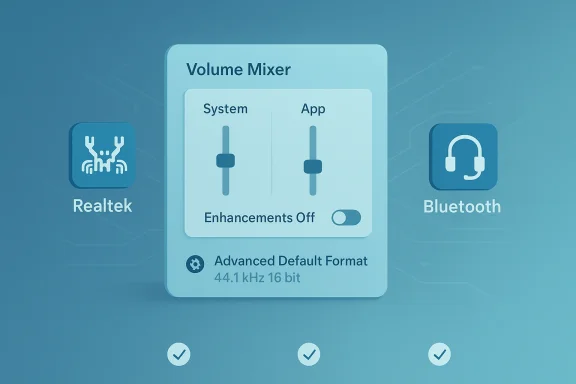
Windows machines produce low or muffled sound for many reasons. Sometimes the problem is a simple per‑app volume setting; sometimes it’s an audio enhancement or sample‑rate mismatch; and sometimes a driver update or OEM-supplied audio package breaks the audio stack. Microsoft’s support article lays out four core, repeatable fixes that resolve the majority of quiet‑audio problems on Windows 10 and Windows 11. (support.microsoft.com)Community troubleshooting logs and forum threads show the same pattern: users repeatedly fix quiet audio by toggling the same set of controls (volume mixer, enhancements, default format) or by reinstalling drivers — but they also report recurring failure modes after Windows updates or OEM driver packages. That community experience is consistent with the official guidance and helps identify the edge cases where deeper work is needed.
Why low or quiet audio happens (quick technical primer)
- Audio in Windows is a layered system: an application-level volume, a system mixer, device drivers, and audio hardware (DACs, amplifiers, speakers/headphones). Any layer can clamp volume or introduce distortion.
- Audio enhancements / software filters (equalizers, virtual surround, loudness equalization) are applied in software and can sometimes reduce perceived loudness, or interact poorly with certain outputs and drivers. Disabling these often restores plain, predictable audio. (support.microsoft.com)
- Default format (sample rate / bit depth) mismatches between the app/player and the hardware can lead to unexpectedly low output or artifacts; switching the default format is a common fix. (support.microsoft.com)
- Driver issues: corrupted, incorrect, or OEM-wrapped drivers can disable functionality or hide options (for example, the Enhancements tab). Windows updates or manufacturer updates sometimes replace a working driver with one that causes problems. Forum logs show multiple users recovering audio by rolling-back or replacing drivers.
- Wireless headsets present additional complications: Bluetooth profiles (A2DP vs. HFP) and Windows’ handling of mic+audio can reduce fidelity or volume during calls or when the microphone is active. Recent Windows 11 updates address some Bluetooth profile issues, but older systems remain affected.
The Microsoft checklist — explained and expanded
Below I present Microsoft’s official steps with context, practical tips, and deeper troubleshooting options for each item. Where Microsoft presents a short how‑to, I expand with what to look for and why it matters. (support.microsoft.com)1. Check Volume levels in the Volume mixer
- Open Settings > System > Sound > Volume mixer (Windows 11) or right‑click the volume icon > Open Volume mixer (Windows 10).
- Check both the System slider and the specific app’s slider; ensure neither is muted or set near zero.
Practical tip:
- If an app is persistently low, test it in another browser or media player to determine whether the problem is app-specific.
2. Turn off audio enhancements (Windows and driver enhancements)
- Microsoft: Settings > System > Sound > select your output device > Audio enhancements > turn off enhancements. (On Windows 10, right‑click the Volume icon > Sounds > Playback > device Properties > Enhancements > Disable all enhancements.) (support.microsoft.com)
Practical steps:
- If the “Enhancements” tab is missing, the vendor driver may handle effects in its own control panel (e.g., Realtek Audio Console, Dolby Access). Open the vendor control app and disable any effects there.
- If you can’t locate enhancement controls at all, try uninstalling the vendor audio package and installing the plain Microsoft High Definition Audio Device driver as a test (not a long‑term solution, but useful to isolate the problem). Many users report the Enhancements tab disappears with certain driver packages and reappears with the generic driver.
- Disabling vendor features may remove DSP features you like (virtual surround, bass boosts). Make a note of current settings so you can re‑enable if needed.
3. Change the audio format (sample rate / bit depth)
- Microsoft: Settings > System > Sound > select device > Advanced > Default format → choose another format (e.g., 24 bit, 48000 Hz or 16 bit, 44100 Hz). On Windows 10: Sound > Playback > device > Properties > Advanced tab. (support.microsoft.com)
Practical tip:
- Try widely used settings first: 16‑bit/44.1 kHz and 24‑bit/48 kHz. Restart the app or player after switching and then test.
4. Update or reinstall the audio driver
Microsoft’s guidance: open Device Manager, expand Sound, video and game controllers, right‑click the device → Update driver → Restart PC. If problems continue, uninstall and reinstall the driver from the device manufacturer’s website. (support.microsoft.com)Why this matters: Drivers are the glue between Windows and audio hardware. Corruption, incompatible DCH vs non‑DCH packages, or bad OEM packs can hide functionality or introduce regressions. The forum record shows many incidents where a Windows or OEM update replaced a working driver with a problematic one, and users recovered by reverting or reinstalling the driver from the vendor.
Step‑by‑step:
- Identify your audio device in Device Manager. Note the exact device name (Realtek, Intel, AMD/ALC chip, USB DAC model).
- Right‑click → Properties → Driver tab → Roll Back Driver if the issue started after a driver update.
- If roll back isn’t available, choose Update driver → Search automatically. If that doesn’t help:
- Visit the PC or motherboard vendor’s support page and download the audio driver they recommend (not a random third‑party driver).
- If vendor drivers persistently cause issues, test with the built‑in Microsoft High Definition Audio driver: uninstall the device (choose to delete driver files if offered), then “Scan for hardware changes” to load the generic driver.
- Avoid downloading drivers from untrusted third‑party sites. Always prefer the PC manufacturer, motherboard vendor, or the chip‑maker’s official driver pages.
- For laptops, vendor OEM drivers often include needed firmware or power‑management support. Replacing them with a generic driver may remove features or introduce battery/thermal differences.
Additional checks and deeper troubleshooting
If the four Microsoft steps don’t fix the problem, the next layer of checks narrows the fault to software, Windows settings, or hardware.Check default device, disabled devices, and app output routing
- Open Sound settings → Manage sound devices (or Playback devices in classic Control Panel). Right‑click in the list and show Disabled Devices and Disconnected Devices. Enable the correct outpult Device / Default Communication Device.
- Confirm the app is sending audio to the intended device (Windows 10/11 app volume and device preferences let you route output per app).
Restart the Windows Audio services
- Open services.msc
- Restart “Windows Audio” and “Windows Audio Endpoint Builder”
- If this resolves the issue temporarily, a startup service or driver conflict may be re‑initializing the stack incorrectly.
System Restore and Windows update rollback
If the issue started after a Windows update, consider:- Rolling back the most recent update via Settings > Update & Security > View update history > Uninstall updates.
- Or use System Restore to return to a configuration where audio worked.
Bluetooth and headset specifics
- Bluetooth headsets switch profiles when the mic is active, which can drastically lower audio fidelity or volume: A2DP provides high‑quality stereo audio but does not support mic; HFP/HSP supports mic but at lower quality and often lower perceived volume. Windows 11 has improved LE Audio support for newer hardware, but older headsets remain affected. Test with a wired headset to isolate Bluetooth as the culprit.
Hardware checks — rule out physical causes
- Verify speaker/phono cables, powered speaker power switches, and headphone plugs. Try another set of headphones or speakers to isolate the PC.
- If using a USB audio device or external DAC/amp, try a different USB port or a different cable; USB power issues can affect perceived volume.
- On desktops, check front vs rear jacks — sometimes the front‑panel jack wiring is selective or has a broken connector.
- If audio is low on internal laptop speakers but normal on external devices, the speaker amplifier or speaker cone may be degraded. In those cases, driver fixes won’t help.
Advanced options for power users
- Registry toggle to disable enhancements system‑wide: some guides show how to set HKEY_LOCAL_MACHINE\SOFTWARE\Microsoft\Windows\CurrentVersion\Audio to force disable filters; use caution and back up the registry first. This is useful when enhancements can’t be disabled in the GUI.
- If you use professional audio interfaces, install and use the manufacturer’s ASIO drivers and control panels; ensure sample rates match between the interface’s control panel and Windows.
- For persistent driver problems, use the vendor’s full uninstall utility (some vendors provide an audio cleanup tool) then reinstall the latest stable driver.
- Registry edits and driver removal can make audio worse if done incorrectly. Always document changes and create a restore point before making low‑level edits.
When to seek manufacturer or professional helnt or extremely low only through internal laptop speakers and external headphones are fine, suspect hardware (speaker amp, wiring). Contact the laptop vendor or a repair shop.
- If you’re not comfortable uninstalling drivers or editing the registry, vendor support or a trusted technician can perform those actions safely.
- If you suspect a Windows update broke audio and rolling back is not straightforward, vendor support can provide the correct OEM driver and guidance.
Quick checklist you can run now (copy/paste and follow)
- Verify system and app volumes in Volume mixer. (support.microsoft.com)
- Disable audio enhancements (Settings → Sound → output device → Audio enhancements). (support.microsoft.com)
- Change Default format (Advanced/default format) to 16‑bit/44.1 kHz or 24‑bit/48 kHz; test. (support.microsoft.com)
- Update (or roll back) the audio driver in Device Manager; if necessary, download the vendor driver. (support.microsoft.com)
- Test with a different headset or speakers and with wired vs. Bluetooth to isolate hardware vs. stable strengths of Microsoft’s guidance — and its limits
- The Microsoft article is concise and targeted at the most common failure modes: mixer, enhancements, format, drivers. That makes it quick to follow and effy of user issues. (support.microsoft.com)
- The same steps are reinforced across the ecosystem (tech sites, vendor help pages), which makes them reliable first steps.
- The guidance assumes the user has a functioning driver and access to the Settings pages; in cases where the Enhancements tab is missing or the device is invisible, additional steps are required (driver cleanup, rollbacks, uninstalling OEM drivers). Community logs show those scenarios occur frequently after updates.
- Microsoft’s short checklist doesn’t cover Bluetooth profile behavior in depth; users with headsets should be aware of profile limitations and Windows’ historic handling of mic+audio.
Risk management: what to avoid
- Don’t download drivers from random websites. Use the PC or motherboard vendor, the audio device vendor, or the chipmaker’s official pages.
- Avoid registry edits or driver removals unless you have a restore point and a fallback plan.
- When rolling back updates, note the exact update that was removed so you can reapply safely later when a vendor fix appears.
Final notes and practical troubleshooting scenarios
- If quiet audio began immediately after a Windows update, test by rolling back the last update and reinstalling the vendor driver. Several users recovered audio this way after an update replaced a stable vendor driver with an incompatible package.
- If enhancements are disabled but sound is still poor, test with the generic Microsoft driver to isolate vendor driver issues — then reinstall the recommended OEM driver only if the generic driver confirms hardware is fine.
- If Bluetooth audio drops in quality/volume only when the mic is used, test with a wired headset or a different Bluetooth device to confirm whether the issue is profile‑related or hardware‑related. Recent Windows 11 updates improve LE Audio behavior on supported hardware, but not all devices benefit.
Fixing low or quiet sound in Windows usually comes down to a small set of checks: volume routing, audio enhancements, sample rate, and drivers. Those steps will resolve most cases quickly, and when they don’t, methodical isolation — wired vs wireless, generic driver vs OEM, restore vs rollback — will identify the root cause. Keep backups, prefer vendor drivers from official sources, and if hardware is implicated, contact the vendor or a qualified technician. Microsoft’s brief checklist is a reliable starting point; combine it with the deeper checks above when the issue persists. (support.microsoft.com)
Source: Microsoft Support Fix low or quiet sound in Windows - Microsoft Support
