

When the Microsoft Store gets stuck on the spinning “Working…” indicator it’s more than an annoyance — it blocks app installs, stalls updates, and can break workflows that depend on UWP/MSIX applications. The problem usually traces to a handful of recurring causes (corrupted Store cache, stalled Windows Update components, network or account authentication problems), and there are fast, repeatable fixes that resolve the issue for the vast majority of users. This feature walks through the most reliable, safe steps to fix a Microsoft Store that’s stuck on “Working…”, explains why each step helps, and highlights risks and escalation paths for persistent cases.
The Microsoft Store is a modern app container and delivery platform that relies on several moving parts: per-user Store cache, system-level update components (Windows Update, BITS), app deployment services (AppX/InstallService), authentication brokers, and network connectivity to Microsoft’s distribution endpoints. When any of these elements get out of sync — for example, a corrupted LocalCache folder, blocked network endpoints, or stopped services — the Store’s update/install flow can hang at “Working…” and never complete.
This behavior, and the usual remedies (restart, wsreset, run the Store Apps troubleshooter, install pending Windows updates, and re-register the Store), have been repeatedly validated in community troubleshooting runbooks and Microsoft’s own support guidance. A concise checklist of initial steps mirrors both community and official guidance: restart the app/PC, reset the Store cache with wsreset.exe, run the Windows Store Apps troubleshooter, confirm Windows Update is current, and — if needed — re-register the Store package using PowerShell. These steps are summarized in community runbooks and practical how‑tos.
Source: Windows Report Microsoft Store Stuck on Working? Here Is How to Fix It Quickly
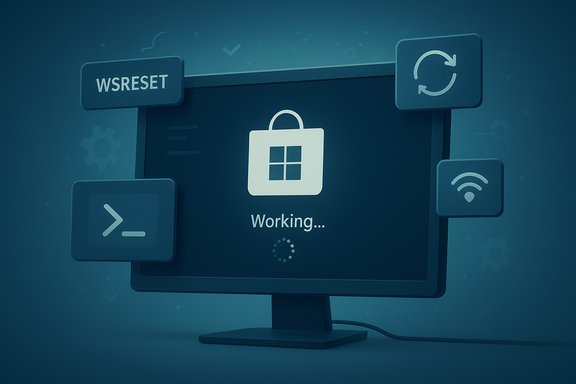 Background / Overview
The Microsoft Store is a modern app container and delivery platform that relies on several moving parts: per-user Store cache, system-level update components (Windows Update, BITS), app deployment services (AppX/InstallService), authentication brokers, and network connectivity to Microsoft’s distribution endpoints. When any of these elements get out of sync — for example, a corrupted LocalCache folder, blocked network endpoints, or stopped services — the Store’s update/install flow can hang at “Working…” and never complete.This behavior, and the usual remedies (restart, wsreset, run the Store Apps troubleshooter, install pending Windows updates, and re-register the Store), have been repeatedly validated in community troubleshooting runbooks and Microsoft’s own support guidance. A concise checklist of initial steps mirrors both community and official guidance: restart the app/PC, reset the Store cache with wsreset.exe, run the Windows Store Apps troubleshooter, confirm Windows Update is current, and — if needed — re-register the Store package using PowerShell. These steps are summarized in community runbooks and practical how‑tos.
What causes “Microsoft Store stuck on Working…”?
The usual suspects
- Corrupted Store cache or LocalCache folder. Temporary metadata that helps the Store enumerate apps can become inconsistent and block installs. Clearing the cache with wsreset.exe often resolves this quickly.
- Windows Update or servicing component issues. The Store’s installation pipeline depends on services like Windows Update (wuauserv), Background Intelligent Transfer Service (BITS), Cryptographic Services (cryptsvc), AppX Deployment Service (AppXSvc), and Microsoft Store Install Service. If these services are stopped or Windows Update metadata is corrupt, installs can hang.
- Network, proxy, or TLS problems. If your PC can’t reach Microsoft’s endpoints, or if a proxy/firewall is interfering, the Store can never complete its handshake and will show “Working…” indefinitely. Checking network status, flushing DNS, and resetting WinHTTP/proxy settings are common remedies.
- Account and authentication issues. Expired tokens, incorrect time/date, or problems with the authentication brokers (like the AAD Broker Plugin) can block the Store from confirming purchases or licenses, which prevents downloads from proceeding.
- Damaged system files or AppX manifests. When component files are corrupt, re-registering the Store package or running DISM + SFC repairs may be required. Community and Microsoft guidance recommend DISM /RestoreHealth followed by sfc /scannow as a safe escalation.
When it’s not a local issue
Occasionally, the fault isn’t your PC — it’s Microsoft’s service status. Confirming that the Store/Xbox services are healthy (Microsoft’s status page or independent outage trackers) avoids unnecessary local troubleshooting when servers are degraded.Quick fixes — what to try first (safe, fast)
These solutions are ordered by safety and speed: try each in sequence and only escalate if the earlier steps don’t work.1. Restart the Microsoft Store and your PC
- Close the Store, open Task Manager (Ctrl+Shift+Esc), and ensure no Store-related processes remain. Restart the Store and try the install again.
- If that fails, reboot Windows — a restart clears transient file locks and service hiccups. Community runbooks list this as the first step.
2. Reset the Microsoft Store cache with wsreset.exe
- Press Windows + R, type
wsreset.exe, and press Enter. - A blank command window appears; after the cache is cleared the Store relaunches automatically.
This is Microsoft’s documented cache-reset utility and is safe: it clears temporary metadata but does not remove installed apps or accounts.
3. Check your internet connection and basic network stack
- Verify network status in Settings > Network & internet. If you’re on Wi‑Fi, try a wired connection or another network.
- Flush DNS and reset WinSock if the connection is flaky:
- Open an elevated Command Prompt.
- Run:
ipconfig /flushdns - Run:
netsh winsock reset - Reboot and test again.
Community posts and troubleshooting guides list these steps as effective when downloads never start.
4. Run the Windows Store Apps troubleshooter
- Open Settings > System > Troubleshoot > Other troubleshooters, then run Windows Store Apps.
- Accept any automatic fixes the troubleshooter suggests. This automated tool addresses common configuration and component problems.
Intermediate fixes — careful but effective
If the quick steps don’t help, use the intermediate techniques below. They require administrator privileges and slightly more system knowledge.5. Repair or Reset the Microsoft Store from Settings
- Go to Settings > Apps > Installed apps > Microsoft Store > Advanced options.
- Click Repair first. If the problem persists, click Reset.
Repair tries to fix app state without clearing user data; Reset clears app data and often removes the “Working…” hang. This GUI route is safe and recommended before PowerShell re-registration.
6. Install pending Windows updates and reboot
- Open Settings > Windows Update, click Check for updates, install everything available, and reboot.
Many Store issues stem from version mismatches between OS components and Store packages; staying current eliminates subtle compatibility problems.
7. Re-register the Microsoft Store (PowerShell)
- Open PowerShell as Administrator and run:
Get-AppxPackage -allusers Microsoft.WindowsStore | ForEach-Object {Add-AppxPackage -DisableDevelopmentMode -Register "$($_.InstallLocation)\AppXManifest.xml"}- Wait for the command to complete and then reboot.
This command tells Windows to re-register the Store’s AppX manifest and is widely used to restore missing/damaged Store installations. It should be executed as an administrator and may take several minutes. Community and Microsoft Q&A threads document this as a successful fix for many cases. Use caution — it re-registers package manifests for all users and can be blocked by certain corporate policies or third‑party security software.
Advanced troubleshooting and escalation
If the Store still shows “Working…”, move into deeper system repairs and diagnostics.8. Check and start key services
Verify these services are running via an elevated Command Prompt:sc query wuauserv(Windows Update)sc query bits(Background Intelligent Transfer Service)sc query cryptsvc(Cryptographic Services)sc query AppXSvc(AppX Deployment Service)sc query ClipSVC(Client License Service)
If any are stopped, start them withnet start <servicename>. Stopped services often explain stalled installs.
9. Reset Windows Update components and caches
- Open an elevated Command Prompt and run:
net stop wuauservnet stop bitsnet stop cryptsvcren C:\Windows\SoftwareDistribution SoftwareDistribution.oldren C:\Windows\System32\catroot2 catroot2.oldnet start wuauservnet start bitsnet start cryptsvc- Reboot and re-check Windows Update and the Store.
This forces Windows to rebuild update metadata and often fixes mismatched update states that block Store operations. Community runbooks include this block as a reliable escalation.
10. Repair system image and protected files (DISM + SFC)
- In an elevated command prompt run:
DISM /Online /Cleanup-Image /RestoreHealthsfc /scannow- Reboot and try the Store again.
DISM repairs the Windows component store, and SFC fixes protected OS files — both are safe and Microsoft‑recommended for corrupted system state.
11. Clear the Microsoft Store LocalCache manually
- Open File Explorer and paste:
%localappdata%\Packages\Microsoft.WindowsStore_8wekyb3d8bbwe\LocalCache- Delete the contents or move them to a backup folder.
If wsreset didn’t help, removing LocalCache directly removes whatever residual metadata may be blocking installs. Many community fixes use this step as an effective final cache-clear before re-registering.
Specific edge-cases and targeted fixes
Authentication and WebView2 issues
Some sign-in problems stem from a broken WebView2 runtime, which in turn breaks in-app authentication flows. Installing the Microsoft Edge WebView2 Evergreen runtime can restore the in-app sign‑in window used by the Store, and re‑registering the AAD broker plugin may be necessary. Re-register AAD Broker with a PowerShell re-register command if sign-in windows fail.Delivery Optimization, Xbox and Gaming Services
If downloads relate to Xbox-managed games, check Delivery Optimization settings and ensure Xbox, Gaming Services, and Microsoft Store are updated and repaired. Game installs have extra dependencies and sometimes require updating the Xbox app or Gaming Services before installation resumes. Community guides call this out for game-specific stuck installs.Hosts file, firewall, and corporate policies
If corporate group policies or your hosts file blocks Microsoft endpoints, the Store can’t complete requests. CheckC:\Windows\System32\drivers\etc\hosts for problematic entries and consult your IT admin if your device is managed. Policies like “Turn off the Store application” (Group Policy or registry RemoveWindowsStore) can also disable Store functionality.Risks, caveats and safety checklist
- Always run PowerShell commands as Administrator. The re-registration and package commands require elevated privileges; running without them will fail or produce confusing errors.
- Create a system restore point first when doing destructive operations like renaming system folders or running broad re-registration commands. This gives you an easy rollback if something goes wrong. Community experts recommend a restore point prior to advanced operations.
- Be careful with third‑party “debloat” scripts. Scripts that remove built-in apps can break Store dependencies; restoring from backup or an in-place repair install may be required if a script removed core components. Community threads document unrecoverable breakage from such scripts.
- Re-registering affects all users. Using
-AllUsersin the PowerShell re-register command will re-register manifests for every profile on the machine; that’s usually fine, but it’s a broader change than a per-user repair. - If your device is managed by an organization, group policies or enterprise security controls might intentionally block Store features. Coordinate with IT before making system-level changes.
Step-by-step recovery plan (recommended order)
- Restart the Store and the PC.
- Run
wsreset.exeand wait for the Store to reopen. - Run Settings > System > Troubleshoot > Other troubleshooters > Windows Store Apps.
- Repair then Reset Microsoft Store from Settings > Apps > Installed apps > Microsoft Store > Advanced options.
- Install any pending Windows updates and reboot.
- If still stuck, open an elevated Command Prompt and run:
ipconfig /flushdnsandnetsh winsock reset, then reboot. - If the Store still shows “Working…”, open PowerShell (Admin) and re-register the Store:
Get-AppxPackage -allusers Microsoft.WindowsStore | ForEach-Object {Add-AppxPackage -DisableDevelopmentMode -Register "$($_.InstallLocation)\AppXManifest.xml"}- Reboot and test.
- If re-registration fails or hangs, run DISM and SFC, then repeat steps 6–7.
- As a last resort, consider an in-place repair upgrade (Windows installation media “Upgrade this PC now”) which refreshes system files without deleting personal data. Use only after backups and restore points.
Critical analysis: strengths and limitations of these fixes
- Strengths:
- The majority of Store “Working…” cases are resolved by the safe, low-effort steps: restart, wsreset, troubleshooter, and Store Repair/Reset. Those steps are non-destructive and documented by Microsoft.
- Re-registering the Store with PowerShell and repairing Windows Update components are proven escalations for stubborn corruption and are widely used by support professionals.
- DISM + SFC tackle underlying OS-level corruption and often fix deeper issues that GUI tools cannot.
- Limitations and risks:
- PowerShell re-registration can hang or show “Processing” for an extended period; if it hangs, don’t terminate prematurely without checking Event Viewer and resource locks — the operation may be modifying manifests. Community threads show users waiting for many minutes and sometimes needing to reboot into safe mode or run commands one-by-one. Proceed with caution.
- If policies or enterprise controls intentionally block the Store, local repairs won’t help — coordination with IT is required.
- Some community “fixes” (third‑party repair tools or debloat scripts) have caused more damage than benefit; proven built-in tools and Microsoft guidance should be preferred.
When to get professional help or consider reinstalling Windows
If you’ve exhausted the plan above and the Store still hangs:- Collect error codes from the Store or Windows Update and review Event Viewer logs (Windows Logs → System and Applications).
- Try the Store under a new local administrator account; if it works there, the problem is profile-specific and you may migrate to a fresh user profile.
- If many UWP apps are broken or PowerShell re‑registration repeatedly fails, an in‑place upgrade/repair install keeps your files but refreshes system files — this often solves persistent component store corruption. Create backups and a restore point before proceeding.
Conclusion
A Microsoft Store that’s stuck on “Working…” is usually fixable with a short sequence of safe steps: restart, clear cache withwsreset.exe, run the Windows Store Apps troubleshooter, repair/reset the Store from Settings, make sure Windows is fully updated, and, if required, re-register the Store package from an elevated PowerShell prompt. If those steps fail, escalate to service checks, windows component resets (SoftwareDistribution/catroot2 renames), DISM + SFC repairs, and, as a last resort, an in‑place repair of Windows. The balance of fast, non-destructive fixes first and careful, documented escalations second keeps risk low while offering a high chance of restoring normal Store behavior. The methods outlined here reflect Microsoft’s official cache/reset guidance alongside community‑validated escalations and runbooks. Source: Windows Report Microsoft Store Stuck on Working? Here Is How to Fix It Quickly
