

A Driver Easy how-to published for Windows users frames missing Wi-Fi after a Windows 11 install or update as a common MediaTek driver failure, advising affected users to obtain connectivity through another PC or USB tethering, then install the correct wireless driver manually or through its paid driver-update utility. The useful part of the advice is not the upsell; it is the reminder that a “Network Controller” with a yellow triangle is often Windows admitting it does not have the right hardware-specific driver. For WindowsForum readers, the bigger story is how fragile laptop networking still becomes when Windows, OEM driver packages, and commodity Wi-Fi chipsets meet at upgrade time. A Wi-Fi adapter should be boring infrastructure, but for many MediaTek-equipped Windows 11 laptops, it has become the first thing users notice when the operating system gets the plumbing wrong.
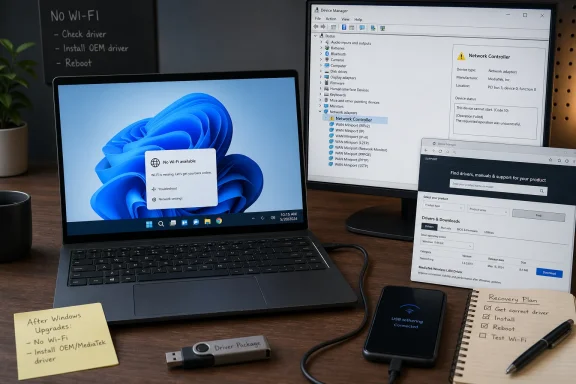
The failure mode is familiar enough to feel almost mundane: Windows 11 boots, the network flyout has no useful Wi-Fi control, Device Manager shows an unidentified or unhappy network device, and the user is left trying to download a network driver on a machine that cannot get online. Driver Easy’s guide correctly identifies the practical deadlock and suggests two workarounds: use another computer to download the driver to a USB stick, or use USB tethering from a phone to get temporary internet access.
That advice matters because Windows troubleshooting often assumes connectivity exists. “Search automatically for drivers” is a cruel joke when the wireless adapter is the device that needs rescuing. The first step in many successful fixes is not reinstalling Windows, resetting the router, or blaming the access point; it is getting the machine online long enough to obtain the correct package.
Microsoft’s own support guidance for Device Manager driver updates still points users toward Windows Update and the device manufacturer when Windows cannot find a suitable driver. That is sensible in the abstract, but it leaves a gap in the real world: a laptop vendor may have a known-good MediaTek package for a specific model, while Windows Update may offer a generic or older one that technically matches the hardware ID but behaves poorly on that machine.
MediaTek Wi-Fi adapters are not rare curiosities. Chips such as the MT7921, MT7922, MT7902, and newer Wi-Fi 6E or Wi-Fi 7 variants have appeared across consumer and gaming laptops from major OEMs. That ubiquity means a single flaky driver path can affect everyone from a student after a clean install to an IT admin imaging a fleet of inexpensive notebooks.
That is why a MediaTek driver that works acceptably on one laptop can misbehave on another. Wi-Fi is not just a chip on a spec sheet; it is a radio module integrated into a chassis with vendor-specific firmware assumptions. Windows sees a hardware ID. The OEM sees the complete platform.
For a clean Windows 11 install, that distinction becomes decisive. Microsoft’s inbox driver library and Windows Update can usually get mainstream hardware working, but “usually” is not a recovery plan. If Device Manager lists “Network Controller” rather than a named MediaTek adapter, Windows may not have matched the device at all. If it lists the adapter with a yellow warning icon, Windows has found something but not enough to make it work reliably.
The right manual workflow is tedious but defensible. Identify the exact laptop model, go to the vendor’s support page, choose the correct Windows version and architecture, download the wireless LAN package, and install it. If the installer extracts files instead of doing the installation, Device Manager’s “Browse my computer for drivers” path can point Windows at the extracted folder, with “Include subfolders” enabled.
This is not glamorous troubleshooting, but it is the kind that avoids turning a driver problem into a system problem. A clean install followed by random driver hunting across the web can quickly produce a cocktail of mismatched WLAN, Bluetooth, chipset, and power-management components. The OEM package is the boring road for a reason.
Driver Easy’s guide mentions copying the hardware ID and searching it online, which is useful but incomplete. The safer version is to use the hardware ID to confirm what the adapter is, then return to the OEM or Microsoft Update Catalog ecosystem rather than grabbing a random third-party download. A MediaTek MT7921 and a MediaTek MT7902 are not interchangeable just because both names begin with “MT79.”
This is also where IT pros can save time. In a small fleet, collecting hardware IDs before a Windows 11 deployment can prevent the awkward moment when freshly imaged laptops cannot join Wi-Fi. Driver packages can be staged offline, added to deployment shares, or installed with tools such as pnputil when necessary. The consumer version of this problem is annoying; the enterprise version is a ticket storm.
Windows has improved enormously at driver discovery, but it still cannot paper over every OEM integration choice. For Wi-Fi, Bluetooth, audio, touchpads, fingerprint readers, and platform power controls, the “close enough” driver is often only close enough to fail later.
There is a legitimate convenience argument here, especially for nontechnical users who cannot easily identify hardware or navigate OEM support sites. But WindowsForum readers should treat third-party driver utilities as a last resort rather than the first line of defense. Driver updates occupy a privileged layer of the operating system. Installing the wrong one can destabilize networking, sleep states, Bluetooth coexistence, or even system boot.
The problem is not that every driver updater is malicious or useless. The problem is that the user is outsourcing judgment at exactly the moment judgment matters most. A utility may find a newer driver, but “newer” is not the same as “validated for this laptop.” A package may be signed, but signing does not guarantee the best match for an OEM configuration.
The guide’s manual advice is therefore stronger than its commercial conclusion. If Wi-Fi is missing because Windows lacks a MediaTek driver, the fastest reliable answer is usually the laptop vendor’s support page. If that fails, Windows Update optional drivers, the Microsoft Update Catalog, or vendor support channels come next. A third-party updater may be convenient, but convenience is not the same thing as provenance.
Microsoft documentation explains that driver distribution through Windows Update is governed by targeting rules, optional updates, and hardware matching. In practice, that means a driver can appear automatically, appear only as an optional update, or fail to appear in Device Manager’s search flow. Device Manager may push users into Settings, Settings may show optional driver updates, and the OEM support site may list yet another version.
That fragmentation is not merely cosmetic. If a MediaTek adapter disappears after sleep, drops connections under load, or shows a warning icon after an upgrade, the “latest” driver according to Windows may not be the best driver for the machine. Conversely, an OEM support page may lag behind a critical fix that Microsoft has already distributed. Users are left triangulating between three authorities that all appear legitimate.
Recent reporting from Windows-focused outlets has also noted Microsoft’s broader effort to make driver updates more resilient, including rollback mechanisms for faulty drivers delivered through Windows Update. That is an implicit admission of the stakes. A bad display driver is visible; a bad storage, security, or networking driver can be existential for a system’s usability.
For MediaTek Wi-Fi users, this means Windows Update should be part of the repair path, not the whole repair path. Check it, including optional driver updates, but do not assume it has the final word. If the system vendor offers a WLAN package for the exact model, that package deserves priority.
The economics are straightforward. MediaTek Wi-Fi modules help OEMs hit aggressive price points, especially in mainstream and gaming laptops where vendors want to spend the bill of materials on CPU, GPU, display, or battery capacity. Most buyers never choose the wireless chipset directly. They buy “Wi-Fi 6” or “Wi-Fi 6E” as a line item and discover the silicon only when something breaks.
Intel Wi-Fi modules have historically enjoyed a stronger reputation among Windows enthusiasts, not because Intel is magic, but because the combination of driver maturity, platform integration, and long-standing OEM habits tends to produce fewer surprises. That does not mean every MediaTek adapter is bad or every Intel adapter is flawless. It means the margin for error is thinner when an adapter’s driver stack is less battle-tested across Windows updates, router combinations, and power-management states.
This is why the cheap advice “just replace the Wi-Fi card” appears so often in laptop forums. On machines with socketed M.2 Wi-Fi modules and no BIOS whitelist, swapping to an Intel module can be a practical fix. But that is not a universal solution. Some laptops use soldered modules, some have antenna or firmware constraints, and many users should not be asked to open the chassis to fix a software distribution failure.
The better answer is boring again: OEMs need to maintain current WLAN packages, Microsoft needs to target drivers conservatively, and chip vendors need to treat Windows power-state behavior as a first-class feature. A Wi-Fi adapter that works only until the first sleep cycle is not working.
The next layer is power management. Windows laptops aggressively manage radios to preserve battery life, and Wi-Fi adapters negotiate not only with the operating system but also with the router, Bluetooth coexistence, and platform firmware. A driver that mishandles sleep, Modern Standby, roaming, or Wi-Fi 6 features may look fine in Device Manager until the system enters a particular state.
A BIOS or firmware update can matter here. OEMs sometimes revise platform firmware to improve device initialization, PCIe power behavior, or sleep-resume reliability. Users often avoid BIOS updates because they sound risky, and that caution is not irrational. But when a wireless device disappears from Device Manager entirely, especially after sleep or reboot, the bug may live below the driver layer.
Windows network resets are another blunt but sometimes useful tool. Resetting network adapters, removing stale profiles, and reinstalling the device can clear configuration debris after an in-place upgrade. But these steps should not be confused with a driver fix. If the wrong package is installed, a reset merely gives the wrong package a clean room in which to misbehave.
Hardware failure remains the uncomfortable final possibility. A loose module, damaged antenna lead, failing card, or motherboard issue can mimic a driver problem. The way to avoid chasing ghosts is to proceed in order: confirm the hardware ID, install the correct OEM driver, apply relevant firmware updates, test with Windows Update alternatives, and only then suspect the radio hardware.
For enthusiasts and admins, the preventive move is simple: before reinstalling Windows, download the vendor’s network drivers. That means Wi-Fi, Bluetooth, and often chipset drivers too. Store them on the same USB drive as the Windows installer. If the system comes up offline, the fix is measured in minutes rather than forum searches.
This advice sounds old-fashioned because it is. It belongs to the era when every motherboard box contained a driver disc. But Windows 11 has not abolished the need for offline recovery; it has merely made it rare enough that users are surprised when they need it.
USB tethering is the modern escape hatch. Android phones usually expose tethering with minimal fuss, while iPhones can work with the right trust prompt and Windows support components. It is not elegant, and it may consume mobile data, but it can provide enough connectivity to fetch the OEM package and complete Windows Update.
The broader lesson is that driver resilience is not only a Microsoft engineering problem. It is also a user workflow problem. The system that cannot get online cannot easily fix the component that gets it online.
Start with Device Manager because it tells the most important truth: whether Windows sees the adapter, whether it has a driver, and whether the device is reporting an error. If the adapter is listed as “Network Controller,” assume the driver is missing. If it appears as a MediaTek wireless adapter with a warning icon, open its properties and check the device status code.
Then go to the laptop maker, not to a search-result lottery. Use the exact model number, not the marketing family. A “TUF A15,” “IdeaPad 5,” or “Victus 16” label may cover multiple internal configurations across regions and model years. The support page’s serial-number detection or exact machine type lookup is usually safer.
If the OEM package is a ZIP or self-extracting archive, Device Manager’s manual installation route is not a workaround; it is the intended Windows mechanism for matching INF files to hardware IDs. The fact that the process looks archaic does not make it inferior. It often gives Windows precisely what it failed to discover on its own.
If the OEM driver installs but the adapter remains unstable, then widen the investigation. Check BIOS updates, Windows Update optional drivers, router firmware, and known reports for that adapter model. But do not let “try everything” replace a sequence. Randomness is how driver fixes become superstition.
Each authority has a different incentive. Microsoft wants broad stability and automated distribution. OEMs want validated packages but may stop updating support pages aggressively after the sales window moves on. Chip vendors want their reference drivers deployed but may not account for every laptop design. Driver utilities want to reduce friction and sell convenience.
The user wants the Wi-Fi icon back.
That mismatch explains why simple articles about driver updates remain popular. They are not merely teaching people where to click; they are giving them a hierarchy of trust. The hierarchy should be clear: exact OEM support package first, Windows Update and optional drivers second, Microsoft Update Catalog or enterprise driver repositories where appropriate, third-party updater only when the user understands the tradeoff.
There is also a security angle. Driver packages run with high privilege, and malicious or repackaged drivers are not theoretical threats. Searching for “MediaTek WiFi driver download” can lead users into an ecosystem of SEO pages, mirrors, wrappers, and utilities. Some are legitimate. Some are not worth the risk. Microsoft’s own support language advises avoiding driver downloads from sites other than the manufacturer’s official source, and that remains the conservative rule.
Convenience has a cost. In driver land, that cost can be kernel-level.
That matters more now because Windows 11 is still pushing users through hardware transitions. Windows 10’s consumer support ended in October 2025, and many late adopters are either upgrading, replacing machines, or reinstalling Windows on supported hardware. The long tail of driver mismatches becomes more visible during these migration waves.
Network failures are especially corrosive because so much of Windows 11 assumes cloud attachment. Microsoft account setup, OneDrive restore, Store apps, activation, Windows Update, Defender signatures, and OEM utilities all expect connectivity. A missing Wi-Fi driver is not one broken feature; it is a blocked on-ramp to the rest of the system.
This is where OEMs should be judged harshly. If a laptop model shipped with a MediaTek adapter, the vendor should make the correct WLAN package easy to find, clearly versioned, and compatible with supported Windows releases. Hiding it behind vague model families or abandoned utilities is not good enough.
Microsoft also has work to do. Driver recovery and rollback are valuable, but the out-of-box and post-upgrade experience should make offline network-driver repair more obvious. A system that can identify an unknown network controller by hardware ID should be better at telling the user which vendor package likely matches it, even if it cannot fetch the package itself.
The MediaTek Wi-Fi driver headache is not just a support nuisance; it is a reminder that Windows reliability still depends on a supply chain of small, invisible components doing their jobs in the right order. Microsoft can make driver delivery smarter, OEMs can maintain cleaner packages, and chip vendors can harden their Windows stacks, but users and admins still need a recovery path when the radio disappears. The next wave of Windows 11 migrations will not be judged by how elegantly the Settings app describes connectivity; it will be judged by whether the machine can get online when the upgrade is done.
 The Missing Wi-Fi Icon Is a Driver Story, Not a Mystery
The failure mode is familiar enough to feel almost mundane: Windows 11 boots, the network flyout has no useful Wi-Fi control, Device Manager shows an unidentified or unhappy network device, and the user is left trying to download a network driver on a machine that cannot get online. Driver Easy’s guide correctly identifies the practical deadlock and suggests two workarounds: use another computer to download the driver to a USB stick, or use USB tethering from a phone to get temporary internet access.That advice matters because Windows troubleshooting often assumes connectivity exists. “Search automatically for drivers” is a cruel joke when the wireless adapter is the device that needs rescuing. The first step in many successful fixes is not reinstalling Windows, resetting the router, or blaming the access point; it is getting the machine online long enough to obtain the correct package.
Microsoft’s own support guidance for Device Manager driver updates still points users toward Windows Update and the device manufacturer when Windows cannot find a suitable driver. That is sensible in the abstract, but it leaves a gap in the real world: a laptop vendor may have a known-good MediaTek package for a specific model, while Windows Update may offer a generic or older one that technically matches the hardware ID but behaves poorly on that machine.
MediaTek Wi-Fi adapters are not rare curiosities. Chips such as the MT7921, MT7922, MT7902, and newer Wi-Fi 6E or Wi-Fi 7 variants have appeared across consumer and gaming laptops from major OEMs. That ubiquity means a single flaky driver path can affect everyone from a student after a clean install to an IT admin imaging a fleet of inexpensive notebooks.
OEM Drivers Are Boring Until They Save the Day
The most important sentence in Driver Easy’s guide is its recommendation to use the computer manufacturer’s official support site first. HP, Lenovo, ASUS, Acer, Dell, MSI, and other vendors do not merely repost chipmaker drivers at random. They validate driver versions against specific wireless modules, BIOS releases, antenna designs, power-management defaults, and platform firmware.That is why a MediaTek driver that works acceptably on one laptop can misbehave on another. Wi-Fi is not just a chip on a spec sheet; it is a radio module integrated into a chassis with vendor-specific firmware assumptions. Windows sees a hardware ID. The OEM sees the complete platform.
For a clean Windows 11 install, that distinction becomes decisive. Microsoft’s inbox driver library and Windows Update can usually get mainstream hardware working, but “usually” is not a recovery plan. If Device Manager lists “Network Controller” rather than a named MediaTek adapter, Windows may not have matched the device at all. If it lists the adapter with a yellow warning icon, Windows has found something but not enough to make it work reliably.
The right manual workflow is tedious but defensible. Identify the exact laptop model, go to the vendor’s support page, choose the correct Windows version and architecture, download the wireless LAN package, and install it. If the installer extracts files instead of doing the installation, Device Manager’s “Browse my computer for drivers” path can point Windows at the extracted folder, with “Include subfolders” enabled.
This is not glamorous troubleshooting, but it is the kind that avoids turning a driver problem into a system problem. A clean install followed by random driver hunting across the web can quickly produce a cocktail of mismatched WLAN, Bluetooth, chipset, and power-management components. The OEM package is the boring road for a reason.
The Hardware ID Is the User’s Leverage
When Windows identifies a device poorly, the most reliable clue is usually in Device Manager’s Details tab. The Hardware IDs property exposes vendor and device identifiers that can distinguish one MediaTek module from another. That is the difference between installing a driver for the adapter actually in the laptop and installing a package that merely sounds similar.Driver Easy’s guide mentions copying the hardware ID and searching it online, which is useful but incomplete. The safer version is to use the hardware ID to confirm what the adapter is, then return to the OEM or Microsoft Update Catalog ecosystem rather than grabbing a random third-party download. A MediaTek MT7921 and a MediaTek MT7902 are not interchangeable just because both names begin with “MT79.”
This is also where IT pros can save time. In a small fleet, collecting hardware IDs before a Windows 11 deployment can prevent the awkward moment when freshly imaged laptops cannot join Wi-Fi. Driver packages can be staged offline, added to deployment shares, or installed with tools such as pnputil when necessary. The consumer version of this problem is annoying; the enterprise version is a ticket storm.
Windows has improved enormously at driver discovery, but it still cannot paper over every OEM integration choice. For Wi-Fi, Bluetooth, audio, touchpads, fingerprint readers, and platform power controls, the “close enough” driver is often only close enough to fail later.
The Driver-Updater Pitch Deserves More Skepticism Than the Fix
Driver Easy’s article naturally promotes Driver Easy as the simple automatic route. That is not surprising; the company is selling a driver-update product. The pitch is familiar: scan the system, detect missing or outdated drivers, click to update, and avoid the risk of choosing the wrong package manually.There is a legitimate convenience argument here, especially for nontechnical users who cannot easily identify hardware or navigate OEM support sites. But WindowsForum readers should treat third-party driver utilities as a last resort rather than the first line of defense. Driver updates occupy a privileged layer of the operating system. Installing the wrong one can destabilize networking, sleep states, Bluetooth coexistence, or even system boot.
The problem is not that every driver updater is malicious or useless. The problem is that the user is outsourcing judgment at exactly the moment judgment matters most. A utility may find a newer driver, but “newer” is not the same as “validated for this laptop.” A package may be signed, but signing does not guarantee the best match for an OEM configuration.
The guide’s manual advice is therefore stronger than its commercial conclusion. If Wi-Fi is missing because Windows lacks a MediaTek driver, the fastest reliable answer is usually the laptop vendor’s support page. If that fails, Windows Update optional drivers, the Microsoft Update Catalog, or vendor support channels come next. A third-party updater may be convenient, but convenience is not the same thing as provenance.
Windows Update Is Both the Cure and the Suspect
Microsoft has spent years turning Windows Update into the default driver-distribution channel for ordinary users. That has made fresh installs easier and reduced the old ritual of driver CDs, chipset packages, and vendor utilities. It has also created a new kind of ambiguity: when a driver breaks, users do not always know whether the problem came from Microsoft, the OEM, the chip vendor, or the update process that selected the package.Microsoft documentation explains that driver distribution through Windows Update is governed by targeting rules, optional updates, and hardware matching. In practice, that means a driver can appear automatically, appear only as an optional update, or fail to appear in Device Manager’s search flow. Device Manager may push users into Settings, Settings may show optional driver updates, and the OEM support site may list yet another version.
That fragmentation is not merely cosmetic. If a MediaTek adapter disappears after sleep, drops connections under load, or shows a warning icon after an upgrade, the “latest” driver according to Windows may not be the best driver for the machine. Conversely, an OEM support page may lag behind a critical fix that Microsoft has already distributed. Users are left triangulating between three authorities that all appear legitimate.
Recent reporting from Windows-focused outlets has also noted Microsoft’s broader effort to make driver updates more resilient, including rollback mechanisms for faulty drivers delivered through Windows Update. That is an implicit admission of the stakes. A bad display driver is visible; a bad storage, security, or networking driver can be existential for a system’s usability.
For MediaTek Wi-Fi users, this means Windows Update should be part of the repair path, not the whole repair path. Check it, including optional driver updates, but do not assume it has the final word. If the system vendor offers a WLAN package for the exact model, that package deserves priority.
The MediaTek Complaints Are Really About Laptop Economics
MediaTek’s Windows Wi-Fi reputation has suffered in enthusiast communities because failures are noisy and fixes are uneven. Microsoft Community threads, OEM forums, and Reddit posts have long described MT7921-era symptoms such as random disconnects, adapters vanishing from Device Manager, Wi-Fi disappearing after sleep, and warning icons that clear only after rebooting. Some of those reports are undoubtedly ordinary support noise; every popular component generates complaints. The pattern is still too common to ignore.The economics are straightforward. MediaTek Wi-Fi modules help OEMs hit aggressive price points, especially in mainstream and gaming laptops where vendors want to spend the bill of materials on CPU, GPU, display, or battery capacity. Most buyers never choose the wireless chipset directly. They buy “Wi-Fi 6” or “Wi-Fi 6E” as a line item and discover the silicon only when something breaks.
Intel Wi-Fi modules have historically enjoyed a stronger reputation among Windows enthusiasts, not because Intel is magic, but because the combination of driver maturity, platform integration, and long-standing OEM habits tends to produce fewer surprises. That does not mean every MediaTek adapter is bad or every Intel adapter is flawless. It means the margin for error is thinner when an adapter’s driver stack is less battle-tested across Windows updates, router combinations, and power-management states.
This is why the cheap advice “just replace the Wi-Fi card” appears so often in laptop forums. On machines with socketed M.2 Wi-Fi modules and no BIOS whitelist, swapping to an Intel module can be a practical fix. But that is not a universal solution. Some laptops use soldered modules, some have antenna or firmware constraints, and many users should not be asked to open the chassis to fix a software distribution failure.
The better answer is boring again: OEMs need to maintain current WLAN packages, Microsoft needs to target drivers conservatively, and chip vendors need to treat Windows power-state behavior as a first-class feature. A Wi-Fi adapter that works only until the first sleep cycle is not working.
When “Update the Driver” Is Not Enough
Driver Easy’s guide ends by noting that if the adapter still cannot be detected after a driver update, the problem may involve BIOS, Windows installation, or hardware. That caveat is important because MediaTek Wi-Fi failures do not always present as a missing package. Sometimes the installed driver is present, the device is named correctly, and the connection still collapses.The next layer is power management. Windows laptops aggressively manage radios to preserve battery life, and Wi-Fi adapters negotiate not only with the operating system but also with the router, Bluetooth coexistence, and platform firmware. A driver that mishandles sleep, Modern Standby, roaming, or Wi-Fi 6 features may look fine in Device Manager until the system enters a particular state.
A BIOS or firmware update can matter here. OEMs sometimes revise platform firmware to improve device initialization, PCIe power behavior, or sleep-resume reliability. Users often avoid BIOS updates because they sound risky, and that caution is not irrational. But when a wireless device disappears from Device Manager entirely, especially after sleep or reboot, the bug may live below the driver layer.
Windows network resets are another blunt but sometimes useful tool. Resetting network adapters, removing stale profiles, and reinstalling the device can clear configuration debris after an in-place upgrade. But these steps should not be confused with a driver fix. If the wrong package is installed, a reset merely gives the wrong package a clean room in which to misbehave.
Hardware failure remains the uncomfortable final possibility. A loose module, damaged antenna lead, failing card, or motherboard issue can mimic a driver problem. The way to avoid chasing ghosts is to proceed in order: confirm the hardware ID, install the correct OEM driver, apply relevant firmware updates, test with Windows Update alternatives, and only then suspect the radio hardware.
Offline Driver Recovery Should Be a Windows Habit
The practical weakness in the standard Windows recovery story is that networking is treated as an assumption. Microsoft has made progress with out-of-box experience flows, phone tethering, and broad inbox driver coverage, but a missing Wi-Fi driver still turns a modern laptop into an offline puzzle. Users who have lived through it learn to keep a USB Ethernet adapter or driver archive nearby.For enthusiasts and admins, the preventive move is simple: before reinstalling Windows, download the vendor’s network drivers. That means Wi-Fi, Bluetooth, and often chipset drivers too. Store them on the same USB drive as the Windows installer. If the system comes up offline, the fix is measured in minutes rather than forum searches.
This advice sounds old-fashioned because it is. It belongs to the era when every motherboard box contained a driver disc. But Windows 11 has not abolished the need for offline recovery; it has merely made it rare enough that users are surprised when they need it.
USB tethering is the modern escape hatch. Android phones usually expose tethering with minimal fuss, while iPhones can work with the right trust prompt and Windows support components. It is not elegant, and it may consume mobile data, but it can provide enough connectivity to fetch the OEM package and complete Windows Update.
The broader lesson is that driver resilience is not only a Microsoft engineering problem. It is also a user workflow problem. The system that cannot get online cannot easily fix the component that gets it online.
The Cleanest Fix Is Still the Least Exciting One
There is a temptation in driver troubleshooting to jump straight to exotic fixes: registry edits, unofficial packages, router mode changes, WLAN service resets, or replacing the card. Some of those may help in specific cases. Most users should not begin there.Start with Device Manager because it tells the most important truth: whether Windows sees the adapter, whether it has a driver, and whether the device is reporting an error. If the adapter is listed as “Network Controller,” assume the driver is missing. If it appears as a MediaTek wireless adapter with a warning icon, open its properties and check the device status code.
Then go to the laptop maker, not to a search-result lottery. Use the exact model number, not the marketing family. A “TUF A15,” “IdeaPad 5,” or “Victus 16” label may cover multiple internal configurations across regions and model years. The support page’s serial-number detection or exact machine type lookup is usually safer.
If the OEM package is a ZIP or self-extracting archive, Device Manager’s manual installation route is not a workaround; it is the intended Windows mechanism for matching INF files to hardware IDs. The fact that the process looks archaic does not make it inferior. It often gives Windows precisely what it failed to discover on its own.
If the OEM driver installs but the adapter remains unstable, then widen the investigation. Check BIOS updates, Windows Update optional drivers, router firmware, and known reports for that adapter model. But do not let “try everything” replace a sequence. Randomness is how driver fixes become superstition.
The Real Risk Is Trusting the Wrong Authority
The MediaTek Wi-Fi driver problem exposes a subtle trust issue in Windows maintenance. Users are told to trust Windows Update because it is Microsoft. They are told to trust the OEM because it built the laptop. They are told to trust the chip vendor because it made the adapter. Then driver utilities enter the picture and promise to decide among them.Each authority has a different incentive. Microsoft wants broad stability and automated distribution. OEMs want validated packages but may stop updating support pages aggressively after the sales window moves on. Chip vendors want their reference drivers deployed but may not account for every laptop design. Driver utilities want to reduce friction and sell convenience.
The user wants the Wi-Fi icon back.
That mismatch explains why simple articles about driver updates remain popular. They are not merely teaching people where to click; they are giving them a hierarchy of trust. The hierarchy should be clear: exact OEM support package first, Windows Update and optional drivers second, Microsoft Update Catalog or enterprise driver repositories where appropriate, third-party updater only when the user understands the tradeoff.
There is also a security angle. Driver packages run with high privilege, and malicious or repackaged drivers are not theoretical threats. Searching for “MediaTek WiFi driver download” can lead users into an ecosystem of SEO pages, mirrors, wrappers, and utilities. Some are legitimate. Some are not worth the risk. Microsoft’s own support language advises avoiding driver downloads from sites other than the manufacturer’s official source, and that remains the conservative rule.
Convenience has a cost. In driver land, that cost can be kernel-level.
A Small Wi-Fi Bug Becomes a Big Windows 11 Experience
For Microsoft, the optics are bad whenever a Windows 11 update or install leaves users without Wi-Fi. It does not matter whether the root cause is an OEM package gap, a MediaTek driver bug, or a Windows Update targeting edge case. The user experiences it as Windows failing at the first-run basics.That matters more now because Windows 11 is still pushing users through hardware transitions. Windows 10’s consumer support ended in October 2025, and many late adopters are either upgrading, replacing machines, or reinstalling Windows on supported hardware. The long tail of driver mismatches becomes more visible during these migration waves.
Network failures are especially corrosive because so much of Windows 11 assumes cloud attachment. Microsoft account setup, OneDrive restore, Store apps, activation, Windows Update, Defender signatures, and OEM utilities all expect connectivity. A missing Wi-Fi driver is not one broken feature; it is a blocked on-ramp to the rest of the system.
This is where OEMs should be judged harshly. If a laptop model shipped with a MediaTek adapter, the vendor should make the correct WLAN package easy to find, clearly versioned, and compatible with supported Windows releases. Hiding it behind vague model families or abandoned utilities is not good enough.
Microsoft also has work to do. Driver recovery and rollback are valuable, but the out-of-box and post-upgrade experience should make offline network-driver repair more obvious. A system that can identify an unknown network controller by hardware ID should be better at telling the user which vendor package likely matches it, even if it cannot fetch the package itself.
The MediaTek Fix That Actually Matters
The most concrete lesson from Driver Easy’s guide is that MediaTek Wi-Fi failures are usually solvable without reinstalling Windows. The least useful interpretation is that everyone should install a driver-updater utility and click whatever it recommends. The durable repair is more disciplined.- A missing Wi-Fi icon after a Windows 11 install or update should send users to Device Manager first, because the adapter’s name, warning icon, and hardware ID narrow the problem quickly.
- The safest driver source is usually the laptop manufacturer’s support page for the exact model or serial number, not a generic search result for a MediaTek chip name.
- USB tethering or another computer plus a flash drive can break the no-internet/no-driver loop without requiring a full Windows reinstall.
- If an installer only extracts files, Device Manager can install the driver manually by browsing to the extracted folder and including subfolders.
- Persistent disconnects after the correct driver is installed may point to BIOS, power management, router compatibility, Windows Update driver replacement, or hardware failure.
- Third-party driver utilities can be convenient, but they should not outrank OEM packages and Windows’ own signed driver channels when system stability is the goal.
The MediaTek Wi-Fi driver headache is not just a support nuisance; it is a reminder that Windows reliability still depends on a supply chain of small, invisible components doing their jobs in the right order. Microsoft can make driver delivery smarter, OEMs can maintain cleaner packages, and chip vendors can harden their Windows stacks, but users and admins still need a recovery path when the radio disappears. The next wave of Windows 11 migrations will not be judged by how elegantly the Settings app describes connectivity; it will be judged by whether the machine can get online when the upgrade is done.
References
- Primary source: Driver Easy
Published: 2026-07-06T06:10:12.962836
Loading…
www.drivereasy.com - Official source: support.microsoft.com
Update drivers through Device Manager in Windows - Microsoft Support
Learn how to update or reinstall drivers in Windows using Device Manager.support.microsoft.com - Official source: learn.microsoft.com
Loading…
learn.microsoft.com - Related coverage: techyorker.com
Loading…
techyorker.com - Related coverage: pcnmobile.com
Loading…
pcnmobile.com - Related coverage: dell.com
Loading…
www.dell.com
- Official source: answers.microsoft.com
Loading…
answers.microsoft.com - Related coverage: driverfinderpro.com
Loading…
driverfinderpro.com - Related coverage: umatechnology.org
Loading…
umatechnology.org - Related coverage: en.ittrip.xyz
Loading…
en.ittrip.xyz - Related coverage: allthings.how
Loading…
allthings.how - Related coverage: tomshardware.com
Microsoft launches Cloud‑Initiated Driver Recovery for remote rollback of faulty updates — no user action or OEM intervention will be needed to handle broken drivers delivered via Windows Update | Tom's Hardware
CIDR is rolling out now for validation and testing.www.tomshardware.com - Related coverage: windowscentral.com
Microsoft will soon let you pause Windows 11 updates indefinitely and automatically roll back faulty drivers — solving half of my problems with the OS | Windows Central
Windows Update’s new rollback feature rescues systems from crashes and instability.www.windowscentral.com - Related coverage: techradar.com
Don't worry, Microsoft says – Windows 11 will sort those weird duplicate drivers in your update queue | TechRadar
Microsoft assures us Windows 11 knows what it's doing with driverswww.techradar.com