

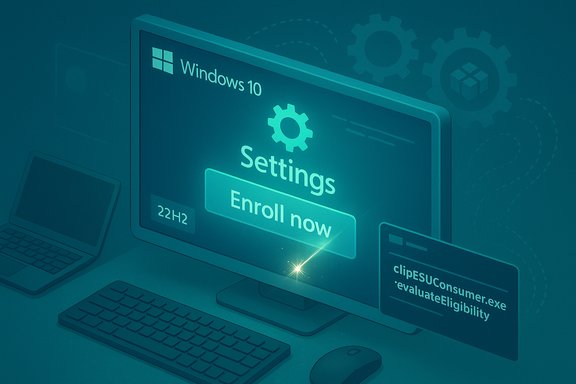
If you expected to see a neat “Enroll now” link under Settings → Update & Security → Windows Update and it’s not there, you’re not alone — a mix of staged rollouts, missing prerequisite updates, account restrictions, and a handful of brittle UI bugs have left many eligible Windows 10 PCs without the in‑OS ESU enrollment prompt. This deep‑dive explains exactly why the option can vanish, verifies the technical prerequisites and known fixes, and walks through safe, repeatable steps (with caveats) to force Windows to re‑evaluate ESU eligibility so the enrollment UI appears when your device truly qualifies.
Microsoft shipped a consumer Extended Security Updates (ESU) enrollment experience inside Windows 10 so eligible home PCs can keep receiving security‑only fixes beyond the October end‑of‑support date. That in‑OS flow was released in stages and depended on specific cumulative updates and servicing stack fixes to function reliably. Early in the rollout some users saw the enrollment wizard either not appear or open and immediately close; Microsoft addressed those problems in an August 2025 cumulative that is required on most systems to make the UI reliable. In short, the common reasons the “Enroll now” control is missing are:
Source: Appuals How to Fix Missing “Enroll Now” Option in Windows 10 (ESU)
 Background / Overview
Microsoft shipped a consumer Extended Security Updates (ESU) enrollment experience inside Windows 10 so eligible home PCs can keep receiving security‑only fixes beyond the October end‑of‑support date. That in‑OS flow was released in stages and depended on specific cumulative updates and servicing stack fixes to function reliably. Early in the rollout some users saw the enrollment wizard either not appear or open and immediately close; Microsoft addressed those problems in an August 2025 cumulative that is required on most systems to make the UI reliable. In short, the common reasons the “Enroll now” control is missing are:- The PC is not on Windows 10, version 22H2 (consumer ESU enrollment is restricted to 22H2).
- Required cumulative and servicing‑stack updates (notably the August 2025 patch KB5063709) are not installed.
- The user is signed in with a local or non‑administrative account instead of a Microsoft Account (MSA). The free cloud-backed enrollment requires an MSA.
- The device is domain‑joined, MDM‑managed, in kiosk mode, or otherwise enterprise‑controlled; consumer ESU enrollment is intentionally limited to unmanaged consumer PCs.
- Microsoft’s rollout is phased; even eligible devices may not see the button immediately.
What Microsoft and the community confirmed (short, authoritative checklist)
The most important prerequisites and facts are consistent across Microsoft documentation and independent reporting:- Windows 10 must be at version 22H2 (consumer SKUs such as Home, Pro, Pro Education, Workstation). Devices on earlier features will not be offered the consumer ESU enrollment.
- The August 2025 cumulative update KB5063709 (and matching servicing stack updates) was released to fix enrollment wizard crashes and ensure the “Enroll now” option surfaces. If KB5063709 (or later LCUs/SSUs) is missing, the UI may not appear or may fail.
- Enrollment requires signing into the device with a Microsoft Account (MSA) that has administrator privileges; local accounts are not eligible for the free cloud backup or Rewards routes.
- Consumer ESU enrollment is phased — Microsoft is enabling the feature in waves; patience plus the right updates is often the only remedy if prerequisites are already met.
Common causes explained in plain terms
1. Missing cumulative or servicing stack updates
Windows ties the ESU enrollment UI to feature‑management and servicing logic that was updated in mid‑2025. If the system lacks those fixes, the Settings UI will not advertise enrollment. Installing the August 2025 LCU and SSU pair (KB5063709 and its servicing stack) is the first and most critical step. Multiple community posts and Microsoft Q&A threads show reinstalling or manually applying the update fixed many cases.2. Local accounts or non‑admin sessions
The consumer ESU free option attaches an entitlement to a Microsoft Account. If you’re on a local account, or the account in use is not an administrator, the UI either won’t show or will prompt you to sign in. Signing in with an MSA that has admin rights clears that gate.3. Device configuration excluded by policy
Domain‑joined or enterprise‑managed devices must use volume licensing ESU — those machines are intentionally excluded from the consumer wizard. Entra‑registered (but not joined) personal devices may still qualify, but true domain‑joined or fully managed devices won’t see the “Enroll now” link.4. Rollout timing and early wizard bugs
Microsoft rolled the UI out gradually and fixed early crash bugs in KB5063709. That means even up‑to‑date machines sometimes needed additional time or the KB to be applied before the enrollment experience became visible. News outlets and Windows community threads reported identical experiences across thousands of machines.Safe step‑by‑step: how to make the “Enroll now” option appear (verified, reversible)
Below is a conservative, community‑and‑Microsoft‑aligned procedure to force Windows to recheck eligibility and surface the ESU enrollment UI. These steps require administrative access, and some involve editing the registry — they are widely used by administrators and experienced end users but must be performed carefully. Back up important data before proceeding.Preparation checklist (do these first)
- Confirm you are on Windows 10, version 22H2: Settings → System → About.
- Install ALL pending Windows updates. Ensure KB5063709 (or a later cumulative that supersedes it) and the servicing stack update are applied. Reboot if updates were installed.
- Ensure you are signed into Windows with a Microsoft Account (MSA) that has administrator privileges. If you use a local account, add or temporarily sign in with an MSA.
- Confirm the device is not domain‑joined or managed by enterprise MDM. If it is, follow enterprise ESU channels instead.
The recommended sequence (copy/paste from an elevated Command Prompt)
- Open Command Prompt as Administrator.
- Enable and start the Connected User Experiences and Telemetry service (required for feature management signals):
- sc.exe config DiagTrack start=auto
- sc.exe start DiagTrack
(If the service is already running, the command will report that. - Add a Feature Management override to hint Windows to show the ESU UI (this is a local feature‑flag override; it is reversible):
- reg.exe add "HKLM\SYSTEM\CurrentControlSet\Policies\Microsoft\FeatureManagement\Overrides" /v 4011992206 /t REG_DWORD /d 2 /f
This specific numeric value (4011992206) is the documented override used in community guidance and Microsoft Q&A threads to trigger the local enrollment check. - Reboot the PC. This lets the service and registry override take effect.
- After the reboot, run the consumer eligibility tool to force Windows to re‑evaluate eligibility:
- cmd /c ClipESUConsumer.exe -evaluateEligibility
This built‑in tool runs the local eligibility checks and is the supported utility to request a reevaluation. - Reboot once more and then open Settings → Update & Security → Windows Update. The Enroll now or Enroll in Extended Security Updates banner should appear if eligibility checks passed.
- If you want to undo the override later:
- reg delete "HKLM\SYSTEM\CurrentControlSet\Policies\Microsoft\FeatureManagement\Overrides" /v 4011992206 /f
Removing the value returns the runner to the default feature‑management behavior.
Why these steps work (technical overview)
- Enabling the DiagTrack (Connected User Experiences and Telemetry) service allows Windows to communicate minimal telemetry and feature‑flags necessary for feature‑management checks; if it’s disabled, feature gating can block UI surface changes.
- The registry override flips a local feature flag that tells Windows to treat the ESU UI as enabled for the device; this does not itself provision a license but forces the local enrollment UI to run its eligibility logic.
- ClipESUConsumer.exe is the in‑OS tool designed to run that eligibility evaluation and can be invoked directly to speed the check cycle.
Additional troubleshooting when the wizard appears but fails or closes
If clicking the Enroll now banner opens a wizard that immediately closes or fails during sign‑in, the community and Microsoft recommend these follow‑ups:- Confirm Store, WebAuth and AAD broker components are not corrupted: reset the Microsoft Store (wsreset.exe) and re‑register AAD/Store packages using PowerShell Add‑AppxPackage commands where appropriate. Reinstall or repair the WebView2 runtime if in‑app sign‑ins fail.
- Add the MSA explicitly under Settings → Accounts → Email & accounts → Add an account (choose Microsoft account) even if you’re already signed in; this can help the enrollment dialog acquire the right token.
- Clear web sign‑in credentials in Credential Manager for live/microsoftaccount entries and reattempt.
- If all else fails, enroll a second eligible PC using the same MSA: the ESU entitlement ties to the Microsoft Account and can sometimes propagate to other devices associated with that account.
Enrollment options, licensing notes, and regional caveats
When the enrollment UI appears you’ll be offered one of three consumer enrollment methods:- Free (Windows Backup): Enable Windows Backup / “Sync your settings” to OneDrive to receive ESU for no cash outlay. This route ties the entitlement to your Microsoft Account and uses OneDrive as the binding mechanism. Be aware the free OneDrive tier is only 5 GB; if your backup payload is larger you may need to free space or pay for OneDrive storage to complete the step.
- Microsoft Rewards: Redeem 1,000 Microsoft Rewards points to claim ESU for the Microsoft Account (if you have the points).
- Paid: A one‑time purchase (roughly $30 USD, regional price/tax may vary) that attaches an ESU license to your MSA; the consumer license can be reused on multiple eligible devices tied to that account (community reporting and Microsoft guidance indicate reuse for up to 10 devices in many cases).
Safety, privacy, and migration considerations (what you should know before enrolling)
- ESU is a one‑year bridge for consumers — not a permanent support plan. The consumer ESU window provides security‑only fixes through a defined date; use the time to plan to migrate to Windows 11, new hardware, or an alternate OS. Treat ESU as tactical, not strategic.
- The free option increases cloud coupling. If you care about local‑only setups or privacy, the OneDrive backup requirement (outside some EEA paths) may be a trade‑off. Consider the paid or Rewards path if you prefer not to use the cloud route.
- Back up your data before making changes or attempting repair workflows. Even though enrollment is low‑risk, the troubleshooting steps suggested here involve drivers, service toggles, and registry edits — always back up important files and create recovery media first.
When this article’s guidance may not help (and what to do next)
- If your machine is domain‑joined or MDM‑managed, the consumer enrollment tools will not work — you must coordinate with your IT or use volume licensing ESU channels.
- If you cannot install KB5063709 (or later LCUs/SSUs) because an update fails or breaks a critical app/hardware, evaluate alternatives: repair install (in‑place upgrade), temporary rollback, or vendor driver updates. Community threads show in‑place repair fixed stubborn enrollment problems in some cases, but that is an advanced step and should be undertaken only after full backups.
- If ClipESUConsumer.exe produces no output or the eligibility evaluation fails despite all prerequisites, gather logs and open a Microsoft Q&A thread or contact Microsoft Support — there are device‑specific conditions (region, account flags, child account status) that can require vendor or Microsoft-side fixes.
Quick recovery checklist (copyable, sequential)
- Confirm Windows 10 version 22H2.
- Install all pending updates and confirm KB5063709 (or later) is present; reboot.
- Sign into Windows with a Microsoft Account that is an administrator.
- Try Settings → Update & Security → Windows Update and look for Enroll now. Wait if you still don’t see it; rollout is staged.
- If absent and prerequisites are satisfied, run the safe re‑evaluate sequence (enable DiagTrack, add registry override 4011992206 = 2, reboot, run ClipESUConsumer.exe -evaluateEligibility, reboot).
- If the wizard opens but crashes, fix Store/Sign‑in components (wsreset, re-register AAD/Store packages, repair WebView2), then retry.
Risks and limitations of the forced‑check approach
- Editing registry values and enabling telemetry services is reversible but should not be done lightly on managed or high‑security PCs; consult your organization’s policies before toggling telemetry. The registry override described here is a local feature flag and does not provision any license by itself, but it does enable UI flows that rely on Microsoft‑hosted services.
- The “force” sequence is intended for consumer, unmanaged PCs. If a device is managed by IT tools or policies, those policies may re‑apply and revert local overrides. Do not use these commands on corporate machines without IT approval.
- There’s always a small risk that a given cumulative update interacts poorly with specific hardware/third‑party system software. If installing KBs produces unexpected issues, stop and consult vendor guidance before continuing.
Final checklist and practical advice
- Check and install KB5063709 or later; reboot.
- Sign in with an administrator Microsoft Account; convert local account if needed.
- Verify the device is not domain‑joined or MDM managed.
- If necessary, run the documented re‑evaluation steps (DiagTrack, registry override, ClipESUConsumer.exe). These are widely used, reversible, and documented in both Microsoft Q&A and community troubleshooting threads.
- Back up before making changes, and treat ESU as a temporary protection while you plan a permanent migration to a supported OS or replacement hardware.
Conclusion
The missing “Enroll now” option is rarely a mysterious bug — in most cases it’s the result of one or more of four things: missing required updates (notably KB5063709), not being on Windows 10 22H2, using a local/non‑admin account, or being on a managed device. Microsoft’s staged rollout and an early enrollment‑wizard bug compounded the confusion, but the fix path is clear: install the required cumulative and servicing updates, sign in with an administrator Microsoft Account, and if necessary, run the documented, reversible sequence to force Windows to re‑evaluate ESU eligibility (enable DiagTrack, add the feature override, and run ClipESUConsumer.exe -evaluateEligibility). Community reporting and Microsoft Q&A threads corroborate these steps and the KB patch that resolved the majority of enrollment problems. Use the time ESU buys you to plan a definitive migration: ESU is a one‑year bridge for consumers, not a permanent substitute for upgrading to a supported OS or replacing aging hardware. Follow the safe steps above, back up first, and treat any registry or service changes as temporary and reversible.Source: Appuals How to Fix Missing “Enroll Now” Option in Windows 10 (ESU)
