

If PlayStation Network is not working on a PS5, PS4, PS Portal, or PS Remote Play device, start by separating a PlayStation service outage from a console, account, or home-network problem. This guide covers sign-in failures, PlayStation Store loading problems, online-game disconnects, locked digital games, and Remote Play connection failures for standard adult and child PlayStation accounts.
A PSN service disruption can prevent sign-in, Store access, multiplayer, account management, or downloads even when every other device on your home network works normally.
For two-step verification problems, use a saved backup code if one is available. For passkey problems, select Can’t Sign In with Passkey on the sign-in page and use email or QR-code sign-in. If passkeys repeatedly fail on a particular device, sign in to Account Management, open Security, disable Sign in with Passkey, and create a password.
PS3 and PS Vita use a separate Device Setup Password generated through Account Management. Your normal account password may not work on those older systems.
If you see WS-37368-7 or WS-116367-4, the account may be suspended because a PlayStation Store charge was reversed by the payment provider. That is an account-debt issue, not a network fault; use PlayStation’s account-debt recovery process rather than changing router settings.
If the game belongs to another account on the same console, check sharing activation:
Do not select a reinstall or reset option unless you have backed up data and specifically need it. Reinstalling system software erases console data.
For the PS Remote Play app on Windows, Mac, or mobile, sign out and back in, then reinstall the app if it still cannot connect. If a firewall or security suite is installed on the PC or Mac, temporarily test whether it is blocking PS Remote Play; then create a proper application exception rather than leaving the firewall disabled.
If Remote Play still fails after a successful local-home test, the likely cause is router NAT, ISP restrictions, mobile-carrier limits, or the remote network—not the PlayStation account.
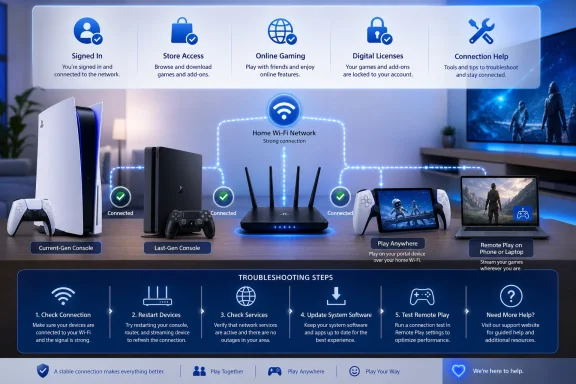 1. Check PlayStation service status before changing anything
A PSN service disruption can prevent sign-in, Store access, multiplayer, account management, or downloads even when every other device on your home network works normally.- Open the official PlayStation Status page from a phone, computer, or another connected device.
- Check the category that matches the failure:
- Account management
- Gaming and social
- PlayStation Store
- PlayStation Video
- If the status page lists maintenance or an incident, do not reset the console or alter router settings. Wait for the affected service to return, then try again.
2. Test the console’s internet connection
A Wi-Fi icon alone does not prove that the console can reach PlayStation Network. Run the built-in test and note where it fails.PS5
- Go to Settings > Network > Connection Status > Test Internet Connection.
- Wait for the test to finish.
- Check whether the console obtains an IP address, connects to the internet, and signs in to PlayStation Network.
PS4
- Go to Settings > Network > Test Internet Connection.
- Wait for the results.
- Check the IP address, internet connection, and PlayStation Network sign-in results.
3. Fully restart the console and network equipment
Restarting clears a stuck console network session and lets the router obtain a fresh connection from the internet provider.- Turn off the PS5 or PS4 completely. Do not leave it in Rest Mode.
- Turn off or unplug the router and, if separate, the modem.
- Wait at least five minutes.
- Turn on the modem first, if you have one, and wait until it reconnects.
- Turn on the router and wait for it to finish starting.
- Start the PlayStation console.
- Run Test Internet Connection again and try the affected PSN feature.
4. Reconnect the console to Wi-Fi or test with Ethernet
Use a wired connection as a diagnostic test whenever possible. It avoids Wi-Fi interference, weak signal, and band-steering issues.Reconnect Wi-Fi on PS5
- Go to Settings > Network > Settings > Set Up Internet Connection.
- Select your Wi-Fi network.
- Select Connect and enter the network password if prompted.
- If the network is not listed, select Set Up Manually.
Reconnect Wi-Fi on PS4
- Go to Settings > Network > Set Up Internet Connection.
- Select Use Wi-Fi > Easy.
- Choose the Wi-Fi network and enter its password.
- If it is not shown, use the manual setup option.
Test a wired connection
- Connect an Ethernet cable from the console to a LAN port on the router.
- On PS5, go to Settings > Network > Settings > Set Up Internet Connection > Set Up Wired LAN > Connect.
- On PS4, go to Settings > Network > Set Up Internet Connection > Use a LAN Cable > Easy.
- Run the internet connection test.
5. Refresh the PlayStation account session
Use this when the console has internet access but sign-in, Store access, or multiplayer still fails.PS5
- Go to Settings > Users and Accounts > Other > Sign Out.
- Restart the console.
- Go to Settings > Users and Accounts > Account > Sign In.
- Sign in with the correct PlayStation account.
PS4
- Go to Settings > Account Management > Sign Out.
- Restart the console.
- Return to Settings > Account Management > Sign In.
- Sign in again.
For two-step verification problems, use a saved backup code if one is available. For passkey problems, select Can’t Sign In with Passkey on the sign-in page and use email or QR-code sign-in. If passkeys repeatedly fail on a particular device, sign in to Account Management, open Security, disable Sign in with Passkey, and create a password.
PS3 and PS Vita use a separate Device Setup Password generated through Account Management. Your normal account password may not work on those older systems.
If you see WS-37368-7 or WS-116367-4, the account may be suspended because a PlayStation Store charge was reversed by the payment provider. That is an account-debt issue, not a network fault; use PlayStation’s account-debt recovery process rather than changing router settings.
6. Restore licenses when games or add-ons are locked
A padlock icon, inaccessible purchase, missing DLC, or a game that launches only on one account is usually a license or console-sharing issue.PS5
- Go to Settings > Users and Accounts > Other > Restore Licenses.
- Select Restore.
- Wait for the confirmation, then restart the affected game.
PS4
- Go to Settings > Account Management > Restore Licenses.
- Select Restore.
- Try the game again.
If the game belongs to another account on the same console, check sharing activation:
- On PS5, enable Settings > Users and Accounts > Other > Console Sharing and Offline Play for the purchasing account.
- On PS4, use Settings > Account Management > Activate as Your Primary PS4 > Activate for the purchasing account.
7. Update the console system software
System software updates can resolve connection, sign-in, Store, and Remote Play compatibility issues.PS5
- Go to Settings > System > System Software > System Software Update and Settings.
- Select Update System Software if an update is available.
- Leave the console powered on until installation completes.
- Press the PS button.
- Open Downloads/Uploads.
- Highlight the system software update.
- Select View Error Info > Try Again.
PS4
- Go to Settings > System Software Update.
- Install the available update.
Warning: Do not turn off the console or disconnect power while system software is installing. An interrupted update can damage the system software.
- Turn off the console completely.
- Hold the power button until the second beep.
- Connect the controller with a USB cable and press the PS button.
- Select Update System Software.
Do not select a reinstall or reset option unless you have backed up data and specifically need it. Reinstalling system software erases console data.
8. Use advanced network changes only after basic checks fail
DNS changes, static IP addresses, port forwarding, and router resets are troubleshooting tools—not required PSN settings. Make one change at a time and test after each change.- Update router firmware using the router manufacturer’s instructions.
- If a PS5 is connected to an IPv6-only network, change the network configuration to provide IPv4 connectivity. PS5 supports IPv6 connections but not IPv6-only network configurations.
- On school, work, hotel, apartment, or managed networks, contact the network administrator. Captive portals, firewalls, NAT restrictions, and proxy settings can block PSN.
- If you need manual DNS, IP, MTU, proxy, or port-forwarding values, obtain them from the ISP, router vendor, or network administrator. Do not copy values intended for another household.
- Before changing router settings, record the existing values or take screenshots so you can reverse the change.
9. Troubleshoot Remote Play and PS Portal separately
Remote Play can fail while PSN and the console otherwise work normally. Confirm the console is ready for Remote Play before changing network settings.PS5 Remote Play and PS Portal
- On PS5, go to Settings > System > Remote Play.
- Turn on Enable Remote Play.
- Make sure the same PlayStation account is signed in on the PS5 and the Remote Play device or PS Portal.
- Update the PS5, PS Portal, and PS Remote Play app.
- For wake-from-Rest-Mode use, go to Settings > System > Power Saving > Features Available in Rest Mode and enable Stay Connected to the Internet and Enable Turning On PS5 from Network.
- Restart the PS5, the Remote Play device, and the router.
For the PS Remote Play app on Windows, Mac, or mobile, sign out and back in, then reinstall the app if it still cannot connect. If a firewall or security suite is installed on the PC or Mac, temporarily test whether it is blocking PS Remote Play; then create a proper application exception rather than leaving the firewall disabled.
If Remote Play still fails after a successful local-home test, the likely cause is router NAT, ISP restrictions, mobile-carrier limits, or the remote network—not the PlayStation account.
References
- Primary source: Technobezz
Published: 2026-07-18T16:23:09.415000+00:00
PlayStation Network Not Working? 9 Fixes That Actually Work | Technobezz
PlayStation Network not working? Fix PSN status, Wi-Fi, sign-in, licenses, updates, Remote Play, and PS Portal issues.www.technobezz.com