

Windows 11’s power-saving behavior is one of those features that feels helpful right up until it gets in the way of work. The operating system can quietly reduce CPU priority for background tasks through Power Throttling, while Efficiency Mode in Task Manager exposes a similar idea at the process level. For users running renders, downloads, sync jobs, or compiles, that can translate into mysteriously slower background work even on desktops that are plugged in and perfectly capable of doing more. Microsoft’s own documentation confirms that power throttling is intended to save energy by lowering CPU frequency for background work, and that a policy exists to turn it off when needed.
Windows has spent years trying to balance performance, battery life, and perceived responsiveness. That balancing act became more aggressive as laptops became the default Windows form factor, and as Microsoft pushed the platform toward smarter, more energy-conscious scheduling. The result is that Windows increasingly treats the foreground as precious and the background as negotiable, which is sensible in many situations but frustrating in others.
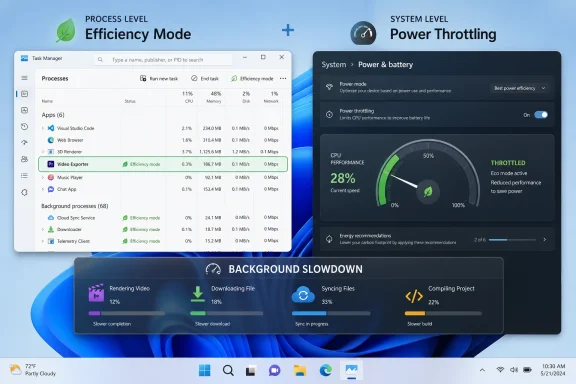
The important distinction is that not every slowdown is the same thing. Power Throttling is the broader system behavior, while Efficiency Mode is a more visible process-by-process control surfaced in Task Manager. Microsoft documentation describes power throttling as something Windows uses to keep background work in efficient operating modes, and it says the feature can be influenced by the performance power slider or disabled by policy.
That matters because many users assume Task Manager is the whole story. It is not. A process can appear to be back at full speed in Task Manager while Windows is still applying broader power-management logic elsewhere. In practice, that means a quick toggle may improve one layer while leaving another layer untouched.
Microsoft’s current policy documentation also shows that this is no longer a niche power-user quirk. The company exposes a formal PowerThrottlingTurnOff policy for managed Windows devices, which strongly suggests that Microsoft sees the feature as a legitimate tuning point rather than a bug. That said, the existence of a policy is also a reminder that the default behavior is deliberate and can be overridden when the workload justifies it.
For everyday users, the debate is practical rather than philosophical. If a browser tab sitting idle should sip power, nobody complains. If a virtual machine, video encoder, or code build gets artificially slowed, people notice immediately. That tension is what makes power throttling such a recurring Windows complaint: it is a good idea applied a little too broadly.
Efficiency Mode is useful because it gives users a visible clue. A green leaf in Task Manager is hard to miss, and that makes the feature feel tangible in a way that background scheduling usually does not. But the visibility can be misleading, because it encourages people to think the leaf is the whole mechanism. It is not. The OS can still apply broader throttling behavior even after a process-level toggle changes.
It also matters for policy and support. In enterprise environments, administrators prefer controls that are explicit, auditable, and repeatable. Microsoft’s policy documentation for PowerThrottlingTurnOff fits that expectation neatly, because it moves the decision from ad hoc user intervention into a managed configuration setting.
The practical takeaway is simple: Windows is not randomly broken when it slows a process down. It is making a value judgment. The issue is that the judgment is sometimes wrong for the user’s workload, especially on systems that are plugged in and expected to behave like mini workstations.
That is important because the front-facing process list can be deceptive. Browser processes, sync clients, and modern app containers often split work into child processes, and the parent process may not show the same status as the workers underneath it. In other words, the app can look fine at a glance while the actual worker thread or helper process is being throttled.
A few workload types are especially worth watching:
That makes diagnostics more subtle than they first appear. The machine may be perfectly healthy, but the app is being told to behave as if it were on battery even when it is not. For users with performance-sensitive workloads, that distinction is the entire problem.
That makes the Task Manager toggle useful as a test, but not as a long-term strategy. It tells you whether throttling is part of the slowdown, yet it does not guarantee that the next launch will behave differently. For serious workflow issues, persistence is what matters.
For users who are not in a managed environment, the existence of the policy still matters because it proves the behavior is configurable. That helps explain why registry-based workarounds exist in community discussions, even if Microsoft’s official materials frame the policy layer more formally.
Good candidates for exemption include:
The catch is that this is not the same as a complete off switch. It is a strong preference, not a universal override. Windows can still make selective decisions, which means some users will still feel that certain apps are being treated too gently.
For consumer users, the registry route exists in the wild precisely because Home editions do not have Group Policy. That is a pattern Windows users know well: where enterprise tooling stops, registry configuration begins. It is not elegant, but it is often effective.
That is why blanket disablement is best viewed as a workstation choice, not a universal recommendation. The right answer depends on whether the machine is primarily a mobile companion or a fixed production tool.
Consumer users, by contrast, tend to discover the feature only after a slowdown becomes obvious. A OneDrive sync that feels sluggish or a browser helper that is slower than expected can create the impression that Windows itself has become “heavier.” In reality, the platform is simply making a different choice about background urgency.
That is why the policy matters so much more than a GUI toggle. It turns a hidden optimization into a controllable operating parameter. That is exactly the kind of thing IT departments need when balancing user experience against energy and device-health goals.
The broader lesson is that silent optimization is only a good idea if it remains invisible during normal use. Once users can see the effect, it stops feeling like intelligence and starts feeling like interference.
That is not a trivial benefit. If the operating system can cut waste across thousands of background tasks, it improves average battery life, lowers heat, and keeps the machine feeling calmer under load. Those are meaningful wins for the mainstream user who would rather the laptop lasted longer than a sync job finished two minutes sooner.
This is a classic operating-system tension. If the OS is too aggressive, it feels paternalistic. If it is too permissive, it wastes energy and reduces device efficiency. Microsoft’s current stance suggests it would rather err on the side of conservation and let advanced users opt out when necessary.
Another strength is visibility. Task Manager gives users a practical way to identify throttled processes, which turns an abstract scheduler decision into something you can actually inspect. That alone makes troubleshooting much easier than it was in the earlier days of Windows power management.
Another concern is user trust. If a machine is plugged in and still behaves as though it should be conserving battery, users feel as if the OS is working against them. That is the kind of friction that encourages workarounds, registry edits, and a general sense that Windows requires constant negotiation.
It is also worth watching whether Microsoft continues to refine the boundary between battery-friendly defaults and workstation-class workloads. As more users run heavy local tasks on laptops, the pressure to treat plugged-in systems differently will only grow. That could mean smarter heuristics, better app classification, or more prominent admin and user controls.
The deeper truth is that Windows power management is becoming less about simple on/off switches and more about policy, context, and workload intent. That is good engineering, but it is also a reminder that modern operating systems increasingly make decisions on the user’s behalf. The users who understand those decisions will keep winning back control; the ones who do not will keep wondering why their “idle” app never seems idle at all.
Source: Windows 11 is secretly throttling your apps - here's how to catch it
 Background
Windows has spent years trying to balance performance, battery life, and perceived responsiveness. That balancing act became more aggressive as laptops became the default Windows form factor, and as Microsoft pushed the platform toward smarter, more energy-conscious scheduling. The result is that Windows increasingly treats the foreground as precious and the background as negotiable, which is sensible in many situations but frustrating in others.The important distinction is that not every slowdown is the same thing. Power Throttling is the broader system behavior, while Efficiency Mode is a more visible process-by-process control surfaced in Task Manager. Microsoft documentation describes power throttling as something Windows uses to keep background work in efficient operating modes, and it says the feature can be influenced by the performance power slider or disabled by policy.
That matters because many users assume Task Manager is the whole story. It is not. A process can appear to be back at full speed in Task Manager while Windows is still applying broader power-management logic elsewhere. In practice, that means a quick toggle may improve one layer while leaving another layer untouched.
Microsoft’s current policy documentation also shows that this is no longer a niche power-user quirk. The company exposes a formal PowerThrottlingTurnOff policy for managed Windows devices, which strongly suggests that Microsoft sees the feature as a legitimate tuning point rather than a bug. That said, the existence of a policy is also a reminder that the default behavior is deliberate and can be overridden when the workload justifies it.
For everyday users, the debate is practical rather than philosophical. If a browser tab sitting idle should sip power, nobody complains. If a virtual machine, video encoder, or code build gets artificially slowed, people notice immediately. That tension is what makes power throttling such a recurring Windows complaint: it is a good idea applied a little too broadly.
Power Throttling vs. Efficiency Mode
The first thing to understand is that these two features are related but not identical. Power Throttling is the operating system’s background-performance governor, while Efficiency Mode is a process-level control that is easier to see and easier to toggle. Microsoft’s documentation for power throttling makes clear that the feature is tied to energy-efficient background operation, and the policy stack shows that admins can turn it off globally in managed environments.Efficiency Mode is useful because it gives users a visible clue. A green leaf in Task Manager is hard to miss, and that makes the feature feel tangible in a way that background scheduling usually does not. But the visibility can be misleading, because it encourages people to think the leaf is the whole mechanism. It is not. The OS can still apply broader throttling behavior even after a process-level toggle changes.
Why the distinction matters
The distinction matters most when troubleshooting. If a background task still feels sluggish after you disable Efficiency Mode, the obvious next question is whether Windows is still applying broader power-management rules. That is why some users report that a Task Manager toggle seems to do nothing: they are fixing one layer while the system is enforcing another.It also matters for policy and support. In enterprise environments, administrators prefer controls that are explicit, auditable, and repeatable. Microsoft’s policy documentation for PowerThrottlingTurnOff fits that expectation neatly, because it moves the decision from ad hoc user intervention into a managed configuration setting.
- Power Throttling is broader and system-driven.
- Efficiency Mode is narrower and process-driven.
- Disabling one does not automatically disable the other.
- Managed environments have cleaner policy options than consumer PCs.
- The leaf icon is a clue, not a complete diagnosis.
The EcoQoS connection
Microsoft and community discussions around Efficiency Mode often reference EcoQoS, which is the mechanism that helps signal lower-priority, energy-efficient execution. In plain English, the app or the OS is telling the scheduler that the task is not urgent and can be treated accordingly. That is fine for idle work, but it becomes a problem when the “background” task is actually doing real work on behalf of the user.The practical takeaway is simple: Windows is not randomly broken when it slows a process down. It is making a value judgment. The issue is that the judgment is sometimes wrong for the user’s workload, especially on systems that are plugged in and expected to behave like mini workstations.
How to Spot Throttled Processes
Task Manager is still the easiest way to find out whether Windows is stepping on a process. In the Processes tab, a green leaf icon indicates Efficiency Mode, which tells you the app is being treated as a low-priority background task. If you need a more detailed view, the Details tab can surface a dedicated Power Throttling column, which is far more useful when you are comparing multiple executables.That is important because the front-facing process list can be deceptive. Browser processes, sync clients, and modern app containers often split work into child processes, and the parent process may not show the same status as the workers underneath it. In other words, the app can look fine at a glance while the actual worker thread or helper process is being throttled.
What to check first
The best diagnostic habit is to inspect the app that feels slow while it is actively doing work. If it is a browser, expand the process tree. If it is a file sync client, look at the worker process rather than the tray icon. If it is a build or render tool, check the detailed process list after the workload has already started.A few workload types are especially worth watching:
- Browsers with heavy background tabs or helper processes
- Sync clients such as cloud storage tools
- Encoders running media or video jobs
- Build tools compiling code or assets
- Download managers handling sustained transfers
Common false assumptions
One common mistake is assuming the app itself is misbehaving. Another is blaming the network, disk, or antivirus before checking the scheduler. Windows background throttling can feel like I/O lag or a connectivity hiccup because it changes how quickly tasks seem to progress, not just raw CPU usage.That makes diagnostics more subtle than they first appear. The machine may be perfectly healthy, but the app is being told to behave as if it were on battery even when it is not. For users with performance-sensitive workloads, that distinction is the entire problem.
Per-App Control and Persistence
The quickest fix is often the least durable one. You can toggle Efficiency Mode off for a process in Task Manager, but that change is generally session-bound rather than permanent. If the app restarts, or the machine reboots, Windows may apply the same treatment again.That makes the Task Manager toggle useful as a test, but not as a long-term strategy. It tells you whether throttling is part of the slowdown, yet it does not guarantee that the next launch will behave differently. For serious workflow issues, persistence is what matters.
More durable options
Microsoft’s policy stack is the cleanest long-term route on managed systems, because it allows administrators to disable power throttling through an explicit setting. The ADMX-backed policy exists for supported Windows editions and is designed for device management rather than one-off tinkering.For users who are not in a managed environment, the existence of the policy still matters because it proves the behavior is configurable. That helps explain why registry-based workarounds exist in community discussions, even if Microsoft’s official materials frame the policy layer more formally.
What tends to benefit from exemption
Not every app deserves a pass. Background tabs, idle updaters, and lightweight helper services usually should remain throttled, because they are exactly the kind of work Windows is trying to protect battery life from. But there are clear cases where full performance makes more sense.Good candidates for exemption include:
- Video encoders
- Virtual machines
- Code compilers
- Torrent clients
- Long-running sync jobs
- Large archive operations
System-Wide Disable Options
If you want Windows to back off more broadly, the Power mode slider in Settings is the first place to look. Microsoft’s documentation says power throttling is always engaged unless the slider is set to Best Performance, in which case applications are opted out of power throttling. That is the least invasive way to reduce throttling aggressiveness without reaching for deeper system changes.The catch is that this is not the same as a complete off switch. It is a strong preference, not a universal override. Windows can still make selective decisions, which means some users will still feel that certain apps are being treated too gently.
Registry and policy paths
Microsoft’s management documentation shows the formal policy path for turning off power throttling, which is the cleanest answer for Pro, Enterprise, Education, and IoT-style managed devices. The policy name is explicit, and the registry mapping confirms that the behavior is meant to be configurable rather than fixed forever.For consumer users, the registry route exists in the wild precisely because Home editions do not have Group Policy. That is a pattern Windows users know well: where enterprise tooling stops, registry configuration begins. It is not elegant, but it is often effective.
A practical caution
The system-wide route can absolutely improve throughput, but it comes with a tradeoff. More performance means more power draw, more heat, and potentially more fan noise. On a desktop, those costs are usually easy to absorb; on a laptop, they can shorten unplugged runtime in a way that users notice immediately.That is why blanket disablement is best viewed as a workstation choice, not a universal recommendation. The right answer depends on whether the machine is primarily a mobile companion or a fixed production tool.
Enterprise vs Consumer Impact
In enterprises, the conversation is less about annoyance and more about governance. Administrators care about predictable behavior, battery policy consistency, and workload classification, which is why Microsoft exposes policy-level controls for power throttling. A centrally managed fleet can tolerate fewer surprises than a consumer laptop can, and that makes the policy approach much more attractive.Consumer users, by contrast, tend to discover the feature only after a slowdown becomes obvious. A OneDrive sync that feels sluggish or a browser helper that is slower than expected can create the impression that Windows itself has become “heavier.” In reality, the platform is simply making a different choice about background urgency.
Why enterprises care differently
In a managed environment, the question is not whether throttling is annoying. The question is whether it interferes with compliance, productivity, or service-level expectations. If a background render farm or sync agent is deliberately slowed on a fleet of desktops, administrators need a documented way to change that behavior.That is why the policy matters so much more than a GUI toggle. It turns a hidden optimization into a controllable operating parameter. That is exactly the kind of thing IT departments need when balancing user experience against energy and device-health goals.
Why consumers feel it more emotionally
Consumers experience the issue as betrayal, not policy. Windows promises convenience, but when a local task feels sluggish, users do not think about energy efficiency—they think about wasted time. That emotional response is understandable, because the slowdown often appears arbitrary and is hard to prove without digging into Task Manager.The broader lesson is that silent optimization is only a good idea if it remains invisible during normal use. Once users can see the effect, it stops feeling like intelligence and starts feeling like interference.
Why Microsoft Keeps It On
From Microsoft’s perspective, power throttling is a rational default. Windows runs on a huge range of devices, many of them battery-powered, and background power discipline pays dividends in longevity and thermal behavior. Microsoft even states that power throttling can save CPU power by keeping background work in the most efficient operating modes.That is not a trivial benefit. If the operating system can cut waste across thousands of background tasks, it improves average battery life, lowers heat, and keeps the machine feeling calmer under load. Those are meaningful wins for the mainstream user who would rather the laptop lasted longer than a sync job finished two minutes sooner.
The hidden tradeoff
The hidden tradeoff is that Windows is optimizing for the average case, not the power-user case. That is usually acceptable until the average-case policy collides with a real workload that needs uninterrupted CPU access. Then the feature becomes a tax on people doing serious work in the background.This is a classic operating-system tension. If the OS is too aggressive, it feels paternalistic. If it is too permissive, it wastes energy and reduces device efficiency. Microsoft’s current stance suggests it would rather err on the side of conservation and let advanced users opt out when necessary.
- Battery life is a genuine benefit.
- Thermal management improves when background work is constrained.
- Idle tasks should usually stay throttled.
- Heavy background workloads are where the policy breaks down.
- Opt-out mechanisms exist because the default is not always right.
The competitive angle
Windows is not alone in doing this, but Microsoft has to support a broader set of hardware and usage models than a tightly controlled platform might. That makes its defaults more opinionated. The upside is consistency; the downside is that advanced users feel those opinions more sharply than they would on a system built around a narrower device profile.Strengths and Opportunities
The strength of Windows’ approach is that it is modular. Users can accept the default energy behavior, manage individual processes, or go further and disable throttling with policy-level controls when the workload warrants it. That flexibility is better than a hard-coded, all-or-nothing model.Another strength is visibility. Task Manager gives users a practical way to identify throttled processes, which turns an abstract scheduler decision into something you can actually inspect. That alone makes troubleshooting much easier than it was in the earlier days of Windows power management.
- Flexible control model for casual and advanced users
- Built-in diagnostics in Task Manager
- Formal policy support for managed fleets
- Battery and thermal gains on portable devices
- Easy to test with per-process toggles
- Scales from Home to Enterprise
- Allows targeted exceptions for heavy workloads
Risks and Concerns
The biggest risk is overreach. Windows can be too successful at conserving energy, especially when a background task is actually central to the user’s workflow. When that happens, a well-intentioned optimization becomes a performance penalty.Another concern is user trust. If a machine is plugged in and still behaves as though it should be conserving battery, users feel as if the OS is working against them. That is the kind of friction that encourages workarounds, registry edits, and a general sense that Windows requires constant negotiation.
- Throttling can slow real work, not just idle work.
- Per-process fixes may not survive reboots.
- System-wide disabling increases power and heat.
- Home users may need registry edits for persistence.
- Troubleshooting is harder when multiple layers overlap.
- Apps can be misclassified as background when they are busy.
- The feature can create false confidence if users check only one indicator.
Looking Ahead
What to watch next is whether Microsoft makes these controls easier to understand without stripping away the flexibility. The company already has the technical pieces in place: Task Manager visibility, policy-level disablement, and power-mode settings that influence overall behavior. The missing piece is simpler storytelling about when each layer applies.It is also worth watching whether Microsoft continues to refine the boundary between battery-friendly defaults and workstation-class workloads. As more users run heavy local tasks on laptops, the pressure to treat plugged-in systems differently will only grow. That could mean smarter heuristics, better app classification, or more prominent admin and user controls.
Signals to monitor
- Whether Microsoft expands policy clarity around power throttling
- Whether Task Manager adds more actionable context
- Whether app vendors expose their own power-sensitivity settings
- Whether Windows becomes better at recognizing real background workloads
- Whether consumer complaints push more settings into the UI
The deeper truth is that Windows power management is becoming less about simple on/off switches and more about policy, context, and workload intent. That is good engineering, but it is also a reminder that modern operating systems increasingly make decisions on the user’s behalf. The users who understand those decisions will keep winning back control; the ones who do not will keep wondering why their “idle” app never seems idle at all.
Source: Windows 11 is secretly throttling your apps - here's how to catch it
