

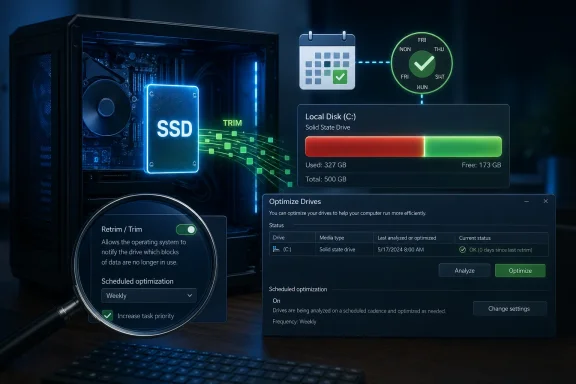
When an SSD starts feeling slower, most people blame age, heat, or the fact that Windows has been installed for too long. The surprise is that a very ordinary Windows maintenance task can be the real culprit, and it often fails without a clear warning. If the built-in optimization schedule stops running, your SSD can lose the performance margin that was supposed to keep it feeling fast. Microsoft’s own guidance confirms that Windows automatically optimizes drives on a weekly schedule and that SSDs are handled through TRIM rather than old-school defragmentation.
This is one of those Windows problems that hides in plain sight because the system does not surface it as a dramatic failure. The PC still boots, files still copy, and the drive still appears healthy, but the storage stack may no longer be doing the background cleanup it was designed to perform. That matters because SSDs are not immune to performance decay; they depend heavily on free space, controller housekeeping, and timely TRIM commands to stay responsive. Microsoft documents that SSDs are “trimmed” through Optimize Drives, and that Windows normally performs this optimization automatically once a week.
The practical result is that a system can feel progressively more sluggish even when the SSD itself is not failing. In many cases, the slowdown is not a sign of imminent hardware death but of write amplification, cache exhaustion, and lost maintenance cadence. That distinction is important because it changes the fix from “replace the drive” to “repair the Windows storage maintenance workflow.”
What makes this story especially relevant for Windows users is that the maintenance pathway is both old and easy to ignore. The utility still exists under Defragment and Optimize Drives, yet many users never open it after initial setup. When the schedule silently stops, the system does not necessarily alert the user, so the problem can linger for months while performance degrades in everyday use. Microsoft’s documentation also notes that if scheduled optimization misses runs, the scheduler can adjust frequency, but that still assumes the task is functioning at all.
The result is a classic Windows maintenance paradox: the platform has the right tool, the right defaults, and the right automation, but one broken setting can undercut all of it. For consumers, that can mean slower large file copies and weaker benchmark numbers. For enterprises, it can become a subtle productivity drain across fleets of machines, especially where imaging, drivers, or storage filters interfere with the routine.
This is also why partition tricks usually disappoint. Splitting a drive into extra partitions does not physically reserve flash cells for performance, because the controller manages the flash layout internally. The only thing that reliably helps is keeping actual unallocated free space available on the volume. That is a simple-sounding fix, but it is one of the most effective ways to preserve SSD responsiveness.
Without TRIM, the SSD has to do more work on each write because it cannot confidently pre-erase unused blocks. The result is extra latency and lower sustained performance, especially on older or heavily used drives. That does not mean the drive is broken; it means the operating system is no longer communicating efficiently with the storage controller. Windows is supposed to handle this automatically, which is why a silent scheduling failure is so frustrating.
The key distinction is that Windows automation is supposed to decide the correct maintenance action based on drive type. On an SSD with TRIM support, the default optimization behavior is Retrim. Microsoft’s PowerShell documentation for Optimize-Volume explicitly states that SSDs with TRIM support use Retrim by default, while unsupported SSDs receive no operation. That makes the scheduled task meaningful, not cosmetic.
That failure mode matters because Windows does not treat it like a red-alert event. There is no obvious pop-up saying the scheduled optimization has gone stale. Instead, the damage accumulates invisibly, which is why this issue is so easy to misdiagnose.
WinSAT is useful because it is already there. You can run it from an elevated command prompt and compare the reported numbers with the manufacturer’s published specifications. That comparison will not tell you everything about real-world performance, but it is a fast sanity check. If a drive that should write at gigabytes per second is now far below expectation, you have a real signal that storage maintenance or drive state deserves attention.
That is why the command
For enterprises, the stakes are larger because the problem scales across endpoints. If a bad driver, storage filter, or post-update policy change affects the optimization task, many machines can inherit the same silent drag. That turns a small storage maintenance problem into a fleet-wide efficiency tax. The effect may not crash systems, but it can absolutely erode user experience and support confidence.
This is why advice about “leave 10–20% free” keeps coming back. The exact number varies by drive class and workload, but the principle holds: more headroom equals more stable performance. Users who fill their SSDs with huge game libraries or media caches may not notice the damage until the drive crosses a capacity threshold and then suddenly slows down.
But there are times when the built-in utility is only the start. If a drive is still slow after retrim, the problem may lie elsewhere: firmware, thermal throttling, background antivirus scans, near-capacity saturation, or a controller issue. A command-line retrim can help identify whether the Windows side was the bottleneck. If it does not improve much, the user should start looking beyond the OS.
That matters because SSD ownership has become normal rather than premium. As more users keep terabytes of data on a single system, storage maintenance becomes part of everyday PC hygiene. The best-case outcome is that Windows continues to automate the work while exposing more obvious status information.
Source: MakeUseOf Your SSD is slowing down, and Windows has been quietly hiding the fix
 Overview
This is one of those Windows problems that hides in plain sight because the system does not surface it as a dramatic failure. The PC still boots, files still copy, and the drive still appears healthy, but the storage stack may no longer be doing the background cleanup it was designed to perform. That matters because SSDs are not immune to performance decay; they depend heavily on free space, controller housekeeping, and timely TRIM commands to stay responsive. Microsoft documents that SSDs are “trimmed” through Optimize Drives, and that Windows normally performs this optimization automatically once a week.The practical result is that a system can feel progressively more sluggish even when the SSD itself is not failing. In many cases, the slowdown is not a sign of imminent hardware death but of write amplification, cache exhaustion, and lost maintenance cadence. That distinction is important because it changes the fix from “replace the drive” to “repair the Windows storage maintenance workflow.”
What makes this story especially relevant for Windows users is that the maintenance pathway is both old and easy to ignore. The utility still exists under Defragment and Optimize Drives, yet many users never open it after initial setup. When the schedule silently stops, the system does not necessarily alert the user, so the problem can linger for months while performance degrades in everyday use. Microsoft’s documentation also notes that if scheduled optimization misses runs, the scheduler can adjust frequency, but that still assumes the task is functioning at all.
The result is a classic Windows maintenance paradox: the platform has the right tool, the right defaults, and the right automation, but one broken setting can undercut all of it. For consumers, that can mean slower large file copies and weaker benchmark numbers. For enterprises, it can become a subtle productivity drain across fleets of machines, especially where imaging, drivers, or storage filters interfere with the routine.
Background
SSD performance is not constant across all workloads. These drives are fast because they combine flash memory with controller logic and a reserved area of free space that acts as a performance buffer. That buffer is often described as an SLC cache on consumer drives, where some TLC flash is temporarily treated like faster single-bit storage for bursty writes. Once that cache fills, sustained performance can fall sharply, especially on nearly full drives. While that behavior is hardware-specific, the general principle is universal: less free space means less room for the controller to smooth out writes.Why free space matters
A nearly full SSD has less room to juggle incoming writes and reuse erased blocks efficiently. Flash cells cannot simply be overwritten in place; they have to be erased before being written again, and that housekeeping works best when the controller has spare blocks available. As the drive fills, internal write management becomes more expensive, and latency rises. That is why a drive can feel fast when empty and noticeably worse after long-term use.This is also why partition tricks usually disappoint. Splitting a drive into extra partitions does not physically reserve flash cells for performance, because the controller manages the flash layout internally. The only thing that reliably helps is keeping actual unallocated free space available on the volume. That is a simple-sounding fix, but it is one of the most effective ways to preserve SSD responsiveness.
What TRIM actually does
TRIM is the storage equivalent of telling the drive which blocks no longer matter. Once Windows marks data as deleted, the SSD controller can prepare those blocks for future writes instead of treating them as still occupied. In Microsoft’s wording, SSDs are “trimmed,” which allows the drive to do cleanup when it is not busy doing something more important. That background cleanup is what keeps write performance from collapsing under repeated use.Without TRIM, the SSD has to do more work on each write because it cannot confidently pre-erase unused blocks. The result is extra latency and lower sustained performance, especially on older or heavily used drives. That does not mean the drive is broken; it means the operating system is no longer communicating efficiently with the storage controller. Windows is supposed to handle this automatically, which is why a silent scheduling failure is so frustrating.
How Windows Optimization Is Supposed to Work
Windows does not treat SSDs like HDDs, and that is a good thing. Traditional defragmentation was designed to reduce mechanical seek time on spinning disks. SSDs have no moving heads, so that kind of rewriting is unnecessary and can add needless wear. Microsoft’s support guidance is clear that HDDs are defragmented, while SSDs are trimmed through the Optimize Drives interface.The key distinction is that Windows automation is supposed to decide the correct maintenance action based on drive type. On an SSD with TRIM support, the default optimization behavior is Retrim. Microsoft’s PowerShell documentation for Optimize-Volume explicitly states that SSDs with TRIM support use Retrim by default, while unsupported SSDs receive no operation. That makes the scheduled task meaningful, not cosmetic.
The hidden failure mode
The unsettling part is that this automation can stop working without a clear symptom. After a driver change, storage stack update, or system issue, the weekly task can fail to run even though the GUI still looks normal. Users then experience a slow decline in benchmark scores or large-copy speeds and assume the SSD is wearing out. In reality, the drive may simply be missing the cleanup commands that keep it efficient.That failure mode matters because Windows does not treat it like a red-alert event. There is no obvious pop-up saying the scheduled optimization has gone stale. Instead, the damage accumulates invisibly, which is why this issue is so easy to misdiagnose.
Why weekly matters
Microsoft says the default optimization cadence is once a week, and that is usually enough for most users. SSDs do not need constant attention the way old hard drives once did, but they do need periodic TRIM passes. Weekly scheduling strikes a balance between performance, background activity, and wear reduction. If that schedule is disabled, the system loses the predictable rhythm that SSD maintenance depends on.- Weekly optimization is the Windows default.
- SSD optimization uses TRIM, not classic defrag.
- Broken schedules can degrade write performance over time.
- The issue can appear after updates or driver changes.
- Windows may not warn the user when the task stops.
Measuring the Problem Before Fixing It
One reason this story resonates is that the symptoms are measurable. A slower SSD may show longer boot times, delayed app launches, and lower sequential write results. Users do not have to guess whether the drive is underperforming; they can verify it with a benchmark. Microsoft does not provide a modern consumer-facing Windows Experience Index, but the underlying WinSAT utility still ships with Windows and can test disk performance from the command line.WinSAT is useful because it is already there. You can run it from an elevated command prompt and compare the reported numbers with the manufacturer’s published specifications. That comparison will not tell you everything about real-world performance, but it is a fast sanity check. If a drive that should write at gigabytes per second is now far below expectation, you have a real signal that storage maintenance or drive state deserves attention.
Why a quick benchmark is enough
A full benchmark suite can be helpful, but it is not always necessary for a first-pass diagnosis. A simple test that shows sequential read, sequential write, and random I/O is enough to spot obvious degradation. WinSAT gives you that baseline without needing to install extra software. For readers who want a more granular picture, CrystalDiskMark remains a common third-party option, though its own documentation notes that benchmark results can vary based on test size, data pattern, and controller behavior.What to look for
The most important clue is whether sequential write performance is much lower than the SSD’s rated spec. That is where cache exhaustion and missed maintenance often show up first. If the drive is only slightly under spec, the problem may simply be normal wear, thermal throttling, or a heavier-than-usual workload. If the number is dramatically off, it is time to inspect Windows optimization settings.- Compare real speeds to the manufacturer spec.
- Focus first on sequential write results.
- Test on a mostly idle system for consistency.
- Repeat the benchmark after running optimization.
- Watch for outliers, not just small variations.
TRIM, Defrag, and the Confusing UI
The terminology around storage maintenance still confuses a lot of users because Windows uses the word “defrag” in places where SSDs are not actually being defragmented. That is partly legacy, partly UI convenience, and partly a reflection of how the tools evolved over time. The good news is that Microsoft’s documentation does distinguish between HDD defragmentation and SSD trimming. The bad news is that the interface does not always make that distinction obvious enough.That is why the command
defrag /O can look misleading at first glance. On an SSD, the /O switch tells Windows to use the appropriate optimization method for the drive type. Microsoft’s command documentation notes that if you manually run traditional defragmentation on an SSD, the scheduled task later performs analysis and retrim while skipping traditional defragmentation. In other words, the system is trying to do the right thing, but the naming still feels old-fashioned.The command-line reality
For users comfortable with terminals, the manual fix is straightforward. You run an elevated command prompt and invoke the optimization command for the SSD’s drive letter. That can force a retrim pass and sometimes recover performance on neglected drives. It is a neat reminder that Windows has had the right plumbing for years, even if many users never touch it. Microsoft’s documentation for Optimize-Volume confirms that SSDs with TRIM support are retrimmed by default.Why this still matters in 2026
Modern SSDs are far better than the first consumer flash drives, but they are still performance-sensitive to maintenance and free space. The more aggressively people fill them with games, video projects, and app caches, the more visible the slowdown becomes. As storage capacities rise and users keep drives fuller for longer, Windows’ background trimming becomes more important, not less.Consumer Impact vs Enterprise Impact
For home users, the issue mostly shows up as annoyance. Games take longer to load, Windows feels less snappy, and file copies lose their zip. Because the degradation is gradual, people often jump to expensive conclusions about bad firmware or failing NAND. In reality, a missing TRIM schedule or a full drive can be the primary cause.For enterprises, the stakes are larger because the problem scales across endpoints. If a bad driver, storage filter, or post-update policy change affects the optimization task, many machines can inherit the same silent drag. That turns a small storage maintenance problem into a fleet-wide efficiency tax. The effect may not crash systems, but it can absolutely erode user experience and support confidence.
Different risk profiles
Consumer SSD issues are usually diagnosed reactively, after a user notices sluggishness. Enterprise issues are more dangerous because they can hide beneath standard imaging and compliance checks. A machine can pass health scans and still miss its scheduled retrim jobs. That makes storage maintenance a monitoring problem as much as a performance problem.What administrators should care about
Administrators should remember that “working” is not the same as “optimized.” A volume may mount normally and still be underperforming. The combination of weekly optimization, drive-health telemetry, and periodic benchmark sampling is what gives a meaningful picture of storage health.- Consumers notice symptom-driven slowdowns.
- Enterprises risk broad, silent performance drift.
- Imaging and driver changes can disrupt the schedule.
- Monitoring should include performance, not just health.
- Automation failures are especially costly at scale.
Why Free Space Is Still the Cheapest Fix
One of the most useful takeaways here is that storage performance is often preserved by boring discipline. Keeping free space on an SSD gives the controller room to manage writes efficiently and maintain cache behavior. That is more effective than almost any software tweak. If a drive is packed near capacity, no maintenance utility can fully overcome the physics of less available flash to maneuver.This is why advice about “leave 10–20% free” keeps coming back. The exact number varies by drive class and workload, but the principle holds: more headroom equals more stable performance. Users who fill their SSDs with huge game libraries or media caches may not notice the damage until the drive crosses a capacity threshold and then suddenly slows down.
Why cache collapse feels dramatic
SSD write caches are excellent at hiding the latency of flash writes during short bursts. Once that cache is exhausted, the drive falls back to slower sustained write behavior. On some drives, that transition is stark enough to feel like the system changed personalities mid-copy. The hardware is not failing in the traditional sense; it is simply running out of the fast lane.A practical storage habit
The easiest long-term fix is not glamorous. Keep more empty space than you think you need, leave room for the controller to work, and run the maintenance task when Windows stops doing it automatically. In the SSD world, the best performance tweaks are often the least exciting ones.When the Built-in Tool Is Enough, and When It Is Not
Windows’ built-in optimization tools are usually sufficient for normal consumer use. Microsoft’s documentation indicates that the system automatically handles SSD trimming weekly, and the Optimize Drives UI lets you verify or change the schedule. For most people, that is enough. If the drive is healthy, there is no need to obsess over manual intervention every day.But there are times when the built-in utility is only the start. If a drive is still slow after retrim, the problem may lie elsewhere: firmware, thermal throttling, background antivirus scans, near-capacity saturation, or a controller issue. A command-line retrim can help identify whether the Windows side was the bottleneck. If it does not improve much, the user should start looking beyond the OS.
Useful escalation path
- Confirm the drive has sufficient free space.
- Check whether scheduled optimization is enabled.
- Run a manual retrim or
defrag /O. - Re-test with WinSAT or another benchmark.
- Investigate firmware, thermals, and SMART data if performance remains poor.
The role of third-party tools
Utilities like CrystalDiskMark can provide more detailed benchmarking, especially for comparing sequential and random behavior across different queue depths. CrystalDiskMark’s own documentation notes that results vary depending on test settings and SSD behavior, so it is best used as a comparative tool rather than a perfect oracle. Still, it can help confirm whether the drive has recovered after maintenance or remains constrained.Strengths and Opportunities
The real strength of this hidden fix is that it is already built into Windows, free, and generally low-risk when used correctly. It also addresses a problem many users misattribute to aging hardware. That means the payoff can be significant for very little effort.- No paid software is required to restore the basic maintenance path.
- Microsoft already supports SSD trimming through its built-in tools.
- Weekly scheduling is usually enough for consumer systems.
- WinSAT offers a quick sanity check with no installation overhead.
- The fix can improve user confidence in otherwise healthy hardware.
- Enterprises can standardize retrim verification in endpoint maintenance.
- Free space management remains a simple but powerful performance strategy.
Risks and Concerns
The risk here is not that TRIM is dangerous. The risk is that silent failure creates the illusion of hardware decline, leading users to replace drives that only need maintenance. That can waste money and create needless anxiety. Worse, it can mask the real root cause if a system-level update has broken storage optimization.- Silent schedule failures are hard for users to spot.
- Near-full drives can still slow down even when TRIM is working.
- Benchmark swings can be caused by heat or background activity, not just maintenance.
- Driver and firmware interactions can complicate diagnosis.
- Windows UI language still blurs defrag and TRIM terminology.
- Manual benchmark tools can give misleading results if used inconsistently.
- Overreacting to mild slowdown can lead to unnecessary hardware replacement.
Looking Ahead
The most likely short-term future is not a dramatic new SSD feature, but better visibility into the basics. Microsoft already has the engine for optimization, and the support guidance is clear about TRIM and scheduled maintenance. What users need is less mystery and more confirmation that the job is actually happening.That matters because SSD ownership has become normal rather than premium. As more users keep terabytes of data on a single system, storage maintenance becomes part of everyday PC hygiene. The best-case outcome is that Windows continues to automate the work while exposing more obvious status information.
What to watch next
- Whether Microsoft surfaces clearer optimization status in Windows UI.
- Whether major driver or firmware updates continue to interfere with scheduled retrim.
- How much free space users actually leave on modern high-capacity SSDs.
- Whether enterprise management tools begin reporting missed storage maintenance more prominently.
- Whether benchmark tools and support guidance converge on simpler diagnosis workflows.
Source: MakeUseOf Your SSD is slowing down, and Windows has been quietly hiding the fix
