

Oracle VirtualBox can run slowly on Windows 10 and Windows 11 when Microsoft’s Hyper-V hypervisor stack is enabled, because VirtualBox may fall back to using Windows virtualization interfaces instead of talking directly to the CPU’s hardware virtualization features. The fix is often simple, but the reason is not: Windows has turned virtualization from a niche developer feature into a foundation for security, Linux compatibility, containers, and sandboxing. That makes the old advice — “just turn off Hyper-V” — both useful and incomplete. The real story is that Windows PCs now have competing virtualization priorities, and VirtualBox users are the ones most likely to feel the trade-off.
For years, the mental model was easy. You installed VirtualBox, created a virtual machine, assigned it CPU cores and RAM, and expected the guest OS to run as a fairly direct client of Intel VT-x or AMD-V. If the host machine had enough memory, storage, and processor headroom, performance problems usually pointed to ordinary VM tuning: too little RAM, a slow virtual disk, missing Guest Additions, or an overloaded host.
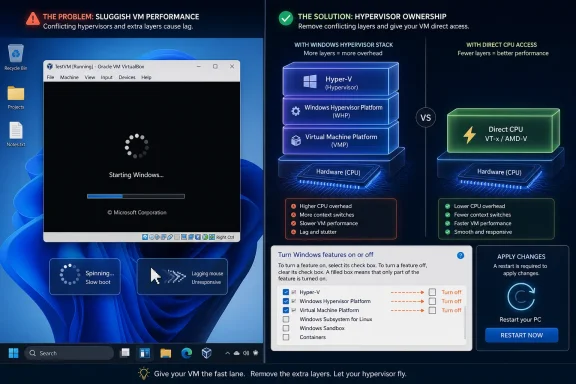
That model breaks down once Hyper-V is active. On a Windows system with the Microsoft hypervisor running underneath the host OS, VirtualBox no longer has the same direct path to hardware virtualization. Instead, it may use Microsoft’s Windows Hypervisor Platform as an intermediary layer, a compatibility route that lets third-party virtualization software coexist with Hyper-V but can impose a performance cost.
Oracle’s own documentation has long treated this coexistence path with caution. VirtualBox can operate on a Hyper-V-enabled Windows host, but Oracle has described that support as limited or experimental in nature and warns that some systems may see significant performance degradation. In practical terms, that means the same VM that feels responsive on one Windows installation may become sluggish on another simply because a Windows feature quietly changed who owns the virtualization stack.
This is why the slowdown often feels irrational. The host has enough RAM. The CPU supports virtualization. Task Manager does not show obvious saturation. Yet the guest crawls, mouse input lags, boot times stretch, and disk-heavy operations feel heavier than they should. The missing clue is not always inside the VM — it is in the host’s hypervisor state.
That is no longer the whole story. Hyper-V technology now sits underneath a widening set of Windows capabilities. Windows Sandbox uses virtualization to create disposable environments. Windows Subsystem for Linux 2 relies on a lightweight virtual machine architecture. Virtual Machine Platform and Windows Hypervisor Platform expose pieces of Microsoft’s virtualization stack to other features and applications. Security features can also lean on virtualization-based isolation.
The result is a PC where Hyper-V may be active even if the user never launched Hyper-V Manager. A developer might enable WSL2 and unknowingly affect VirtualBox. A security-conscious user might enable isolation features and later wonder why an old lab VM suddenly feels slow. A power user might turn on Windows Sandbox for one troubleshooting session and leave behind a virtualization configuration that changes VirtualBox behavior after the next reboot.
This is not a bug in the ordinary sense. Microsoft has been moving Windows toward a world where virtualization is part of the operating system’s substrate. The problem is that traditional desktop hypervisors were built around the assumption that they could own the hardware virtualization extensions directly. When Windows itself becomes the first hypervisor in the chain, coexistence becomes a compromise.
After applying the change, Windows must reboot. That reboot matters because the hypervisor is not a normal background app that can simply be closed from Task Manager. It is initialized early in the boot process, before ordinary Windows desktop sessions begin. Until the machine starts again without that layer, VirtualBox may still behave as though Hyper-V is present.
For many VirtualBox users, the improvement can be dramatic. Booting a guest OS may become faster, pointer lag can disappear, and CPU-heavy operations inside the guest can feel closer to what the hardware should deliver. The change is especially noticeable on Windows guest VMs, older operating systems, and workloads that are sensitive to virtualization overhead.
But the blunt fix has a cost. If you disable these components, you may lose Windows Sandbox, Hyper-V VMs, WSL2 functionality, or container workflows that depend on Microsoft’s virtualization platform. On a single-purpose lab PC, that trade may be easy. On a developer workstation, it can become an argument with your own toolchain.
Windows Hypervisor Platform is particularly important because it is designed to let third-party virtualization applications use the Windows hypervisor. That sounds helpful, and sometimes it is. The trouble is that compatibility is not the same thing as native-speed execution, especially for workloads or host hardware combinations where VirtualBox performs better with direct access to virtualization extensions.
Virtual Machine Platform is another common culprit because it is tied to lightweight VM infrastructure used by features such as WSL2. Users who rely on Linux development environments inside Windows may not want to turn it off. If they do, they may restore VirtualBox performance while breaking a workflow that depends on WSL2.
Windows Sandbox is easier to understand: it is a disposable Windows environment built on virtualization. If you do not use it, disabling it is usually painless. If you do use it, the decision becomes situational — do you need a fast VirtualBox lab today, or a quick throwaway Windows sandbox tomorrow?
That mediation is not automatically disastrous. Many users run VirtualBox on Hyper-V-enabled Windows hosts and get acceptable results. The trouble is that “acceptable” varies wildly by CPU generation, firmware settings, Windows build, VirtualBox version, guest OS, and workload. One person’s barely noticeable slowdown is another person’s unusable VM.
This variability is why the issue keeps returning in forums. There is no universal benchmark number that tells you whether Hyper-V coexistence will be tolerable on your machine. The most reliable test is empirical: shut down the VM, disable the relevant Windows features, reboot, and compare the same workload.
That also explains why VirtualBox’s status indicators matter. If VirtualBox shows that it is running through a Hyper-V-related backend rather than its normal virtualization engine, that is a strong hint. The host may be powerful, but VirtualBox is not operating in its preferred mode.
The danger is not that disabling Hyper-V will damage Windows. The risk is that it will silently remove the foundation under another workflow. WSL2 distributions may stop working as expected. Sandbox will disappear. Hyper-V VMs will not run. Some security or isolation features may change state depending on edition and configuration.
There is also a management issue for IT departments. On managed Windows fleets, virtualization-based security policies may be set by Group Policy, MDM, or endpoint security baselines. A local administrator can sometimes clear Windows feature boxes and still find the hypervisor re-enabled later by policy. In that context, the VirtualBox slowdown is not a local tuning problem; it is a clash between personal tooling and organizational security posture.
For enterprise users, the better answer may be to standardize on one virtualization platform per workload class. If Hyper-V-backed security, WSL2, and container support are required, then Hyper-V-native virtual machines or another compatible solution may be more predictable than fighting VirtualBox into a configuration the host no longer favors.
Storage is often underestimated. A virtual disk placed on an SSD will usually outperform one sitting on a slow external hard drive or a nearly full system disk. Fixed-size disks can behave more predictably than dynamically expanding disks in some workloads, though they consume space up front. Snapshots are useful, but long snapshot chains can also add overhead and complexity.
CPU allocation is another trap. Giving a VM every available core is not generosity; it can starve the host and make both systems worse. A modest VM that leaves the host enough room to schedule background work often feels faster than an overprovisioned guest fighting Windows for every cycle.
Display settings matter too, particularly for desktop guests. Enabling appropriate graphics acceleration, assigning enough video memory, and installing the correct guest drivers can make the difference between a VM that feels broken and one that is merely virtualized. But if Hyper-V is forcing VirtualBox down a slower execution path, these tuning steps may only polish the problem rather than solve it.
Virtualization-based security changed the stakes. Isolating secrets, credentials, browser sessions, or disposable desktops in virtualized environments can reduce attack surface and limit damage. From Microsoft’s perspective, using the hypervisor to harden Windows is a rational architectural direction, especially as consumer PCs gain the hardware capacity to absorb the overhead.
But power users experience that strategy as friction. They install a general-purpose virtualization tool and discover that Windows is already using the machinery beneath them. Worse, Windows does not always make the relationship obvious. The user sees a slow VM, not a clear banner saying, “Your host hypervisor configuration has changed VirtualBox’s execution mode.”
That opacity is what makes the situation feel worse than an ordinary incompatibility. A checkbox buried in Windows Features can have system-wide consequences. A security or developer feature enabled months ago can affect a VM today. The fix is simple only after someone tells you where to look.
For users whose day revolves around WSL2, Docker workflows, Windows Sandbox, or Hyper-V VMs, the calculation changes. In that world, VirtualBox may need to coexist with Microsoft’s stack, or it may be the wrong tool for that host. The better answer may be to move VirtualBox workloads to a separate machine, use Hyper-V for Windows test VMs, or keep a dual-boot or alternate host setup for heavier lab work.
There is no moral victory in insisting on one hypervisor everywhere. VirtualBox remains popular because it is cross-platform, familiar, free for many use cases, and excellent for quick labs. Hyper-V remains important because it is integrated into Windows and underpins Microsoft’s modern virtualization features. The conflict appears when one workstation is asked to be every kind of virtualization host at once.
A practical rule is to decide which platform owns the machine. If the PC is a VirtualBox lab host, keep Microsoft’s hypervisor-dependent features off unless needed. If the PC is a Windows development workstation built around WSL2, containers, and Sandbox, accept that VirtualBox may not get its ideal path — or move those VirtualBox VMs somewhere else.
 VirtualBox Is Not Always the Hypervisor in Charge
For years, the mental model was easy. You installed VirtualBox, created a virtual machine, assigned it CPU cores and RAM, and expected the guest OS to run as a fairly direct client of Intel VT-x or AMD-V. If the host machine had enough memory, storage, and processor headroom, performance problems usually pointed to ordinary VM tuning: too little RAM, a slow virtual disk, missing Guest Additions, or an overloaded host.That model breaks down once Hyper-V is active. On a Windows system with the Microsoft hypervisor running underneath the host OS, VirtualBox no longer has the same direct path to hardware virtualization. Instead, it may use Microsoft’s Windows Hypervisor Platform as an intermediary layer, a compatibility route that lets third-party virtualization software coexist with Hyper-V but can impose a performance cost.
Oracle’s own documentation has long treated this coexistence path with caution. VirtualBox can operate on a Hyper-V-enabled Windows host, but Oracle has described that support as limited or experimental in nature and warns that some systems may see significant performance degradation. In practical terms, that means the same VM that feels responsive on one Windows installation may become sluggish on another simply because a Windows feature quietly changed who owns the virtualization stack.
This is why the slowdown often feels irrational. The host has enough RAM. The CPU supports virtualization. Task Manager does not show obvious saturation. Yet the guest crawls, mouse input lags, boot times stretch, and disk-heavy operations feel heavier than they should. The missing clue is not always inside the VM — it is in the host’s hypervisor state.
Microsoft Made Hyper-V a Platform, Not Just a Product
Hyper-V used to be something users knowingly enabled. It was the Microsoft alternative to VirtualBox, VMware Workstation, and other desktop virtualization tools, especially on Pro, Enterprise, Education, and Server editions of Windows. If Hyper-V was installed, that was usually because someone wanted to run Hyper-V virtual machines.That is no longer the whole story. Hyper-V technology now sits underneath a widening set of Windows capabilities. Windows Sandbox uses virtualization to create disposable environments. Windows Subsystem for Linux 2 relies on a lightweight virtual machine architecture. Virtual Machine Platform and Windows Hypervisor Platform expose pieces of Microsoft’s virtualization stack to other features and applications. Security features can also lean on virtualization-based isolation.
The result is a PC where Hyper-V may be active even if the user never launched Hyper-V Manager. A developer might enable WSL2 and unknowingly affect VirtualBox. A security-conscious user might enable isolation features and later wonder why an old lab VM suddenly feels slow. A power user might turn on Windows Sandbox for one troubleshooting session and leave behind a virtualization configuration that changes VirtualBox behavior after the next reboot.
This is not a bug in the ordinary sense. Microsoft has been moving Windows toward a world where virtualization is part of the operating system’s substrate. The problem is that traditional desktop hypervisors were built around the assumption that they could own the hardware virtualization extensions directly. When Windows itself becomes the first hypervisor in the chain, coexistence becomes a compromise.
The Fastest Fix Is Also the Bluntest One
The common repair is to disable the Windows features that cause the Microsoft hypervisor stack to load. In the classic Control Panel path, that means opening “Turn Windows features on or off” and clearing Hyper-V, Windows Hypervisor Platform, and Windows Sandbox. Depending on the system, users may also need to consider Virtual Machine Platform if WSL2 or related features are enabled.After applying the change, Windows must reboot. That reboot matters because the hypervisor is not a normal background app that can simply be closed from Task Manager. It is initialized early in the boot process, before ordinary Windows desktop sessions begin. Until the machine starts again without that layer, VirtualBox may still behave as though Hyper-V is present.
For many VirtualBox users, the improvement can be dramatic. Booting a guest OS may become faster, pointer lag can disappear, and CPU-heavy operations inside the guest can feel closer to what the hardware should deliver. The change is especially noticeable on Windows guest VMs, older operating systems, and workloads that are sensitive to virtualization overhead.
But the blunt fix has a cost. If you disable these components, you may lose Windows Sandbox, Hyper-V VMs, WSL2 functionality, or container workflows that depend on Microsoft’s virtualization platform. On a single-purpose lab PC, that trade may be easy. On a developer workstation, it can become an argument with your own toolchain.
The Checkbox Names Hide Different Trade-Offs
Part of the confusion comes from Microsoft’s overlapping feature names. “Hyper-V” sounds like the main switch, and in some cases it is. But VirtualBox users often find that disabling Hyper-V alone is not enough, because other Windows virtualization components can still cause the Microsoft hypervisor to load.Windows Hypervisor Platform is particularly important because it is designed to let third-party virtualization applications use the Windows hypervisor. That sounds helpful, and sometimes it is. The trouble is that compatibility is not the same thing as native-speed execution, especially for workloads or host hardware combinations where VirtualBox performs better with direct access to virtualization extensions.
Virtual Machine Platform is another common culprit because it is tied to lightweight VM infrastructure used by features such as WSL2. Users who rely on Linux development environments inside Windows may not want to turn it off. If they do, they may restore VirtualBox performance while breaking a workflow that depends on WSL2.
Windows Sandbox is easier to understand: it is a disposable Windows environment built on virtualization. If you do not use it, disabling it is usually painless. If you do use it, the decision becomes situational — do you need a fast VirtualBox lab today, or a quick throwaway Windows sandbox tomorrow?
The Symptom Is Performance, but the Conflict Is Ownership
Virtualization performance depends on how cleanly the host can schedule CPU, memory, storage, and device operations between the host and guest. When VirtualBox can use hardware virtualization directly, it has a mature path optimized around its own virtual devices, execution engine, and guest integration tools. When it must coordinate through Microsoft’s hypervisor APIs, some of that control is necessarily mediated.That mediation is not automatically disastrous. Many users run VirtualBox on Hyper-V-enabled Windows hosts and get acceptable results. The trouble is that “acceptable” varies wildly by CPU generation, firmware settings, Windows build, VirtualBox version, guest OS, and workload. One person’s barely noticeable slowdown is another person’s unusable VM.
This variability is why the issue keeps returning in forums. There is no universal benchmark number that tells you whether Hyper-V coexistence will be tolerable on your machine. The most reliable test is empirical: shut down the VM, disable the relevant Windows features, reboot, and compare the same workload.
That also explains why VirtualBox’s status indicators matter. If VirtualBox shows that it is running through a Hyper-V-related backend rather than its normal virtualization engine, that is a strong hint. The host may be powerful, but VirtualBox is not operating in its preferred mode.
The Fix Should Start With an Inventory, Not a Checkbox Spree
Before turning off Windows features, users should identify what they actually depend on. A home user running the occasional Linux ISO in VirtualBox may have no reason to keep Hyper-V-adjacent features enabled. A developer running Docker Desktop, WSL2, Android emulators, and VirtualBox on the same laptop has a more complicated environment.The danger is not that disabling Hyper-V will damage Windows. The risk is that it will silently remove the foundation under another workflow. WSL2 distributions may stop working as expected. Sandbox will disappear. Hyper-V VMs will not run. Some security or isolation features may change state depending on edition and configuration.
There is also a management issue for IT departments. On managed Windows fleets, virtualization-based security policies may be set by Group Policy, MDM, or endpoint security baselines. A local administrator can sometimes clear Windows feature boxes and still find the hypervisor re-enabled later by policy. In that context, the VirtualBox slowdown is not a local tuning problem; it is a clash between personal tooling and organizational security posture.
For enterprise users, the better answer may be to standardize on one virtualization platform per workload class. If Hyper-V-backed security, WSL2, and container support are required, then Hyper-V-native virtual machines or another compatible solution may be more predictable than fighting VirtualBox into a configuration the host no longer favors.
VirtualBox Still Rewards Old-School Tuning
Hyper-V interference is a major cause of unexpected slowdowns, but it is not the only one. Once the host hypervisor question is settled, the usual VirtualBox fundamentals still matter. A VM starved of RAM will crawl. A guest installed on a slow or heavily fragmented disk image will feel sluggish. A virtual machine without Guest Additions can suffer from poor display performance, awkward pointer integration, and weaker host-guest coordination.Storage is often underestimated. A virtual disk placed on an SSD will usually outperform one sitting on a slow external hard drive or a nearly full system disk. Fixed-size disks can behave more predictably than dynamically expanding disks in some workloads, though they consume space up front. Snapshots are useful, but long snapshot chains can also add overhead and complexity.
CPU allocation is another trap. Giving a VM every available core is not generosity; it can starve the host and make both systems worse. A modest VM that leaves the host enough room to schedule background work often feels faster than an overprovisioned guest fighting Windows for every cycle.
Display settings matter too, particularly for desktop guests. Enabling appropriate graphics acceleration, assigning enough video memory, and installing the correct guest drivers can make the difference between a VM that feels broken and one that is merely virtualized. But if Hyper-V is forcing VirtualBox down a slower execution path, these tuning steps may only polish the problem rather than solve it.
Windows Security Has Made the Desktop Hypervisor Political
The uncomfortable part of this issue is that both sides have a reasonable argument. VirtualBox users want the best performance from a tool designed to run guests efficiently on commodity PCs. Microsoft wants Windows to use virtualization as a security and platform primitive, not as an optional toy for lab machines.Virtualization-based security changed the stakes. Isolating secrets, credentials, browser sessions, or disposable desktops in virtualized environments can reduce attack surface and limit damage. From Microsoft’s perspective, using the hypervisor to harden Windows is a rational architectural direction, especially as consumer PCs gain the hardware capacity to absorb the overhead.
But power users experience that strategy as friction. They install a general-purpose virtualization tool and discover that Windows is already using the machinery beneath them. Worse, Windows does not always make the relationship obvious. The user sees a slow VM, not a clear banner saying, “Your host hypervisor configuration has changed VirtualBox’s execution mode.”
That opacity is what makes the situation feel worse than an ordinary incompatibility. A checkbox buried in Windows Features can have system-wide consequences. A security or developer feature enabled months ago can affect a VM today. The fix is simple only after someone tells you where to look.
The Best Setup Depends on Which Virtual World You Actually Live In
For users whose main virtualization tool is VirtualBox, the cleanest configuration is usually a Windows host with Hyper-V, Windows Hypervisor Platform, Windows Sandbox, and sometimes Virtual Machine Platform disabled. That gives VirtualBox the best chance to use hardware virtualization directly and deliver the performance users expect.For users whose day revolves around WSL2, Docker workflows, Windows Sandbox, or Hyper-V VMs, the calculation changes. In that world, VirtualBox may need to coexist with Microsoft’s stack, or it may be the wrong tool for that host. The better answer may be to move VirtualBox workloads to a separate machine, use Hyper-V for Windows test VMs, or keep a dual-boot or alternate host setup for heavier lab work.
There is no moral victory in insisting on one hypervisor everywhere. VirtualBox remains popular because it is cross-platform, familiar, free for many use cases, and excellent for quick labs. Hyper-V remains important because it is integrated into Windows and underpins Microsoft’s modern virtualization features. The conflict appears when one workstation is asked to be every kind of virtualization host at once.
A practical rule is to decide which platform owns the machine. If the PC is a VirtualBox lab host, keep Microsoft’s hypervisor-dependent features off unless needed. If the PC is a Windows development workstation built around WSL2, containers, and Sandbox, accept that VirtualBox may not get its ideal path — or move those VirtualBox VMs somewhere else.
The VirtualBox Speed Fix Is Really a Windows Architecture Decision
The immediate repair is easy to state, but the smarter takeaway is to treat host virtualization state as part of your PC’s performance profile. If a VirtualBox VM suddenly becomes slow on otherwise capable hardware, do not start by blaming the guest OS. Check whether Windows has loaded the Microsoft hypervisor stack and decide which features you are willing to trade for speed.- Disable Hyper-V-related Windows features only after confirming you do not need Hyper-V VMs, Windows Sandbox, WSL2, or container workflows on that host.
- Reboot after changing virtualization features, because the Windows hypervisor state is established during startup.
- Check whether VirtualBox is using a Hyper-V compatibility path, because that can explain poor performance even when CPU and RAM look adequate.
- Tune the VM after resolving the host hypervisor conflict, not before, because guest settings cannot fully compensate for a slower execution backend.
- Treat managed business PCs differently from personal machines, because security policy may re-enable virtualization features automatically.
References
- Primary source: PCWorld
Published: 2026-06-24T14:10:13.146705
VirtualBox running slow on Windows? Here's how to fix it | PCWorld
If VirtualBox runs slow on a fast PC, Hyper-V is likely the culprit. Here's how to disable it in Windows for better VM performance.www.pcworld.com - Official source: learn.microsoft.com
Install Hyper-V in Windows and Windows Server | Microsoft Learn
Gives instructions for installing the Hyper-V role using Server Manager or Windows PowerShell. And gives instructions for enablings Hyper-V on Windows.learn.microsoft.com - Official source: support.microsoft.com
Enable Virtualization on Windows | Microsoft Support
Learn how to enable virtualization through the UEFI (or BIOS) of your PC to run the Windows Subsystem for Android or Windows Subsystem for Linux.support.microsoft.com - Related coverage: docs.oracle.com
2.33. Using Hyper-V with Oracle VM VirtualBox
docs.oracle.com
- Official source: techcommunity.microsoft.com
Hyper-V Powering Windows Features | Microsoft Community Hub
Hyper-V is Microsoft’s hardware virtualization technology that initially released with Windows Server 2008 to support server virtualization and has since... techcommunity.microsoft.com
- Related coverage: pureinfotech.com
What's the difference between Hyper-V, Virtual Machine Platform, Windows Hypervisor Platform - Pureinfotech
Here's what's the difference between Hyper-V vs. Virtual Machine Platform vs. Windows Hypervisor Platform on Windows 11. pureinfotech.com
- Related coverage: windowscentral.com
What are Virtual Workspaces on Windows 11 and how to use them | Windows Central
Here's how to manage Hyper-V, Sandbox, and other virtualization features directly from the Settings app using the new Virtual Workspaces page in Windows 11.www.windowscentral.com - Related coverage: techradar.com
Oracle VM VirtualBox virtualization platform review | TechRadar
Free virtualization that prioritizes flexibility over polishwww.techradar.com - Related coverage: virtualizationhowto.com
- Related coverage: heise.de
VirtualBox receives experimental KVM support | heise online
In current developer builds of VirtualBox, KVM support appears for the first time. The function is experimental and only available through manual source builds. www.heise.de
- Official source: answers.microsoft.com
How can I open Windows Sandbox on Windows 10Pro VM using VirtualBox? - Microsoft Q&A
I am trying to use Windows Sandbox for practicing malware analysis My host machine is using Win11 Home, but my VM is Win10 Pro. VirtualBox settings: Nested VT-x/AMD-V enabled, and my paravirtualization interface is set to Hyper-V. On my VM I've enabled…answers.microsoft.com - Official source: download.microsoft.com
