

Spotify Shuffle not working in the Spotify desktop app or web player on Windows is usually a playback-mode, queue, or account restriction—not a Windows audio problem. These steps cover Spotify on Windows 10 and Windows 11, plus the Spotify web player; mobile-only controls are identified where they affect what you hear on your Windows device.
Before reinstalling anything, start a fresh test from a playlist with at least 20 tracks. Avoid testing from a single album or a very short playlist, where repeats can be normal.
If the same playlist shuffles correctly in the web player but not in the Windows app, skip to the cache and reinstall sections. That result points to the installed app rather than your Spotify account.
On a mobile device with Spotify Premium, you can cycle the Shuffle control until regular Shuffle is active. To remove Smart Shuffle from the available playback modes:
Important: Spotify Free on mobile has a service limitation: Smart Shuffle is always active. It cannot be changed to fully controlled playback order unless the account has Premium. That limitation is tied to the account and mobile app, not to Windows.
If the Shuffle Mode setting does not appear, update Spotify and restart it before assuming the feature has been removed. Features and menu placement can vary by account type, region, and app release.
On the Windows desktop app:
To change it:
After the update completes:
Warning: Reinstalling removes downloaded Spotify music and podcasts from the PC. Your playlists, library, saved albums, and account remain associated with your Spotify account, but downloads must be downloaded again afterward.
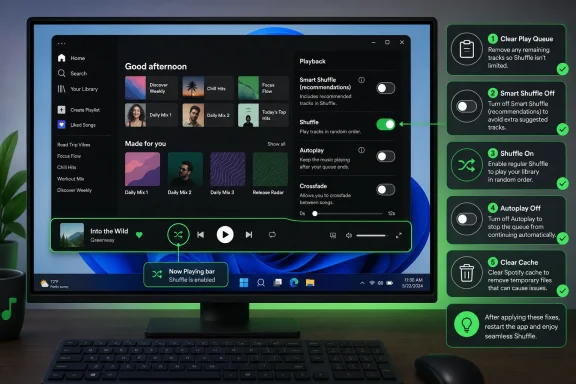 Identify what Spotify is actually doing
Before reinstalling anything, start a fresh test from a playlist with at least 20 tracks. Avoid testing from a single album or a very short playlist, where repeats can be normal.- Open the playlist, album, or artist page you want to play.
- Start playback.
- Open Now Playing and locate the Shuffle control.
- Check its state:
- Shuffle off: tracks play in listed order.
- Shuffle on: Spotify selects tracks in a random order.
- Smart Shuffle: Spotify mixes recommendations into playlists or Liked Songs.
If the same playlist shuffles correctly in the web player but not in the Windows app, skip to the cache and reinstall sections. That result points to the installed app rather than your Spotify account.
Turn off Smart Shuffle when recommendations are appearing
Smart Shuffle is not a broken Shuffle button. It is a separate playback mode that inserts Spotify recommendations matching the playlist’s general style. Recommended tracks can be identified in Now Playing by an Enhance badge beside the artist name.On a mobile device with Spotify Premium, you can cycle the Shuffle control until regular Shuffle is active. To remove Smart Shuffle from the available playback modes:
- Open Spotify on your phone or tablet.
- Tap your profile picture.
- Select Settings and privacy.
- Select Playback.
- Turn off Include Smart Shuffle in play modes.
Important: Spotify Free on mobile has a service limitation: Smart Shuffle is always active. It cannot be changed to fully controlled playback order unless the account has Premium. That limitation is tied to the account and mobile app, not to Windows.
Select the Shuffle style that matches the problem
Premium accounts can use two Shuffle styles. If Spotify seems to replay the same few songs, this is the most relevant setting.- Open Spotify.
- Select your profile picture and choose Settings.
- Open the Playback section.
- If Shuffle Mode is available, choose one of these options:
- Fewer repeats: Spotify considers recently played tracks when building a randomized sequence. This reduces repeats but does not guarantee that every track plays once before any repeat.
- Standard: each track has an equal random chance, so repeats can occur sooner.
If the Shuffle Mode setting does not appear, update Spotify and restart it before assuming the feature has been removed. Features and menu placement can vary by account type, region, and app release.
Clear the Play Queue
A manually created queue overrides the order Spotify would otherwise use from a playlist. This can make Shuffle appear stuck, especially if songs added earlier continue to play first.Spotify desktop app or web player on Windows
- Click Play Queue beside the playback bar at the bottom of Spotify.
- Review the tracks listed under the queued section.
- Select Clear queue.
- Select Yes to confirm.
- Return to your intended playlist.
- Start the playlist again and turn Shuffle on.
Spotify mobile or tablet
The mobile queue requires Premium.- Tap the Now Playing bar.
- Tap Play Queue.
- Select Clear.
- Start the playlist again and choose regular Shuffle.
Stop Autoplay from continuing with unrelated music
Autoplay begins similar music after Spotify reaches the end of an album, playlist, or group of songs. It can be mistaken for Smart Shuffle or a Shuffle failure because the session continues beyond the music you selected.Spotify desktop app on Windows
- Click your profile picture.
- Select Settings.
- Scroll to Autoplay.
- Turn Autoplay off.
Spotify web player
- Open your profile or account menu.
- Select Settings.
- Find Autoplay.
- Turn it off if the option is available.
Spotify mobile or tablet
- Tap your profile picture.
- Tap Settings and privacy.
- Under Playback, scroll to Autoplay.
- Switch it off.
Check blocked, unavailable, and offline tracks
Shuffle may appear to skip tracks when Spotify cannot play them. Look for grayed-out songs or songs that consistently disappear from the queue.Explicit-content filtering
When explicit playback is disabled, tracks carrying Spotify’s explicit label are grayed out, cannot play, and are skipped automatically.On the Windows desktop app:
- Click your profile picture.
- Select Settings.
- Under Explicit Content, turn on Allow playback of explicit-rated content.
- Tap your profile picture.
- Tap Settings and privacy.
- Under Content and display, turn on Allow Explicit Content.
Offline mode
If many tracks are grayed out, check whether Spotify is offline.- In the Windows Spotify app, click the three dots menu at the top.
- Select File.
- Turn Offline mode off if it is enabled.
Country or region restrictions
Spotify Free accounts can be used outside their registered country or region for up to 14 days. After that period, playback can stop until the account country or region is updated.To change it:
- Sign in to your Spotify account page in a browser.
- Open Edit profile.
- Scroll to Country or region.
- Choose the new location and select Save profile.
Clear the Spotify cache on Windows
Clearing the cache removes temporary playback data and is a fix for corrupted app behavior. It does not delete playlists or saved music, although you may need to stream content again while the cache rebuilds.- Open the Spotify desktop app.
- Click your profile picture.
- Select Settings.
- Scroll to Storage.
- Click Clear cache.
- Close Spotify completely.
- Reopen Spotify and test Shuffle with the same playlist.
Update Spotify, then restart Windows if the app remains unstable
Spotify updates can correct playback and interface problems. If Spotify displays an update indicator near your profile picture, select it and choose Update Spotify now.After the update completes:
- Close Spotify.
- Press Ctrl + Shift + Esc to open Task Manager.
- Under Processes, confirm that Spotify is not still running.
- Restart Windows.
- Open Spotify and repeat the queue-clearing and Shuffle test.
Reinstall Spotify on Windows
Reinstall Spotify only after checking Shuffle mode, Smart Shuffle, the queue, Autoplay, account restrictions, and the cache.Warning: Reinstalling removes downloaded Spotify music and podcasts from the PC. Your playlists, library, saved albums, and account remain associated with your Spotify account, but downloads must be downloaded again afterward.
Windows 11
- Close Spotify.
- Open Start > Settings > Apps > Installed apps.
- Find Spotify.
- Select the three dots beside Spotify.
- Choose Uninstall.
- Confirm the uninstall and complete the prompts.
- Install Spotify again through the Microsoft Store or Spotify’s official installer.
- Sign in and test Shuffle before restoring downloads.
Windows 10
- Close Spotify.
- Open Start > Settings > Apps > Apps & features.
- Select Spotify.
- Select Uninstall, then confirm.
- Install Spotify again through the Microsoft Store or Spotify’s official installer.
- Sign in and test Shuffle.
Verify that the fix worked
Use this final test rather than judging Shuffle from one or two tracks:- Clear the Play Queue.
- Turn off Autoplay.
- Open a playlist with at least 20 tracks.
- Turn on regular Shuffle—not Smart Shuffle.
- Skip through 10 tracks.
- Confirm that:
- queued songs no longer take priority;
- recommendation tracks do not appear;
- explicit tracks play if permitted;
- the order is no longer the playlist’s listed order;
- the same small group of songs is not immediately repeating when Fewer repeats is selected.
References
- Primary source: Technobezz
Published: 2026-07-17T17:03:58.620000+00:00
Spotify Shuffle Not Working? 8 Fixes That Actually Work | Technobezz
Spotify shuffle not working? Fix Smart Shuffle, queue overrides, Autoplay, cache issues, and account limits with current Spotify steps.www.technobezz.com - Related coverage: support.spotify.com
Shuffle play - Spotify
 support.spotify.com