

Windows 11 users running ThrottleStop have reported a familiar — and still frustrating — problem: the Settings → Personalization → Taskbar → Other system tray icons pane fills with dozens or even hundreds of disabled ThrottleStop entries, and the Taskbar overflow becomes slow or brittle until the tray cache is reset or the app is updated. erview
ThrottleStop is a lightweight, enthusiast‑focused utility that exposes CPU power and thermal controls, sensor readings, and quick‑profile access through the Windows notification area (system tray). Because it publishes multiple telemetry indicators, ThrottleStop can create more than one notification item (icon/tooltip) when it starts. Those multiple registrations are normal for the app’s design, but they interact poorly with Windows 11’s notification‑area caching behavior in some scenarios.
Windows keeps a per‑user cache of noTrayNotify cache) that the Settings app reads to populate the “Other system tray icons” list. The cache is backed by registry values such as IconStreams and PastIconsStream under the TrayNotify key. When apps register or re‑register their icons rapidly at startup — or when they mishandle shell messages that ask apps to re‑register icons after Explorer restarts — Windows can end up recording many distinct cached entries for the same app instead of updating a single entry. The result is long, duplicated lists in Settings and sometimes sluggish UI behavior. Microsoft’s own troubleshooting guidance and community documentation recommend deleting those two registry values to reset the cache when the list becomes corrupted.
Community feedback since the 9.7 release shows two recurring patterns. First, many users report that once they update to 9.7.x the exponential or continual growth of ThrottleStop entries stops. Second, some users still see residual entries after updating and must manually clear the tray cache (IconStreams/PastIconsStream) to restore a clean list. There are also reports of reduced but non‑zero icon counts; ThrottleStop may legitimately create several icons (main entry, CPU/GPU temp indicators, MHz, power reporting), so seeing a handful of entries can be the app doing its job rather than a bug.
This is a broader ecosystem issue: many utilities that register mue them frequently have historically produced oddities in the notification area. The fix therefore involves coordination between app authors (ThrottleStop changed its registration behavior in 9.7) and end‑users (cltries or delaying startup).
Users should watch for the following signals:
The ThrottleStop tray‑icon saga is a textbook example of how timing, per‑user caching, and multi‑icon apps can interact to create a persistent UX problem. For now, the most reliable path is surgery (clear the TrayNotify cache), an update (ThrottleStop 9.7+), and a modest operational change (delay autostart). Those steps respect system stability while returning your Taskbar settings to a usable state.
Source: TechPowerUp Throttlestop stoped working again on windows 11
ThrottleStop is a lightweight, enthusiast‑focused utility that exposes CPU power and thermal controls, sensor readings, and quick‑profile access through the Windows notification area (system tray). Because it publishes multiple telemetry indicators, ThrottleStop can create more than one notification item (icon/tooltip) when it starts. Those multiple registrations are normal for the app’s design, but they interact poorly with Windows 11’s notification‑area caching behavior in some scenarios.
Windows keeps a per‑user cache of noTrayNotify cache) that the Settings app reads to populate the “Other system tray icons” list. The cache is backed by registry values such as IconStreams and PastIconsStream under the TrayNotify key. When apps register or re‑register their icons rapidly at startup — or when they mishandle shell messages that ask apps to re‑register icons after Explorer restarts — Windows can end up recording many distinct cached entries for the same app instead of updating a single entry. The result is long, duplicated lists in Settings and sometimes sluggish UI behavior. Microsoft’s own troubleshooting guidance and community documentation recommend deleting those two registry values to reset the cache when the list becomes corrupted.
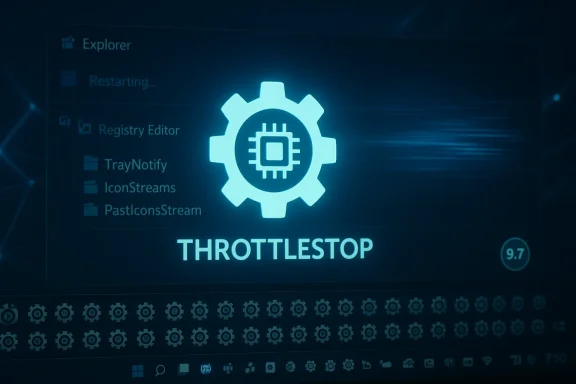 What changed and why users see “ThrottleStop stopped working again”
The ThrottleStop 9.7 fix and the remaining symptoms
TechPowerUp’s ThrottleStop 9.7 release (December 26, 2024) explicitly lists a compatibility fix for the Notification Area icons: the release notes state “Fixed the Notification Area icons for improved Windows 11 compatibility.” Subsequent point updates in the 9.7.x line continued adjustments. Updating to ThrottleStop 9.7+ has stopped the uncontrolled multiplication of new cached entries for many users — importantly, that fix prevents new duplicates from being created, but it does not magically remove old cached entries already stored by Windows. In short: update to 9.7+, but you may still need to clear the tray cache to remove legacy entries.Community feedback since the 9.7 release shows two recurring patterns. First, many users report that once they update to 9.7.x the exponential or continual growth of ThrottleStop entries stops. Second, some users still see residual entries after updating and must manually clear the tray cache (IconStreams/PastIconsStream) to restore a clean list. There are also reports of reduced but non‑zero icon counts; ThrottleStop may legitimately create several icons (main entry, CPU/GPU temp indicators, MHz, power reporting), so seeing a handful of entries can be the app doing its job rather than a bug.
Why the Settings pane can become slow or unresponsive
When Settings enumerates hundreds of cached icon records, the UI must decode and layout each entry; this can cause noticeable lag when opening the Taskbar settings. In reported extreme cases, the enumeration cost alone makes Settings sluggish and the chevron/overflow controls behave incorrectly. Because the stored records are inert historical entries, toways collapse the list back into a single live entry — the stale entries remain until the tray cache is reset.How the underlying mechanics produce the problem
The registration race, Explorer messages, and icon caching
Three technical behaviors combine to produce the worst cases:- ThrottleStop can register multiple, separate notification items (each sensor or readout may register its own small icon or tooltip).
- Windows 11 stores a per‑user list of past notification icons in a registry cache (TrayNotify → IconStreams / PastIconsStream).
- During boot or whenever the shell restarts, apps that register icons quickly or re‑register incorrectly can cause Windows to treat each registration as a new distinct entry rather than updating the existing record.
Why updating the app helps but doesn’t fix cached history
A change in ThrottleStop’s icon registration logic (what the developer refers to in 9.7’s release notes) reduces repeated registrations and improves Windows 11 compatibility going forward. That means fewer new entries will be created after the update. However, the registry cache holds historical entries created by previous launches and Windows doesn’t proactively prune or deduplicate those old records — which is why a manual reset of IconStreams and PastIconsStream is usually necessary to remove the accumulated garbage from Settings.Practical, safe steps to diagnose and fix the problem
Below are pragmatic steps ranked from least invasive to thorough. Before you edit the registry, create a System Restore point and export any keys you plan checks (1–2 minutes)- Restart Explorer.exe: open Task Manager (Ctrl+Shift+Esc), find Windows Explorer, right‑click → Restart. This reloads the shell and sometimes normalizes icon registrations.
- Update ThrottleStop to the latest 9.7.x build. The release notes show the Notification Area compatibility fix shipped in 9.7. After updating, restart the PC and observe whether new duplicates stop appearing.
- If you don’t need ThrottleStop at logon, disable it from starting automatically (Task Manager → Startup or disable the scheduled Task). Delaying startup reduces the chance of racing with Explorer initialization.
Reset the notification area icon cache (intermediate — commonly used)
This method is the standard community remedy and is documented in Microsoft support guidance for similar notification problems:- Close ThrottleStop and any monitoring apps whose icons you want to preserve.
- Open Registry Editor (Win+R → regedit) and navigate to:
HKEY_CURRENT_USER\Software\Classesre\Microsoft\Windows\CurrentVersion\TrayNotify. - Export the TrayNotify key (right‑click → Export) to create a backup before changing anything.
- Delete the binary values IconStreams and PastIconsStream (do not delete the parent key).
- Restart Explorer: Task Manager → Details/Processes → End task explorer.exe, then File → Run new task → explorer.exe.
- Open Settings → Personalization → Taskbar → Other system tray icons and reconfigure which icxpect to re‑toggle preferences because clearing the cache resets per‑icon visibility choices.
Advanced / scriptable option (one‑step)
Several community contributors provide small scripts or batch files that delete IconStreams/PastIconsStream and restart Explorer automatically. Only run scripts from sources you trust and inspect the commands before executing. If you’re comfortable with PowerShell, a short script that exports the key, removes the two values, and restarts Explorer is straightforward and repeatable.Last resort: uninstall / reinstall ThrottleStohe is not an acceptable option or you can’t edit the registry, uninstall ThrottleStop, clear the tray cache, and then reinstall the latest release. Removing the app before clearing the cache prevents it from re‑creating entries while you’re trying to clean up the list.
Risk assessment and cautions
- Registry risk: Editing IconStreams/PastIconsStream is an effective remedy but not risk‑free. Export the TrayNotify key first and create a System Restore point. If you make a ore the exported key or use System Restore.
- Managed environments: On devices controlled by IT, do not modify the registry or uninstall software without engaging support; corporate policies may prevent or log those actions.
- **ThrotttleStop is a power‑user tool. Beyond tray icons, it can change power limits and voltages; incorrect settings can destabilize the system or, in extreme cases, stress hardware. The tray icon duplication is cosmetic but signals that the tool interacts deeply with system components; treat it with care.
- Incomplete fixes: The 9.7 update stops future multiplication in many cases, but it does not remove or deduplicate old cached entries. That limitation is a Windows caching behavior, not a simple app bug that can be retroactively fixed by an update.
Why Microsoft’s tray design matters to power users
Windows 11’s taskbar and tray architecture differs from Windows 10, and those changes have exposed edge cases in how apps register and the shell caches icons. The TrayNotify cache is designed to persist per‑app visibility preferences, but it was not built to deduplicate rapid or repeated registrations from sophisticated monitoring apps. That gap means a small timing mismatch at startup can create a persistent UI problem that requires a manual reset.This is a broader ecosystem issue: many utilities that register mue them frequently have historically produced oddities in the notification area. The fix therefore involves coordination between app authors (ThrottleStop changed its registration behavior in 9.7) and end‑users (cltries or delaying startup).
Troubleshooting checklist (quick reference)
- Confirm ThrottleStop version is 9.7 or later. If not, update.
- Restart Explorer.exe and observe whether the Settings li duplicates persist: export TrayNotify key, delete IconStreams and PastIconsStream, restart Explorer, reconfigure icon visibility.
- If you need startup behavior: disable ThrottleStop autostart or add a small Task Scheduler delay so Explorer finishes initializing before ThrottleStop registers icons.
Developer perspective and what to expect next
From the perspective of the ThrottleStop author and community maintainers, the path taken in 9.7 was sensible: reduce aggressive icon re‑registration and improve compatibility with Windows 11’s shell. That approach prevents new pollution of the tray cache while leaving the registry cleanup task to the user, which is the safer route than forcing Windows to delete persistent user preferences automatically.Users should watch for the following signals:
- If ThrottleStop updates no longer produce multiplying entries but old entries still exist, follow the registry reset path.
- If duplicates continue to appear after updating and clearing the cache, capture diagnostic logs, note exact ThrottleStop settings (which telemetry icons are enabled), test with ThrottleStop not set to auto‑start, and report the reproducible steps to TechPowerUp’s forum thread or the ThrottleStop author so they can investigate further. Community threads show that a few users reported residual counts even on 9. important feedback loops that help refine fixes.
Broader lessons for power users and administrators
- Small timing differences at system startup can cascade into visible configuration pain. When you run moools at logon, prefer a modest delay to let the shell populate and broadcast its readiness notifications.
- Keep troubleshooting reproducible: note which apps run at logon, whether Explorer restarted recently, and whether you use taskbar modification utilities (ExplorerPatcher, StartAllBack, Windhawk) which can change shell behavior. Some shell‑mod tools add another variable that affects icon registration.
- When something looks like a bug in the Settings UI, remember the distinction between a live icon (the process that created it is running) and a cached historical entry (a stored preference). Clearing the cache resets preferences for all apps, not just the problematic one.
Final analysis and clear recommendation
The short, actionable plan for most affected Windows 11 power users is:- Update ThrottleStop to the latest 9.7.x build to stop new duplicates from being created.
- If your Settings list already shows dozens or hundredsies, back up the registry (export TrayNotify), delete IconStreams and PastIconsStream from HKEY_CURRENT_USER\Software\Classes\Local Settings\Software\Microsoft\Windows\CurrentVersion\TrayNotify, and restart Explorer. Reconfigure your desired icon visibility. This will remove the stale entries created by older runs.
- Prevent recurrence by delaying ThrottleStop’s autostart or using a scheduled task with a short delay so the shell can fully initialize before the app registers multiple icons.
The ThrottleStop tray‑icon saga is a textbook example of how timing, per‑user caching, and multi‑icon apps can interact to create a persistent UX problem. For now, the most reliable path is surgery (clear the TrayNotify cache), an update (ThrottleStop 9.7+), and a modest operational change (delay autostart). Those steps respect system stability while returning your Taskbar settings to a usable state.
Source: TechPowerUp Throttlestop stoped working again on windows 11
