

Twitch not working in Mozilla Firefox on Windows 10 or Windows 11 is usually caused by outdated browser files, damaged Twitch site data, an extension or privacy setting blocking part of the site, or a media/network configuration problem. These steps cover Twitch in the current desktop Firefox release, including loading failures, endless buffering, player errors, broken chat or sign-in, DRM errors, and missing sound.
If Twitch still behaves incorrectly, clear cached files without clearing all Firefox cookies:
If the site starts working, keep the exception only if you need it. To remove it later:
If Refresh Firefox does not help, create a clean profile rather than manually deleting Firefox preference files:
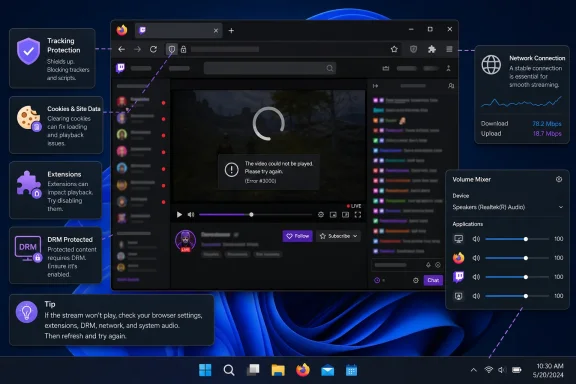 Start by separating a Twitch problem from a Firefox problem
- In Firefox, select the menu button (three horizontal lines), choose Help, then About Firefox.
- Allow Firefox to check for updates. If an update is downloaded, select Restart to update Firefox.
- Open Twitch Status in another tab and check whether Login, Web, Chat, or Video (Watching) shows an incident or degraded service.
- Test at least two live channels:
- If one channel fails but another plays normally, the problem may be specific to that broadcaster’s stream.
- If Twitch fails in Firefox and another browser, it is likely a Twitch, network, or account issue.
- If Twitch works in another browser but not Firefox, continue below.
Reload Twitch and remove only Twitch’s stored data
A stale Twitch cookie or cached player file can cause a sign-in loop, blank page, chat failure, or a player that never starts.- Open
twitch.tvin Firefox. - Select the padlock icon to the left of the address bar.
- Select Clear cookies and site data.
- Select Clear or Remove when prompted.
- Reload Twitch and sign in again.
If Twitch still behaves incorrectly, clear cached files without clearing all Firefox cookies:
- Select the Firefox menu button, then Settings.
- Open Privacy & Security.
- Under Cookies and Site Data or Browsing data, select Clear Data or Clear browsing data.
- Select only Temporary cached files and pages.
- Choose Clear.
- Close and reopen the Twitch tab.
Test Twitch in Firefox Troubleshoot Mode
Firefox Troubleshoot Mode is the fastest way to identify whether an extension, theme, hardware acceleration, or customization is involved. It temporarily disables extensions and themes, turns off hardware acceleration and WebGL, and uses default toolbar settings.- Select the Firefox menu button.
- Select Help > Troubleshoot Mode.
- Select Restart.
- In the confirmation window, select Open.
- Open Twitch and test:
- A live stream
- Sound
- Chat
- Sign-in
- Channel controls
- Select the Firefox menu button.
- Select Add-ons and themes.
- Choose Extensions.
- Turn off one extension at a time with its toggle.
- Reload Twitch after each change.
Allow Twitch through Firefox tracking protection
Firefox Enhanced Tracking Protection can block page components that Twitch uses for sign-in, chat, embedded features, subscriptions, and other account-related functions. Do not lower privacy protection globally before testing a site-specific exception.- Open Twitch.
- Select the shield icon to the left of the address bar.
- Turn off Enhanced Tracking Protection for this site.
- Let Firefox reload the page.
- Test Twitch again.
If the site starts working, keep the exception only if you need it. To remove it later:
- Open Firefox Settings > Privacy & Security.
- Find Enhanced Tracking Protection.
- Open the available exception or protection-management controls.
- Remove the Twitch exception, then reload Twitch.
Fix Twitch playback, DRM, and audio
Use this section when Twitch loads but streams buffer indefinitely, produce player errors, show a black screen, or have no sound.Set the stream quality to Auto
- Start the affected Twitch stream.
- Select the player Settings gear.
- Select Quality.
- Choose Auto.
Test hardware acceleration
Twitch identifies hardware acceleration as a possible cause of video decoding errors, including Error Code 3000.- In Firefox, select the menu button > Settings.
- Select General.
- Scroll to Performance.
- Clear Use recommended performance settings.
- Clear Use hardware acceleration when available.
- Restart Firefox and test Twitch.
Enable DRM-controlled content
Some protected Twitch content requires Digital Rights Management support. Twitch lists disabled DRM as a cause of Error Code 7005.- Open Firefox Settings.
- Select General.
- Find Digital Rights Management (DRM) Content or Media.
- Enable Play DRM-controlled content.
- Restart Firefox and retest the stream.
about:policies in the Firefox address bar. A work or school administrator may have locked the setting.Check the Windows Volume Mixer
When Twitch video plays but Firefox has no sound:- Start a Twitch stream in Firefox.
- Right-click the speaker icon in the Windows taskbar notification area.
- Select Volume mixer.
- Confirm Mozilla Firefox is not muted.
- Raise the Firefox volume slider.
- Confirm the correct output device is selected in Windows sound controls.
Check Firefox proxy, VPN, and DNS settings
Use these steps when Twitch works on another network or browser but not in Firefox, or when you see network-related errors such as Twitch Error Code 2000.Check Firefox proxy settings
- In Firefox, select menu > Settings.
- Select Privacy & Security.
- Scroll to Connection and software security.
- Select Advanced settings beside the proxy or connection setting.
- Review the proxy mode:
- Choose No proxy if you do not use a proxy.
- Choose Use system proxy settings if Windows or your organization provides the proxy configuration.
- Use Manual proxy configuration only when you have the exact server details.
Temporarily disconnect VPN or traffic-routing software
Twitch recommends testing without a VPN or other software that routes traffic through another IP address.- Disconnect the VPN.
- Fully close the VPN client if it continues to filter traffic after disconnecting.
- Reload Twitch.
- If Twitch now works, contact the VPN provider or choose a different VPN endpoint rather than weakening Firefox security settings.
Test DNS over HTTPS
- Open Firefox Settings > Privacy & Security.
- Find DNS over HTTPS.
- Open Advanced settings if available.
- Temporarily set DNS over HTTPS to Off.
- Reload Twitch.
Refresh Firefox only after targeted fixes fail
A Firefox refresh is a repair step, not the first fix for Twitch. It removes extensions, themes, website permissions, modified preferences, toolbar customizations, and local DOM storage. Firefox keeps important items such as bookmarks, history, passwords, cookies, and saved form data.- Select Firefox menu > Help > More Troubleshooting Information.
- Select Refresh Firefox.
- Read the confirmation carefully, then select Refresh Firefox again.
- When Firefox reopens, select Finish.
- Choose whether to restore previous windows and tabs.
- Test Twitch before reinstalling extensions or signing in to Sync.
If Refresh Firefox does not help, create a clean profile rather than manually deleting Firefox preference files:
- Type
about:profilesin the Firefox address bar. - Select Create a New Profile.
- Complete the profile wizard.
- Launch the new profile.
- Test Twitch before adding extensions, importing custom settings, or enabling Sync.
When to escalate the problem
If Twitch still fails across multiple streams after updating Firefox, clearing Twitch data, testing Troubleshoot Mode, checking tracking protection, and testing another network, collect the details Twitch Support will need:- Firefox version from Help > About Firefox
- Windows version
- Exact Twitch error code, if shown
- Whether the issue affects one channel or all channels
- Whether it happens in a clean Firefox profile
- Whether it works on another network or device
- Screenshots of the error and the steps needed to reproduce it
References
- Primary source: Technobezz
Published: 2026-07-19T17:18:26.020000+00:00
Loading…
www.technobezz.com