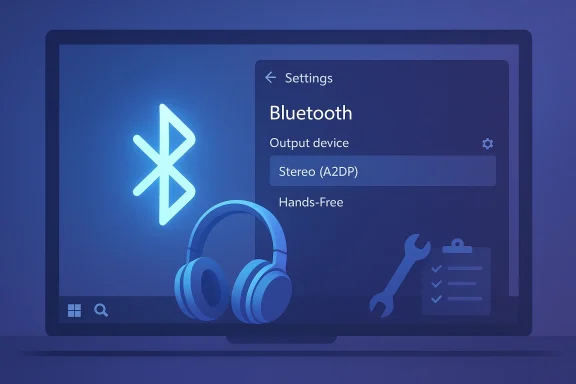
If your inexpensive Bluetooth headset pairs with Windows 10 but either refuses to play audio, drops one earbud, or collapses into tinny mono whenever the mic is used, you’re not alone — this is a very common class of problem that’s usually fixable with a methodical checklist rather than an immediate return or RMA.
Bluetooth audio on Windows 10 is the result of several moving parts working together: the headset firmware, the PC’s Bluetooth radio and radio firmware, the adapter/chipset drivers (or OEM-provided driver stack), and Windows’ own pairing and audio routing. When any of those pieces are out of sync — after a Windows update, a firmware update on the headset, or due to aggressive power management — pairing and audio routing can fail in ways that look identical to broken hardware.
Two fundamental technical realities drive most of the headaches you’ll see on Windows 10:
Practical tip: if firmware updates are distributed only through a vendor mobile app, install that app, apply the update, then re‑pair the headset to your PC. If the headset is non‑brand or sold at discount (e.g., some Mpow models), verify whether a firmware update channel even exists — many budget models lack firmware update paths and can remain incompatible with certain PC hosts long term. If no firmware path exists, a USB dongle or replacement headset may be the only fix.
Source: Born2Invest https://born2invest.com/?b=style-338188712/
 Background / Overview
Bluetooth audio on Windows 10 is the result of several moving parts working together: the headset firmware, the PC’s Bluetooth radio and radio firmware, the adapter/chipset drivers (or OEM-provided driver stack), and Windows’ own pairing and audio routing. When any of those pieces are out of sync — after a Windows update, a firmware update on the headset, or due to aggressive power management — pairing and audio routing can fail in ways that look identical to broken hardware.Two fundamental technical realities drive most of the headaches you’ll see on Windows 10:
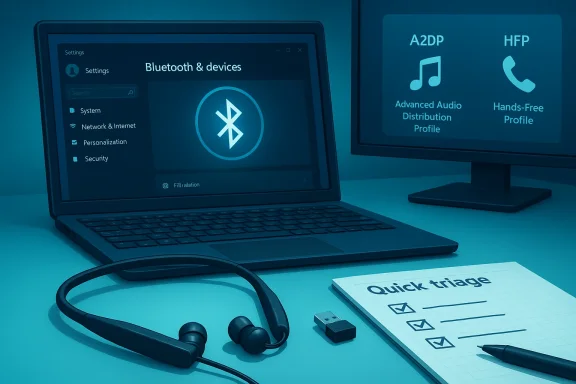
- The legacy Bluetooth Classic profile model separates high-quality stereo (A2DP) from hands‑free voice (HFP/HSP). On Windows 10 this often forces a trade‑off: when the system switches to HFP for microphone use, stereo media drops to a low‑quality mono stream.
- Newer fixes such as LE Audio and the LC3 codec aim to remove that trade‑off, but they require an end-to-end upgrade: headset firmware, bluetooth radio firmware, chipset drivers, and the OS must all expose and support ISO (isochronous) channels. On most Windows 10 machines today, that end‑to‑end support is not present. Treat claims of automatic LE Audio benefits on Windows 10 as conditional until your exact headset and PC vendor document support.
Symptoms: Recognize what you’re seeing
Here are the common symptom patterns and what they usually indicate:- Headset shows as “Connected” in Settings → Bluetooth & devices but no audio plays: often an audio endpoint routing problem or missing A2DP endpoint.
- Stereo music collapses to mono or becomes low quality when the mic is used: classic A2DP ↔ HFP negotiation fallback.
- One earbud is silent or audio stutters: either a bonding/profile problem or radio/interference issue.
- Device pairs successfully with phones but refuses to pair, or pairs but won’t enumerate audio endpoints on the PC: driver/firmware mismatch or Windows services/power policy suspending the adapter.
Quick triage — fixes that work within 5–15 minutes
Always start with the safe, reversible steps. They resolve the majority of transient issues.- Confirm the headset is charged, powered on, and in pairing mode. Low battery or being stuck to another host causes many false failures.
- Move the headset close to the PC to rule out range or interference.
- Toggle Bluetooth Off → On from Quick Settings (Win+A) or Settings → Bluetooth & devices; then try the connection again.
- Remove the headset from Windows (Settings → Bluetooth & devices → device → Remove device) and re‑pair it. Re‑pairing clears stale bonding keys and often restores missing endpoints.
- Open Settings → System → Sound and explicitly select the headset as the Output device. Some Windows builds will show “connected” without switching the default audio endpoint.
- Run the built‑in troubleshooters: Settings → System → Troubleshoot → Other troubleshooters → Bluetooth and Playing Audio. The troubleshooter will restart services and apply quick fixes automatically.
Stepwise troubleshooting: safe → advanced (30–90+ minutes)
Work through this ordered checklist. Test after each step so you can stop when the problem is resolved.1. Verify Windows updates and vendor drivers
- Install pending Windows Updates (Settings → Update & Security → Windows Update). Some driver packages are delivered via Windows Update.
- Prefer OEM or chipset‑vendor drivers (Intel, Qualcomm, Broadcom, Realtek) over generic Microsoft drivers or third‑party driver updaters. Download the exact Bluetooth adapter driver for your laptop or motherboard model.
- If the issue began after a driver update, use Device Manager → Bluetooth adapter → Driver → Roll Back Driver. Rolling back is safer than an immediate uninstall.
2. Device Manager — update, roll back, uninstall (when appropriate)
- Open Device Manager (Win+X → Device Manager). Expand Bluetooth and Sound categories.
- Update driver: Right‑click the Bluetooth adapter → Update driver → Search automatically or point to the OEM package.
- If updating doesn’t help, use Roll Back Driver (if available), or uninstall the adapter and reboot so Windows reinstalls. If Windows doesn’t reinstall, use Action → Scan for hardware changes or install the OEM driver manually.
3. Services and power management
- Open services.msc and restart Bluetooth Support Service (bthserv), Windows Audio, and Windows Audio Endpoint Builder if any are stopped or unstable. A stopped or hung service can leave a “connected” device with no audio pipeline.
- In Device Manager, double‑click your Bluetooth adapter → Power Management → uncheck “Allow the computer to turn off this device to save power.” Do the same for related HID/headset entries. This prevents Windows from suspending the radio mid‑use.
4. Audio routing, formats, and app settings
- Confirm the headset is the selected Output (Settings → System → Sound) and check App volume and device preferences to ensure no app is routing audio elsewhere.
- In the classic Sound Control Panel (mmsys.cpl), set a stable Default Format for playback (for example 2 channels, 16 bit, 48000 Hz) and disable Exclusive Mode to prevent apps from taking exclusive control of the endpoint. Disable audio enhancements if present. These reduce format negotiation conflicts.
5. Hands‑Free Telephony vs A2DP trade‑offs
- Many headsets expose two endpoints in Windows: Headphones (A2DP) for high‑quality media and Hands‑Free (HFP) for voice. If the mic triggers and music collapses, this is the classic profile fallback. As a temporary workaround you can uncheck Hands‑Free Telephony in Devices and Printers → right‑click headset → Properties → Services to force A2DP stereo for media playback. That disables the headset mic for Windows calls but restores music fidelity. Use a separate mic for calls if you need both high‑quality audio and voice.
6. Test with another host and a USB dongle
- Pair the headset to a smartphone. If it works normally there, the problem is host-side (drivers, power management, or the PC adapter).
- If your internal adapter is old or flaky, try a modern USB Bluetooth dongle with up‑to‑date chipset drivers (some advertise aptX or LE Audio support). Disable the internal adapter in Device Manager and re‑pair to the dongle to isolate the radio. Many users find this resolves codec or range issues.
7. System repair and advanced diagnostics
- If driver operations don’t help, run these elevated commands to repair Windows component corruption:
DISM /Online /Cleanup-Image /RestoreHealth
sfc /scannow
Reboot after completion. - Use Event Viewer to capture Bluetooth-related errors around disconnect timestamps and run powercfg /energy to generate a power report if you suspect power policy issues. These artifacts assist escalation to vendor or IT support.
Headset firmware, vendor tools and model-specific notes
Many mainstream vendors (Sony, Bose, SteelSeries, Arctis, etc.) deliver firmware fixes through their mobile or dedicated PC apps. Firmware updates can fix pairing logic, codec negotiation, and channel stability — and are often the correct long‑term fix if the headset misbehaves across multiple hosts. Always check vendor update tools and release notes before performing aggressive host-side changes.Practical tip: if firmware updates are distributed only through a vendor mobile app, install that app, apply the update, then re‑pair the headset to your PC. If the headset is non‑brand or sold at discount (e.g., some Mpow models), verify whether a firmware update channel even exists — many budget models lack firmware update paths and can remain incompatible with certain PC hosts long term. If no firmware path exists, a USB dongle or replacement headset may be the only fix.
Interference, multipoint and environmental causes
Bluetooth is a 2.4 GHz radio and is susceptible to common forms of interference:- Dense Wi‑Fi environments, nearby microwave ovens, or even USB 3.0 activity can cause packet loss. Move the headset and PC away from known interference sources.
- Multipoint headsets (paired to multiple devices) sometimes prefer a previously bonded host. Remove older pairings (especially phones) or temporarily disable multipoint to test a clean connection.
When to escalate, replace, or return — practical decision guides
Use this decision logic to avoid wasted time:- If the headset fails on multiple hosts including smartphones after resets and firmware updates, escalate to the vendor for warranty/repair: likely hardware or firmware defect.
- If the headset works on phones but not your PC despite driver rollbacks, clean reinstalls, and service restarts, the issue is host-side: try a USB dongle to confirm. If the dongle fixes it, the internal adapter or BIOS/firmware for that adapter is suspect; contact PC OEM.
- If you bought a cheap or clearance model with limited return window and no firmware channel, ask the vendor for compatibility notes; if none exist, return or exchange for a model with explicit PC support. Discount headsets sometimes omit features or firmware update paths that make them fragile on PCs.
Risks, tradeoffs and security considerations
- Disabling Hands‑Free Telephony restores audio fidelity but removes the headset mic for system calls — unacceptable for users who need the mic. Use this only as a temporary workaround.
- Avoid third‑party driver updaters. They commonly install incorrect Bluetooth stacks and complicate recovery. Prefer OEM or chipset vendor downloads.
- On managed corporate devices, don’t uninstall drivers or toggle services without IT approval — group policy, MDM, and inventory agents may reconfigure the device or block changes, and you may need IT to reverse actions. Document all steps you take.
- Firmware updates that require unsupported workarounds (APK side‑loads, emulators) can brick devices. Use vendor‑provided update mechanisms and follow vendor instructions; if none exist, treat persistent compatibility issues as likely unfixable without vendor intervention.
A compact, copy‑and‑paste checklist (safe to advanced)
- Confirm headset charged, in pairing mode, within a few feet of PC.
- Toggle Bluetooth Off → On; reselect headset under Settings → System → Sound.
- Remove device and re‑pair. Run Bluetooth + Playing Audio troubleshooters.
- Restart services: Bluetooth Support Service, Windows Audio, Windows Audio Endpoint Builder. Uncheck power‑saving on the adapter.
- Update or roll back Bluetooth and audio drivers from OEM/chipset vendor pages. Prefer vendor packages.
- If mic collapses music, uncheck Hands‑Free Telephony temporarily (Devices and Printers → device → Properties → Services).
- Test headset on a phone; try a modern USB Bluetooth dongle if the PC adapter appears faulty.
- If unresolved, run DISM /RestoreHealth and sfc /scannow, collect Event Viewer logs, and escalate to vendor or IT with the artifacts.
Real‑world case notes and vendor specifics (what community reports say)
- Community reports show that some Sony, Bose and other brand headphones require vendor mobile apps for firmware updates and that applying those updates then re‑pairing to the PC resolves stubborn host‑side issues. For these models, the firmware step is often the key.
- Users of discount brands (Mpow and similar) frequently see “connected but silent” behavior tied to reduced feature sets or missing firmware update channels; in those cases, a USB dongle or replacement is often the practical resolution. If a vendor page or product listing claims LE Audio on a budget model, verify with the vendor — community audits often failed to confirm such claims.
Final assessment and practical recommendations
- Most “connected but no audio” or “stereo collapses to mono” issues on Windows 10 are caused by profile/codec negotiation, driver or firmware mismatches, service or power management suspensions, or per‑app routing — not a dead headset. A short, ordered workflow (quick triage → driver/service checks → firmware/dongle test → advanced diagnostics) will fix the majority of cases.
- If you depend on simultaneous high‑quality stereo and a headset mic, Windows 10’s legacy A2DP/HFP model will be a limiting factor for many headsets. Expect better native experience only when the entire stack (headset + radio + drivers + OS) supports LE Audio end‑to‑end — a capability that is still primarily rolling out on Windows 11 and newer vendor stacks. Verify vendor and PC support before purchasing for this use case.
- For immediate, pragmatic relief: use the quick checklist above, prefer OEM driver packages, apply vendor firmware updates if available, and keep a good USB Bluetooth dongle on hand as a diagnostic and sometimes permanent solution. If a cheap headset continues to fail across multiple hosts and lacks a firmware update path, the most economical option is often replacement with a model that documents PC compatibility.
Source: Born2Invest https://born2invest.com/?b=style-338188712/