

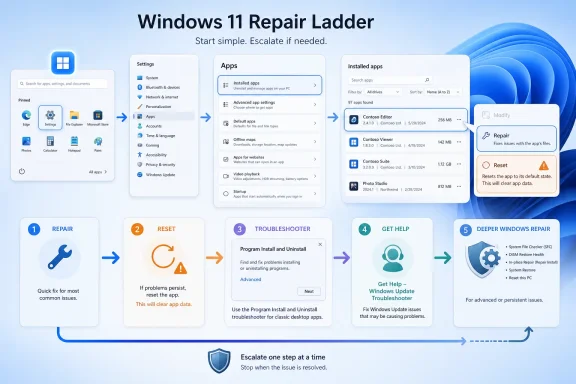
When a Windows 11 app will not install, uninstall, update, or launch correctly, Microsoft’s first repair path is Settings > Apps > Installed apps > Advanced options > Repair, followed by Reset if Repair is unavailable or does not work. If the failure is specifically blocking a desktop program from being installed or removed, Microsoft points users to the Program Install and Uninstall troubleshooter, which targets corrupted registry keys and stuck add/remove records. That shift matters because the practical fix is often not “download the installer again,” but repair the state Windows is using to track the app.
The short version is simple. Open Start, go to Settings, select Apps, open Installed apps, find the broken app, choose the three-dot menu, select Advanced options, and try Repair. If that option is missing or ineffective, use Reset, understanding that Reset may clear the app’s local data or preferences. For classic desktop software that refuses to uninstall, disappears from the app list, or throws installer errors during removal, run Microsoft’s Program Install and Uninstall troubleshooter rather than immediately reaching for registry edits or third-party cleanup tools.
That is the useful part most frustrated users came for. The more interesting part is what Microsoft’s own troubleshooting map now says about Windows 11: app failure is increasingly treated as a state-management problem, not merely as a packaging problem. The installer may be innocent; the mess may live in the app profile, the Windows repair metadata, the uninstall registration, or the system components that decide whether an app is healthy enough to change.
For years, the instinctive Windows fix for a bad application was almost ritualistic: uninstall it, reboot, download a fresh copy, reinstall, and hope the machine forgot whatever offended it. Windows 11’s current guidance makes a subtler argument. Before escalating to removal, the operating system asks users to try the app’s built-in Repair path from Settings.
That path is not glamorous, but it is important. Settings > Apps > Installed apps is no longer just an inventory screen; it is a first-line recovery surface. The “Advanced options” entry, where available, exposes Repair and Reset as separate actions, and the distinction is the heart of the new troubleshooting logic.
Repair is the conservative move. It attempts to fix the app without requiring the user to remove it. Reset is the more aggressive move. It puts the app back into a cleaner state, which can solve deeper corruption but may discard local app state depending on the app.
This is why the wording matters. Microsoft does not tell users to begin by hunting for random uninstallers, deleting folders, or cleaning the registry. It tells them to start with the app object Windows already knows about. For WindowsForum readers, that is the clue: the failure may be in the relationship between Windows and the installed app, not in the installer executable sitting in Downloads.
After Repair finishes, launch the app again before doing anything else. If the app now opens, updates, or uninstalls, stop there. The goal is not to perform every fix in the toolbox; the goal is to disturb the system as little as possible while restoring the app to a working state.
If Repair does not appear or does not solve the problem, Reset is the next step. This is where users should slow down. Reset is useful precisely because it is more forceful: it can clear the broken state that Repair leaves behind. But that also means it can remove local preferences, cached data, sign-in state, or app-specific configuration.
For consumer apps, that may be a nuisance. For business apps, developer tools, VPN clients, creative suites, database front ends, or line-of-business software, it can be a support ticket waiting to happen. Before Reset, IT pros should consider whether the app stores important local configuration, whether the user has synced data, and whether a reset will break authentication, plug-ins, or extensions.
The point is not that Reset is dangerous. The point is that Reset is not just “Repair, but stronger.” It is a different class of intervention, and Microsoft’s ordering tells you how to think about it: preserve state first, then clear state only when preservation fails.
That last phrase is the tell. Some install and uninstall failures are not application crashes at all. They are bookkeeping failures. Windows may have enough stale information to believe a program is installed, partially installed, already updating, or unavailable for removal, while the actual files on disk tell a different story.
This is where users often make the problem worse. They delete the program folder, run the installer again, manually remove shortcuts, or start searching the registry for the vendor’s name. Sometimes that works. Sometimes it leaves Windows with even less coherent information than it had before.
The troubleshooter exists for the middle ground between a clean uninstall and a hand-edited registry. It can address broken install and uninstall metadata that blocks new installs, prevents complete removal, or stops a program from being updated. That makes it particularly relevant for classic desktop software, MSI-based packages, and older programs whose Windows integration depends heavily on registry registration.
It is not a magic eraser. It will not turn a broken vendor installer into a good one, and it is not a malware removal utility. But when the symptom is “Windows won’t let me install or remove this thing,” rather than “the app crashes after launch,” it belongs earlier in the troubleshooting order than most users put it.
Sometimes it is. But Microsoft’s recommended paths point to a broader taxonomy. One class of failures lives in app state and is best handled by Repair or Reset. Another class lives in Windows Installer registration, uninstall entries, or corrupted registry keys and is best handled by the Program Install and Uninstall troubleshooter. A third class belongs to Windows Update or system servicing, which Microsoft now routes through Get Help’s automated Windows Update troubleshooter.
That separation is useful for home users, but it is crucial for administrators. If the same app fails on one machine but installs cleanly elsewhere, the package is not the first suspect. If the same user profile repeatedly breaks Store-style apps, app state deserves attention. If several unrelated installers fail with removal or update errors, the issue may be Windows’ install/uninstall metadata rather than any one vendor package.
This is also where forum folklore can lag behind the platform. WindowsForum users have long traded fixes for apps that refuse to launch, 24H2 update pain, failed upgrades, and stuck uninstallers. The common thread is that Windows failures often surface at the app layer even when the underlying fault is state, servicing, or registration. Microsoft’s current guidance makes that implicit reality more explicit.
This creates a split personality in Windows troubleshooting. The modern path lives in Settings and Get Help. The legacy path still exists because some Windows plumbing is old, registry-heavy, and too widely used to disappear. App Repair and Reset live in the modern Settings model; the Program Install and Uninstall troubleshooter exists because classic desktop program metadata can still jam the machine.
For enthusiasts, this can feel untidy. For administrators, it is simply the current Windows reality. The correct fix depends less on whether the user says “install problem” or “app problem” and more on which layer is actually failing.
If Windows Update itself is involved, the Get Help troubleshooter belongs in the workflow. If an individual app is present but unhealthy, Repair and Reset are the first stops. If a desktop program cannot be installed, updated, or removed because Windows’ add/remove machinery is confused, the install/uninstall troubleshooter is the sharper instrument.
The significance is not that Windows suddenly became self-healing. It is that Microsoft now offers a deeper repair option that sits between “try another troubleshooter” and “wipe the PC.” For a system where multiple apps fail, install operations behave unpredictably, and Windows components appear unhealthy, reinstalling the current version can be a more rational move than spending hours chasing one symptom at a time.
That matters in small offices and home labs, where the person troubleshooting the machine is often also the user who needs it back by the end of the day. A repair reinstall that preserves apps, files, and settings can be less disruptive than a traditional clean install, while still replacing enough of Windows to address component-level damage.
But it should be treated as an escalation, not a shortcut. If the problem is one app’s local state, Reset may solve it in minutes. If the problem is a corrupt uninstall key, the install/uninstall troubleshooter may be enough. A system-level reinstall is for the moment when the pattern points beyond one app and toward Windows itself.
That framing changes the order of operations. For a misbehaving app, use Settings first. For a blocked add/remove operation, use the Program Install and Uninstall troubleshooter. For update or install failures tied to Windows Update, use Get Help’s Windows Update troubleshooter. For persistent systemwide failures, consider the current-version Windows reinstall path that preserves apps, files, and settings.
This approach also reduces collateral damage. Manual registry edits, folder deletion, and third-party cleanup utilities may be tempting, especially when a vendor’s uninstaller is broken. But they can obscure the original failure and make the next install attempt harder to diagnose. If Microsoft provides a supported repair path for the class of failure you are seeing, use that before improvising.
In managed environments, the lesson is even sharper. Document whether Repair or Reset was attempted before reinstalling an app. Record whether the Program Install and Uninstall troubleshooter was used for removal blocks. Separate Windows Update failures from application installer failures in help desk notes. Future troubleshooting depends on knowing which layer was touched.
That is why a sysadmin should be cautious about telling users to “just reset the app.” It may be the right fix, but it is not a neutral fix. In a consumer setting, resetting a streaming app or utility may only require signing in again. In a work setting, resetting a communications tool, VPN client, design application, or internal app could mean reconfiguration, lost local preferences, or a support escalation.
The same principle applies to uninstall failures. A stuck uninstall is annoying, but a botched cleanup can strand licensing data, drivers, services, shell extensions, or update registration. The Program Install and Uninstall troubleshooter is valuable because it targets the registration problems that block install and removal operations without asking the user to guess which registry keys matter.
The broader Windows 11 lesson is that app repair has become less about replacing files and more about restoring coherence. The package, the user profile, the registry, the update system, and the app’s own data all have to agree enough for Windows to move forward.
But the order matters. Too much online troubleshooting skips directly from “the app failed” to “nuke it from orbit.” That may feel decisive, but it ignores the supported middle steps Windows now exposes. Repair is the first attempt to keep the app and its state intact. Reset is the controlled state wipe. The install/uninstall troubleshooter is the registry and add/remove cleanup path. The current-version reinstall is the system repair option when the lower layers do not hold.
For WindowsForum readers, this is also a reminder to describe failures precisely. “It won’t install” is less useful than “the installer says a previous version exists but the app is not listed.” “It won’t uninstall” is less useful than “Settings shows the app, but removal fails with an error.” “Apps are broken” is less useful than “multiple apps fail after update attempts.” The better the symptom, the less likely the fix becomes guesswork.
The short version is simple. Open Start, go to Settings, select Apps, open Installed apps, find the broken app, choose the three-dot menu, select Advanced options, and try Repair. If that option is missing or ineffective, use Reset, understanding that Reset may clear the app’s local data or preferences. For classic desktop software that refuses to uninstall, disappears from the app list, or throws installer errors during removal, run Microsoft’s Program Install and Uninstall troubleshooter rather than immediately reaching for registry edits or third-party cleanup tools.
That is the useful part most frustrated users came for. The more interesting part is what Microsoft’s own troubleshooting map now says about Windows 11: app failure is increasingly treated as a state-management problem, not merely as a packaging problem. The installer may be innocent; the mess may live in the app profile, the Windows repair metadata, the uninstall registration, or the system components that decide whether an app is healthy enough to change.
 Microsoft Has Moved the First Fix Inside Settings
For years, the instinctive Windows fix for a bad application was almost ritualistic: uninstall it, reboot, download a fresh copy, reinstall, and hope the machine forgot whatever offended it. Windows 11’s current guidance makes a subtler argument. Before escalating to removal, the operating system asks users to try the app’s built-in Repair path from Settings.That path is not glamorous, but it is important. Settings > Apps > Installed apps is no longer just an inventory screen; it is a first-line recovery surface. The “Advanced options” entry, where available, exposes Repair and Reset as separate actions, and the distinction is the heart of the new troubleshooting logic.
Repair is the conservative move. It attempts to fix the app without requiring the user to remove it. Reset is the more aggressive move. It puts the app back into a cleaner state, which can solve deeper corruption but may discard local app state depending on the app.
This is why the wording matters. Microsoft does not tell users to begin by hunting for random uninstallers, deleting folders, or cleaning the registry. It tells them to start with the app object Windows already knows about. For WindowsForum readers, that is the clue: the failure may be in the relationship between Windows and the installed app, not in the installer executable sitting in Downloads.
Repair Is the Low-Risk Bet, Reset Is the State Wipe
The practical sequence should be boring, because boring is what prevents unnecessary damage. Go to Settings, then Apps, then Installed apps. Find the app that is misbehaving, select the three-dot menu beside it, open Advanced options if it exists, and choose Repair if Repair is available.After Repair finishes, launch the app again before doing anything else. If the app now opens, updates, or uninstalls, stop there. The goal is not to perform every fix in the toolbox; the goal is to disturb the system as little as possible while restoring the app to a working state.
If Repair does not appear or does not solve the problem, Reset is the next step. This is where users should slow down. Reset is useful precisely because it is more forceful: it can clear the broken state that Repair leaves behind. But that also means it can remove local preferences, cached data, sign-in state, or app-specific configuration.
For consumer apps, that may be a nuisance. For business apps, developer tools, VPN clients, creative suites, database front ends, or line-of-business software, it can be a support ticket waiting to happen. Before Reset, IT pros should consider whether the app stores important local configuration, whether the user has synced data, and whether a reset will break authentication, plug-ins, or extensions.
The point is not that Reset is dangerous. The point is that Reset is not just “Repair, but stronger.” It is a different class of intervention, and Microsoft’s ordering tells you how to think about it: preserve state first, then clear state only when preservation fails.
The Hidden Troubleshooter Still Has a Job
The Program Install and Uninstall troubleshooter is not the shiny part of Windows 11, and that is probably why many users miss it. It is also exactly the sort of utility that becomes indispensable when an uninstall record goes bad. Microsoft describes it as a tool for cases where users are blocked from installing or removing programs, including problems caused by corrupted registry keys.That last phrase is the tell. Some install and uninstall failures are not application crashes at all. They are bookkeeping failures. Windows may have enough stale information to believe a program is installed, partially installed, already updating, or unavailable for removal, while the actual files on disk tell a different story.
This is where users often make the problem worse. They delete the program folder, run the installer again, manually remove shortcuts, or start searching the registry for the vendor’s name. Sometimes that works. Sometimes it leaves Windows with even less coherent information than it had before.
The troubleshooter exists for the middle ground between a clean uninstall and a hand-edited registry. It can address broken install and uninstall metadata that blocks new installs, prevents complete removal, or stops a program from being updated. That makes it particularly relevant for classic desktop software, MSI-based packages, and older programs whose Windows integration depends heavily on registry registration.
It is not a magic eraser. It will not turn a broken vendor installer into a good one, and it is not a malware removal utility. But when the symptom is “Windows won’t let me install or remove this thing,” rather than “the app crashes after launch,” it belongs earlier in the troubleshooting order than most users put it.
The Installer Is Often the Messenger, Not the Culprit
The Windows community tends to blame installers because installers are where the failure becomes visible. The progress bar rolls back. The uninstall button throws an error. The update refuses to continue because “another version” is already present. The user sees the installer fail and concludes the installer is bad.Sometimes it is. But Microsoft’s recommended paths point to a broader taxonomy. One class of failures lives in app state and is best handled by Repair or Reset. Another class lives in Windows Installer registration, uninstall entries, or corrupted registry keys and is best handled by the Program Install and Uninstall troubleshooter. A third class belongs to Windows Update or system servicing, which Microsoft now routes through Get Help’s automated Windows Update troubleshooter.
That separation is useful for home users, but it is crucial for administrators. If the same app fails on one machine but installs cleanly elsewhere, the package is not the first suspect. If the same user profile repeatedly breaks Store-style apps, app state deserves attention. If several unrelated installers fail with removal or update errors, the issue may be Windows’ install/uninstall metadata rather than any one vendor package.
This is also where forum folklore can lag behind the platform. WindowsForum users have long traded fixes for apps that refuse to launch, 24H2 update pain, failed upgrades, and stuck uninstallers. The common thread is that Windows failures often surface at the app layer even when the underlying fault is state, servicing, or registration. Microsoft’s current guidance makes that implicit reality more explicit.
Get Help Is Becoming the New Front Door for Automated Repairs
Microsoft’s Windows Update troubleshooting guidance now directs Windows 11 users toward the Get Help app’s automated troubleshooter for update and install failures. That is not the same scenario as a single stubborn app refusing to uninstall, but it belongs in the same diagnostic family. Microsoft is pushing more repair workflows into guided, app-driven experiences rather than scattering them across old Control Panel pages, downloadable utilities, and command-line lore.This creates a split personality in Windows troubleshooting. The modern path lives in Settings and Get Help. The legacy path still exists because some Windows plumbing is old, registry-heavy, and too widely used to disappear. App Repair and Reset live in the modern Settings model; the Program Install and Uninstall troubleshooter exists because classic desktop program metadata can still jam the machine.
For enthusiasts, this can feel untidy. For administrators, it is simply the current Windows reality. The correct fix depends less on whether the user says “install problem” or “app problem” and more on which layer is actually failing.
If Windows Update itself is involved, the Get Help troubleshooter belongs in the workflow. If an individual app is present but unhealthy, Repair and Reset are the first stops. If a desktop program cannot be installed, updated, or removed because Windows’ add/remove machinery is confused, the install/uninstall troubleshooter is the sharper instrument.
The Deeper Repair Path Is No Longer a Full Retreat
There is one more rung on Microsoft’s ladder that deserves more attention: reinstalling the current version of Windows while preserving apps, files, and settings. This is not the first thing anyone should do for one broken app. It is the escalation path when app-level repair, reset, uninstall repair, and update troubleshooting do not restore a coherent system.The significance is not that Windows suddenly became self-healing. It is that Microsoft now offers a deeper repair option that sits between “try another troubleshooter” and “wipe the PC.” For a system where multiple apps fail, install operations behave unpredictably, and Windows components appear unhealthy, reinstalling the current version can be a more rational move than spending hours chasing one symptom at a time.
That matters in small offices and home labs, where the person troubleshooting the machine is often also the user who needs it back by the end of the day. A repair reinstall that preserves apps, files, and settings can be less disruptive than a traditional clean install, while still replacing enough of Windows to address component-level damage.
But it should be treated as an escalation, not a shortcut. If the problem is one app’s local state, Reset may solve it in minutes. If the problem is a corrupt uninstall key, the install/uninstall troubleshooter may be enough. A system-level reinstall is for the moment when the pattern points beyond one app and toward Windows itself.
IT Pros Should Triage by Failure Layer, Not Error Message
The fastest way to waste time on Windows 11 app failures is to treat every error as an installer problem. The better workflow is to classify the failure by layer. Is the app installed but malfunctioning? Is the app impossible to remove? Is Windows Update failing? Is the entire system showing component weirdness?That framing changes the order of operations. For a misbehaving app, use Settings first. For a blocked add/remove operation, use the Program Install and Uninstall troubleshooter. For update or install failures tied to Windows Update, use Get Help’s Windows Update troubleshooter. For persistent systemwide failures, consider the current-version Windows reinstall path that preserves apps, files, and settings.
This approach also reduces collateral damage. Manual registry edits, folder deletion, and third-party cleanup utilities may be tempting, especially when a vendor’s uninstaller is broken. But they can obscure the original failure and make the next install attempt harder to diagnose. If Microsoft provides a supported repair path for the class of failure you are seeing, use that before improvising.
In managed environments, the lesson is even sharper. Document whether Repair or Reset was attempted before reinstalling an app. Record whether the Program Install and Uninstall troubleshooter was used for removal blocks. Separate Windows Update failures from application installer failures in help desk notes. Future troubleshooting depends on knowing which layer was touched.
The Real Risk Is Losing the User’s Local State
The user-facing danger in this story is not usually the app binary. It is the state around the app. Local settings, cached credentials, offline files, extensions, plug-ins, device associations, and vendor-specific configuration can matter more than the executable. Repair tries to preserve that state; Reset may not.That is why a sysadmin should be cautious about telling users to “just reset the app.” It may be the right fix, but it is not a neutral fix. In a consumer setting, resetting a streaming app or utility may only require signing in again. In a work setting, resetting a communications tool, VPN client, design application, or internal app could mean reconfiguration, lost local preferences, or a support escalation.
The same principle applies to uninstall failures. A stuck uninstall is annoying, but a botched cleanup can strand licensing data, drivers, services, shell extensions, or update registration. The Program Install and Uninstall troubleshooter is valuable because it targets the registration problems that block install and removal operations without asking the user to guess which registry keys matter.
The broader Windows 11 lesson is that app repair has become less about replacing files and more about restoring coherence. The package, the user profile, the registry, the update system, and the app’s own data all have to agree enough for Windows to move forward.
The WindowsForum Read Is Practical, Not Mystical
There is no need to turn this into a grand theory of Windows decay. Microsoft’s advice is narrower than that. Some apps can be repaired in Settings. Some can be reset. Some desktop install and uninstall blocks come from corrupted registry keys. Windows Update failures have their own automated troubleshooter in Get Help. When the system itself needs deeper remediation, Windows can reinstall the current version while preserving apps, files, and settings.But the order matters. Too much online troubleshooting skips directly from “the app failed” to “nuke it from orbit.” That may feel decisive, but it ignores the supported middle steps Windows now exposes. Repair is the first attempt to keep the app and its state intact. Reset is the controlled state wipe. The install/uninstall troubleshooter is the registry and add/remove cleanup path. The current-version reinstall is the system repair option when the lower layers do not hold.
For WindowsForum readers, this is also a reminder to describe failures precisely. “It won’t install” is less useful than “the installer says a previous version exists but the app is not listed.” “It won’t uninstall” is less useful than “Settings shows the app, but removal fails with an error.” “Apps are broken” is less useful than “multiple apps fail after update attempts.” The better the symptom, the less likely the fix becomes guesswork.
The Repair Ladder Windows 11 Users Should Actually Follow
The useful Windows 11 workflow is not complicated, but it does require resisting the urge to treat every app problem as a bad installer. Start with the least destructive repair and escalate only when the symptom points to a deeper layer.- Try Settings > Apps > Installed apps > Advanced options > Repair first when an installed app is present but not working correctly.
- Use Reset only when Repair is unavailable or fails, and assume local app state may be cleared.
- Use the Program Install and Uninstall troubleshooter when a desktop program is blocked from installing, updating, or uninstalling because Windows’ add/remove records appear corrupted.
- Use the Get Help app’s Windows Update troubleshooter when the failure is tied to Windows Update or system update installation rather than one application.
- Consider reinstalling the current version of Windows while preserving apps, files, and settings only after app-level and troubleshooter-level fixes fail or when failures appear systemwide.
- Avoid manual registry edits and folder deletion until supported repair paths have been tried, because those shortcuts can make the system harder to diagnose.
References
- Primary source: support.microsoft.com
Repair apps and programs in Windows | Microsoft Support
Repair programs in Control Panel.support.microsoft.com - Primary source: WindowsForum
Fix Windows 11 App Install/Uninstall Failures: Settings Repair and Troubleshooter | Windows Forum
Microsoft’s support guidance on program install and uninstall failures is a reminder that many “broken installer” problems are not truly installer problems...windowsforum.com
