

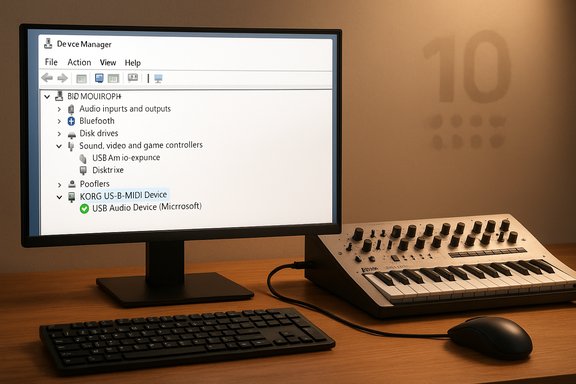
If your Korg synth’s editor won’t detect the instrument on Windows — or it connects one minute and vanishes the next — there’s a simple, reliable fix you should try before diving into the registry: switch the device to the built‑in Microsoft USB driver (listed as USB Audio Device in Device Manager). This method removes the fragile “10‑slot” limitation that tripped up many Korg users for years and restores stable MIDI/editor communication in the majority of cases, especially with Minilogue, Minilogue XD, Monologue, Wavestate, Modwave, Opsix and other modern Korg USB‑MIDI devices. The approach and its effectiveness were highlighted in a recent writeup and walkthrough of the process.
Windows and vendor drivers interact in two common modes: either the device uses the vendor’s custom adapter/driver, or it uses the class‑compliant, in‑box Microsoft driver. Historically, Korg shipped a Windows USB‑MIDI driver that wraps USB MIDI in a proprietary adapter. That driver has an operational constraint: due to how Windows enumerates driver instances for that adapter, Korg’s adapter was effectively limited to the first ten device slots. When a user’s system accumulated enough unique USB device instances over time, the Korg driver could fall outside those first ten slots — and then the Korg editor or DAW would see the device but not be able to communicate with it, or not see it at all. Korg’s own support documents acknowledge the 10‑device behavior as a Windows/driver enumeration limitation rather than a hardware fault. At the same time, modern Windows ships a robust USB Audio class driver (usbaudio.sys / usbaudio2.sys) that supports USB Audio and USB MIDI class devices and does not impose the same 10‑slot restriction. Switching a Korg instrument to the Microsoft class driver bypasses the legacy adapter’s slot limitation and usually restores reliable operation across editors and DAWs. Microsoft documents the USB Audio class driver and recommends hardware vendors target that class driver when possible because it provides broad compatibility and is maintained with Windows.
Source: The Digital Lifestyle Fixing Korg USB Driver Issues on Windows – The Simple Method That Actually Works
 Background / Overview
Windows and vendor drivers interact in two common modes: either the device uses the vendor’s custom adapter/driver, or it uses the class‑compliant, in‑box Microsoft driver. Historically, Korg shipped a Windows USB‑MIDI driver that wraps USB MIDI in a proprietary adapter. That driver has an operational constraint: due to how Windows enumerates driver instances for that adapter, Korg’s adapter was effectively limited to the first ten device slots. When a user’s system accumulated enough unique USB device instances over time, the Korg driver could fall outside those first ten slots — and then the Korg editor or DAW would see the device but not be able to communicate with it, or not see it at all. Korg’s own support documents acknowledge the 10‑device behavior as a Windows/driver enumeration limitation rather than a hardware fault. At the same time, modern Windows ships a robust USB Audio class driver (usbaudio.sys / usbaudio2.sys) that supports USB Audio and USB MIDI class devices and does not impose the same 10‑slot restriction. Switching a Korg instrument to the Microsoft class driver bypasses the legacy adapter’s slot limitation and usually restores reliable operation across editors and DAWs. Microsoft documents the USB Audio class driver and recommends hardware vendors target that class driver when possible because it provides broad compatibility and is maintained with Windows. Why Korg USB Devices Stop Working
The 10‑slot problem, explained
- When Korg’s legacy driver installs, it registers a specific adapter that Windows enumerates into a set of device instances (often called “slots” in community writeups). Once ten such instances exist for that adapter type, additional Korg devices may no longer be assigned a functional adapter instance.
- The symptom set is predictable: editors report “no device,” DAWs do not list the Korg synth as a usable MIDI port, or the device appears but refuses to pass MIDI data. Many users reported devices landing on slot numbers beyond 10 after years of plugging and unplugging different USB gear, which triggered the failure. This behavior is not unique to one Korg model — it’s an artifact of the adapter approach and Windows enumeration behavior.
Why the registry shuffles were suggested (and why they’re problematic)
Before the class‑driver method became widely known, support guides and forums advised manually editing the registry to “compress” Korg‑adapter instances into low‑numbered slots. That process required careful registry edits, removing stale midi1/midi2 entries, and sometimes creating aliases — a fiddly and risky procedure that could leave systems unstable if done incorrectly. It worked for some, but it was time‑consuming, brittle, and not something casual users should attempt without full backups.The Simple Fix: Use Microsoft’s Built‑In USB Audio Device Driver
Why this works (technical summary)- Windows ships a USB Audio class driver (usbaudio.sys / usbaudio2.sys) that supports the USB Audio device class and includes USB MIDI function support. Devices that present themselves as class‑compliant will be driven by that Microsoft driver, which avoids vendor adapter enumeration limits. Microsoft explicitly recommends that hardware vendors build to the USB Audio class where possible because it reduces compatibility problems.
- When you select the Microsoft USB Audio Device in Device Manager, Windows stops using the Korg adapter and instead treats the device as a class‑compliant USB audio/MIDI device. That removes the slot ceiling and yields stable behavior across editors and DAWs in most tested setups. Community reports and practical walkthroughs have corroborated this as the easiest fix.
How to Switch the Driver — Step‑by‑Step (Quick Guide)
- Unplug the Korg device.
- Open Device Manager (right‑click Start → Device Manager).
- Find your Korg device:
- Look under Sound, video and game controllers, or check Audio inputs and outputs or Universal Serial Bus controllers if it’s not obvious.
- Right‑click the Korg listing (it may appear as “KORG minilogue” or similar) and choose Update driver.
- Choose Browse my computer for drivers.
- Click Let me pick from a list of available drivers on my computer.
- Select USB Audio Device (Microsoft) from the list and click Next to install.
- Reboot the PC, or unplug and replug the synth after installation.
What to Expect After Switching: Editors, DAWs and Behavior
- Most users report the editor (Sound Librarian, Minilogue Editor, Wavestate Editor, etc. works normally after switching. Patch transfers, parameter edits, and librarian functions are typically restored.
- Your DAW should list the synth as a MIDI input/output. Some DAWs display the device with a slightly different name (for example, the “KORG” prefix may be absent) because the vendor driver name is no longer applied.
- If your device also offers a separate audio interface mode (some workstation models historically did), check the device’s feature list: switching to the class driver can affect vendor‑specific audio features or require installing a separate ASIO driver for low‑latency audio. Verify the device’s Korg product page for audio interface support before permanently moving away from the Korg adapter if you rely on integrated audio capture or monitoring.
When This Fix Might Not Be Ideal (and what to do instead)
- If the Korg device provides vendor‑specific audio functionality or an ASIO driver that you depend on for pro audio latency guarantees, the Microsoft class driver may not expose those features. Confirm whether the device’s audio interface (if present) requires the Korg driver. If so, you might need to:
- Use the Microsoft driver for MIDI and the vendor driver for the audio interface where the device exposes separate function nodes, or
- Keep the Korg driver but clean out stale driver instances (advanced), or
- Maintain a small “USB device hygiene” routine to prevent slot exhaustion (limit port changes, avoid unnecessary device installs).
- Rare models or older hardware may not enumerate as class‑compliant and therefore cannot use the Microsoft USB Audio class driver. If after switching you lose all functionality, revert to the Korg driver and follow the Korg support guidance for troubleshooting. Korg’s support team acknowledges that Windows driver enumeration behavior causes the slot problem and recommends using consistent ports and limiting the number of registered devices when possible.
Advanced Recovery Options (for stubborn cases)
If the Microsoft driver switch doesn’t solve the problem or you prefer to keep the Korg adapter, these options exist — but they are more advanced and come with risk:- Clean out stale driver entries and midiN keys in the registry. This is the old “slot shuffle” method that many community posts describe: remove midi1/midi2 keys and let the driver re‑assign to low numbered slots. This may require careful deletion of keys under HKEY_LOCAL_MACHINE\SOFTWARE\Microsoft\Windows NT\CurrentVersion\Drivers32 and other KORGUM64.DRV registry entries. Only do this if you are comfortable with registry editing and have a full system backup. The method has rescued many machines but is fragile and can leave your system in a worse state if done incorrectly.
- Use Korg’s “Install KORG USB‑MIDI Device” and “Uninstall USB MIDI Device” utilities exactly as directed by Korg’s installation notes when re‑installing the vendor driver. Those tools can show which slot your device is on and remove stale instances more safely than raw registry edits.
- As a last resort, uninstall the Korg driver, reboot, and reinstall following the vendor instructions step‑by‑step (and avoid running other USB devices during the initial install so the device lands in a low slot). Many users reported success by simply installing the Korg driver first and plugging the Korg synth into the same USB port each time. Community threads show technicians recommending this when class driver switching is not feasible.
Step‑by‑Step: How to Revert to Korg Driver (if needed)
- Open Device Manager.
- Find the device (now listed as USB Audio Device or product name).
- Right‑click → Update driver → Browse my computer for drivers → Let me pick from a list.
- If the Korg driver appears in the list, select it and click Next. If it does not appear, run Korg’s DrvTools or the full Korg driver installer to reinstall the vendor driver.
- After reinstall, reboot and verify the Korg control panel/utility detects the device.
- If the device still ends on a high slot number, consider using Korg’s uninstall utility and reinstall sequence or the registry cleanup method (advanced).
Troubleshooting Checklist — If Problems Persist
- Try a different USB cable and port; prefer a rear‑panel USB port directly on the PC rather than a hub.
- Unplug other USB devices during testing to reduce enumeration noise.
- Disable USB selective suspend and Fast Startup temporarily to rule out power‑management induced disconnections.
- Reboot Windows fully (no fast startup) after switching drivers to ensure Win32 driver registration finalizes.
- Reinstall Korg drivers with the Korg installer if you need vendor features.
- Back up registry and create a restore point before making any advanced edits.
- If still unresolved, test the device on a second Windows PC to confirm hardware health. Community reports indicate many issues were hardware faults disguised as driver problems.
Benefits and Risks — A Practical Assessment
Benefits of switching to Microsoft USB Audio Device
- No 10‑slot limit — removes the historic enumeration ceiling that broke Korg adapter instances.
- Better cross‑software stability — editors and DAWs often recover and communicate reliably.
- Lower maintenance — you avoid fiddly registry edits and slot shuffling.
- Built into Windows — the driver receives OS updates and compatibility tweaks automatically.
Potential downsides and risks
- Loss of vendor‑specific features — if your Korg device exposes special audio functionality, class driver mode may not expose those vendor extras or the ASIO path you rely on.
- Naming and port labeling differences — DAW/Editor port names may change, which can break saved routings or mappings until reconfigured.
- Edge devices and very old hardware — not all devices are class‑compliant; older models or models with nonstandard USB descriptors may not function correctly under the Microsoft driver.
- Incomplete guarantees — while widely effective, this method is not a formal Korg‑provided “fix” for every model; treat it as a practical workaround with caveats.
Real‑World Evidence and Community Experience
The Microsoft class‑driver approach is strongly supported by community reports and practical writeups: users across forums and social platforms repeatedly report that switching to USB Audio Device resolved long‑running detection issues for Minilogue, microKEY, Monologue, and similar Korg products. Korg’s support pages acknowledge the 10‑device phenomenon and point to Windows enumeration behavior as the root cause, which aligns with community diagnostics. In short: the field evidence lines up with vendor statements and Microsoft’s class‑driver documentation, making this a pragmatic first‑line fix.Final Recommendation and Best Practice
- Start with the simplest, safest fix: switch the synth to the Microsoft USB Audio Device driver in Device Manager and reboot. Test editor and DAW communication thoroughly.
- If you rely on advanced vendor audio features, check the device’s Korg support page to confirm audio driver dependencies, and consider whether you can use the Microsoft driver for MIDI while retaining vendor driver for audio — or prioritize the vendor driver if audio features are essential.
- If you absolutely must stay on the Korg driver but face slot exhaustion, treat registry edits and slot shuffling as an advanced, last‑resort measure and back up the system first. Prefer official Korg tools when available to reduce risk.
Closing Thought
Modern Windows class drivers were built for cross‑device compatibility. When a vendor adapter runs into OS enumeration limits or long‑standing quirks, falling back to the in‑box driver is often the fastest path to stable operation — and in the case of Korg USB‑MIDI devices, it’s a pragmatic, low‑risk solution that keeps your synths talking to your DAW and editors without the registry gymnastics of yesteryear.Source: The Digital Lifestyle Fixing Korg USB Driver Issues on Windows – The Simple Method That Actually Works
