

If an Xbox Wireless Controller or Xbox Elite Wireless Controller appears connected but its buttons do nothing, first prove that the controller can send input over USB, then repair the wireless connection and update its firmware. This guide covers Xbox Series X|S and Xbox One consoles, Windows 11 PCs, and Bluetooth-connected Apple and Android devices. Windows 10 reached end of support on October 14, 2025, so the Windows instructions below use the current Windows 11 interface.
A solid Xbox button only confirms that the controller has power and may have a wireless link. It does not prove that the controller is sending usable input.
If a controller began failing immediately after a firmware update, use Microsoft’s Xbox controller firmware reversion process only when Xbox Accessories offers that option for the specific controller. Do not attempt unofficial firmware downgrades.
On supported Apple versions, reset custom controls here:
If the controller works in the operating system but not in a cloud gaming or streaming app, verify that the app supports the controller and that the app has the permissions it requires. Test with a USB connection where the mobile device supports it; a successful wired test points to Bluetooth pairing or wireless interference rather than controller hardware.
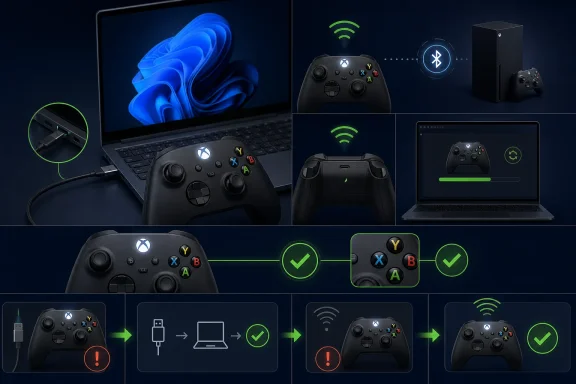 Start with power and a controller restart
A solid Xbox button only confirms that the controller has power and may have a wireless link. It does not prove that the controller is sending usable input.- Replace the AA batteries, charge the battery pack, or connect the controller to power.
- Press and hold the Xbox button for about 5–10 seconds until the controller turns off.
- Wait a few seconds.
- Press and hold the Xbox button again to turn it back on.
- Test input somewhere outside the affected game:
- On an Xbox console, try moving through the Home screen.
- On Windows, test in the Xbox app or another controller-compatible game.
- On a phone or tablet, test in the device’s game-controller settings where available.
Prove the controller works with a USB data cable
A wired test separates a controller fault from a Bluetooth, Xbox Wireless, or pairing problem.Important: Use a USB cable that supports both data and charging. Some inexpensive or older cables charge a controller but cannot carry controller input.
- Connect the controller directly to the console, PC, phone, or tablet with a compatible USB cable.
- Most current Xbox controllers use USB-C.
- Some Xbox One-era controllers use Micro-USB.
- Avoid USB hubs, docking stations, monitor USB ports, and extension cables for this test.
- Try the controller again.
- It works over USB: The controller itself is functioning. Repair the wireless connection, Bluetooth adapter, or Xbox Wireless Adapter.
- It does not work over USB: Try a second known-good data cable, another USB port, and, if possible, another device.
- It fails on more than one device with known-good cables: The controller may require service or replacement. Firmware and pairing changes are unlikely to repair a controller that is not detected over USB.
Re-pair the controller with an Xbox console
Use this method when the controller powers on but will not control an Xbox Series X|S or Xbox One console.- Turn on the Xbox console.
- Press and release the console’s Pair button.
- Within 20 seconds, press and hold the controller’s Pair button.
- Release the button after the Xbox button begins flashing rapidly.
- Wait until the Xbox button stays solid.
- Test the controller on the dashboard before launching a game.
Update controller firmware with Xbox Accessories
Microsoft delivers Xbox controller firmware through the Xbox Accessories app. Firmware updates can address connection stability, input behavior, and compatibility issues.On Xbox
- Connect the controller to the console by USB if wireless input is unreliable.
- Press the Xbox button and open Profile & system > Settings > Devices & connections > Controllers & headsets.
- Select the controller.
- Select the … button under the controller, if shown.
- Install the update if Xbox reports that one is available.
- Keep the controller connected until the update completes.
- Restart the controller and test it wirelessly.
On Windows 11
- Connect the controller to the PC with USB, or use an Xbox Wireless Adapter for Windows.
- Install or open Xbox Accessories from the Microsoft Store.
- Select the connected controller.
- If the app reports Update required, select it and complete the update.
- Disconnect and reconnect the controller when the app indicates the update is finished.
If a controller began failing immediately after a firmware update, use Microsoft’s Xbox controller firmware reversion process only when Xbox Accessories offers that option for the specific controller. Do not attempt unofficial firmware downgrades.
Repair Bluetooth on Windows 11
Use these steps only if the controller connects through the PC’s built-in Bluetooth. They do not apply when you use a USB cable or Xbox Wireless Adapter for Windows.- Select Start > Settings > Bluetooth & devices.
- Turn Bluetooth off.
- Wait several seconds, then turn Bluetooth back on.
- Select Devices.
- Find the Xbox controller, select More options (…), then choose Remove device > Yes.
- Put the controller into pairing mode by holding its Pair button until the Xbox button flashes.
- Return to Settings > Bluetooth & devices.
- Select Add device > Bluetooth and select the Xbox controller when it appears.
- Wait for Windows to report that the device is connected, then test it in a game.
- Open Start > Settings > Bluetooth & devices > Devices.
- Under Device settings, set Bluetooth devices discovery to Advanced.
- Confirm that Airplane mode is off by selecting the network, sound, or battery icons on the taskbar.
- Move the controller close to the PC and disconnect nearby USB 3.0 devices temporarily. Poorly shielded USB 3.0 equipment can interfere with Bluetooth signals.
Update, reinstall, or roll back the Windows Bluetooth driver
If Windows reports the controller as connected but games still receive no input, repair the PC’s Bluetooth driver next.- Right-click Start and select Device Manager.
- Expand Bluetooth.
- Right-click the Bluetooth adapter—often identified with terms such as Bluetooth, Wireless, or Radio—and select Update driver.
- Select Search automatically for drivers.
- Restart the PC when prompted.
- In Device Manager, expand Bluetooth.
- Right-click the Bluetooth adapter and select Properties.
- Open the Driver tab.
- Select Roll Back Driver, if it is available.
- Restart the PC and test the controller again.
Warning: This temporarily removes Bluetooth from the PC. Have a wired mouse, keyboard, or touchpad available before continuing if your normal input devices are Bluetooth-only.
- In Device Manager, expand Bluetooth.
- Right-click the Bluetooth adapter.
- Select Uninstall device > Uninstall.
- Select Start > Power > Shut down.
- Turn the PC back on. Windows should reinstall the adapter automatically.
- If it does not, open Device Manager and select Action > Scan for hardware changes.
Reset an Xbox Wireless Adapter for Windows connection
The Xbox Wireless Adapter for Windows uses Xbox Wireless rather than Bluetooth. If the controller works through Bluetooth or USB but not through the adapter, reset that connection.- Disconnect the Xbox Wireless Adapter from the PC.
- Restart Windows.
- Connect the adapter directly to a different USB port.
- Press the adapter’s Pair button.
- Hold the controller’s Pair button until the Xbox button flashes.
- Wait for the Xbox button to remain solid, then test input.
Restore mappings and isolate game-specific problems
A controller can be connected and working while one game ignores it because of a custom mapping, another input device, or the game’s controller configuration.- Open Xbox Accessories on the console or Windows PC.
- Select the controller and review its profile.
- Restore the default button mapping if buttons trigger the wrong actions.
- Disconnect other controllers, racing wheels, flight sticks, virtual controller tools, and controller remapping software.
- Close the game completely, reconnect the controller, then launch the game again.
- Test the controller in a second game.
- In Steam, right-click the affected game.
- Select Properties > Controller.
- Test the game with Steam Input enabled, then test it with Steam Input disabled.
- Restart the game after each change.
Reconnect the controller on iPhone, iPad, Mac, Apple TV, or Android
Apple devices
Apple recommends forgetting and re-pairing a controller that connects but does not work as expected.- Open the device’s Bluetooth settings.
- Select the Xbox controller, or select its information button.
- Choose Forget This Device.
- Restart the controller, then hold its Pair button until the Xbox button flashes.
- Select the controller from the Apple device’s Bluetooth list.
On supported Apple versions, reset custom controls here:
- iPhone or iPad: Settings > General > Game Controller > controller name > Default Controls
- Apple TV: Settings > General > Remotes and Devices > Bluetooth > controller > Customization
- Mac: Apple menu > System Settings > Game Controllers > controller name
Android
Android device menus vary by manufacturer, but Google’s current baseline path is:- Open Settings > Connected devices > Pair new device.
- Put the controller into pairing mode.
- Select the controller from the available device list.
If the controller works in the operating system but not in a cloud gaming or streaming app, verify that the app supports the controller and that the app has the permissions it requires. Test with a USB connection where the mobile device supports it; a successful wired test points to Bluetooth pairing or wireless interference rather than controller hardware.
References
- Primary source: Technobezz
Published: 2026-07-17T17:21:17.434000+00:00
Xbox Controller Connected but Not Working? How to Fix It | Technobezz
Fix an Xbox controller connected but not working with USB tests, pairing resets, firmware updates, Bluetooth fixes, and app settings.www.technobezz.com - Related coverage: xbox.com
XBOX Wireless Controller + USB-C® Cable | XBOX
Experience the modernized XBOX Wireless Controller, designed for enhanced comfort during gameplay for supported consoles, PCs, and mobile phones or tablets.www.xbox.com - Related coverage: news.xbox.com
Xbox Controller Firmware Update Rolling Out to Insiders Starting Today - XBOX Wire
Today, we are excited to begin flighting a new firmware update for Xbox One controllers, Xbox Elite Wireless Controller Series 2, and Xbox Adaptive Controllers that delivers next-gen features...news.xbox.com - Official source: microsoft.com
Windows Learning Center | Microsoft
Whether you’re working, gaming, or just browsing, Windows Learning Center has helpful tips, tricks, and tools to help make the everyday easier.www.microsoft.com
- Official source: learn.microsoft.com
xbox series x controller via bluetooth not recognized in games - Microsoft Q&A
I bought an xbox series x controller (not xbox one) from someone who had an elite and don't need the new controller. I'm sure it's authentic. I can connect it to my windows 10 pc via bluetooth and it appears as an xbox wireless controller. However in all…learn.microsoft.com