

An Xbox headset microphone that is not working is usually muted, blocked by account privacy, routed to the wrong chat, disconnected at the controller, or not selected by Windows. This guide covers wired and wireless headsets on Xbox Series X|S and Xbox One, plus Xbox party chat and Xbox apps on Windows 11 and Windows 10. Start with an Xbox party test: it tells you whether the console or PC can actually receive your microphone before you change game-specific settings.
A working headset speaker does not prove that its microphone is working. Audio output and microphone input use separate controls and connections.
On a Windows PC, connect an Xbox controller by USB before updating it in the Xbox Accessories app. Do not rely on a Bluetooth-only controller connection for firmware updating.
Use the result to choose the next step:
If the microphone works in Xbox party chat but not in one game, open that game’s audio settings and make sure:
For a child account, the family organizer may need to make the change. On the console, use:
Profile & system > Settings > Account > Family settings > Manage family members > [member] > Privacy & online safety
If the setting is unavailable, greyed out, or returns to its previous state, it is being controlled by the family organizer or another account-management policy.
First, restart the headset:
To restore the headset’s settings:
Warning: This can clear pairing information. Be ready to pair the headset with the console or PC again.
Next, allow microphone access:
If Windows still does not detect any headset microphone, open Device Manager, expand Sound, video and game controllers, and update the relevant audio driver. Restart the PC after a driver change, then repeat the Windows microphone test and Xbox party test.
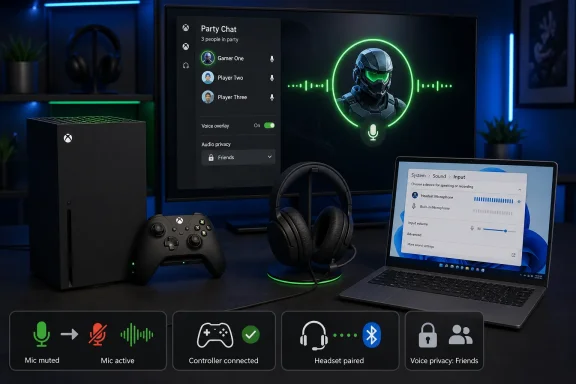 Check the headset and controller first
A working headset speaker does not prove that its microphone is working. Audio output and microphone input use separate controls and connections.- Disconnect the headset from the controller or console, then reconnect it firmly.
- Check the headset’s physical Mute switch or button. Unmute it.
- If the headset has a detachable boom microphone, remove it and reinstall it fully.
- Check the headset cable for bent plugs, exposed wire, or a loose inline control module.
- Press the Xbox button, open Audio & music, and check:
- Headset volume is above zero.
- Headset chat mixer is not at either extreme.
- Mic monitoring is set high enough to hear a little of your own voice, if your headset supports it.
- Test the same headset on another Xbox controller.
- Test a known-working headset on the original controller.
- If the second headset also has no microphone input, update the controller before replacing the headset.
On a Windows PC, connect an Xbox controller by USB before updating it in the Xbox Accessories app. Do not rely on a Bluetooth-only controller connection for firmware updating.
Use an Xbox party to test microphone input
Do this before troubleshooting a particular game, Discord channel, or friend. A one-person Xbox party is the quickest way to isolate the failure.- Press the Xbox button.
- Open Parties & chats.
- Select Start a party.
- Confirm that your party microphone is not muted.
- Speak normally into the microphone.
Use the result to choose the next step:
- The ring lights up: The headset and console microphone connection work. The problem is likely game chat, Discord routing, privacy, another player’s mute/block setting, or network chat connectivity.
- The ring does not light up: Recheck the physical mute control, headset plug, controller, controller firmware, and headset pairing. Continue with the console and headset checks below.
Leave stuck chat sessions and confirm chat routing
A game chat or Discord voice connection can stay active after a game changes modes, resumes from Quick Resume, or loses network connectivity.- Leave the affected game chat or Xbox party.
- Return to Parties & chats and join it again.
- If you are using Discord voice on Xbox, open the Discord channel from Parties & chats and select Disconnect.
- Join either the Xbox party or the game’s own voice channel again.
If the microphone works in Xbox party chat but not in one game, open that game’s audio settings and make sure:
- Voice chat is enabled.
- The selected chat channel is correct, such as Team, Squad, Party, or Proximity.
- Push-to-talk is not enabled unexpectedly.
- Voice-chat input volume is not set to zero.
- Cross-network communication is permitted when you are playing with people outside Xbox.
Allow voice communication in Xbox privacy settings
Xbox account privacy can block voice and text communication even when the headset is working. This is especially common with child accounts and Microsoft Family-managed accounts.- Press the Xbox button.
- Go to Profile & system > Settings > Account > Privacy & online safety.
- Open Xbox privacy.
- Select View details & customize.
- Open Communication & multiplayer.
- Review the settings that control communication with other people, including voice, text, and invitations.
For a child account, the family organizer may need to make the change. On the console, use:
Profile & system > Settings > Account > Family settings > Manage family members > [member] > Privacy & online safety
If the setting is unavailable, greyed out, or returns to its previous state, it is being controlled by the family organizer or another account-management policy.
Restart and update the Xbox console
Restarting clears temporary party, controller, and audio-routing issues without deleting games or settings.- Press and hold the Xbox button on the controller.
- Select Restart console.
- After the console restarts, reconnect the headset and repeat the one-person party test.
- Press and hold the console’s front Xbox button for about 10 seconds, until the console powers down.
- Wait for the console to shut down completely.
- Turn it on again.
- Test the microphone in a new Xbox party.
- Open Profile & system > Settings > System > Updates.
- Install Console update available if it appears.
- Restart when prompted.
Fix an Xbox Wireless Headset
These steps apply specifically to the Microsoft Xbox Wireless Headset. Other wireless headset brands use their own pairing, firmware, and reset procedures.First, restart the headset:
- Turn the headset off with the green power button on the back of the left earcup.
- Wait several seconds.
- Turn it back on.
- Start a new Xbox party and test the microphone.
- Go to Profile & system > Settings > Devices & connections > Accessories.
- Select the Xbox Wireless Headset.
- Choose Configure.
- Find Auto-mute and set it to Low or Off for testing.
To restore the headset’s settings:
- Return to Accessories > Xbox Wireless Headset > Configure.
- Select Restore to default.
- Reconfigure any preferred equalizer, auto-mute, or mic-monitoring choices afterward.
- Open Profile & system > Settings > Devices & connections > Accessories.
- Select the headset.
- Choose … > Update now when available.
- Press the console’s Pair button.
- Hold the headset power button until pairing begins.
- Wait for the devices to connect before testing party chat.
Hard-reset the Xbox Wireless Headset only if needed
A hard reset is a recovery step for the official Xbox Wireless Headset when restarting, firmware updating, configuration reset, and re-pairing have not restored microphone input.Warning: This can clear pairing information. Be ready to pair the headset with the console or PC again.
- Plug a USB-C cable into the headset only.
- Hold the headset Power and Mute buttons at the same time.
- While holding both buttons, quickly connect the other end of the USB-C cable to the console, PC, or a USB power source.
- Wait for the headset to power off.
- Turn the headset back on.
- Pair it again, then repeat the Xbox party test.
Fix Xbox headset microphone problems on Windows
On Windows, first establish whether Windows can hear the headset microphone. This separates an Xbox app problem from a device, driver, or privacy problem.- Connect and power on the headset.
- Open Start > Settings > System > Sound.
- Under Input, select the headset microphone.
- Open its properties page.
- Under Input settings, select Start test.
- Speak normally, then select Stop test and play the sample.
Next, allow microphone access:
Windows 11
- Open Start > Settings > Privacy & security > Microphone.
- Turn on Microphone access.
- Turn on Let apps access your microphone.
- Enable the affected Xbox or game app where listed.
- Turn on Let desktop apps access your microphone for desktop applications.
Windows 10
- Open Start > Settings > Privacy > Microphone.
- Turn on microphone access for the device.
- Turn on Allow apps to access your microphone.
- Enable the affected app where listed.
- Enable access for desktop apps if required.
- Open Start > Settings > Apps > Installed apps in Windows 11.
- Select More next to the affected app.
- Choose Advanced options.
- Select Repair.
- If Repair is unavailable or does not help, select Reset.
If Windows still does not detect any headset microphone, open Device Manager, expand Sound, video and game controllers, and update the relevant audio driver. Restart the PC after a driver change, then repeat the Windows microphone test and Xbox party test.
References
- Primary source: Technobezz
Published: 2026-07-16T17:52:40.516000+00:00
Loading…
www.technobezz.com - Related coverage: support.xbox.com
Loading…
support.xbox.com - Related coverage: windowscentral.com
Loading…
www.windowscentral.com - Related coverage: manuals.plus
Loading…
manuals.plus - Related coverage: xbox.com
Loading…
www.xbox.com - Related coverage: forums.ea.com
Loading…
forums.ea.com