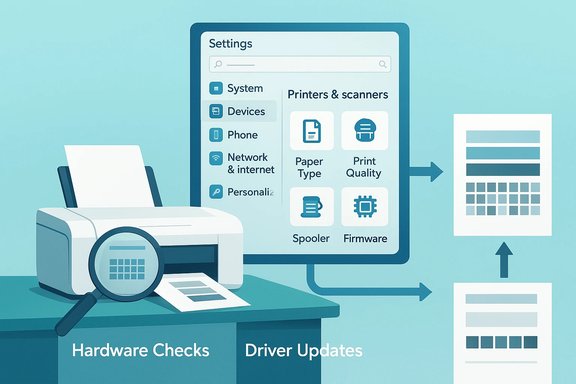
If your printed pages look blurry, faded, or show banding and streaks, the fix is usually a methodical combination of hardware checks, software updates, and simple maintenance — not an immediate trip to the repair shop. This practical guide consolidates Microsoft’s troubleshooting steps for poor print quality with printer‑maker best practices and community-tested diagnostics so you can restore crisp, reliable output from Windows 11 devices quickly and with minimal risk.
Printing is an old, mature technology but it still has many moving parts: drivers, OS print stacks, print spoolers, application settings, media (paper), consumables (ink/toner), and mechanical elements (printheads, rollers). Problems that show up as blurry, faded, or streaked prints can come from any one of these layers — and they often co‑exist. Microsoft’s stepwise troubleshooting starts with simple hardware checks, then isolates whether the issue comes from Windows, the app, or the printer itself; manufacturer guidance focuses heavily on consumable condition and printhead maintenance. This article explains the recommended checks, validates the key technical claims against independent vendor guidance, outlines safe maintenance routines, and highlights risks and troubleshooting shortcuts for both home users and IT pros.
Problems that start as a single faded page often end up revealing a simple cause — a dry nozzle, an economy print mode, or an out‑of‑date driver — and this layered diagnostic sequence gets most users back to crisp, reliable printing without unnecessary expense.
Source: Microsoft Support Fix poor print quality in Windows (Blurry, faded, or streaked prints) - Microsoft Support
 Background
Printing is an old, mature technology but it still has many moving parts: drivers, OS print stacks, print spoolers, application settings, media (paper), consumables (ink/toner), and mechanical elements (printheads, rollers). Problems that show up as blurry, faded, or streaked prints can come from any one of these layers — and they often co‑exist. Microsoft’s stepwise troubleshooting starts with simple hardware checks, then isolates whether the issue comes from Windows, the app, or the printer itself; manufacturer guidance focuses heavily on consumable condition and printhead maintenance. This article explains the recommended checks, validates the key technical claims against independent vendor guidance, outlines safe maintenance routines, and highlights risks and troubleshooting shortcuts for both home users and IT pros.Quick overview: What causes poor print quality?
- Low or exhausted ink/toner — faded output and gaps in color are classic signs.
- Clogged or misaligned printheads (inkjet) — streaks, horizontal banding, missing color blocks.
- Incorrect printer settings — draft/economy mode, wrong paper type, or low print DPI.
- Outdated, broken, or wrong drivers — misrendered text or images, truncated pages, or poor DPI handling.
- Application or image problems — low‑resolution images enlarged for print produce fuzzy results.
- Mechanical and media issues — dirty rollers, incorrect tray settings, or incompatible paper stock.
- Print spooler or Windows print stack problems — queued or malformed jobs that print incorrectly.
Step‑by‑step troubleshooting (practical sequence)
Follow these steps in order. Each one isolates a layer of the printing pipeline and helps avoid unnecessary hardware replacements.1. Start with the printer and paper (hardware basics)
- Verify the correct paper type and size in the tray and in the print dialog. Using glossy photo paper when the printer is set for plain paper causes poor color and banding.
- Use clean, dry paper that matches the printer manufacturer’s specifications. Cheap or damp paper often absorbs ink unevenly.
- Confirm ink/toner levels — low supplies commonly produce faded prints or missing colors. Replace or top up before deeper troubleshooting.
- Inspect the printer interior for paper jams, debris, or visible ink smears and remove them carefully.
- Power‑cycle the printer (turn off, wait 15–30 seconds, then power on) to reset internal mechanisms.
2. Print a self‑test page from the printer
- Use the printer’s control panel to print a hardware self‑test / diagnostic page. This prints without any PC or driver involvement and tells you whether the printer hardware and consumables are working.
- If the self‑test is poor, the fault is almost certainly in the printer (ink/toner, printhead, or mechanical). If the self‑test is clean but Windows prints poorly, the issue is in the Windows print path (drivers, spooler, or app).
3. Verify Windows print settings and the app’s settings
- Open Settings > Bluetooth & devices > Printers & scanners, select the printer and check Printing preferences. Ensure Print quality is Normal/Best (not Draft/Economy) and the paper type matches the loaded paper.
- In the application you’re printing from, check scaling and image resolution. Avoid enlarging low‑res images before printing — upscaling produces blur.
- Try printing a simple text file (Notepad) to test text clarity; if text prints fine but images don’t, the issue is image resolution or app rendering.
4. Run the automated troubleshooter
- Windows 11 includes a built‑in Printer troubleshooter (Get Help / Settings → Troubleshoot → Other troubleshooters). Run it to catch common configuration and driver issues automatically. This is a low‑risk, quick diagnostic that can save time.
5. Clean and align printheads (inkjet printers)
- Use the printer’s maintenance menu to run Clean Printhead / Nozzle Check / Align Printhead routines. Start with an automatic or light cleaning cycle and escalate only if needed. Cleaning consumes ink; repeated deep cleans can be wasteful.
- After each cleaning, print the diagnostic page to check progress. If multiple cleanings don’t fix clogs, follow OEM guidance: some printers require a Power Cleaning or a capped‑head cleaning, or may need service.
6. Update or reinstall printer drivers
- Use Windows Update first, then Device Manager (Update driver) or the manufacturer’s website for the latest full‑feature driver. If a driver seems corrupted or absent, uninstall the device and let Windows reinstall it after a reboot.
- In managed environments or for complex printers, install vendor full‑feature packages rather than generic in‑box drivers — they include print processors and device utilities needed for high‑quality output.
7. Check Windows graphics and scaling (for blurry prints)
- Blurry prints can arise when Windows or the app rasterizes vectors or bitmaps at the wrong DPI. Confirm the app’s print DPI and avoid enlargement of bitmap images. Keep source images at or above the intended print DPI (typically 300 DPI for good photo/text quality, higher for photo prints). If a specific app prints poorly, update or reinstall that app.
8. Try a different app or file (isolation)
- Printing the same document from Notepad, Word, or a different image viewer helps determine if the problem is app‑specific. If only one app misprints, repair or reinstall that app rather than the printer.
Deeper diagnostics and advanced steps
Restart and clean the Print Spooler
- When print jobs are stuck, truncated, or only partially render, restarting the Print Spooler service and clearing C:\Windows\System32\spool\PRINTERS often resolves corruption. Stop the spooler, delete spool folder files, and start the service again. Use this carefully — it deletes queued jobs.
Nozzle checks, alignment, and when to replace printheads
- If nozzle checks or diagnostic patterns show persistent white lines across color blocks even after multiple cleaning cycles, the printhead may need replacement. OEM docs (HP/Epson) provide exact criteria and replacement instructions. Replacing printheads is often costly; confirm warranty status first.
Firmware updates and vendor utilities
- Printer firmware updates can fix print‑quality bugs and improve head alignment routines. Use only official vendor firmware (downloaded from the manufacturer’s site). Firmware updates can be riskier than driver updates; follow OEM instructions and ensure power is stable during the update.
When to contact manufacturer support
- If the printer self‑test fails, printhead cleaning fails repeatedly, or there are mechanical errors (smells, grinding, persistent paper feed problems), escalate to the manufacturer. Microsoft support guidance also recommends contacting the printer maker when Windows‑side checks don’t resolve the issue.
Inkjet vs Laser: different symptoms, different fixes
Inkjet printers
- Symptoms: color banding, missing color blocks, streaks, smears, and faded prints. These are commonly caused by clogged nozzles, dried ink, or faulty cartridges. OEM guidance emphasizes head cleaning, nozzle checks, alignment, and genuine consumables. Over‑cleaning uses ink; repeated cleaning without improvement suggests hardware service or printhead replacement.
Laser printers
- Symptoms: faded output across the page, streaking from toner smears, uneven density, or ghosting. Common causes include low toner, worn developer/drum units, or fuser problems. For lasers, check toner levels, run density tests, and inspect the drum and fuser; do not attempt internal repairs beyond user‑replaceable parts unless trained. OEM laser support docs describe user‑replaceable modules and service intervals.
Preventive maintenance and best practices
- Use genuine cartridges/toner when possible — many OEMs document that third‑party supplies can cause print defects or disable certain diagnostics. Genuine supplies also often include chips that report accurate levels.
- Print a nozzle check or diagnostic page regularly if the printer is idle for long periods to catch drying early.
- Keep the printer firmware and drivers updated; prefer vendor drivers for full feature fidelity and quality controls. Use Windows Update for convenience but validate with the OEM download when high quality is essential.
- Avoid extreme environmental conditions: high humidity or dust accelerates mechanical and consumable problems.
- For critical environments, adopt print queues and test pages as part of a scheduled maintenance routine to detect degradation early.
Critical analysis — strengths and limitations of the typical troubleshooting flow
What works well
- The layered approach (hardware → self‑test → drivers → app → spooler) is efficient and reduces unnecessary part replacements. Microsoft’s sequence forces verification of hardware before software changes, minimizing wasted spend on drivers when the printer is failing.
- OEM maintenance routines (nozzle check → cleaning → alignment) are proven and, when followed in sequence, resolve the majority of inkjet print quality issues without service calls. Epson and HP both document multi‑level cleaning options and escalation paths that are sensible: automatic → manual → power cleaning → service.
- Running diagnostics from both the printer and Windows isolates whether the fault is OS/driver related or hardware related quickly, saving time.
Risks, costs, and the things to watch for
- Ink consumption during cleaning: OEMs warn that head cleaning uses ink, and repeated deep cleans can be expensive and still fail to clear stubborn clogs. Users should ensure sufficient ink is available before repeated cleaning cycles. Flagged risk.
- Driver and firmware updates carry small but real risk: installing the wrong firmware or interrupting updates can brick a device. Always use official vendor packages and a stable power source. Advisory.
- Third‑party supplies and warranty impact: some manufacturers state that non‑OEM inks and toners can cause defects and may not be covered under warranty for service caused by such consumables. This is often flagged in OEM support documentation. Caveat.
- Aggressive spooler cleanups: deleting spool files clears stuck jobs but loses those jobs permanently. Back up any critical print files first. Operational caution.
Enterprise considerations
- For networked printers and print servers, confirm driver parity across clients and use Print Management / PrintBRM to export/import drivers safely. Windows 11’s modern print platform and Windows Protected Print Mode change driver management in enterprise deployments — consider testing driver behavior before wide rollouts.
- On server environments, spooler‑level problems can affect many users; use centralized logging (Event Viewer) to collect spooler errors and coordinate driver/package deployment through update management tools.
When a fix is not possible: cost vs. replacement analysis
If thorough cleaning, alignment, cartridge replacement, driver refresh, and firmware updates fail to restore acceptable quality, evaluate the cost of a repair or part replacement (printhead/drum/fuser) against the cost of a new printer. For many consumer inkjets, printhead replacement plus downtime often exceeds the cost of a new device; for business laser printers, replacing a drum or fuser is usually cost‑effective. Consult OEM pricing and warranty first. OEM docs provide explicit guidance for when replacement is recommended after diagnostic patterns persist.Quick checklist (copyable)
- Power‑cycle printer and PC.
- Print printer self‑test from hardware panel.
- Confirm paper type/size and ink/toner levels match the job.
- Run app/nozzle checks and head alignment (inkjet).
- Set Windows print quality to Normal/Best and disable Draft/Economy.
- Run Windows Printer troubleshooter (Get Help).
- Update or reinstall drivers (Windows Update → OEM site).
- Restart Print Spooler and clear spool folder if jobs are malformed.
Verification, validation, and citation notes
The procedural steps in this article summarize Microsoft’s Windows troubleshooting flow for poor print quality, which recommends hardware checks, using the printer’s self‑test, verifying Windows printing preferences, running the Printer troubleshooter, cleaning/aligning printheads for inkjets, updating drivers, and testing from alternate apps. These Microsoft recommendations are consistent with manufacturer troubleshooting pages from HP and Epson that emphasize genuine supplies, nozzle checks, stepwise cleaning, and alignment as the principal remedies for streaks, faded prints, and missing colors. The convergence of Microsoft and OEM guidance supports the layered approach recommended above. Any claim about specific maintenance outcomes (for example, that a power cleaning consumes significantly more ink than an auto cleaning) is explicitly documented by vendors and is therefore presented here as verified advice. Where vendor instructions are model‑specific (e.g., replacing printheads or the exact maintenance menu names), follow the manufacturer’s documentation for your model: some OEMs use different menu labels and cleaning levels. If a vendor’s behavior or menu wording is not clear for your exact model, treat the exact command names as model‑dependent and follow the vendor’s manual.Conclusion
Poor print quality in Windows is an annoyance that’s almost always fixable with a structured, evidence‑based approach: verify hardware through a printer self‑test, confirm paper and consumables, run the printer’s maintenance utilities, validate Windows and app settings, and update or reinstall drivers. Manufacturer procedures for nozzle checks and progressive cleaning align with Microsoft’s recommendation to isolate whether the fault is the printer or the Windows print path. Be mindful of conserved ink during cleaning cycles, the warranty implications of third‑party consumables, and the risks of firmware updates. For persistent failures after following this flow, gather diagnostic pages, spooler logs, and model details and escalate to the printer manufacturer for service.Problems that start as a single faded page often end up revealing a simple cause — a dry nozzle, an economy print mode, or an out‑of‑date driver — and this layered diagnostic sequence gets most users back to crisp, reliable printing without unnecessary expense.
Source: Microsoft Support Fix poor print quality in Windows (Blurry, faded, or streaked prints) - Microsoft Support