

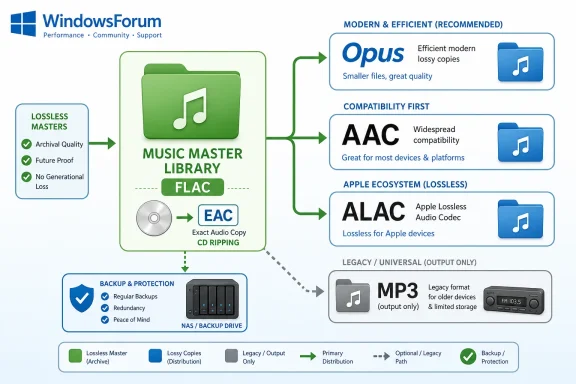
How-To Geek’s recommendation can be reduced to a practical rule: use FLAC for Windows-centered archives, ALAC for Apple-first lossless libraries, Opus for efficient modern lossy copies, and AAC when compatibility matters most. MP3 still works, but it should no longer be the default format for new rips, archives, or production masters.
For WindowsForum readers, the immediate takeaway is straightforward. If you are ripping CDs on Windows, use Exact Audio Copy (EAC) to rip to FLAC, keep that FLAC folder as your lossless master library, back it up like any other important data, and then create Opus or AAC copies for phones, USB sticks, car stereos, media servers, or other playback targets. Do not rip directly to MP3 unless a specific legacy device leaves you no better choice.
The issue is not that MP3 suddenly became unusable. The issue is that MP3’s original compromise—throwing away audio information to make files smaller—belongs to an era when storage, bandwidth, and portable-device capacity were much tighter constraints. Today, the smarter workflow is to preserve the best source once and make smaller delivery files only when needed.
MP3 became popular because it solved a real problem. It made digital music portable, shareable, and practical when hard drives were smaller, internet connections were slower, and portable players had limited storage. A file that sounded acceptable while taking far less space was not a trivial convenience; it was the reason many people could build digital music libraries at all.
That history is why MP3 still feels “normal” to many users. For years, MP3 was treated almost as a synonym for digital music. If a song was on a PC, copied to a phone, burned to a data disc, or sent to a friend, there was a good chance it was an MP3.
But the strength of MP3 is also its weakness. MP3 is a lossy format, meaning it reduces file size by permanently discarding audio information during encoding. Once that information is gone, converting the MP3 into another format does not bring it back. A converted MP3-to-FLAC file may be larger and may be stored in a lossless container, but the audio inside still began as a lossy source.
That is the most important point for anyone digitizing physical media or organizing a long-term library. The first rip or export matters. If a CD is ripped directly to MP3, the archive has already been compromised. If the same CD is ripped to FLAC or ALAC, the user can later create smaller copies in Opus, AAC, or even MP3 without sacrificing the preserved master.
For a casual single track, the difference may not feel urgent. For a collection of hundreds of CDs, purchased downloads, family recordings, interviews, lectures, samples, or production assets, it matters. A local library is not just a listening pile; it is a data set. Windows users already think this way about documents, photos, backups, and installers. Music and audio collections deserve the same discipline.
That decision tree is the article in miniature. FLAC and ALAC are archive formats. Opus and AAC are distribution formats. MP3 is a legacy fallback.
This framing also cuts through a lot of codec argument noise. The question is not “Which format is best?” in the abstract. The question is: What job is this file supposed to do?
A master file should preserve the source. A phone copy should fit the phone and play reliably. A podcast export should match the audience’s playback environment. A car USB stick should use whatever the car can actually read. Those are different jobs, and they do not all require the same format.
That distinction is the heart of the recommendation. FLAC files are larger than typical MP3 files, but they preserve the source. A FLAC rip can later become an AAC copy for a phone, an Opus copy for a small portable library, or an MP3 copy for a legacy player. The reverse is not true. An MP3 cannot become a true FLAC-quality archive after the fact.
On Windows, FLAC also fits the way many enthusiasts already manage local libraries. A desktop PC, external drive, NAS, or home server can hold the lossless library. Media players, phones, tablets, and car USB sticks can receive smaller copies. If the user changes devices later, the master library remains intact.
This matters for backups as well. Backing up a lossy MP3 collection preserves the files you have, but not the audio information that was discarded when they were created. Backing up a FLAC library preserves a stronger master. If a device, app, or listening preference changes, you can generate new copies without re-ripping the discs.
The best mental model is photography. Photographers often keep original RAW files and export JPEGs for sharing. The JPEG is convenient, but the RAW file is the master. For audio, FLAC can play that master role in a Windows-centered library.
That does not mean every listening device must carry FLAC files. A laptop with limited storage might use AAC copies. A phone might use Opus copies. A car stereo might need AAC or MP3. But the archive should not be optimized around the most limited device in the chain.
For a household built around iPhones, iPads, Macs, and Apple’s Music app, ALAC may reduce friction. Users can keep a lossless library while staying close to Apple’s expected playback and management path. If the library rarely leaves that environment, ALAC is a reasonable master format.
For mixed Windows, Android, Linux, NAS, and Apple households, the decision deserves more thought. FLAC is often the more conservative center for a cross-platform archive, while ALAC makes the strongest case when Apple compatibility and convenience are the deciding factors.
The main point is not to turn FLAC versus ALAC into a tribal argument. Both are lossless choices. Both are preferable to MP3 for preservation. The deciding factor is library management: where the master files will live, which software will organize them, and which devices must play them without extra conversion.
For WindowsForum readers who also use iPhones or iPads, the practical compromise is simple. Keep a FLAC master library on the Windows PC or NAS if that is the center of the collection. Then create Apple-friendly copies as needed. If the entire household is Apple-first and the Windows machine is not the library hub, ALAC may make more sense.
The right way to use Opus is not as a replacement for the archive. It is a replacement for many of the situations where users historically created MP3s. Start with a lossless master, then create Opus copies for the devices or apps that support it.
This distinction avoids the biggest mistake in lossy workflows. A lossy file may be fine as a final copy, but it should not be the only copy if the source matters. If you rip a CD to FLAC and then make an Opus version for your phone, you have both preservation and portability. If you rip directly to Opus, you have a useful listening file but not a lossless master.
Opus is especially attractive when compatibility is under your control. If you know your desktop player, phone app, media server, or browser-based workflow handles Opus properly, it can be an excellent choice for compact delivery files. For Windows power users, command-line tools such as FFmpeg can also make Opus conversion scriptable and repeatable, which is useful for batch processing.
The caution is playback support. Some older hardware, car head units, portable players, or embedded devices may not handle Opus. That does not make Opus a bad codec; it means the deployment environment matters. Test before converting an entire portable library.
A good Windows workflow is to create a small test set first. Pick several tracks, encode them to Opus, and try them on the actual playback targets: phone, car, media server, TV, browser, and any older device in the chain. If everything works, scale up. If something fails, use AAC for that target instead.
This is where the Windows library strategy becomes useful. If the FLAC master is safe, choosing AAC for a device is not a permanent sacrifice. It is just an output profile. Need files for a phone? Create AAC copies. Need a different bitrate later? Regenerate them. Switching devices? Make a new set from the same FLAC source.
AAC also makes sense when the playback chain is varied. Phones, tablets, smart TVs, car stereos, media receivers, browsers, and older apps do not all support every format equally. If Opus creates friction, AAC is the safer lossy recommendation before retreating to MP3.
The archive rule remains unchanged: do not use AAC as the only version of important source audio. Use it for distribution, syncing, travel, and compatibility. Keep FLAC or ALAC as the master.
That separation is what makes the whole workflow resilient. The master library is stable; the delivery format can change whenever devices change.
Hardware upgrades and file-format choices are different decisions. Headphones affect playback. Archive formats affect preservation. A user can buy better headphones later. Re-ripping hundreds of CDs because the first library was made only in MP3 is a much more tedious fix.
That is why the file-format guidance should remain the main story. Users do not need expensive gear to justify leaving MP3 behind for new rips. They only need to recognize that a master library should preserve information rather than discard it.
Editing multiplies the cost of a bad source choice. Noise reduction, EQ, leveling, cutting, mixing, and re-exporting are all better when the starting point is not already a lossy file. A lossy format can be acceptable at the end of the chain; it is a poor choice at the beginning.
For podcasting, Opus or AAC may be sensible final delivery formats depending on the audience and platform. But raw recordings, edited masters, reusable clips, and project assets should be kept in a lossless or otherwise production-appropriate form. The final export is not the archive.
For Windows users managing audio projects, this again becomes a folder and backup discipline issue. Keep “masters” separate from “exports.” Back up the masters. Label lossy delivery files clearly. Avoid converting old MP3s into fake lossless archives unless there is no original source and the conversion is being done only for workflow consistency.
The better approach is triage:
That universality matters. If a specific device only plays MP3, then MP3 still has a role. But it should be a last-mile output format, not the archive.
This is the key policy shift. Do not let an old dashboard stereo decide the format of your entire music collection. Keep FLAC or ALAC as the master, then generate MP3 copies only for the device that requires them. When that device is replaced, you can stop making those copies.
AAC weakens MP3’s compatibility argument in many modern playback situations. Opus weakens MP3’s efficiency argument when support is known. FLAC and ALAC eliminate MP3’s role as a serious archive format. What remains is legacy support, and legacy support is not the same as best practice.
A simple Windows file structure can prevent that:
A file is usually one of four things:
Opus and AAC are distribution formats. They are for smaller files, portable libraries, web use, and device-specific playback. Their value is practical and immediate.
MP3 is now mostly a legacy compatibility format. It remains useful when something old requires it, but it should not be the default for new archives.
That is the clean WindowsForum recommendation: manage audio like data. Preserve the source, back it up, and generate the right copy for the job.
From this point forward:
MP3 helped make digital music normal. It earned its place. But for new libraries, new rips, and new production work, it should no longer be the starting point. The better default is simple: FLAC for the Windows archive, ALAC for Apple-first lossless libraries, Opus for efficient modern lossy copies, and AAC for compatibility.
For WindowsForum readers, the immediate takeaway is straightforward. If you are ripping CDs on Windows, use Exact Audio Copy (EAC) to rip to FLAC, keep that FLAC folder as your lossless master library, back it up like any other important data, and then create Opus or AAC copies for phones, USB sticks, car stereos, media servers, or other playback targets. Do not rip directly to MP3 unless a specific legacy device leaves you no better choice.
The issue is not that MP3 suddenly became unusable. The issue is that MP3’s original compromise—throwing away audio information to make files smaller—belongs to an era when storage, bandwidth, and portable-device capacity were much tighter constraints. Today, the smarter workflow is to preserve the best source once and make smaller delivery files only when needed.
 MP3 Won Because Scarcity Made It Rational
MP3 became popular because it solved a real problem. It made digital music portable, shareable, and practical when hard drives were smaller, internet connections were slower, and portable players had limited storage. A file that sounded acceptable while taking far less space was not a trivial convenience; it was the reason many people could build digital music libraries at all.That history is why MP3 still feels “normal” to many users. For years, MP3 was treated almost as a synonym for digital music. If a song was on a PC, copied to a phone, burned to a data disc, or sent to a friend, there was a good chance it was an MP3.
But the strength of MP3 is also its weakness. MP3 is a lossy format, meaning it reduces file size by permanently discarding audio information during encoding. Once that information is gone, converting the MP3 into another format does not bring it back. A converted MP3-to-FLAC file may be larger and may be stored in a lossless container, but the audio inside still began as a lossy source.
That is the most important point for anyone digitizing physical media or organizing a long-term library. The first rip or export matters. If a CD is ripped directly to MP3, the archive has already been compromised. If the same CD is ripped to FLAC or ALAC, the user can later create smaller copies in Opus, AAC, or even MP3 without sacrificing the preserved master.
For a casual single track, the difference may not feel urgent. For a collection of hundreds of CDs, purchased downloads, family recordings, interviews, lectures, samples, or production assets, it matters. A local library is not just a listening pile; it is a data set. Windows users already think this way about documents, photos, backups, and installers. Music and audio collections deserve the same discipline.
The Short Decision Tree
The modern replacement for MP3 is not one universal format. It is a simple decision tree:| Need | Choose | Why |
|---|---|---|
| Long-term archive on Windows, Linux, Android, NAS, or mixed systems | FLAC | Lossless, open-source, flexible, and suitable as a master copy |
| Long-term archive in an Apple-first library | ALAC | Lossless and convenient across Apple devices and Apple’s Music app workflow |
| Small modern lossy files where playback support is known | Opus | Efficient lossy compression for music, voice, podcasts, and bandwidth-sensitive use |
| Small lossy files where broad compatibility is more important | AAC | Better modern choice than MP3 for many compatibility-focused situations |
| A legacy device only accepts MP3 | MP3 as an output copy only | Use it when forced, but generate it from a lossless master |
This framing also cuts through a lot of codec argument noise. The question is not “Which format is best?” in the abstract. The question is: What job is this file supposed to do?
A master file should preserve the source. A phone copy should fit the phone and play reliably. A podcast export should match the audience’s playback environment. A car USB stick should use whatever the car can actually read. Those are different jobs, and they do not all require the same format.
What Windows Users Should Do Now
A practical Windows workflow looks like this:- Install and configure Exact Audio Copy.
Use EAC when ripping CDs on Windows, especially if you care about getting a careful, repeatable rip from your discs. - Rip CDs to FLAC, not MP3.
Treat FLAC as the master copy for a Windows music library. Store albums in organized folders, keep metadata clean, and include cover art where your library tools support it. - Keep the FLAC library separate from portable copies.
The FLAC folder is the source of truth. Do not overwrite it with phone-optimized versions, car-stereo versions, or experimental conversions. - Back up the FLAC master library.
Put it on an external drive, NAS, cloud backup, or another backup target you already trust. A lossless library is only useful if it survives drive failure, accidental deletion, or PC replacement. - Transcode from FLAC to Opus or AAC for devices.
Use Opus when you know the target device or app supports it. Use AAC when you need a safer compatibility choice. Keep those files in a separate “portable,” “phone,” or “car” folder. - Use MP3 only for stubborn legacy hardware.
If an old car head unit, portable player, or embedded device only accepts MP3, create MP3 copies from the FLAC master. Do not make MP3 the only version.
FLAC Is the Sensible Windows Master Format
For most Windows users building or rebuilding a local music library, FLAC is the clearest default. It is lossless, meaning it can be decoded back to the original audio data instead of an approximation. It compresses audio without throwing away musical information in the way MP3 does.That distinction is the heart of the recommendation. FLAC files are larger than typical MP3 files, but they preserve the source. A FLAC rip can later become an AAC copy for a phone, an Opus copy for a small portable library, or an MP3 copy for a legacy player. The reverse is not true. An MP3 cannot become a true FLAC-quality archive after the fact.
On Windows, FLAC also fits the way many enthusiasts already manage local libraries. A desktop PC, external drive, NAS, or home server can hold the lossless library. Media players, phones, tablets, and car USB sticks can receive smaller copies. If the user changes devices later, the master library remains intact.
This matters for backups as well. Backing up a lossy MP3 collection preserves the files you have, but not the audio information that was discarded when they were created. Backing up a FLAC library preserves a stronger master. If a device, app, or listening preference changes, you can generate new copies without re-ripping the discs.
The best mental model is photography. Photographers often keep original RAW files and export JPEGs for sharing. The JPEG is convenient, but the RAW file is the master. For audio, FLAC can play that master role in a Windows-centered library.
That does not mean every listening device must carry FLAC files. A laptop with limited storage might use AAC copies. A phone might use Opus copies. A car stereo might need AAC or MP3. But the archive should not be optimized around the most limited device in the chain.
ALAC Is the Apple-First Lossless Choice
ALAC, Apple Lossless Audio Codec, fills a similar role for users whose libraries revolve around Apple devices and Apple’s software. It is a lossless format, so the appeal is not that it beats FLAC in audio principle. The appeal is that it can be the more convenient choice inside an Apple-first workflow.For a household built around iPhones, iPads, Macs, and Apple’s Music app, ALAC may reduce friction. Users can keep a lossless library while staying close to Apple’s expected playback and management path. If the library rarely leaves that environment, ALAC is a reasonable master format.
For mixed Windows, Android, Linux, NAS, and Apple households, the decision deserves more thought. FLAC is often the more conservative center for a cross-platform archive, while ALAC makes the strongest case when Apple compatibility and convenience are the deciding factors.
The main point is not to turn FLAC versus ALAC into a tribal argument. Both are lossless choices. Both are preferable to MP3 for preservation. The deciding factor is library management: where the master files will live, which software will organize them, and which devices must play them without extra conversion.
For WindowsForum readers who also use iPhones or iPads, the practical compromise is simple. Keep a FLAC master library on the Windows PC or NAS if that is the center of the collection. Then create Apple-friendly copies as needed. If the entire household is Apple-first and the Windows machine is not the library hub, ALAC may make more sense.
Opus Is the Modern Small-File Choice When Support Is Known
If FLAC and ALAC are about preservation, Opus is about efficient delivery. It is a modern lossy codec intended for cases where file size, bandwidth, or streaming efficiency still matter. That makes it relevant for podcasts, web audio, voice recordings, portable music copies, and large libraries where the user wants smaller files without falling back to MP3.The right way to use Opus is not as a replacement for the archive. It is a replacement for many of the situations where users historically created MP3s. Start with a lossless master, then create Opus copies for the devices or apps that support it.
This distinction avoids the biggest mistake in lossy workflows. A lossy file may be fine as a final copy, but it should not be the only copy if the source matters. If you rip a CD to FLAC and then make an Opus version for your phone, you have both preservation and portability. If you rip directly to Opus, you have a useful listening file but not a lossless master.
Opus is especially attractive when compatibility is under your control. If you know your desktop player, phone app, media server, or browser-based workflow handles Opus properly, it can be an excellent choice for compact delivery files. For Windows power users, command-line tools such as FFmpeg can also make Opus conversion scriptable and repeatable, which is useful for batch processing.
The caution is playback support. Some older hardware, car head units, portable players, or embedded devices may not handle Opus. That does not make Opus a bad codec; it means the deployment environment matters. Test before converting an entire portable library.
A good Windows workflow is to create a small test set first. Pick several tracks, encode them to Opus, and try them on the actual playback targets: phone, car, media server, TV, browser, and any older device in the chain. If everything works, scale up. If something fails, use AAC for that target instead.
AAC Is the Practical Compatibility Upgrade
AAC is the pragmatic middle ground: a modern lossy option for users who need smaller files and broader playback compatibility than Opus may provide in some environments. It is not the format to choose for a permanent master, but it is often a better default than MP3 for portable copies.This is where the Windows library strategy becomes useful. If the FLAC master is safe, choosing AAC for a device is not a permanent sacrifice. It is just an output profile. Need files for a phone? Create AAC copies. Need a different bitrate later? Regenerate them. Switching devices? Make a new set from the same FLAC source.
AAC also makes sense when the playback chain is varied. Phones, tablets, smart TVs, car stereos, media receivers, browsers, and older apps do not all support every format equally. If Opus creates friction, AAC is the safer lossy recommendation before retreating to MP3.
The archive rule remains unchanged: do not use AAC as the only version of important source audio. Use it for distribution, syncing, travel, and compatibility. Keep FLAC or ALAC as the master.
That separation is what makes the whole workflow resilient. The master library is stable; the delivery format can change whenever devices change.
Product Boxes Are Secondary to the File-Format Decision
The source discussion included a headphone product box, and it is worth keeping that in perspective. Better headphones can make bad encodes easier to notice, but they cannot restore information that MP3 compression already removed. Likewise, a good lossless archive remains valuable even if today’s listening happens through basic earbuds, laptop speakers, Bluetooth speakers, or a car stereo.Hardware upgrades and file-format choices are different decisions. Headphones affect playback. Archive formats affect preservation. A user can buy better headphones later. Re-ripping hundreds of CDs because the first library was made only in MP3 is a much more tedious fix.
That is why the file-format guidance should remain the main story. Users do not need expensive gear to justify leaving MP3 behind for new rips. They only need to recognize that a master library should preserve information rather than discard it.
Production and Recorded Material Need Lossless Masters
The same advice applies beyond music collecting. If you record podcasts, interviews, lectures, rehearsals, sermons, oral histories, field recordings, or production audio, keep a lossless master. Do not treat a lossy export as the only working copy.Editing multiplies the cost of a bad source choice. Noise reduction, EQ, leveling, cutting, mixing, and re-exporting are all better when the starting point is not already a lossy file. A lossy format can be acceptable at the end of the chain; it is a poor choice at the beginning.
For podcasting, Opus or AAC may be sensible final delivery formats depending on the audience and platform. But raw recordings, edited masters, reusable clips, and project assets should be kept in a lossless or otherwise production-appropriate form. The final export is not the archive.
For Windows users managing audio projects, this again becomes a folder and backup discipline issue. Keep “masters” separate from “exports.” Back up the masters. Label lossy delivery files clearly. Avoid converting old MP3s into fake lossless archives unless there is no original source and the conversion is being done only for workflow consistency.
Existing MP3 Libraries: Do Not Panic, but Stop Adding to the Problem
A user with an existing MP3 library does not need to delete everything or blindly convert files. Converting MP3 to FLAC will not restore the discarded audio information. It may only create larger files that still contain MP3-quality audio.The better approach is triage:
- If you still own the CDs or have access to lossless originals, re-rip or re-download important albums in FLAC or ALAC.
- If the MP3s came from sources you no longer have, keep them as-is and label them honestly.
- Do not convert MP3s to FLAC and assume the result is a true lossless archive.
- For all new rips, purchases, recordings, and exports, stop making MP3 the master.
Compatibility Is the Last Honest Defense of MP3
MP3 still has one real advantage: it plays on almost everything. Old cars, old portable players, embedded systems, legacy software, and forgotten media workflows may accept MP3 when they reject newer formats.That universality matters. If a specific device only plays MP3, then MP3 still has a role. But it should be a last-mile output format, not the archive.
This is the key policy shift. Do not let an old dashboard stereo decide the format of your entire music collection. Keep FLAC or ALAC as the master, then generate MP3 copies only for the device that requires them. When that device is replaced, you can stop making those copies.
AAC weakens MP3’s compatibility argument in many modern playback situations. Opus weakens MP3’s efficiency argument when support is known. FLAC and ALAC eliminate MP3’s role as a serious archive format. What remains is legacy support, and legacy support is not the same as best practice.
Windows Library Management Checklist
For home users, enthusiasts, and admins managing shared audio libraries, the policy can be short:- Use FLAC as the default archive format for Windows-centered and mixed-platform libraries.
- Use ALAC when the library is Apple-first and Apple workflow convenience matters most.
- Keep lossless masters separate from phone, car, web, or portable copies.
- Back up the lossless master library to at least one separate location.
- Use EAC for careful CD ripping on Windows.
- Use Opus for efficient modern lossy copies when support is confirmed.
- Use AAC when compatibility is more important than Opus efficiency.
- Use MP3 only when a specific legacy device or workflow requires it.
- Do not convert existing MP3s to FLAC or ALAC and call them restored.
- Document the workflow so future rips and exports follow the same rules.
A simple Windows file structure can prevent that:
Music\Masters\FLACMusic\Portable\AACMusic\Portable\OpusMusic\Legacy\MP3Recordings\MastersRecordings\Exports
The Library Strategy Is the Story, Not the Codec War
Codec arguments often turn into unhelpful debates: open source versus Apple, audiophile versus casual listener, lossless versus “good enough.” The more useful frame is lifecycle.A file is usually one of four things:
- A master
- A working asset
- A portable copy
- A compatibility export
Opus and AAC are distribution formats. They are for smaller files, portable libraries, web use, and device-specific playback. Their value is practical and immediate.
MP3 is now mostly a legacy compatibility format. It remains useful when something old requires it, but it should not be the default for new archives.
That is the clean WindowsForum recommendation: manage audio like data. Preserve the source, back it up, and generate the right copy for the job.
What Actually Changes When You Stop Saving MP3s
The practical shift is small but important. You do not need to rebuild your entire library in one weekend. You do not need to delete old MP3s. You do not need to buy new headphones. You only need to stop making MP3 the default master format.From this point forward:
- Rip CDs to FLAC on Windows.
- Use ALAC for Apple-first lossless libraries.
- Keep one lossless master library.
- Back it up.
- Make Opus copies when efficiency matters and support is known.
- Make AAC copies when compatibility matters.
- Make MP3 copies only when a legacy device forces the issue.
MP3 helped make digital music normal. It earned its place. But for new libraries, new rips, and new production work, it should no longer be the starting point. The better default is simple: FLAC for the Windows archive, ALAC for Apple-first lossless libraries, Opus for efficient modern lossy copies, and AAC for compatibility.
References
- Primary source: How-To Geek
Published: 2026-07-08T12:20:12.739187
Stop saving music as MP3, these 4 formats sound better and don't take up a ton of space
MP3 is a digital dinosaur that needs to be left behind. www.howtogeek.com