

FluentTweaker is a free, open-source Windows customization tool that turns many registry edits, policy changes, AppX removals, and WinGet package actions into reviewable checkboxes. Its current release, version 26.06.02, was published on June 6, 2026, replacing the developer’s earlier Winslopr project.
The appeal is not that it makes every Windows tweak safe. It does not. The useful part is visibility: FluentTweaker stores its built-in definitions in the readable
The main Tweaker view groups settings into categories including ads, AI, appearance, Edge, gaming, privacy, system behavior, and the taskbar. Rather than applying changes immediately, the intended workflow is:
The app may request elevation when a selected change needs to write beneath
Some changes are relatively easy to assess. Hiding promotional suggestions, altering a taskbar preference, or restoring the classic Windows 11 context menu are choices that users can test and reverse. Others are more consequential, particularly tweaks involving:
A sensible approach is to change a small number of settings, reboot or restart Explorer when prompted, and verify that the intended Windows behavior has actually changed. If something goes wrong, reverting one known change is far easier than diagnosing a batch of 30.
It is not equivalent to a restore point or full system backup. A registry export will not necessarily restore removed Microsoft Store apps, reverse a WinGet uninstall, undo an imported community PowerShell script, or repair unrelated system changes.
Before using the Debloat, Custom, or Store areas—or before applying system and service tweaks—create a Windows restore point or, preferably, a current system image backup. That precaution is more important than any interface convenience.
Do not treat an AppX checklist as a safe-to-remove list. Read each entry, confirm what it does, and remove only software you are certain you do not need. In particular, avoid removing components simply because they have Microsoft branding or consume little disk space.
The App Updates section adds a graphical interface over WinGet. It can install, uninstall, and upgrade packages without requiring users to remember package IDs or terminal commands. WinGet still performs the underlying package-management work; FluentTweaker provides the catalog and controls.
For many users, this may be the least risky part of the application. It is still worth confirming the exact application and publisher before installing or removing software, especially where similarly named packages exist.
Built-in tweak definitions are visible in the project’s public repository and can be inspected before use. A community package or custom PowerShell script deserves a separate review. Read what it changes, identify any commands that remove software or modify security settings, and avoid running code you cannot explain.
The same standard applies to downloads: obtain FluentTweaker from the project’s official GitHub repository and release page, not from lookalike sites or repackaged “optimizer” download portals.
That makes it worth considering for experienced Windows users who want more control without relying on stale
The appeal is not that it makes every Windows tweak safe. It does not. The useful part is visibility: FluentTweaker stores its built-in definitions in the readable
Wintweak2.ini database rather than hiding a large “optimize” script behind a single button. That makes it a practical alternative for users who are tired of hunting down registry paths, value types, reset values, and Windows-version caveats.
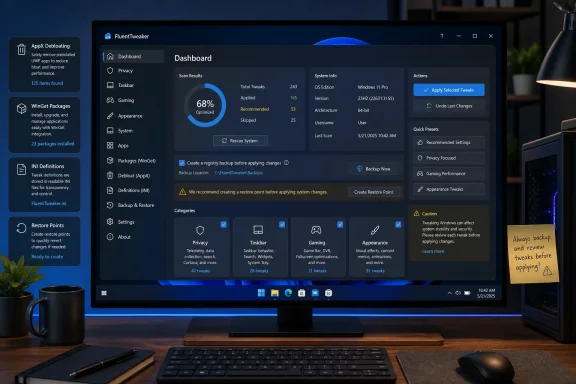 What FluentTweaker can change
The main Tweaker view groups settings into categories including ads, AI, appearance, Edge, gaming, privacy, system behavior, and the taskbar. Rather than applying changes immediately, the intended workflow is:- Extract the official ZIP release and run
FTweaker.exe. - Open Settings and enable registry backup before applying changes.
- Select Tweaker, then choose Scan.
- Review the analysis results, including the detected setting state and the proposed value.
- Select only the changes you understand and want.
- Choose Run Tweaker to apply them.
The app may request elevation when a selected change needs to write beneath
HKEY_LOCAL_MACHINE or otherwise alter a system-wide setting. Launching the program does not necessarily require administrator rights; applying particular tweaks can.Treat “recommended” as a starting point, not a verdict
FluentTweaker may preselect recommendations, but those reflect the project’s database and developer preferences—not Microsoft guidance and not a universal best configuration.Some changes are relatively easy to assess. Hiding promotional suggestions, altering a taskbar preference, or restoring the classic Windows 11 context menu are choices that users can test and reverse. Others are more consequential, particularly tweaks involving:
- Windows privacy and diagnostic policies
- Game DVR and gaming settings
- Edge behavior
- Background services
- Networking parameters
- Multimedia scheduling
- Shutdown timing and performance-related registry values
A sensible approach is to change a small number of settings, reboot or restart Explorer when prompted, and verify that the intended Windows behavior has actually changed. If something goes wrong, reverting one known change is far easier than diagnosing a batch of 30.
Backups help, but they are not full system recovery
FluentTweaker can export affected registry values to a.reg backup before an apply operation, and its tweak definitions can include reset or deletion instructions. That provides a useful rollback path for registry-based changes.It is not equivalent to a restore point or full system backup. A registry export will not necessarily restore removed Microsoft Store apps, reverse a WinGet uninstall, undo an imported community PowerShell script, or repair unrelated system changes.
Before using the Debloat, Custom, or Store areas—or before applying system and service tweaks—create a Windows restore point or, preferably, a current system image backup. That precaution is more important than any interface convenience.
The app also includes debloating and WinGet management
FluentTweaker is broader than a registry front end. Its Debloat component inventories installed AppX packages and lets users select packages for removal. That can be useful for optional inbox applications, but the decision is personal: an app that looks disposable on one PC may be essential on another.Do not treat an AppX checklist as a safe-to-remove list. Read each entry, confirm what it does, and remove only software you are certain you do not need. In particular, avoid removing components simply because they have Microsoft branding or consume little disk space.
The App Updates section adds a graphical interface over WinGet. It can install, uninstall, and upgrade packages without requiring users to remember package IDs or terminal commands. WinGet still performs the underlying package-management work; FluentTweaker provides the catalog and controls.
For many users, this may be the least risky part of the application. It is still worth confirming the exact application and publisher before installing or removing software, especially where similarly named packages exist.
Custom scripts and community packages need more scrutiny
FluentTweaker supports user-created INI tweaks and PowerShell scripts, and its Store can distribute community-contributed packages. Those features make the tool flexible, but they also change the trust boundary.Built-in tweak definitions are visible in the project’s public repository and can be inspected before use. A community package or custom PowerShell script deserves a separate review. Read what it changes, identify any commands that remove software or modify security settings, and avoid running code you cannot explain.
The same standard applies to downloads: obtain FluentTweaker from the project’s official GitHub repository and release page, not from lookalike sites or repackaged “optimizer” download portals.
A better replacement for registry roulette—not Registry Editor itself
FluentTweaker will not eliminate the need for Registry Editor, Group Policy, PowerShell, or Windows Settings when dealing with unusual configuration work. What it does offer is a safer workflow for common customizations: inspect the proposed change, scan before applying it, back up affected registry values, and make reversibility part of the process.That makes it worth considering for experienced Windows users who want more control without relying on stale
.reg files and decade-old forum instructions. The rule remains simple: use the tool to make changes understandable, not to make indiscriminate tweaking feel safe.References
- Primary source: MakeUseOf
Published: 2026-07-22T17:30:12+00:00
I stopped digging through the registry to customize Windows — this free app does it
This app turned Windows customization from surgery into a settings menu. www.makeuseof.com