

FlyOOBE’s latest update makes a controversial trade-off: version 1.41 introduces an explicit, user‑actioned way to bypass the CPU compatibility check that previously blocked many upgrades from Windows 10 to Windows 11 — simply remove a helper file (CpuCheckNative.dll) from the app folder and the upgrade path proceeds, but with significant caveats about stability, updates and security.
FlyOOBE (formerly Flyby11) is a community‑driven tool that automates and simplifies the process of installing or upgrading to Windows 11 on hardware Microsoft labels as “unsupported.” It packages a set of techniques — most notably running the Windows Server setup path and scripted ISO handling — to skip TPM, Secure Boot and many model checks, while offering OOBE (Out‑Of‑Box Experience) customizations like debloating and account setup automation. The project’s public repositories and release notes document a steady evolution from Flyby11 into the broader FlyOOBE toolkit. FlyOOBE’s maintainers say the app is intended to help refurbishers, power users and small shops keep older but functional PCs in service rather than forcing hardware upgrades. The tool is explicitly framed as a pragmatic solution for situations where hardware is capable but Microsoft’s compatibility policy prevents installation or in‑place upgrades.
For refurbishers and technically capable enthusiasts, FlyOOBE remains a powerful toolkit that can reduce e‑waste and speed deployments — but only with careful pre‑checks, solid backups and a clear plan for long‑term update and security management. For devices that lack required CPU instructions, the safe path is hardware replacement or an alternative OS; forcing newer Windows builds onto incompatible silicon carries a real chance of producing an unbootable machine.
Source: Neowin Popular Windows 11 requirements skip app now allows upgrading with unsupported CPUs
 Background
FlyOOBE (formerly Flyby11) is a community‑driven tool that automates and simplifies the process of installing or upgrading to Windows 11 on hardware Microsoft labels as “unsupported.” It packages a set of techniques — most notably running the Windows Server setup path and scripted ISO handling — to skip TPM, Secure Boot and many model checks, while offering OOBE (Out‑Of‑Box Experience) customizations like debloating and account setup automation. The project’s public repositories and release notes document a steady evolution from Flyby11 into the broader FlyOOBE toolkit. FlyOOBE’s maintainers say the app is intended to help refurbishers, power users and small shops keep older but functional PCs in service rather than forcing hardware upgrades. The tool is explicitly framed as a pragmatic solution for situations where hardware is capable but Microsoft’s compatibility policy prevents installation or in‑place upgrades. What changed in FlyOOBE 1.41
Headline changes
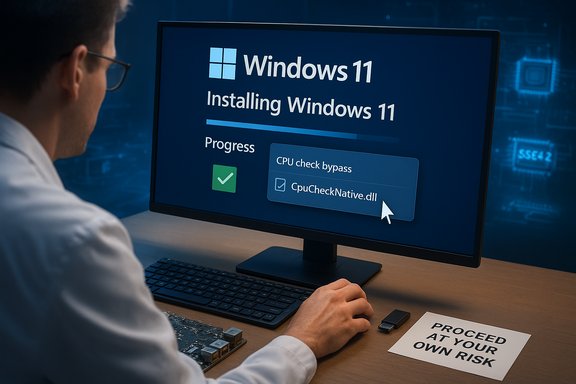
- Optional CPU‑check bypass: The upgrade component (historically Flyby11) normally performs a CPU compatibility check using a native helper module. In v1.41 the team made skipping that CPU check an explicit, user‑actioned step: remove the file named CpuCheckNative.dll from the FlyOOBE app folder and FlyOOBE will no longer enforce that CPU check during the upgrade. The app still performs the check by default.
- Update check redesigned and moved to GitHub Pages: The update‑checking mechanism was refactored to rely on static pages served via GitHub Pages. That reduces dependency on GitHub API quotas and simplifies hosting of guides and documentation for users.
- UI and reliability fixes: The release includes fixes to OOBE progress reporting, improved debloater progress reflection, redesigned input dialog windows, and updated signatures for detecting common bloatware and installers. The changelog describes several minor bugfixes and polish items.
Why the change matters
Making the CPU‑check bypass a manual, file‑deletion action reflects a deliberate design decision: it prevents accidental bypasses while preserving a path for advanced users with edge‑case CPUs or testing environments. The developer framed this as an “escape hatch” rather than a default behavior. That choice alters the risk profile of the tool — it reduces accidental misuse but places responsibility squarely on operators who choose to remove the file. Community posts and release comments emphasize the “proceed at your own risk” stance.Technical context: what FlyOOBE actually does
How the bypass works, at a high level
- FlyOOBE orchestrates Windows setup by leveraging a Windows Server variant of Microsoft’s installer flow. Running the server setup path avoids many of the consumer SKU’s front‑end hardware checks. The installer still writes the normal Windows 11 image to disk, but it bypasses TPM and model checks at setup time.
- For in‑place upgrades, FlyOOBE automates ISO download/mounting and runs scripted steps to apply the upgrade without a complete clean wipe.
- A native helper module (CpuCheckNative.dll) enables the app to perform a low‑level CPU features probe — checking flags such as SSE4.2 and POPCNT — and surface a compatibility hint before proceeding. Removing that DLL disables the app’s own CPU gate‑check.
Hard technical limits: POPCNT / SSE4.2
There’s an important technical fact that affects many would‑be upgraders: modern Windows 11 builds — notably the 24H2 wave and later builds — require the CPU instruction POPCNT (and in some builds the broader SSE4.2 set) to run reliably. Attempts to bypass installer checks and force the OS onto very old chips that lack these instructions can lead to an install that later fails to boot or reboots at the Windows logo stage. This isn’t a FlyOOBE limitation alone — multiple independent analyses and platform testing have shown the POPCNT / SSE4.2 requirement is effectively a non‑bypassable hardware requirement for certain Windows 11 builds. Put bluntly: removing FlyOOBE’s CPU check may allow setup to continue on a CPU that Microsoft deems unsupported, but if the CPU lacks POPCNT or SSE4.2 the installed OS may not boot or may be unstable after setup. FlyOOBE’s maintainers and community documentation explicitly warn that POPCNT is a show‑stopper for some builds.Benefits for users and refurbishers
- Keeps older hardware useful: FlyOOBE helps avoid premature hardware replacements for functional systems that only fail Microsoft’s compatibility gating logic.
- Saves time for bulk deployment: The automation around ISO handling, debloating and OOBE scripting can expedite refurbisher workflows and classroom or lab rollouts.
- Granular control over setup: OOBE customization, debloating and installer automation give administrators a chance to preconfigure privacy settings, uninstall unwanted apps and reduce post‑install setup time.
- Transparent developer approach: The tool’s public GitHub presence, open issues and community threads make the process visible and auditable to technically proficient operators.
Risks, caveats and real‑world costs
1) Stability and boot failures
The single biggest operational risk is installing Windows 11 onto hardware that lacks required instruction sets. If POPCNT or SSE4.2 is missing, the machine may install Windows and then fail to boot reliably — producing an unbootable device that requires recovery. Many community tests have reproduced such scenarios and flagged them as non‑recoverable without reinstall or hardware replacement.2) Windows Update and long‑term support
Using FlyOOBE to skirt Microsoft’s compatibility checks comes with no guarantee of future update compatibility. Microsoft could (and historically has) limited automatic servicing and feature updates on machines it deems unsupported. Some scripts and registry workarounds claim to re‑enable updates, but these carry risk and may break with new servicing changes. Expect intermittent or unsupported update behavior — and plan a maintenance strategy accordingly.3) Security tradeoffs
Bypassing TPM and Secure Boot removes hardware‑anchored protections such as platform attestation and hardware‑backed BitLocker keys. That increases the attack surface and reduces the security guarantees for managed devices. If devices will handle sensitive workloads or store confidential data, losing TPM protections is a meaningful security regression. FlyOOBE does not, and cannot, magically restore TPM features that hardware lacks.4) Legal and warranty considerations
Using third‑party tooling to alter installation behavior may void vendor warranties or violate enterprise imaging policies. For corporate customers, that risk should be evaluated in the context of procurement, lifecycle and support contracts.5) Sideload and malware risk
Community sites and unofficial mirrors sometimes distribute modified tools. The FlyOOBE project warns users to download releases only from the developer’s GitHub repository and to avoid untrusted sources. Using unofficial binaries can expose systems to tampered code or embedded malware.Practical guidance: how to approach FlyOOBE 1.41 safely
Pre‑check (essentials)
- Verify CPU features: Confirm your CPU supports POPCNT and SSE4.2. Tools like Microsoft’s PC Health Check, CPU‑Z, or the coreinfo utility can report instruction set flags. If POPCNT or SSE4.2 is missing, do not proceed with a forced in‑place upgrade.
- Image and backup: Create a full disk image and a separate recovery USB or restore media. This is non‑negotiable when bypassing platform checks.
- Test on a spare device or VM: If possible, replicate the target hardware in a test environment first.
- Download from official repo: Use the GitHub releases page for FlyOOBE to obtain official assets and checksums. Avoid random downloads.
Recommended upgrade sequence
- Make a full disk image of the current system.
- Confirm CPU flags (POPCNT/SSE4.2).
- Download the FlyOOBE release and verify checksums.
- If you intend to skip the CPU check, explicitly remove CpuCheckNative.dll from the FlyOOBE app folder (this is the action introduced in 1.41). Removing the DLL is the developer’s intentional option to bypass the app’s compatibility gate.
- Run FlyOOBE with administrative privileges and follow its in‑place upgrade flow, monitoring progress and being ready to restore your image if things fail.
- After installation, validate device boot, drivers, Windows Update behavior and critical application functionality before returning the device to production.
Mitigation if the system won’t boot
- Have recovery media and the original image ready. If the device fails to boot due to missing instruction support, options are limited: try restore media, or perform a clean install that targets a supported version (but note that missing hardware features may still prevent boot on newer Windows builds).
Developer choices worth noting (analysis)
- Making bypass a manual deletion increases user agency and reduces accidental exposure: the developer intentionally forces a deliberate administrative action, which is a stronger safety posture than hiding a flag in the UI. Community commentary frames this as pragmatic risk management.
- Moving update checks to GitHub Pages is a sensible engineering trade. It lowers the chances of automated API rate limiting and offers a stable place for guides and documentation. This helps a tool with a broad and technically varied user base reduce false positives and provide consistent messaging.
- Documenting the POPCNT limitation transparently in code and README indicates good project hygiene: the maintainers understand their tool’s practical limits and repeatedly surface that limitation so users make informed decisions.
The broader ecosystem: Microsoft, updates and why these tools exist
Microsoft’s compatibility requirements for Windows 11 — originally centered on TPM 2.0, Secure Boot and relatively recent CPU families — evolved further with the 24H2 wave, where certain instruction‑set features (POPCNT, SSE4.2) became essential for some builds. Those changes have turned what were previously “unsupported but usable” machines into devices that could fail to boot on newer builds. The result: a niche ecosystem of community tools emerged to help skilled operators manage transitions or extend the useful life of hardware. From a vendor perspective, Microsoft’s stance is pragmatic: enforcing a baseline instruction set simplifies testing, security and reliability for future feature development (including AI accelerations and kernel optimizations). For users and refurbishers, the trade‑off is the potential to avoid unnecessary hardware churn versus the risk of running an OS in an unsupported configuration.Final verdict: who should (and shouldn’t) use FlyOOBE 1.41
- Use it if:
- You’re a refurbisher, lab admin or power user who understands CPU feature flags and has a disciplined imaging/backup process.
- You need to extend the life of hardware for non‑mission‑critical workloads, classroom PCs, or test rigs.
- You accept that update behavior may be unsupported and are prepared to manage security and recovery manually.
- Avoid it if:
- The device stores sensitive data or is part of a corporate environment that mandates hardware‑backed security and vendor‑approved configurations.
- You lack the ability to validate instruction‑set presence, create disk images, and handle recovery.
- The target CPU lacks POPCNT / SSE4.2 support — in which case the tool may enable install but the system could be unbootable afterward.
Practical takeaways for Windows enthusiasts
- Read the changelog: The 1.41 release explicitly documents the bypass mechanism and its intent. Treat that documentation as a contract between you and risk.
- Confirm POPCNT/SSE4.2 before you act: That simple check can save a bricked device. Use small utilities to detect CPU features before attempting any bypass.
- Prioritize backups and test devices: FlyOOBE is useful — but only when paired with a professional discipline of backup, test and recovery.
- Download only from the official GitHub releases: The project directs users to its official repository; untrusted mirrors and repackaged binaries are a real infection vector.
Conclusion
FlyOOBE 1.41 is an incremental but meaningful update: it grants advanced users a clear way to bypass the app’s CPU gate (by removing CpuCheckNative.dll), while simultaneously improving update‑checking reliability and polishing user experience. The change reflects a pragmatic developer philosophy — offer power, but require conscious operator intent. However, the landscape in which this tool operates remains treacherous: Microsoft’s hardware instruction requirements (POPCNT/SSE4.2) create a hard technical boundary that no community tool can reliably circumvent without risk.For refurbishers and technically capable enthusiasts, FlyOOBE remains a powerful toolkit that can reduce e‑waste and speed deployments — but only with careful pre‑checks, solid backups and a clear plan for long‑term update and security management. For devices that lack required CPU instructions, the safe path is hardware replacement or an alternative OS; forcing newer Windows builds onto incompatible silicon carries a real chance of producing an unbootable machine.
Source: Neowin Popular Windows 11 requirements skip app now allows upgrading with unsupported CPUs
